
1. บทนำ
Welcome to the user manual for your Havit Gaming Mouse MS1032. This document provides essential information for setting up, operating, maintaining, and troubleshooting your device. Please read it carefully to ensure optimal performance and longevity of your mouse.
The Havit MS1032 is a gaming mouse featuring six adjustable DPI settings, a comfortable ergonomic design, and a non-slip surface. It is engineered for smooth and quiet operation, aiming to reduce fatigue during extended use.
2. การตั้งค่า
2.1 เนื้อหาบรรจุภัณฑ์
- Havit Gaming Mouse MS1032
- คู่มือการใช้งาน
2.2 ข้อกำหนดของระบบ
- Operating System: Windows XP, Windows 7, Linux
- พอร์ต USB พร้อมใช้งาน
2.3 การเชื่อมต่อเมาส์
- Unpack the Havit Gaming Mouse MS1032 from its packaging.
- ค้นหาพอร์ต USB ที่มีอยู่ในคอมพิวเตอร์ของคุณ
- เสียบขั้วต่อ USB ของเมาส์เข้ากับพอร์ต USB
- ระบบปฏิบัติการของคุณควรตรวจจับและติดตั้งไดรเวอร์ที่จำเป็นโดยอัตโนมัติ กระบวนการนี้อาจใช้เวลาสักครู่
- Once installation is complete, the mouse is ready for use.
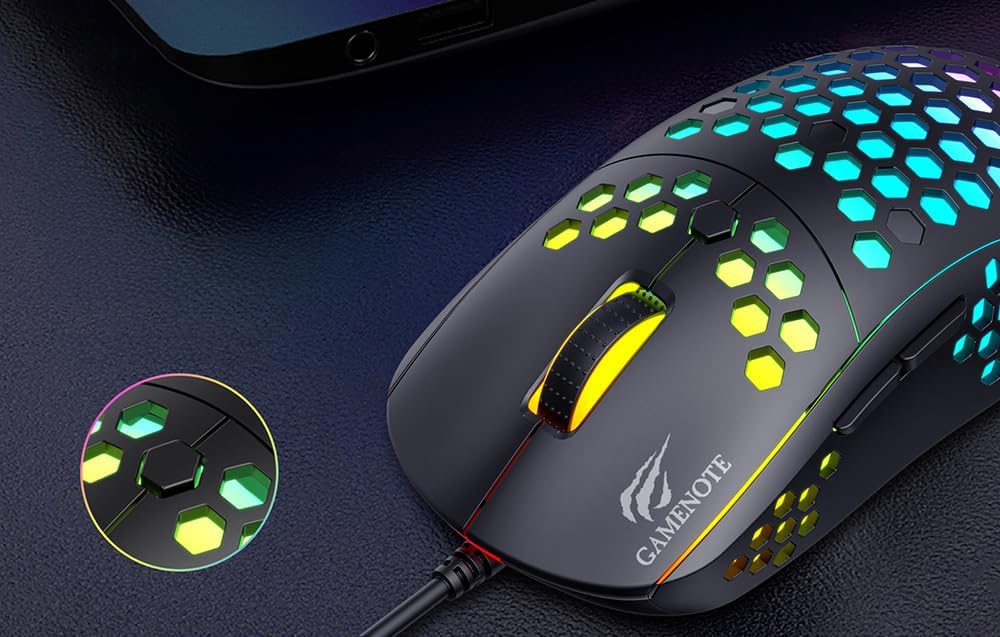
Figure 1: Havit MS1032 Gaming Mouse connected via USB.
3. คู่มือการใช้งาน
3.1 ฟังก์ชั่นพื้นฐาน
- คลิกซ้าย: Primary action, selection, activation.
- คลิกขวา: Opens context menus, performs secondary actions.
- ล้อเลื่อน: Scrolls up/down documents or web หน้าต่างๆ สามารถกดเพื่อใช้งานฟังก์ชันคลิกกลางได้เช่นกัน
- ปุ่มด้านข้าง: โดยทั่วไปใช้สำหรับการนำทางไปข้างหน้า/ถอยหลังใน web เบราว์เซอร์หรือฟังก์ชันที่กำหนดเองในเกม
3.2 การปรับ DPI
The Havit MS1032 features six adjustable DPI (Dots Per Inch) settings, allowing you to change the mouse sensitivity on the fly. This is useful for adapting to different tasks, such as precise aiming in games or fast navigation across multiple monitors.
To adjust the DPI, locate the DPI button, typically positioned behind the scroll wheel. Press this button to cycle through the available DPI settings. The LED lighting on the mouse may change to indicate the current DPI level, providing visual feedback for your selection.
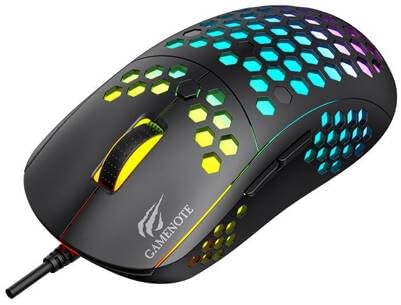
Figure 2: Location of the DPI button (behind the scroll wheel).
4. การบำรุงรักษา
4.1 การทำความสะอาด
เพื่อรักษาประสิทธิภาพและรูปลักษณ์ที่เหมาะสม ควรทำความสะอาดเมาส์ของคุณเป็นประจำ:
- ถอดเมาส์ออกจากคอมพิวเตอร์ของคุณก่อนทำความสะอาด
- ใช้ผ้านุ่มไม่เป็นขุยเช็ดเล็กน้อยampเคลือบด้วยน้ำหรือสารทำความสะอาดอ่อนๆ ที่ไม่กัดกร่อน
- Gently wipe the surface of the mouse.
- For crevices and the optical sensor, use a cotton swab or compressed air to remove dust and debris.
- Avoid using harsh chemicals, abrasive cleaners, or excessive moisture, as these can damage the mouse's finish or internal components.
4.2 พื้นที่จัดเก็บ
When not in use, store the mouse in a clean, dry environment away from direct sunlight and extreme temperatures to prevent damage.
4.3 การดูแลทั่วไป
- ควรหลีกเลี่ยงการทำเมาส์ตกหรือการกระแทกอย่างแรง
- Do not attempt to disassemble the mouse, as this will void the warranty and may cause irreparable damage.
- Keep the mouse away from liquids to prevent electrical damage.
5 การแก้ไขปัญหา
If you encounter issues with your Havit Gaming Mouse MS1032, please refer to the following common solutions:
5.1 เมาส์ไม่ตอบสนอง
- ตรวจสอบการเชื่อมต่อ USB: ตรวจสอบให้แน่ใจว่าเสียบสาย USB เข้ากับพอร์ต USB ที่ใช้งานได้บนคอมพิวเตอร์ของคุณอย่างแน่นหนา ลองใช้พอร์ต USB อื่น
- รีสตาร์ทคอมพิวเตอร์: บางครั้งการรีสตาร์ทคอมพิวเตอร์ง่ายๆ ก็สามารถแก้ไขปัญหาการเชื่อมต่อได้
- ทดสอบบนคอมพิวเตอร์เครื่องอื่น: ถ้าเป็นไปได้ ให้ลองทดสอบเมาส์กับคอมพิวเตอร์เครื่องอื่นเพื่อตรวจสอบว่าปัญหาเกิดจากเมาส์หรือการตั้งค่าคอมพิวเตอร์ของคุณ
5.2 การเคลื่อนที่ของเคอร์เซอร์ผิดปกติหรือกระโดดไปมา
- เซ็นเซอร์ทำความสะอาด: ตรวจสอบให้แน่ใจว่าเซ็นเซอร์ออปติคัลที่ด้านล่างของเมาส์สะอาดและไม่มีฝุ่นหรือเศษต่างๆ
- ตรวจสอบพื้นผิว: ควรใช้เมาส์บนพื้นผิวที่สะอาด ไม่สะท้อนแสง และเรียบเสมอกัน (เช่น แผ่นรองเมาส์) หลีกเลี่ยงพื้นผิวที่เป็นกระจกหรือสะท้อนแสงสูง
- ปรับ DPI: If the cursor is too fast or too slow, adjust the DPI setting using the DPI button.
5.3 ปุ่มใช้งานไม่ได้
- ตรวจสอบสิ่งกีดขวาง: ตรวจสอบให้แน่ใจว่าไม่มีเศษขยะติดอยู่ใต้ปุ่ม
- ความขัดแย้งด้านซอฟต์แวร์: If you have custom mouse software installed, try uninstalling it temporarily to see if it resolves the issue.
5.4 ไฟ LED ไม่ทำงาน
- ตรวจสอบการเชื่อมต่อ: ตรวจสอบให้แน่ใจว่าเมาส์เชื่อมต่อกับคอมพิวเตอร์อย่างถูกต้อง
- วงจรไฟฟ้า: Disconnect and reconnect the mouse to reset its power.
6. ข้อมูลจำเพาะ

Figure 3: Havit MS1032 Gaming Mouse design overview.
| คุณสมบัติ | รายละเอียด |
|---|---|
| แบบอย่าง | MS1032 |
| ยี่ห้อ | ฮาวิท |
| ขนาด | 15 x 8 x 5.2 ซม. |
| น้ำหนัก | 200กรัม |
| การตั้งค่า DPI | ปรับได้ 6 ระดับ |
| ระบบปฏิบัติการ | ลินุกซ์, วินโดวส์ 7, วินโดวส์ XP |
| การเชื่อมต่อ | สาย USB |
| แบตเตอรี่ที่จำเป็น | เลขที่ |
7. การรับประกันและการสนับสนุน
For detailed warranty information and technical support, please refer to the official Havit website or contact your local retailer where the product was purchased. It is recommended to keep your purchase receipt as proof of purchase for any warranty claims.
ผู้ผลิต: ฮาวิท
หมายเลขรุ่น: MS1032