
การแนะนำ
Welcome to the user manual for your Homatics Box R 4K Plus Android TV Media Player. This guide provides essential information for setting up, operating, maintaining, and troubleshooting your device.
The Homatics Box R 4K Plus is designed to deliver a high-quality streaming experience with its Android 11 operating system, 4K Ultra HD resolution, and HDR10+ support. It features a powerful Amlogic S905X4-K processor, 4GB RAM, 32GB flash storage, Dual-WiFi 6, Bluetooth 5.0, and Gigabit Ethernet.
เนื้อหาแพ็คเกจ
โปรดตรวจสอบว่าสินค้าทั้งหมดมีอยู่ในแพ็คเกจของคุณ:
- Homatics Box R 4K Plus Device
- รีโมตคอนโทรลด้วยเสียง
- อะแดปเตอร์ไฟ 12V/1A
- สาย HDMI
- แบตเตอรี่ AAA 2 ก้อน
- คู่มือการใช้งาน (เอกสารนี้)

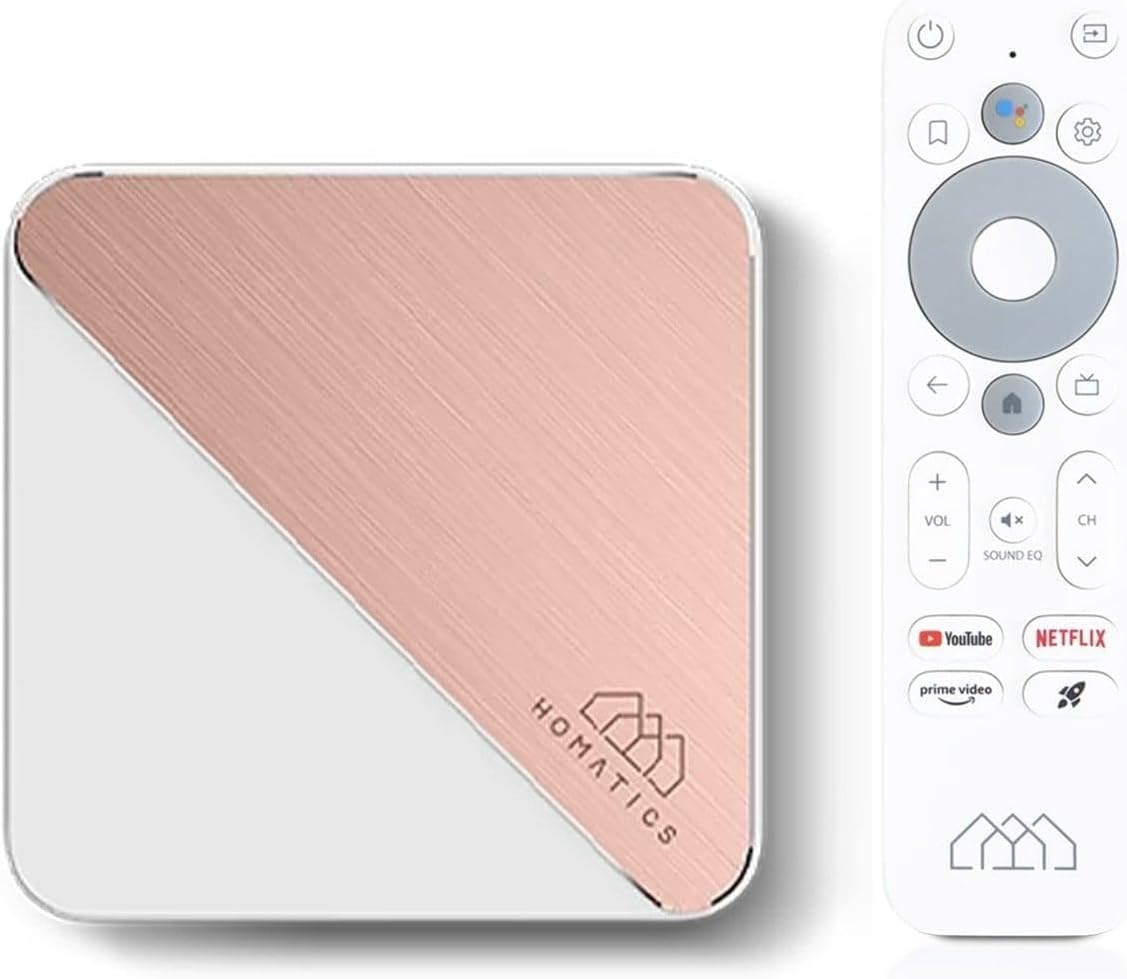
Image: The Homatics Box R 4K Plus device, its voice remote control, and an HDMI cable, illustrating the main components included in the package.
อุปกรณ์โอเวอร์view
Familiarize yourself with the ports and indicators on your Homatics Box R 4K Plus.
ด้านหน้าและด้านข้าง View

ภาพ: ด้านหน้าและด้านข้าง view of the Homatics Box R 4K Plus, highlighting the USB ports for connecting external devices.
หลัง View
ภาพ: ด้านหลัง view of the Homatics Box R 4K Plus, displaying the power input (DC12V), LAN port, HDMI port, Optical audio output, and a USB-C port.
การตั้งค่า
การเชื่อมต่ออุปกรณ์
- Connect the HDMI cable from the Homatics Box R 4K Plus to an HDMI input on your TV.
- Connect the power adapter to the DC12V port on the device and plug it into a power outlet.
- (Optional) For a wired internet connection, connect an Ethernet cable from your router to the LAN port on the device.
- Insert the two AAA batteries into the voice remote control, ensuring correct polarity.
ตัวช่วยเปิดเครื่องและการตั้งค่าเบื้องต้น
- เปิดทีวีของคุณและเลือกอินพุต HDMI ที่ถูกต้อง
- The Homatics Box R 4K Plus will power on automatically.
- ปฏิบัติตามคำแนะนำบนหน้าจอเพื่อดำเนินการตั้งค่าเริ่มต้นให้เสร็จสมบูรณ์ ซึ่งรวมถึง:
- การเลือกภาษา
- Connecting to Wi-Fi (if not using Ethernet).
- Signing in with your Google Account.
- Pairing the voice remote control via Bluetooth.
- Once setup is complete, you will be directed to the Android TV home screen.
คำแนะนำการใช้งาน
Using the Voice Remote Control
The voice remote control allows for easy navigation and voice commands.

Image: The Homatics Box R 4K Plus device alongside its voice remote control, illustrating the compact design of both components.
- ปุ่มเปิด/ปิด: เปิดหรือปิดอุปกรณ์
- ปุ่ม Google Assistant: Activates voice commands. Press and hold to speak your command.
- Navigation Pad (Directional Buttons and OK): เลื่อนดูเมนูและเลือกรายการต่างๆ
- ปุ่มย้อนกลับ: กลับไปยังหน้าจอที่แล้ว
- ปุ่มโฮม: กลับสู่หน้าจอหลักของ Android TV
- ปุ่มปรับระดับเสียง: ปรับระดับเสียงทีวี
- ปุ่มช่อง: Navigate channels (if applicable for certain apps).
- ปุ่มแอปเฉพาะ: Quick access to Google Play, Prime Video, and Netflix.
การเข้าถึงแอปและเนื้อหา
The Homatics Box R 4K Plus provides access to a wide range of applications through the Google Play Store.
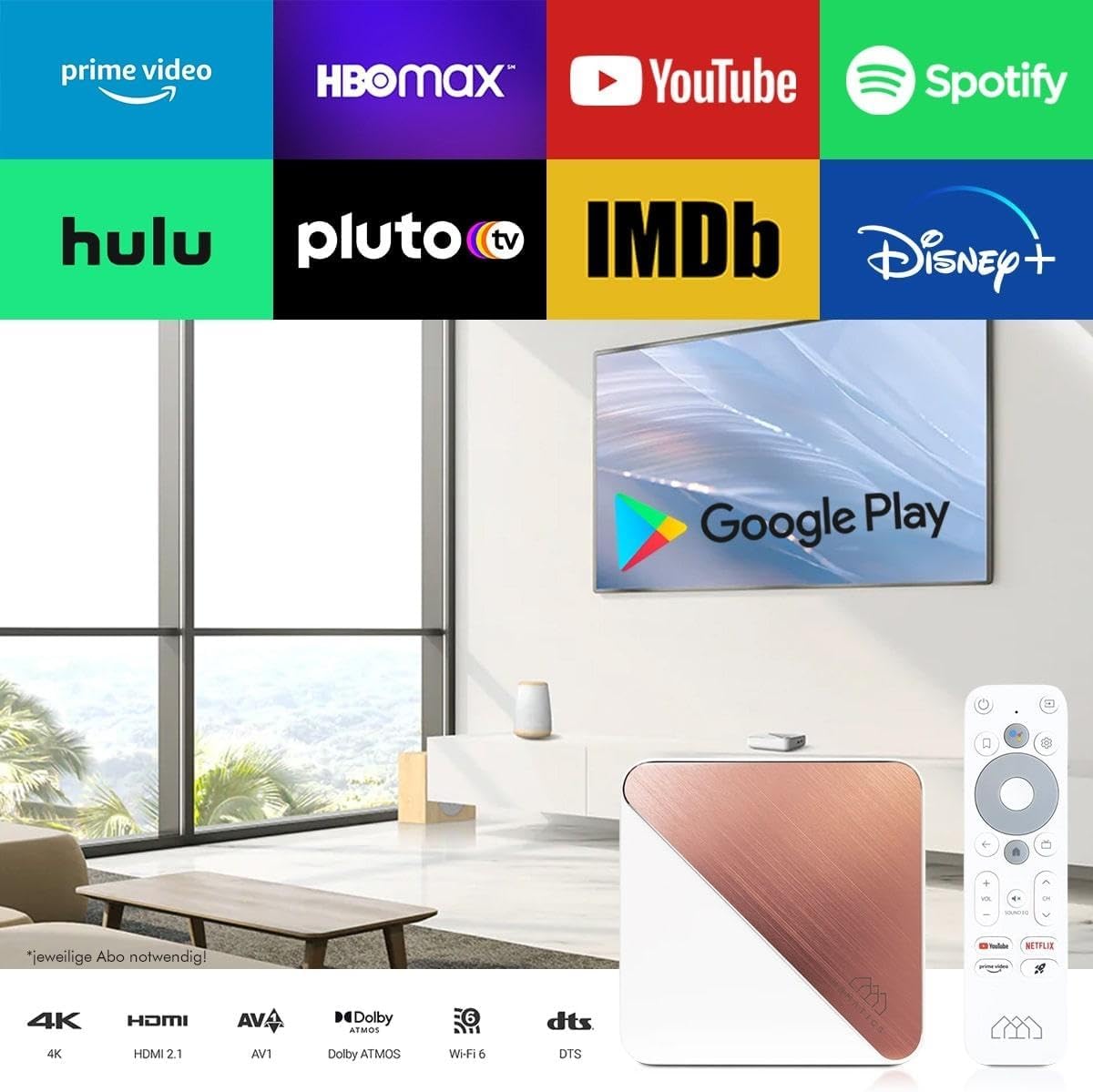
Image: A television screen displaying logos of popular streaming services like Prime Video, HBO Max, YouTube, Spotify, Hulu, Pluto TV, IMDb, Disney+, and the Google Play Store logo, indicating the wide range of available content.
- From the home screen, navigate to the "Apps" section.
- Select the Google Play Store icon to browse and download new applications.
- Popular streaming services like Netflix, Prime Video, and Disney+ are readily available.
Note: Subscriptions may be required for certain streaming services and are not included with the device.
Chromecast ในตัว
The device features built-in Chromecast functionality, allowing you to cast content from your smartphone, tablet, or computer directly to your TV.

Image: A smartphone displaying an image of a cat, with the same image being mirrored onto a large television screen, demonstrating the Chromecast built-in feature for screen mirroring.
- Ensure your Homatics Box R 4K Plus and your mobile device are connected to the same Wi-Fi network.
- Open a Chromecast-enabled app (e.g., YouTube, Netflix, Google Photos) on your mobile device.
- แตะไอคอน Cast 🖥 ภายในแอป
- Select your Homatics Box R 4K Plus from the list of available devices.
- The content will begin playing on your TV.
การเล่นเกมและการเชื่อมต่อ
The powerful processor and connectivity options support smooth gaming experiences.

Image: A person playing a video game on a large television screen, with the Homatics Box R 4K Plus visible on a shelf below the TV. This illustrates the device's capability for smooth gameplay and rendering graphics, especially when paired with a Bluetooth gamepad.
You can pair Bluetooth gamepads for an enhanced gaming experience. The device's hardware ensures smooth gameplay and fast graphics rendering.
การซ่อมบำรุง
การทำความสะอาด
To clean the device, use a soft, dry cloth. Do not use liquid cleaners or aerosol sprays.
การอัพเดตซอฟต์แวร์
The Homatics Box R 4K Plus receives software updates to improve performance and add new features.
- Go to "Settings" on the Android TV home screen.
- Select "Device Preferences" or "About".
- Choose "System update" to check for and install available updates.
Note: Ensure a stable internet connection during updates. Do not power off the device during an update.
การจัดการการจัดเก็บข้อมูล
The device comes with 32GB of eMMC flash memory. You can expand storage using the Micro SD card slot (if available, though not explicitly listed in ports, the feature bullet mentions "internal memory expandable thanks to the Micro SD card port").
วิธีจัดการพื้นที่จัดเก็บข้อมูล:
- Go to "Settings" on the Android TV home screen.
- Select "Device Preferences" or "Storage".
- View storage usage and manage installed applications.
การแก้ไขปัญหา
| ปัญหา | สาเหตุที่เป็นไปได้ | สารละลาย |
|---|---|---|
| ไม่มีไฟฟ้า | ไม่ได้เชื่อมต่ออะแดปเตอร์ไฟหรือเต้ารับไฟฟ้าชำรุด | ตรวจสอบให้แน่ใจว่าอะแดปเตอร์ไฟฟ้าเชื่อมต่อกับอุปกรณ์อย่างแน่นหนาและมีเต้ารับไฟฟ้าที่ใช้งานได้ |
| ไม่มีภาพในทีวี | Incorrect HDMI input selected on TV; loose HDMI cable. | Select the correct HDMI input on your TV. Check HDMI cable connections at both ends. |
| รีโมทคอนโทรลไม่ตอบสนอง | แบตเตอรี่อ่อน รีโมตไม่จับคู่ | Replace AAA batteries. Re-pair the remote control in Bluetooth settings if necessary. |
| ไม่สามารถเชื่อมต่อ Wi-Fi ได้ | Incorrect password; router issues; device too far from router. | Verify Wi-Fi password. Restart your router. Move the device closer to the router or use a wired Ethernet connection. |
| 4K/HDR content not displaying correctly | TV or media not compatible; HDMI cable limitations. | Ensure your TV supports 4K/HDR and the content is 4K/HDR. Use a high-speed HDMI cable. |
If the problem persists, please contact Homatics customer support.
ข้อมูลจำเพาะ
| คุณสมบัติ | รายละเอียด |
|---|---|
| ชื่อรุ่น | Box R |
| หมายเลขรุ่น | 8588003477170 |
| ระบบปฏิบัติการ | แอนดรอยด์ทีวี 11.0 |
| ปณิธาน | 4K Ultra HD (3840 x 2160) @ 60 fps, HDR10+ |
| โปรเซสเซอร์ | Amlogic S905X4-K (Quad Core Cortex-A55 CPU) |
| แรม | แรม 4GB |
| การจัดเก็บข้อมูลภายใน | 32GB eMMC Flash (expandable via Micro SD card port) |
| การเชื่อมต่อ | Dual-WiFi 6 (2.4 & 5GHz), Bluetooth 5.0, Ethernet (1000 Mbit/s) |
| พอร์ต | HDMI, USB, Optical, DC12V, LAN |
| คุณสมบัติพิเศษ | Chromecast Built-in, Google Assistant, Google Play Store access |
| สี | สีขาว |
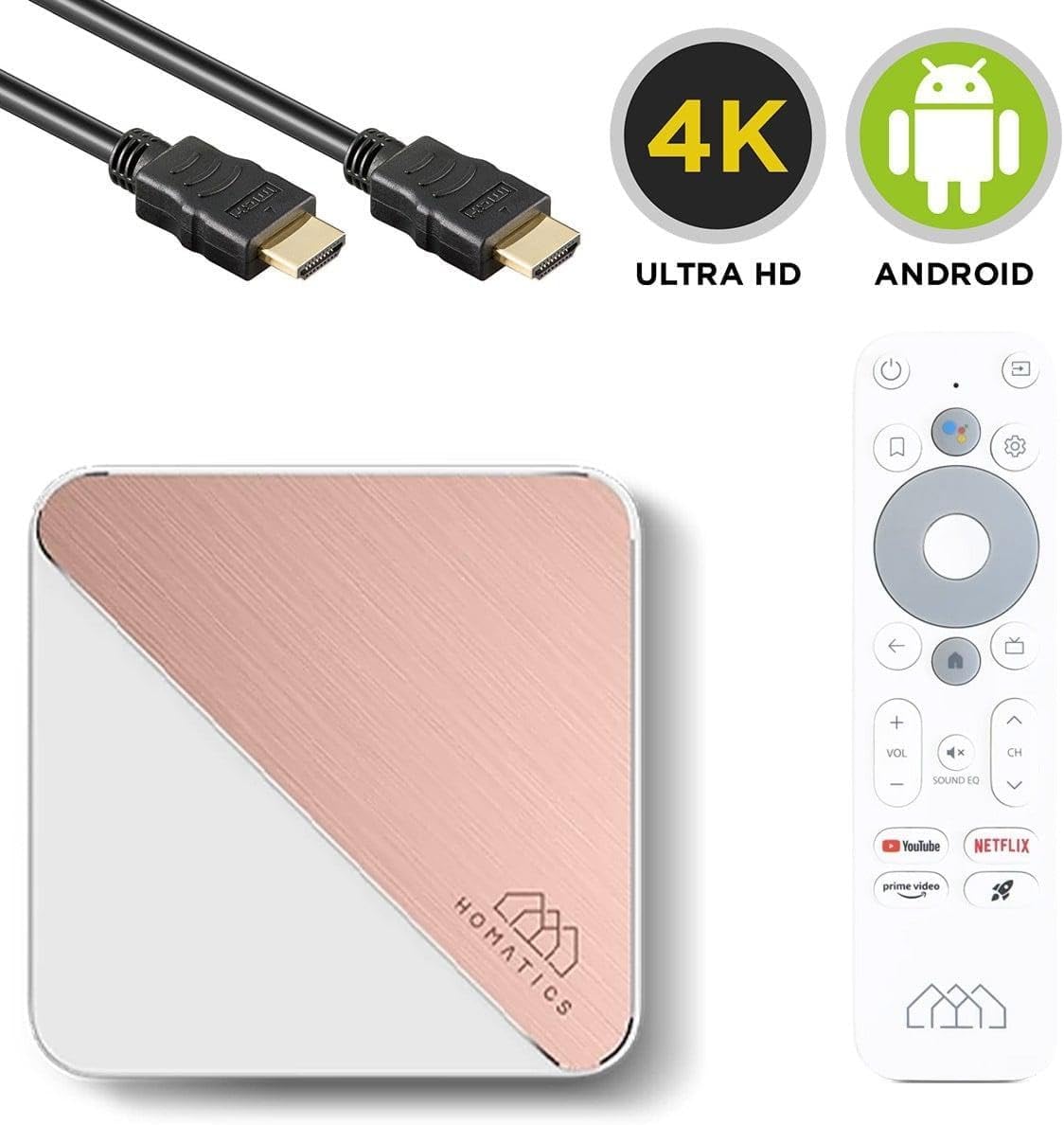
Image: The Homatics Box R 4K Plus device, remote, and HDMI cable, accompanied by "4K Ultra HD" and "Android" logos, emphasizing its core capabilities.
การรับประกันและการสนับสนุน
ข้อมูลการรับประกัน
This product comes with a standard manufacturer's warranty. Please refer to the warranty card included in your package for specific terms and conditions. Keep your proof of purchase for warranty claims.
การสนับสนุนลูกค้า
For technical assistance, troubleshooting beyond this manual, or warranty inquiries, please contact Homatics customer support.
ข้อมูลติดต่อ: (Please refer to the official Homatics website or product packaging for the most current contact details.)
แหล่งข้อมูลออนไลน์: Visit the Homatics official webเว็บไซต์นี้รวบรวมคำถามที่พบบ่อย (FAQ) การอัปเดตซอฟต์แวร์ และแหล่งข้อมูลสนับสนุนเพิ่มเติม