
การแนะนำ
This manual provides essential information for the proper setup, operation, and maintenance of your GRAUGEAR G-3501-A-10G-8TB External Hard Drive. Please read these instructions carefully before using the product to ensure optimal performance and safety. This external hard drive is designed to expand storage for your PlayStation 4 and PlayStation 5 consoles, allowing you to store and manage a larger game library.
ข้อมูลด้านความปลอดภัย
- Ensure the power adapter is connected to a compatible power outlet.
- อย่าให้เครื่องสัมผัสกับน้ำ ความชื้น หรืออุณหภูมิที่สูงหรือต่ำเกินไป
- หลีกเลี่ยงการทำอุปกรณ์หล่นหรือกระแทกอย่างรุนแรง
- อย่าพยายามเปิดหรือซ่อมแซมอุปกรณ์ด้วยตนเอง แนะนำให้ส่งช่างผู้ชำนาญเข้ารับบริการทั้งหมด
- เก็บอุปกรณ์ให้ห่างจากสนามแม่เหล็กแรงสูง
- Disconnect the power supply during thunderstorms or when unused for extended periods.
เนื้อหาแพ็คเกจ
ตรวจสอบว่ารายการทั้งหมดที่ระบุไว้ด้านล่างนี้รวมอยู่ในแพ็คเกจของคุณ:
- GRAUGEAR G-3501-A-10G-8TB External Hard Drive
- อะแดปเตอร์แปลงไฟ
- สาย USB Type-C เป็น Type-C
- สาย USB Type-C เป็น Type-A
- คู่มือการใช้งาน (เอกสารนี้)
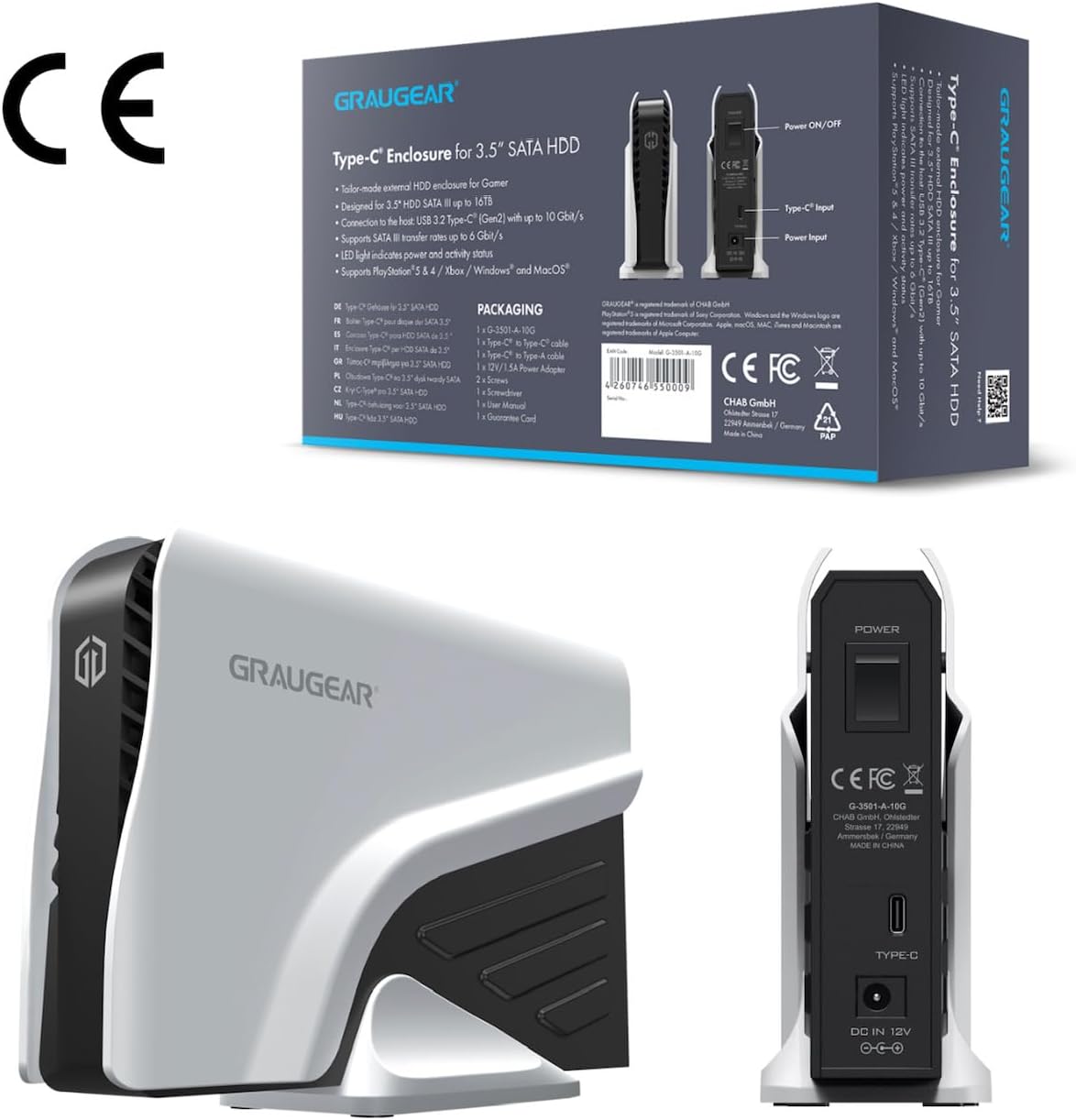
This image shows the product packaging alongside a rear view of the GRAUGEAR external hard drive, detailing the power input, Type-C port, and power on/off switch.
สินค้าเกินview
The GRAUGEAR G-3501-A-10G-8TB is a high-capacity external hard drive designed for reliable data storage and quick access. Its robust enclosure protects the internal 3.5-inch SATA HDD, while its connectivity options ensure compatibility with various devices.
This image displays the GRAUGEAR external hard drive from the front, showcasing its sleek design and compact form factor, designed to complement gaming consoles.

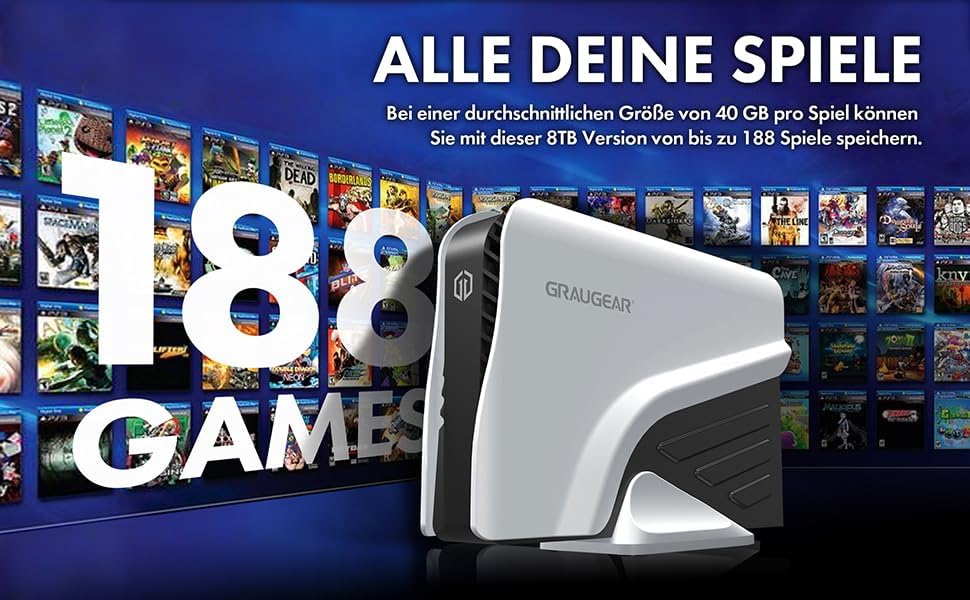
This image highlights key features of the GRAUGEAR external hard drive, including its Type-C enclosure for 3.5-inch SATA HDDs, support for UASP and TRIM technologies, and the inclusion of two USB cables for versatile connectivity.
พอร์ตและตัวชี้วัด
- พอร์ต USB-C: For data connection to your console or computer.
- กำลังไฟเข้า: เชื่อมต่อกับอะแดปเตอร์ไฟฟ้าที่ให้มา
- สวิตช์เปิด/ปิด: ควบคุมการจ่ายไฟให้กับอุปกรณ์
- ไฟแสดงสถานะ LED: Shows the operational status of the hard drive (e.g., power on, data activity).
การตั้งค่า
1. กำลังเชื่อมต่อกับพลังงาน
- Connect the included power adapter to the 'Power Input' port on the back of the GRAUGEAR external hard drive.
- เสียบอะแดปเตอร์ไฟฟ้าเข้ากับเต้ารับไฟฟ้าที่ผนัง
- Flip the 'Power On/Off' switch to the 'On' position. The LED indicator should illuminate.
2. Connecting to PlayStation Console
The GRAUGEAR external hard drive supports both USB Type-A and USB Type-C connections.
- Choose the appropriate USB cable (Type-C to Type-C or Type-C to Type-A) based on the available port on your PlayStation console.
- Connect one end of the USB cable to the USB-C port on the external hard drive.
- Connect the other end of the USB cable to an available USB port on your PlayStation 4 or PlayStation 5 console. For optimal performance, use a USB 3.2 Gen 2 compatible port if available.

This image illustrates the GRAUGEAR external hard drive's flexible connectivity, showing it connected to a console via a USB Type-A port and to another console via a USB Type-C port, demonstrating its compatibility with various console interfaces.

The external hard drive is shown connected and positioned next to a PlayStation 5 console, illustrating its intended use and physical integration with the gaming system.
3. Initial Console Setup and Formatting
Once connected, your PlayStation console should detect the external hard drive. Follow the on-screen prompts to format the drive for use as extended storage. This process will erase any existing data on the drive, so ensure it is empty or backed up before proceeding.
- For PlayStation 4: The console will guide you through formatting the drive as 'Extended Storage'. Once formatted, you can install and play PS4 games directly from this drive.
- For PlayStation 5: The console will guide you through formatting the drive as 'Extended USB Storage'. You can store PS4 games and PS5 games on this drive. However, PS5 games stored on this drive must be moved back to the console's internal SSD to be played. PS4 games can be played directly from the external drive.
Operating the External Hard Drive
Storing and Playing Games
After successful formatting, your console will automatically manage game installations and transfers to and from the external drive. You can typically set the external drive as the default installation location for new games (especially PS4 games on PS5). Consult your console's system settings for specific options on moving, copying, or deleting games.
การโอนข้อมูล
The GRAUGEAR G-3501-A-10G-8TB supports USB 3.2 Gen 2, offering data transfer speeds up to 10 Gbit/s. Actual speeds may vary depending on your console's USB port, the game size, and other system activities. This high-speed interface ensures quick game transfers and loading times for PS4 titles.

This image visually confirms the broad compatibility of the GRAUGEAR external hard drive, showing icons for PS5, Xbox, Router, and TV, indicating its versatility beyond just PlayStation consoles.

The external hard drive is depicted connected to a computer monitor, demonstrating its use with a PC setup, highlighting its functionality as a general-purpose external storage device.
การซ่อมบำรุง
- การทำความสะอาด: Use a soft, dry cloth to clean the exterior of the hard drive. Do not use liquid cleaners or aerosols.
- พื้นที่จัดเก็บ: When not in use, store the hard drive in a cool, dry place, away from direct sunlight and extreme temperatures.
- การตัดการเชื่อมต่อ: Always safely eject the external hard drive from your console's system menu before physically disconnecting the USB cable or power to prevent data corruption.
การแก้ไขปัญหา
- ไม่รู้จักไดรฟ์:
- ตรวจสอบให้แน่ใจว่าอะแดปเตอร์ไฟฟ้าเชื่อมต่ออย่างแน่นหนาและไดรฟ์เปิดอยู่
- Check that the USB cable is firmly connected to both the drive and the console.
- Try connecting the drive to a different USB port on your console.
- ทดสอบด้วยสาย USB อื่นหากมี
- Restart your PlayStation console.
- ความเร็วในการถ่ายโอนข้อมูลช้า:
- Ensure you are using a USB 3.2 compatible port on your console.
- Avoid running other high-bandwidth applications or downloads during transfers.
- ตรวจสอบว่าสาย USB ไม่ชำรุดเสียหาย
- ไฟแสดงสถานะ LED ไม่ติด:
- Check the power adapter connection and wall outlet.
- Ensure the power switch on the drive is in the 'On' position.
ข้อมูลจำเพาะ
| คุณสมบัติ | ข้อมูลจำเพาะ |
|---|---|
| ยี่ห้อ | กราเกียร์ |
| หมายเลขรุ่น | G-3501-A-10G-8TB |
| สี | สีดำ |
| แพลตฟอร์มฮาร์ดแวร์ | เพลย์สเตชั่น 4, เพลย์สเตชั่น 5 |
| ความเร็วในการหมุนของฮาร์ดไดรฟ์ | 7200 รอบต่อนาที |
| ขนาดฮาร์ดไดรฟ์ | 8TB |
| เทคโนโลยีฮาร์ดไดรฟ์ | ฮาร์ดไดรฟ์แบบกลไก |
| อินเทอร์เฟซฮาร์ดไดรฟ์ | ยูเอสบี-ซี |
| ฮาร์ดแวร์อินเตอร์เฟซ | USB 3.1 Type C, USB 3.1 Type A |
| ประเภทขั้วต่อ | ยูเอสบี |
| ความเข้ากันได้ของอุปกรณ์ | เกมคอนโซล |
| ขนาดรายการ (ยาว x กว้าง x สูง) | 19.7 x 5.5 x 13.3 ซม. |
| น้ำหนักผลิตภัณฑ์ | 10 กรัม |
| คุณสมบัติพิเศษ | Design Hard Drive, External 8 TB Hard Drive for PS4/PS5, LED Light |
| ความจุในการเก็บข้อมูลแบบดิจิตอล | 8TB |
| เทคโนโลยีการเชื่อมต่อ | ยูเอสบี |
| ฟอร์มแฟคเตอร์ของฮาร์ดไดรฟ์ | 3.5 นิ้ว |
| ประเภทการติดตั้ง | ฮาร์ดไดรฟ์ภายนอก |
| ผู้ผลิต | บริษัท ชาบ จำกัด |
| ประเทศต้นกำเนิด | จีน |
การรับประกันและการสนับสนุน
For warranty information and technical support, please refer to the documentation provided with your purchase or visit the official GRAUGEAR website. Keep your proof of purchase for warranty claims. If you encounter issues not covered in this manual, please contact GRAUGEAR customer support for assistance.