
kinstone KST102SA_ROW
คู่มือผู้ใช้แท็บเล็ต Kinstone 10.1" 4G LTE ระบบ Android
Model: KST102SA_ROW
1. บทนำ
Welcome to the Kinstone 10.1" 4G LTE Android Tablet user manual. This guide provides comprehensive instructions for setting up, operating, and maintaining your new tablet. Designed for both work and play, this tablet features an octa-core processor, 8GB RAM, 128GB internal storage (expandable up to 1TB), an 8000mAh battery, and dual SIM slots for enhanced connectivity.

รูปที่ 1.1: ด้านหน้าและด้านหลัง view of the Kinstone 10.1" Android Tablet, showcasinด้วยการออกแบบที่เพรียวบางและโมดูลกล้อง
2. สินค้าหมดview
2.1 ส่วนประกอบและคุณสมบัติ
Your Kinstone tablet is equipped with advanced features for a superior user experience. Key components include:
- แสดง: 10.1-inch Full HD IPS screen with 1920x1200 resolution, 178° wide viewing angle, and low blue light technology for eye comfort.
- โปรเซสเซอร์: High-performance octa-core processor (hexa-core @2.0 GHz Cortex-A55 and dual-core @1.8 GHz Cortex-A75) with 2025 AI Chip.
- หน่วยความจำและการจัดเก็บ: แรม 8GB และหน่วยความจำภายใน 128GB สามารถเพิ่มได้สูงสุด 1TB ผ่านการ์ด microSD
- กล้องถ่ายรูป: กล้องหลัง 13 ล้านพิกเซล และกล้องหน้า 5 ล้านพิกเซล
- แบตเตอรี่: แบตเตอรี่ 8000mAh ใช้งานได้ยาวนานขึ้น
- การเชื่อมต่อ: 4G VoLTE dual SIM support, Bluetooth 5.0, 2.4/5G dual-band Wi-Fi.
- เสียง: Dual speakers for stereo effect.
- พอร์ต: Type-C charging port, 3.5mm earphone jack.

รูปที่ 2.1: เกินview of the Android 12 OS features, highlighting efficiency, safety, entertainment, and display enhancements.

Figure 2.2: Visual summary of the Kinstone Android tablet's core features and specifications.
3. การตั้งค่า
3.1 การชาร์จเริ่มต้น
Before first use, fully charge your tablet. Connect the provided Type-C charging cable to the tablet's charging port and the other end to the charger. Plug the charger into a power outlet. The charging indicator will show the charging status. A full charge typically takes approximately 2 hours.

Figure 3.1: Illustration of the tablet's long-lasting 8000mAh battery life, supporting various activities.
3.2 การเปิด/ปิดเครื่อง
- การเปิดเครื่อง: Press and hold the Power button until the Kinstone logo appears on the screen.
- วิธีปิดเครื่อง: กดปุ่มเปิด/ปิดค้างไว้จนกระทั่งเมนูตัวเลือกพลังงานปรากฏขึ้น เลือก "ปิดเครื่อง" และยืนยัน
- ในการรีสตาร์ท: จากเมนูตัวเลือกพลังงาน เลือก "รีสตาร์ท"
3.3 ตัวช่วยการตั้งค่าเริ่มต้น
เมื่อเปิดเครื่องครั้งแรก แท็บเล็ตจะแนะนำคุณผ่านตัวช่วยการตั้งค่าเบื้องต้น ทำตามคำแนะนำบนหน้าจอเพื่อ:
- เลือกภาษาของคุณ
- เชื่อมต่อกับเครือข่าย Wi-Fi
- Sign in with your Google account (or create one).
- ตั้งค่าการล็อกหน้าจอ (รหัส PIN, รูปแบบ, รหัสผ่าน หรือ Face ID)
- Review และยอมรับข้อกำหนดและเงื่อนไข
4. คู่มือการใช้งาน
4.1 การนำทางอินเทอร์เฟซ Android
Your tablet runs on Android 12, offering an intuitive user interface. Common gestures include:
- แตะ: การเลือกสินค้าหรือเปิดแอป
- ปัด: การเลื่อนดูหน้าจอหรือรายการ
- บีบเพื่อซูม: การซูมเข้าหรือออกจากภาพและ web หน้า
- กดยาว: เพื่อเข้าถึงเมนูบริบทหรือย้ายไอคอนแอป
4.2 การติดตั้งแอพพลิเคชั่น
Applications can be downloaded and installed from the Google Play Store. Ensure you are connected to the internet before downloading.
- เปิด เพลย์สโตร์ แอป.
- ค้นหา แอปพลิเคชันที่ต้องการ
- แตะ ติดตั้ง และทำตามคำแนะนำบนหน้าจอ
4.3 การใช้ Face ID
The tablet supports Face Recognition for unlocking. To set up Face ID:
- ไปที่ การตั้งค่า > ความปลอดภัยและความเป็นส่วนตัว > ปลดล็อคด้วยใบหน้า.
- ปฏิบัติตามคำแนะนำเพื่อลงทะเบียนใบหน้าของคุณ

Figure 4.1: Display features, including Face Recognition for secure and fast unlocking.
5. การเชื่อมต่อ
5.1 การเชื่อมต่อ Wi-Fi
Connect to Wi-Fi for internet access:
- ไปที่ การตั้งค่า > เครือข่ายและอินเตอร์เน็ต > อินเทอร์เน็ต.
- เปิด Wi-Fi
- เลือกเครือข่ายที่คุณต้องการและป้อนรหัสผ่านหากจำเป็น

Figure 5.1: Connectivity options, including dual-band Wi-Fi for fast and stable connections.
5.2 การจับคู่บลูทูธ
Pair your tablet with Bluetooth devices like headphones or speakers:
- ไปที่ การตั้งค่า > อุปกรณ์ที่เชื่อมต่อ > การตั้งค่าการเชื่อมต่อ > บลูทูธ.
- เปิดบลูทูธ
- Select the device you wish to pair from the list of available devices.
5.3 4G LTE and Dual SIM
The tablet supports 4G VoLTE with dual SIM slots, allowing for simultaneous calls and browsing. You can use two SIM cards or one SIM card and one microSD card.
- หาช่องใส่ซิมการ์ดที่ด้านข้างของแท็บเล็ต
- ใช้เครื่องมือถอดซิมที่ให้มาเพื่อเปิดถาด
- Insert your Nano-SIM cards and/or microSD card into the designated slots.
- ค่อยๆ ดันถาดกลับเข้าไปในแท็บเล็ต

Figure 5.2: Dual card slot functionality for SIM cards and expandable storage.
6. การใช้กล้อง
Your tablet is equipped with a 13MP rear camera and a 5MP front camera for capturing photos and videos, and for video calls.
- เปิด กล้อง แอปจากหน้าจอหลักหรือลิ้นชักแอป
- สลับระหว่างกล้องหน้าและกล้องหลังโดยใช้ไอคอนกล้อง
- แตะปุ่มชัตเตอร์เพื่อถ่ายภาพ หรือปุ่มบันทึกเพื่อเริ่ม/หยุดบันทึกวิดีโอ
- Access various camera modes and settings within the app.
7. การจัดการแบตเตอรี่
แบตเตอรี่ 8000mAh ให้ ample power for daily use. To optimize battery life:
- ลดความสว่างหน้าจอ
- Turn off Wi-Fi, Bluetooth, and 4G when not in use.
- ปิดแอพพลิเคชันพื้นหลัง
- เปิดใช้งานโหมดประหยัดแบตเตอรี่ใน การตั้งค่า > แบตเตอรี่.
The tablet supports fast charging via its Type-C port.
8. การจัดการการจัดเก็บข้อมูล
Your tablet comes with 128GB of internal storage, which can be expanded up to 1TB using a microSD card.
- To check storage usage: Go to การตั้งค่า > พื้นที่จัดเก็บ.
- To free up space: Delete unnecessary fileถอนการติดตั้งแอปที่ไม่ใช้งาน หรือย้ายไฟล์ขนาดใหญ่ fileไปยังการ์ด microSD

Figure 8.1: Visual representation of the tablet's generous storage capabilities.
9. การบำรุงรักษา
To ensure the longevity and optimal performance of your Kinstone tablet:
- Keep the tablet clean using a soft, lint-free cloth. Avoid harsh chemicals.
- Protect the screen with a screen protector (one is included).
- ควรหลีกเลี่ยงการวางแท็บเล็ตไว้ในที่ที่มีอุณหภูมิสูงหรือต่ำเกินไป แสงแดดโดยตรง หรือความชื้น
- Regularly update the operating system and applications to the latest versions.
- Perform periodic backups of important data.
10 การแก้ไขปัญหา
หากคุณประสบปัญหาเกี่ยวกับแท็บเล็ตของคุณ โปรดดูวิธีแก้ไขทั่วไปต่อไปนี้:
| ปัญหา | วิธีแก้ปัญหาที่เป็นไปได้ |
|---|---|
| แท็บเล็ตไม่เปิด | ตรวจสอบให้แน่ใจว่าแบตเตอรี่ชาร์จเต็มแล้ว กดปุ่มเปิด/ปิดค้างไว้อย่างน้อย 10-15 วินาทีเพื่อบังคับรีสตาร์ท |
| ปัญหาการเชื่อมต่อ Wi-Fi | Restart your Wi-Fi router. Go to Settings > Network & internet > Internet, forget the network, and reconnect. Ensure the tablet is within range. |
| แอปค้างหรือขัดข้อง | Close the app and reopen it. Clear the app's cache (Settings > Apps > [App Name] > Storage & cache > Clear cache). Ensure the app is updated. |
| ประสิทธิภาพการทำงานช้า | ปิดแอปที่ไม่ได้ใช้งาน ล้างแคชและไฟล์ชั่วคราว files. Check storage space and free up if necessary. Restart the tablet. |
| แบตเตอรี่หมดเร็ว | Reduce screen brightness. Disable unnecessary features like GPS, Bluetooth, or Wi-Fi when not in use. Check battery usage in settings to identify power-hungry apps. |
If problems persist, contact Kinstone customer support for further assistance.
11. ข้อมูลจำเพาะ
Detailed technical specifications for your Kinstone tablet:
| คุณสมบัติ | ข้อมูลจำเพาะ |
|---|---|
| หมายเลขรุ่น | KST102SA_ROW |
| ระบบปฏิบัติการ | แอนดรอยด์ 12 |
| ขนาดหน้าจอ | 10.1 นิ้ว |
| ความละเอียดหน้าจอ | 1920x1200 พิกเซล |
| โปรเซสเซอร์ | 2 GHz Octa-Core (Unisoc) |
| แรม | แรม DDR8 4GB |
| การจัดเก็บข้อมูลภายใน | หน่วยความจำแฟลช 128 GB |
| พื้นที่เก็บข้อมูลแบบขยายได้ | สูงสุด 1 TB ผ่าน MicroSD |
| โคโปรเซสเซอร์กราฟิก | มาลี-G57 MP1 |
| ประเภทไร้สาย | 802.11a, 802.11ac (2.4G/5G Dual-band Wi-Fi) |
| บลูทูธ | 5.0 |
| กล้องหลัง | 13 MP |
| กล้องหน้า | 5 MP |
| ความจุของแบตเตอรี่ | 8000 mAh (ลิเธียมโพลิเมอร์) |
| อายุการใช้งานแบตเตอรี่โดยเฉลี่ย | 8 ชั่วโมง |
| น้ำหนักสินค้า | 2 ปอนด์ |
| ขนาดสินค้า | 15.8 x 24.1 x 0.8 นิ้ว |
| สี | สีเทา |
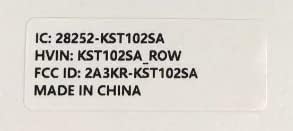
Figure 11.1: Product label with model number and regulatory information.
12. การรับประกันและการสนับสนุน
12.1 บริการรับประกัน
Kinstone provides a warranty service for your tablet. Within three months from the date of purchase, Kinstone offers replacement services for eligible issues, not repair. Please retain your proof of purchase.
12.2 การสนับสนุนลูกค้า
For any questions, technical assistance, or warranty claims, please contact Kinstone customer support. You may also be eligible to receive a compatible leather case by contacting the seller after receiving your tablet.
Visit the official Kinstone store for more information and support: Kinstone Store on Amazon
Ask a question about this manual
Ask about setup, troubleshooting, compatibility, parts, safety, or missing instructions. Manuals+ will review the question and use this page’s manual context to help answer it.