
1. บทนำ
This manual provides instructions for the symcode HX-5500-Wireless 2D QR Desktop Barcode Scanner. This device is designed for efficient and versatile barcode scanning in various environments. It features a TFT color LCD screen, multiple connectivity options (Bluetooth, 2.4GHz Wireless, Wired USB), and omnidirectional scanning capabilities.
คุณสมบัติหลัก:
- หน้าจอแสดงผล: TFT Color LCD screen with white backlight for real-time viewing of barcode content, type, number, length, battery status, signal strength, and transmission status.
- การเชื่อมต่อ: Supports 2.4G Wireless, Bluetooth, and Wired USB connections.
- การสแกนรอบทิศทาง: Desktop design with a scan window that can rotate 90 degrees for flexible scanning.
- การออกแบบที่แข็งแกร่ง: Durable ABS material shell, designed to withstand repeated 5ft/1.5m drops to concrete.
- การสแกนแบบตรวจจับอัตโนมัติ: Automatically detects and scans barcodes.
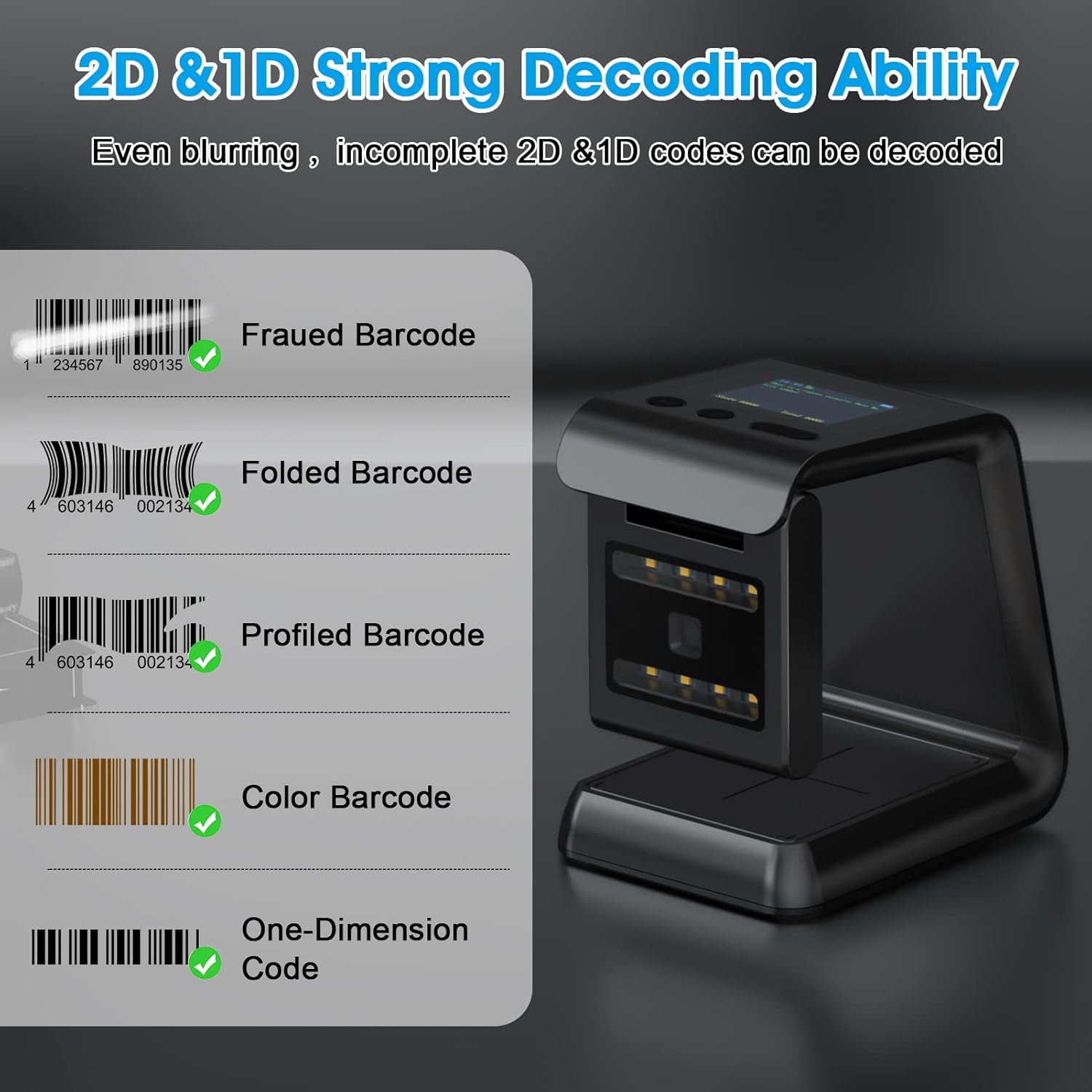
- ความสามารถในการถอดรหัส: Capable of scanning 1D and 2D/QR codes from labels, paper, mobile phone, or computer displays, including damaged, distorted, colorful, and reflective barcodes.
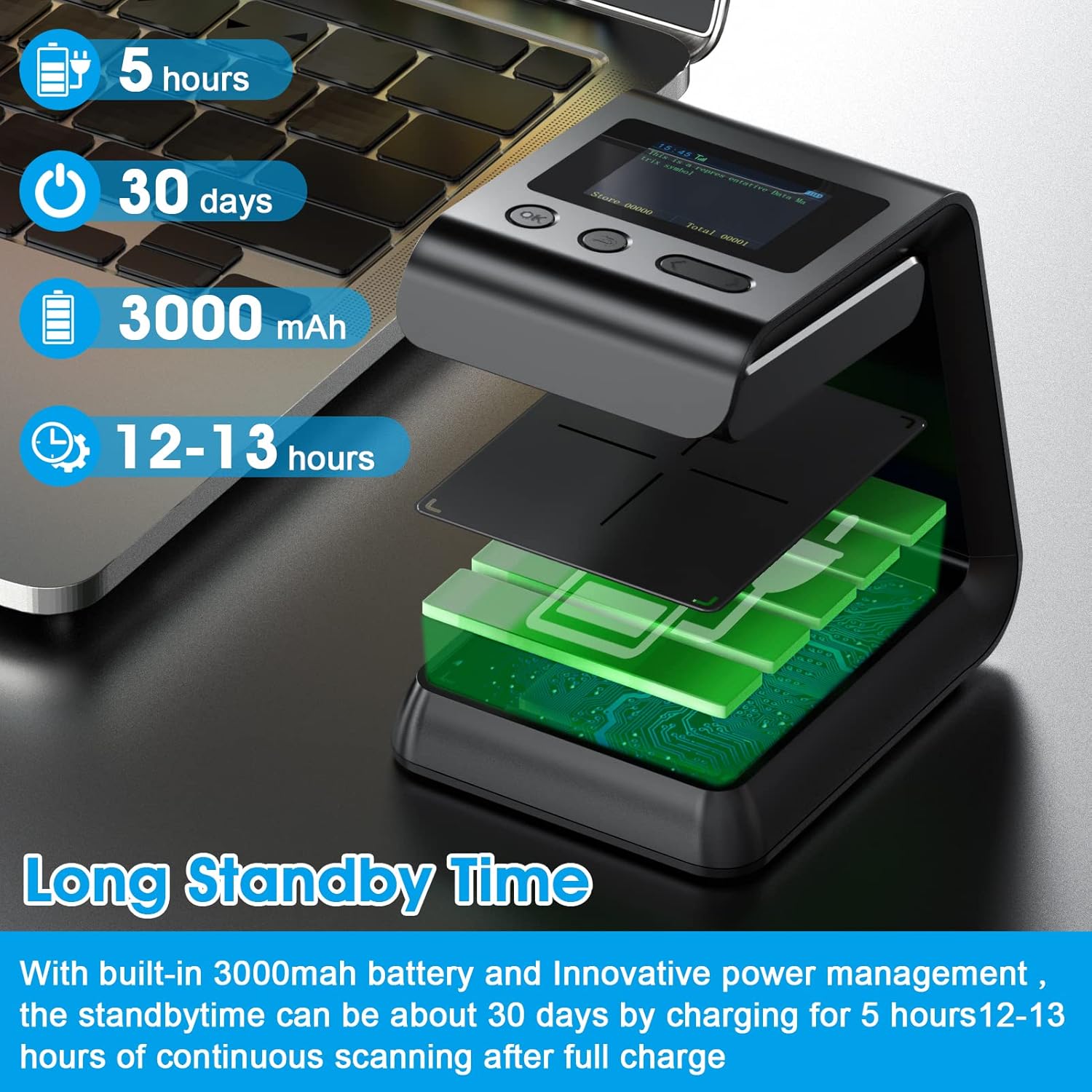
- อายุการใช้งานแบตเตอรี่ยาวนาน: Built-in 3000mAh battery provides extended operation time.

2. เนื้อหาบรรจุภัณฑ์
กรุณาตรวจสอบสิ่งของภายในบรรจุภัณฑ์เมื่อแกะกล่องเพื่อให้แน่ใจว่ามีสินค้าครบทั้งหมด:
- symcode HX-5500-Wireless Barcode Scanner Unit
- สาย USB
- ดองเกิลไร้สาย 2.4GHz
- คู่มือการใช้งาน (เอกสารนี้)

3. การตั้งค่า
3.1 การชาร์จเครื่องสแกน
- Connect the provided USB cable to the scanner's charging port.
- เสียบปลายอีกด้านของสาย USB เข้ากับพอร์ต USB ที่มีไฟเลี้ยง (เช่น คอมพิวเตอร์ อะแดปเตอร์ USB ติดผนัง)
- The screen display will indicate charging status. A full charge typically takes approximately 5 hours.
3.2 การเชื่อมต่อเครื่องสแกนเนอร์
The scanner supports multiple connection methods:
3.2.1 การเชื่อมต่อไร้สาย 2.4GHz
- Insert the 2.4GHz wireless dongle into an available USB port on your computer.
- เปิดเครื่องสแกนเนอร์ ระบบจะเชื่อมต่อกับดองเกิลโดยอัตโนมัติ
- The screen display will show the connection status.
3.2.2 การเชื่อมต่อบลูทูธ
- Ensure your host device (computer, tablet, smartphone) has Bluetooth enabled.
- Turn on the scanner and activate Bluetooth pairing mode (refer to the scanner's on-screen menu or specific barcode commands if needed).
- On your host device, search for available Bluetooth devices and select "symcode HX-5500-Wireless" (or similar name).
- Confirm the pairing. The scanner's screen will indicate a successful connection.
3.2.3 การเชื่อมต่อ USB แบบมีสาย
- เชื่อมต่อสแกนเนอร์กับคอมพิวเตอร์ของคุณโดยใช้สาย USB ที่ให้มา
- The scanner will function as a standard USB HID keyboard device, requiring no additional drivers for basic scanning.


4. คู่มือการใช้งาน
4.1 การสแกนพื้นฐาน
- วางสิ่งของที่มีบาร์โค้ดไว้ด้านหน้าช่องสแกน
- The scanner will automatically detect and read the barcode. A successful scan is usually indicated by an audible beep and/or a visual confirmation on the screen.
- The decoded barcode data will be transmitted to your connected device.


4.2 ข้อมูลการแสดงผลบนหน้าจอ
The TFT color LCD screen provides real-time feedback:
- Barcode Content: Displays the decoded data.
- ประเภทบาร์โค้ด: Identifies the symbology (e.g., QR, Code 128).
- Number and Length: Shows the count and length of scanned barcodes.
- พลังงานแบตเตอรี่: แสดงระดับแบตเตอรี่ที่เหลืออยู่
- ความแรงของสัญญาณ: For wireless connections, shows the strength of the signal.
- Transmission Status: Confirms data transmission.
4.3 Scanning Special Barcodes
The scanner is designed to read various barcode conditions:
- บาร์โค้ดเสียหาย
- Distorted barcodes
- บาร์โคดหลากสี
- บาร์โคดสะท้อนแสง
- Barcodes on mobile phone or computer displays
4.4 ฟังก์ชัน NFC
The scanner may include NFC (Near Field Communication) technology for swiping compatible cards such as Metro cards, VIP cards, loyalty cards, gift cards, and cash cards.

5. การบำรุงรักษา
5.1 การทำความสะอาด
- ใช้ผ้าแห้งเนื้อนุ่มเช็ดทำความสะอาดภายนอกของเครื่องสแกน
- For the scanning window, use a lint-free cloth lightly dampened with a mild, non-abrasive cleaner. Avoid excessive moisture.
- Do not use harsh chemicals or abrasive materials, as these can damage the device.
5.2 การดูแลแบตเตอรี่
- Charge the scanner regularly to maintain battery health.
- หลีกเลี่ยงการปล่อยแบตเตอรี่จนหมดบ่อยครั้ง
- เก็บสแกนเนอร์ไว้ในที่แห้งและเย็นเมื่อไม่ได้ใช้งานเป็นเวลานาน
6 การแก้ไขปัญหา
ปัญหาทั่วไปและวิธีแก้ไข:
- เครื่องสแกนไม่เปิดใช้งาน:
- ตรวจสอบให้แน่ใจว่าแบตเตอรี่ชาร์จเต็มแล้ว เชื่อมต่อเครื่องสแกนเข้ากับแหล่งจ่ายไฟโดยใช้สาย USB
- สแกนเนอร์ไม่เชื่อมต่อแบบไร้สาย:
- For 2.4GHz: Verify the dongle is properly inserted and the scanner is within range.
- For Bluetooth: Ensure Bluetooth is enabled on your host device and the scanner is in pairing mode. Re-pair if necessary.
- Check for obstructions that might interfere with the wireless signal.
- เครื่องสแกนไม่สามารถอ่านบาร์โค้ดได้:
- ตรวจสอบให้แน่ใจว่าบาร์โค้ดสะอาดและไม่เสียหาย
- ปรับระยะห่างและมุมระหว่างเครื่องสแกนกับบาร์โค้ด
- Verify the barcode symbology is supported by the scanner (refer to specifications).
- Check if the scanner's scanning mode is correctly configured.
- Scanned data not appearing on computer:
- Ensure the scanner is properly connected (wired or wireless).
- Confirm that the cursor is in an active text field on your computer.
- Test with a simple text editor (e.g., Notepad) to rule out application-specific issues.
7. ข้อมูลจำเพาะ
| แบบอย่าง | HX-5500-Wireless |
| ขนาดสินค้า | 3.3 x 3.5 x 5.5 นิ้ว |
| น้ำหนักสินค้า | 9.9 ออนซ์ |
| เทคโนโลยีการเชื่อมต่อ | บลูทูธ, ระบบไร้สาย 2.4GHz, สาย USB |
| แหล่งพลังงาน | ใช้พลังงานจากแบตเตอรี่ (ลิเธียมโพลิเมอร์) |
| ความจุของแบตเตอรี่ | 3000mAh |
| อุปกรณ์ที่รองรับ | Laptop (and other devices supporting HID keyboard input via Bluetooth/2.4GHz/USB) |
| รองรับบาร์โค้ด 1 มิติ | EAN-8, EAN-13, EAN-13 2 add-on, EAN-13 5add-on, ISSN, ISBN, UPC-A, UPC-E, Code11, Code 32, Code 39, Code 93, Code 128, Codabar, Industrial 2 of 5, Interleaved 2 of 5, Matrix 2 of 5, GS1-128, GS1 DataBar (RSS14), GS1 DataBar Limited, GS1 DataBar Expanded |
| รองรับบาร์โค้ด 2 มิติ | PDF417, MicroPDF417, MicroQR, Data Matrix, QR, Aztec |
8. การรับประกันและการสนับสนุน
For warranty information and technical support, please refer to the documentation included with your product packaging or visit the official symcode website. Contact details for customer service are typically provided on the manufacturer's support page.
