
การแนะนำ
This manual provides essential information for the setup, operation, maintenance, and troubleshooting of your Bmax X15 Plus 15.6-inch laptop. Please read this guide thoroughly to ensure proper use and to maximize the lifespan of your device.
การตั้งค่า
1. การแกะกล่องและการตรวจสอบเบื้องต้น
นำส่วนประกอบทั้งหมดออกจากบรรจุภัณฑ์อย่างระมัดระวัง ตรวจสอบว่ามีรายการต่อไปนี้รวมอยู่ด้วย:
- Bmax X15 Plus Laptop
- อะแดปเตอร์ไฟฟ้า/เครื่องชาร์จ
- คู่มือการใช้งาน (เอกสารนี้)
Inspect the laptop for any physical damage. If any components are missing or damaged, contact customer support immediately.
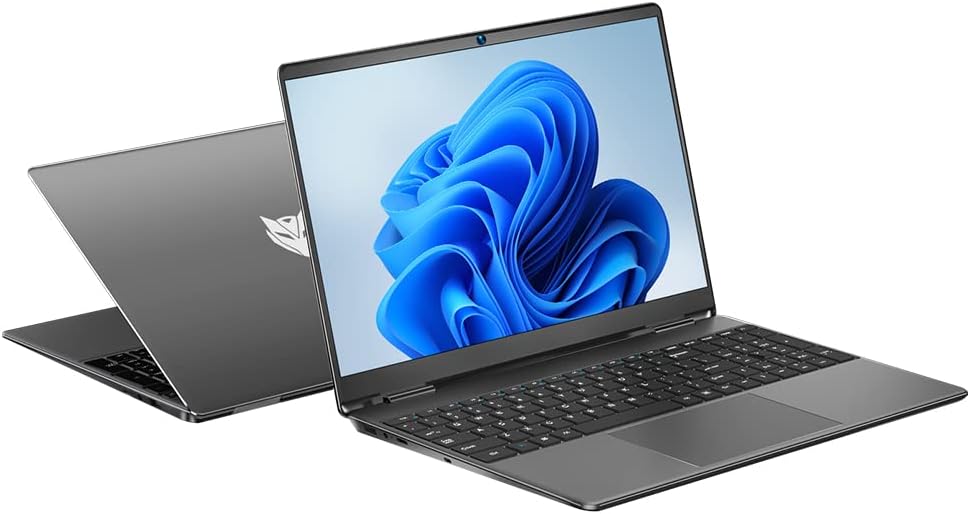
Image: The Bmax X15 Plus laptop displayed open, showing the screen and keyboard.
2. การเชื่อมต่ออะแดปเตอร์ไฟฟ้า
Before first use, connect the power adapter to the laptop's charging port and then to a power outlet. It is recommended to fully charge the battery before initial operation.
ภาพ: ระยะใกล้ view of the laptop's side ports, highlighting the power input, USB 3.0, mini HDMI, and security lock slot.
3. การเปิดเครื่องครั้งแรกและการตั้งค่าระบบปฏิบัติการ
Press the power button to turn on the laptop. Follow the on-screen instructions to complete the operating system (OS 11) setup, including language selection, network connection, and user account creation.
การใช้งานแล็ปท็อปของคุณ
1. คีย์บอร์ดและทัชแพด
The Bmax X15 Plus features a full-sized keyboard with a numeric keypad and a large trackpad for comfortable navigation and input.

ภาพ: จากบนลงล่าง view of the Bmax X15 Plus laptop, showcasing the full keyboard with numeric pad and large touchpad.
2. คุณสมบัติการแสดงผล
Your laptop is equipped with a 15.6-inch Full HD (1920x1080) IPS display, offering wide viewing angles and vibrant colors. The narrow bezel design maximizes screen space.
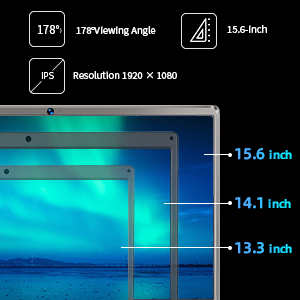
Image: A diagram illustrating the 15.6-inch display size in comparison to smaller screens, emphasizing the IPS technology and 1920x1080 resolution.
3. ประสิทธิภาพและการจัดเก็บ
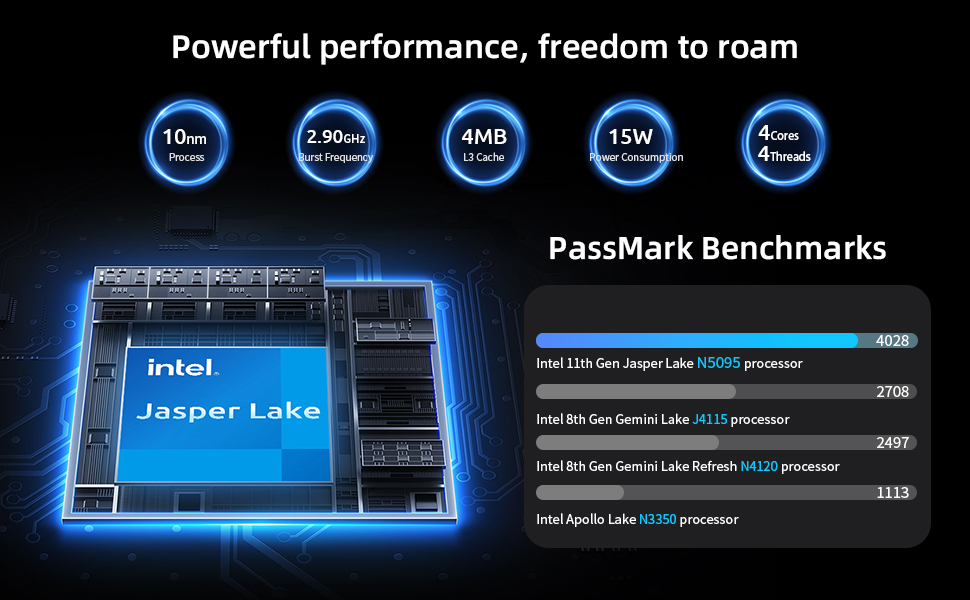
The laptop features an Intel 11th Gen Celeron N5095 Quad-Core Processor (up to 2.9GHz), 12GB DDR4 RAM, and a 512GB SSD for efficient multitasking and fast data access.
4. การเชื่อมต่อ
Connect to networks using 2.4GHz/5GHz Dual Band Wi-Fi. Peripheral connectivity includes two USB 3.0 ports, a Micro SD card reader, and a mini HDMI port.
การซ่อมบำรุง
1. การทำความสะอาดแล็ปท็อปของคุณ
To maintain optimal performance and appearance, regularly clean your laptop. Use a soft, lint-free cloth for the screen and exterior. For stubborn marks, a slightly dampened cloth with water or a specialized electronics cleaner can be used. Avoid harsh chemicals.
2. Storage Upgrade
The Bmax X15 Plus includes an M.2 2280 expandable slot, allowing for easy SSD upgrades up to 1TB to suit your storage needs. Refer to the diagram below for the location of the M.2 slot. It is recommended to consult a professional for hardware upgrades if you are unsure.
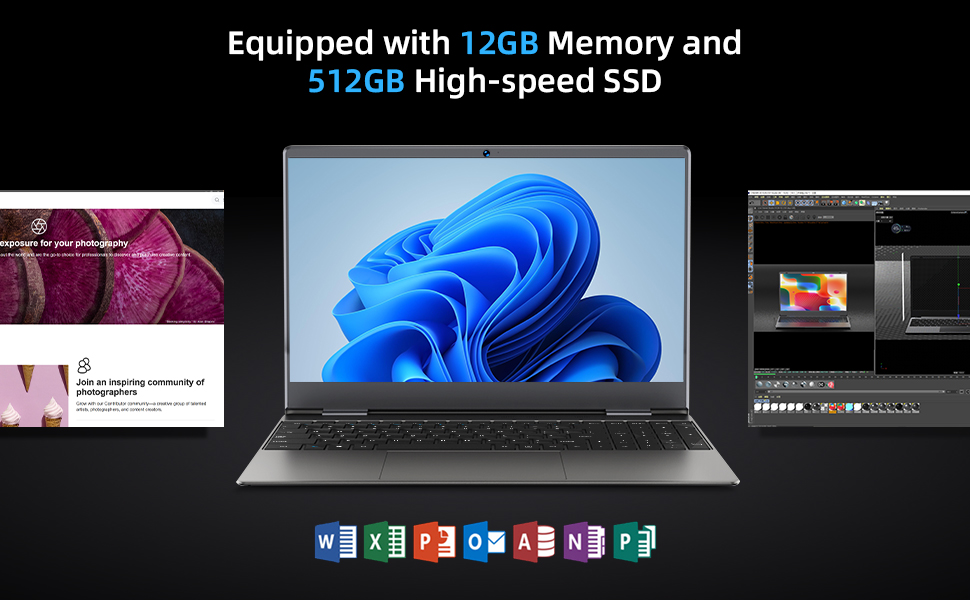
Image: Diagram indicating the M.2 2280 expandable slot on the bottom of the laptop for storage upgrades.
การแก้ไขปัญหา
If you encounter issues with your Bmax X15 Plus laptop, refer to the following common troubleshooting steps:
- แล็ปท็อปไม่สามารถเปิดเครื่องได้: Ensure the power adapter is securely connected to both the laptop and a working power outlet. Verify the power outlet is functional. If the battery is completely drained, allow it to charge for at least 30 minutes before attempting to power on again.
- Screen remains black after power on: Try connecting an external monitor to the mini HDMI port to check if the display output is working. If an external monitor works, the laptop's internal display may have an issue. If no display on external monitor, try restarting the laptop.
- System is slow or unresponsive: Close unnecessary applications. Check for available system updates and install them. Ensure sufficient free space on the SSD. Consider running a system diagnostic or antivirus scan.
- ปัญหาการเชื่อมต่อ Wi-Fi: Verify that Wi-Fi is enabled in the operating system settings. Restart your router and modem. Ensure you are within range of a Wi-Fi signal.
- ทัชแพดไม่ตอบสนอง: Check if the touchpad has been accidentally disabled via a function key (often Fn + F-key combination). Restart the laptop.
For persistent issues, please contact Bmax customer support.
ข้อมูลจำเพาะ
| คุณสมบัติ | รายละเอียด |
|---|---|
| ยี่ห้อ | บีแม็กซ์ |
| ชื่อรุ่น | X15 พลัส |
| ขนาดหน้าจอ | 15.6 นิ้ว |
| ความละเอียดหน้าจอ | 1920 x 1080 พิกเซล (FHD IPS) |
| โปรเซสเซอร์ | Intel Celeron N5095 (up to 2.9 GHz, 4 Cores) |
| แรม | 12GB LPDDR4 ความจุ |
| ฮาร์ดไดรฟ์ | 512 GB SSD (Serial ATA-600) |
| พื้นที่เก็บข้อมูลแบบขยายได้ | M.2 2280 slot (up to 1TB SSD) |
| โคโปรเซสเซอร์กราฟิก | กราฟิก Intel UHD |
| ระบบปฏิบัติการ | โอเอส 11 |
| ประเภทไร้สาย | 802.11a/b/g/n/ac (Wi-Fi ดูอัลแบนด์) |
| พอร์ต USB | พอร์ต USB 2 จำนวน 3.0 พอร์ต |
| พอร์ตอื่น ๆ | Mini HDMI, 3.5mm Headset Jack, Micro SD Card Reader |
| น้ำหนักสินค้า | 3.52 ปอนด์ (ประมาณ 1.6 กก.) |
| ขนาดสินค้า (กxยxส) | 14.1 x 9.5 x 0.78 นิ้ว |
| แบตเตอรี่ | 1 Lithium Polymer battery (38Wh) |
ข้อมูลการรับประกัน
The Bmax X15 Plus laptop comes with a รับประกัน 12 เดือน from the date of purchase. This warranty covers manufacturing defects and ensures the product functions as intended under normal use. Additionally, a นโยบายการคืนสินค้าภายใน 30 วัน เพื่อให้คุณสบายใจ
Please retain your proof of purchase for warranty claims. The warranty does not cover damage caused by misuse, accidents, unauthorized repairs, or normal wear and tear.
การสนับสนุนลูกค้า
For any questions, technical assistance, or warranty claims, please contact Bmax customer service. Our team is available to provide friendly support.
- การสนับสนุนทางออนไลน์: Visit the official Bmax webไซต์สำหรับคำถามที่พบบ่อยและทรัพยากรสนับสนุน
- การสนับสนุนทางอีเมล์: Refer to your product packaging or the official Bmax webไซต์สำหรับที่อยู่อีเมลสนับสนุนเฉพาะ
- การสนับสนุนทางโทรศัพท์: Contact numbers may be available on the official Bmax webเว็บไซต์.
When contacting support, please have your laptop's model number (X15 Plus) and purchase information readily available.