
สินค้าเกินview
เครื่องสแกนเอกสาร VIISAN DL8 เป็นเครื่องสแกนเอกสารนวัตกรรมใหม่ที่ออกแบบมาเพื่อประสิทธิภาพและคุณภาพการสแกนสูง มีกล้องความละเอียด 13 ล้านพิกเซล เทคโนโลยีแสงแบบไม่สมมาตร และซอฟต์แวร์สแกนที่มีประสิทธิภาพซึ่งใช้งานได้ทั้งบนระบบปฏิบัติการ Windows และ macOS อุปกรณ์นี้เหมาะอย่างยิ่งสำหรับการสแกนเอกสาร หนังสือ และการใช้งานในสภาพแวดล้อมการเรียนรู้ทางไกล

เครื่องสแกนเอกสาร VIISAN DL8 วางอยู่บนแผ่นรองสแกนที่มีเอกสารอยู่ แสดงให้เห็น...asinด้วยดีไซน์ที่กะทัดรัดและพร้อมใช้งาน
คุณสมบัติหลัก
- คุณภาพการสแกนยอดเยี่ยม: ให้ภาพความละเอียดสูงพิเศษ 13 ล้านพิกเซล (4208x3156 พิกเซล) เพื่อการถ่ายภาพที่คมชัดรายละเอียดสูง
- ซอฟต์แวร์สแกนประสิทธิภาพสูง: ซอฟต์แวร์ VIISAN OfficeCam มีฟังก์ชันปรับภาพให้เรียบโดยอัตโนมัติurlหน้าที่แก้ไขแล้ว การลบภาพลายนิ้วมือ การทำความสะอาดพื้นหลัง และการแบ่งหน้าอัตโนมัติ
- ความสามารถของ OCR: แปลงเอกสารหรือหนังสือที่สแกนแล้วให้เป็นไฟล์ PDF ที่ค้นหาได้ หรือไฟล์ Word, Excel และไฟล์ข้อความที่แก้ไขได้ โดยใช้เครื่องมือ OCR ในตัว
- เอกลักษณ์เฉพาะตัวในการแปลงข้อความเป็นเสียงพูด (TTS): เทคโนโลยีช่วยเหลือสำหรับการอ่านและการฟังคำต่อคำในเอกสารใดๆ ซึ่งเป็นประโยชน์สำหรับผู้ใช้ที่มีภาวะดิสเล็กเซีย หรือผู้ที่ต้องการเรียนรู้ภาษาใหม่
- การครอบคลุมแสงสว่างอย่างเต็มรูปแบบ: ระบบไฟ LED แบบไม่สมมาตรที่เป็นนวัตกรรมใหม่ ช่วยส่องสว่างพื้นที่การสแกนอย่างสม่ำเสมอ ลดแสงสะท้อน และรับประกันการมองเห็นที่ชัดเจนแม้ในสภาพแสงน้อย
- ดีไซน์ประหยัดพื้นที่โต๊ะทำงาน: ดีไซน์แขนสั้นกะทัดรัดและฐานรูปสามเหลี่ยมช่วยประหยัดพื้นที่บนโต๊ะทำงานได้อย่างมีค่า
- พร้อมสำหรับการเรียนทางไกล: เป็นไปตามมาตรฐาน UVC/UAC ทำให้สามารถสาธิตวัตถุจริงแบบสดๆ ผ่านซอฟต์แวร์การประชุมทางวิดีโอของบุคคลที่สาม เช่น Zoom, Google Meet และ Microsoft Teams ได้

ดีไซน์กะทัดรัดของ VIISAN DL8 โดดเด่นด้วยแขนกล้องที่สั้น (118 มม.) และฐานสามเหลี่ยมที่มั่นคง ออกแบบมาเพื่อประหยัดพื้นที่บนโต๊ะทำงาน
คู่มือการติดตั้ง
ทำตามขั้นตอนต่อไปนี้เพื่อตั้งค่าเครื่องสแกนเอกสาร VIISAN DL8 ของคุณ:
- แกะเนื้อหาออก: นำกล้องถ่ายเอกสาร DL8, สาย USB, แผ่นรองสแกน และคู่มือเริ่มต้นใช้งานฉบับย่อ ออกจากบรรจุภัณฑ์อย่างระมัดระวัง
- ตำแหน่งสแกนเนอร์: วางเครื่องสแกน DL8 บนพื้นผิวที่มั่นคงและเรียบ ตรวจสอบให้แน่ใจว่ามีพื้นที่เพียงพอสำหรับแผ่นรองสแกนและเอกสาร
- เชื่อมต่อกับคอมพิวเตอร์: เชื่อมต่อสาย USB ที่ให้มากับพอร์ต USB Type-C ของเครื่องสแกน DL8 เข้ากับพอร์ต USB ที่ว่างอยู่บนคอมพิวเตอร์ระบบ Windows หรือ macOS ของคุณ
- ติดตั้งซอฟต์แวร์: ดาวน์โหลดและติดตั้งซอฟต์แวร์การสแกน VIISAN OfficeCam จากเว็บไซต์อย่างเป็นทางการของ VIISAN webเว็บไซต์ โปรดดูคู่มือเริ่มต้นใช้งานฉบับย่อสำหรับคำแนะนำในการดาวน์โหลดโดยละเอียด
- วางแผ่นสแกน: วางแผ่นรองสแกนที่ให้มาไว้ใต้กล้องของเครื่องสแกนโดยตรง ตรวจสอบให้แน่ใจว่าอยู่ตรงกลางและเรียบสนิท

เครื่องสแกน VIISAN DL8 ที่เชื่อมต่อกับแล็ปท็อป แสดงให้เห็นถึงความเข้ากันได้กับระบบปฏิบัติการ Windows และ macOS
คำแนะนำการใช้งาน
เมื่อตั้งค่าเสร็จเรียบร้อยแล้ว คุณสามารถเริ่มใช้งาน VIISAN DL8 สำหรับงานสแกนต่างๆ ได้:
- เปิดตัวซอฟต์แวร์: เปิดโปรแกรม VIISAN OfficeCam บนคอมพิวเตอร์ของคุณ
- สถานที่จัดเก็บเอกสาร: วางเอกสารหรือหนังสือที่คุณต้องการสแกนลงบนแผ่นรองสแกน ตรวจสอบให้แน่ใจว่าอยู่ในระยะการมองเห็นของกล้อง view.
- ปรับแสง: หากจำเป็น ให้กดปุ่มสัมผัส LED บนเครื่องสแกนเพื่อเปิดใช้งานไฟ LED ความสว่างสูงในตัว มีระบบควบคุมความสว่าง 3 ระดับ เพื่อการส่องสว่างที่เหมาะสม
- สแกน: ใช้โปรแกรมเพื่อเริ่มการสแกน โปรแกรมจะประมวลผลภาพโดยอัตโนมัติ รวมถึงฟีเจอร์ต่างๆ เช่น การปรับภาพให้เรียบโดยอัตโนมัติurlแก้ไขหน้าและปรับความเอียง
- ใช้เทคโนโลยี OCR: หลังจากสแกนแล้ว คุณสามารถใช้โปรแกรม OCR ในตัวเพื่อแปลงภาพเป็นไฟล์ข้อความที่แก้ไขได้ (Word, Excel, ข้อความ) หรือไฟล์ PDF ที่ค้นหาได้
- การแปลงข้อความเป็นคำพูด: เพื่อความสะดวกในการเข้าถึงหรือการเรียนรู้ ให้เปิดใช้งานฟีเจอร์แปลงข้อความเป็นเสียงพูดภายในซอฟต์แวร์ เพื่อให้ซอฟต์แวร์อ่านเอกสารที่สแกนแล้วออกมาดัง ๆ
- การทำงานร่วมกันระยะไกล: สำหรับการสาธิตสดหรือการเรียนรู้ทางไกล การที่ DL8 รองรับมาตรฐาน UVC/UAC ช่วยให้สามารถทำงานร่วมกับแพลตฟอร์มการประชุมทางวิดีโอได้อย่างราบรื่น

เครื่องสแกน VIISAN DL8 ที่เชื่อมต่อกับแล็ปท็อป แสดงให้เห็นถึงความสามารถ OCR อันทรงพลังในการแปลงเอกสารที่สแกนแล้วให้เป็นรูปแบบที่แก้ไขได้หลากหลาย เช่น DOC, TXT, XLS และ PDF

เด็กชายคนหนึ่งกำลังใช้เครื่องสแกน VIISAN DL8 ร่วมกับแล็ปท็อป เพื่อสาธิตคุณสมบัติพิเศษในการแปลงข้อความเป็นเสียง (Text to Speech หรือ TTS) ซึ่งจะอ่านเอกสารออกมาดัง ๆ ช่วยในการเรียนรู้และเพิ่มการเข้าถึงข้อมูล

VIISAN DL8 สามารถนำไปประยุกต์ใช้ได้หลากหลาย เช่น การทำงานร่วมกันจากระยะไกล การเรียนจากที่บ้าน การสาธิตสด และการสแกนหนังสืออย่างมีประสิทธิภาพ ซึ่งแสดงให้เห็นถึงความอเนกประสงค์ของเครื่องนี้
การซ่อมบำรุง
การบำรุงรักษาอย่างถูกต้องจะช่วยให้เครื่องสแกน VIISAN DL8 ของคุณมีอายุการใช้งานยาวนานและทำงานได้อย่างมีประสิทธิภาพสูงสุด:
- การทำความสะอาด: ควรเช็ดทำความสะอาดตัวเครื่องสแกนเนอร์และเลนส์กล้องด้วยผ้าแห้งเนื้อนุ่มที่ไม่เป็นขุยเป็นประจำ หลีกเลี่ยงการใช้สารทำความสะอาดที่มีฤทธิ์กัดกร่อนหรือตัวทำละลาย
- การอัปเดตซอฟต์แวร์: ตรวจสอบข้อมูล VIISAN อย่างเป็นทางการเป็นระยะ webเว็บไซต์สำหรับอัปเดตซอฟต์แวร์ เพื่อให้มั่นใจว่าคุณได้รับฟีเจอร์ล่าสุดและการปรับปรุงประสิทธิภาพอยู่เสมอ
- พื้นที่จัดเก็บ: เมื่อไม่ใช้งาน ควรเก็บเครื่องสแกนไว้ในที่สะอาดและแห้ง หลีกเลี่ยงแสงแดดโดยตรงและอุณหภูมิที่สูงหรือต่ำเกินไป
การแก้ไขปัญหา
หากคุณพบปัญหาเกี่ยวกับ VIISAN DL8 โปรดดูวิธีแก้ไขปัญหาทั่วไปต่อไปนี้:
- ไม่รู้จักเครื่องสแกนเนอร์:
- ตรวจสอบให้แน่ใจว่าได้เสียบสาย USB เข้ากับเครื่องสแกนและคอมพิวเตอร์อย่างแน่นหนาแล้ว
- ลองเชื่อมต่อกับพอร์ต USB อื่น
- รีสตาร์ทเครื่องคอมพิวเตอร์ของคุณ
- ตรวจสอบให้แน่ใจว่าได้ติดตั้งไดรเวอร์ที่จำเป็นและซอฟต์แวร์ VIISAN OfficeCam อย่างถูกต้องแล้ว
- ซอฟต์แวร์ไม่โหลด/ไม่ทำงาน:
- ตรวจสอบให้แน่ใจว่าระบบปฏิบัติการของคุณตรงตามข้อกำหนดขั้นต่ำของซอฟต์แวร์
- ติดตั้งซอฟต์แวร์ VIISAN OfficeCam ใหม่ โดยตรวจสอบให้แน่ใจว่าได้ดาวน์โหลดเวอร์ชันที่ถูกต้องสำหรับระบบปฏิบัติการของคุณ
- ปิดใช้งานโปรแกรมป้องกันไวรัสหรือไฟร์วอลล์ชั่วคราวระหว่างการติดตั้ง จากนั้นเปิดใช้งานอีกครั้ง
- คุณภาพการสแกนไม่ดี (ภาพมืด/ส้ม, C)url(หน้า ed):
- ตรวจสอบให้แน่ใจว่าวางเอกสารราบเรียบบนแผ่นรองสแกนแล้ว
- ปรับความสว่างของไฟ LED โดยใช้ปุ่มสัมผัสบนเครื่องสแกน
- ตรวจสอบให้แน่ใจว่าแสงไฟที่ไม่สมมาตรส่องสว่างเอกสารได้อย่างเหมาะสมและลดแสงสะท้อน
- ใช้ประโยชน์จากคุณสมบัติการปรับภาพให้เรียบเนียนอัตโนมัติและการกำจัดพื้นหลังของซอฟต์แวร์
- ระบบ OCR ทำงานไม่ถูกต้อง:
- ตรวจสอบให้แน่ใจว่าภาพที่สแกนมีความคมชัดและมีแสงสว่างเพียงพอ
- ตรวจสอบการตั้งค่าภาษาในซอฟต์แวร์ OCR ให้ตรงกับภาษาของเอกสาร
ข้อมูลจำเพาะทางเทคนิค
| คุณสมบัติ | ข้อมูลจำเพาะ |
|---|---|
| ชื่อรุ่น | DL8 |
| ประเภทสแกนเนอร์ | เอกสาร |
| ปณิธาน | 4208 x 3156 พิกเซล (13MP) |
| เทคโนโลยีการเชื่อมต่อ | ยูเอสบี |
| ขนาดสินค้า | ลึก 4.65 นิ้ว x กว้าง 3.86 นิ้ว x สูง 12.01 นิ้ว (11.8 x 9.8 x 30.5 ซม.) |
| น้ำหนักสินค้า | 2.2 ปอนด์ (1 กิโลกรัม) |
| ขนาดแผ่น | ขนาดไม่เกิน 16.5 x 11.7 นิ้ว (A3) |
| ความลึกของสี | 24 บิต |
| วัดtage | 5 วัตต์ |
| ผู้ผลิต | วิอิซาน |
| ประเทศต้นกำเนิด | ไต้หวัน |
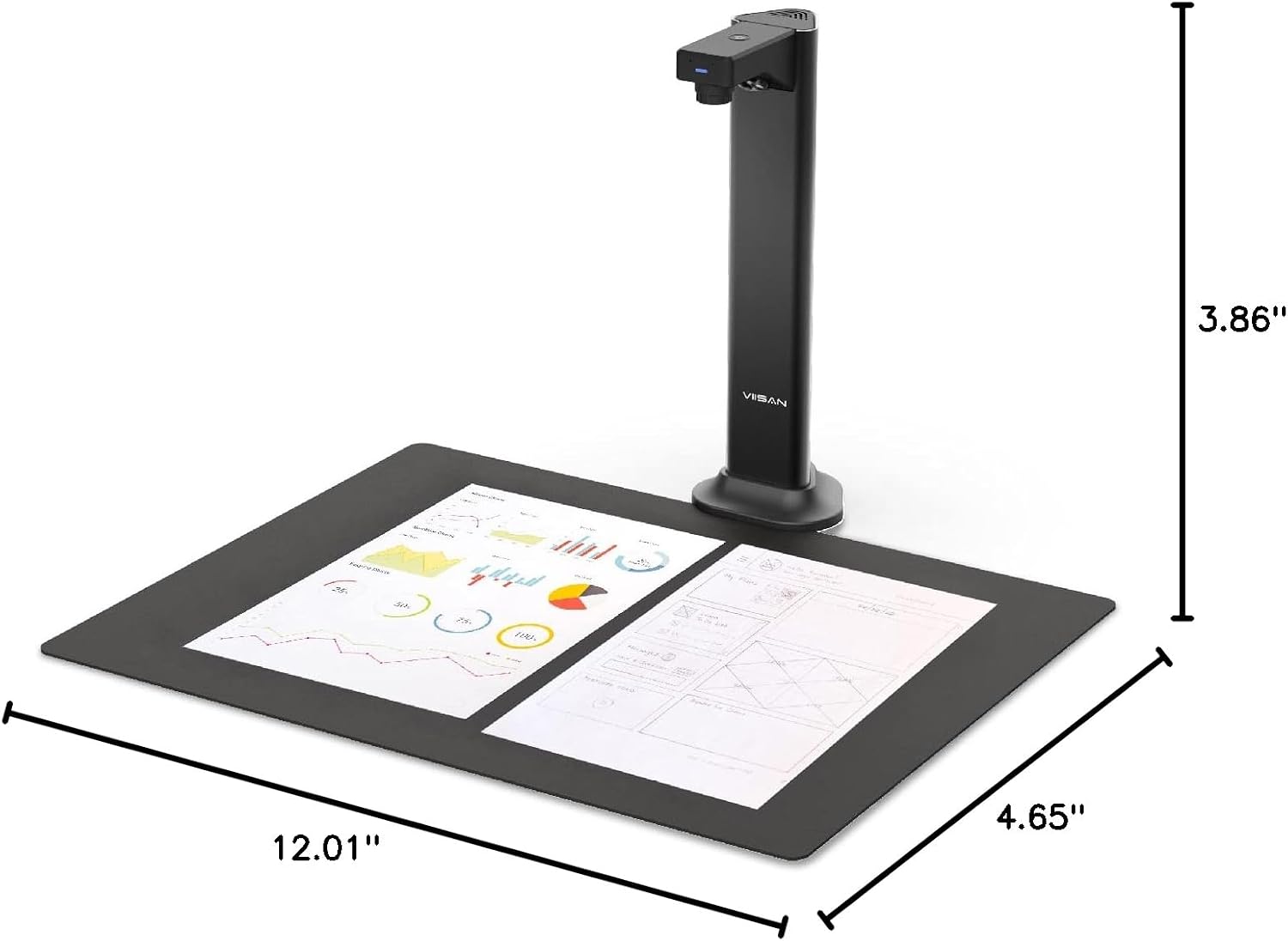
ขนาดโดยละเอียดของเครื่องสแกนเอกสาร VIISAN DL8 แสดงให้เห็นถึงขนาดที่กะทัดรัด
เนื้อหาแพ็คเกจ
แพ็คเกจ VIISAN DL8 ประกอบด้วย:
- กล้องเอกสาร DL8
- สาย USB
- สแกนแพด
- คู่มือเริ่มต้นอย่างรวดเร็ว
การรับประกันและการสนับสนุน
VIISAN มุ่งมั่นที่จะมอบการบริการลูกค้าและการสนับสนุนผลิตภัณฑ์ที่เป็นเลิศ:
- การรับประกัน: VIISAN DL8 มาพร้อมการรับประกัน 1 ปี นับจากวันที่ซื้อ
- การส่งคืน: สินค้านี้มีนโยบายคืนสินค้าฟรีภายใน 30 วัน
- การสนับสนุนด้านเทคนิค: หากต้องการความช่วยเหลือด้านเทคนิคหรือมีข้อสงสัยใด ๆ โปรดติดต่อทีมสนับสนุนด้านเทคนิคของ VIISAN ที่รับผิดชอบ โปรดดูคู่มือเริ่มต้นใช้งานฉบับย่อหรือเอกสารทางการของ VIISAN webเว็บไซต์สำหรับข้อมูลการติดต่อ