
1. สินค้าหมดview
The GIGABYTE G24F 2 is a 23.8-inch gaming monitor designed for an immersive visual experience. It features a Super Speed IPS panel, Full HD (1920 x 1080) resolution, and a high refresh rate for smooth gameplay.

รูปที่ 1.1 : ด้านหน้า view of the GIGABYTE G24F 2 gaming monitor.
คุณสมบัติหลัก:
- ขนาดแผง: 23.8-inch SS IPS display
- ปณิธาน: ความละเอียด 1920 x 1080 (FHD)
- เวลาตอบสนอง: MPRT 1 มิลลิวินาที
- อัตราการรีเฟรช: 165Hz (สามารถโอเวอร์คล็อกได้ถึง 180Hz)
- ความอิ่มตัวของสี: 95% DCI-P3, 125% sRGB
- ความสว่าง: 300 cd/m2 (ประเภท)
- อัตราส่วนคอนทราสต์: 1100:1 น.
- การเชื่อมต่อ: 2 x HDMI 2.0, 1 x DisplayPort 1.2 (HDR capable), 2 x USB 3.2 Gen 1 Downstream, 1 x USB 3.2 Gen 1 Upstream, 1 x Earphone Jack
- คุณสมบัติพิเศษ: OSD Sidekick, Aim Stabilizer, Black Equalizer, Dashboard, Crosshair, Timer, Counter, Auto-Update, Smart OD, HDR Ready, Flicker-free, Kensington lock
2. ข้อมูลด้านความปลอดภัย
โปรดอ่านคำแนะนำทั้งหมดอย่างละเอียดก่อนใช้งานจอภาพ เก็บคู่มือนี้ไว้เพื่อใช้อ้างอิงในอนาคต
- ห้ามให้จอภาพโดนฝนหรือความชื้น เพื่อหลีกเลี่ยงอันตรายจากไฟไหม้หรือไฟฟ้าช็อต
- อย่าเปิดจอภาพcasinก. ไม่มีชิ้นส่วนใดที่ผู้ใช้สามารถซ่อมบำรุงเองได้ภายใน แนะนำให้ช่างผู้ชำนาญการซ่อมบำรุงเป็นผู้รับผิดชอบ
- วางจอภาพบนพื้นผิวที่มั่นคงและเรียบเพื่อป้องกันไม่ให้ตก
- ตรวจสอบให้แน่ใจว่ามีการระบายอากาศที่เหมาะสมรอบ ๆ จอภาพ อย่าปิดกั้นช่องระบายอากาศ
- ใช้เฉพาะอะแดปเตอร์ไฟฟ้าและสายไฟที่ผู้ผลิตจัดให้เท่านั้น
- ถอดปลั๊กจอภาพออกจากเต้าเสียบไฟฟ้าในระหว่างที่มีพายุฝนฟ้าคะนองหรือเมื่อไม่ได้ใช้งานเป็นเวลานาน
- Clean the screen with a soft, lint-free cloth. Avoid using liquid cleaners directly on the screen.
3. เนื้อหาบรรจุภัณฑ์
ตรวจสอบว่ามีรายการทั้งหมดอยู่ในแพ็คเกจของคุณ:
- GIGABYTE G24F 2 Monitor
- ขาตั้งจอมอนิเตอร์ (ฐานและคอ)
- สายไฟ
- สาย HDMI
- USB Cable (Upstream)
- คู่มือการเริ่มต้นฉบับย่อ (QSG)
- บัตรรับประกัน

รูปที่ 3.1: ด้านหลัง view of the monitor, illustrating the stand attachment area.
4. การตั้งค่า
4.1 การประกอบขาตั้ง
- ถอดส่วนประกอบของจอภาพและขาตั้งออกจากบรรจุภัณฑ์อย่างระมัดระวัง
- ติดส่วนคอของขาตั้งเข้ากับแผงจอภาพ ตรวจสอบให้แน่ใจว่าล็อคเข้าที่อย่างแน่นหนา หรือยึดด้วยสกรูหากมีให้
- ประกอบฐานขาตั้งเข้ากับส่วนคอของขาตั้ง ขันสกรูหัวแม่มือที่ด้านล่างของฐานให้แน่น
- วางจอภาพที่ประกอบแล้วไว้บนพื้นผิวที่มั่นคงและเรียบ
4.2 การเชื่อมต่อจอภาพ
เชื่อมต่อจอภาพเข้ากับคอมพิวเตอร์และอุปกรณ์อื่นๆ โดยใช้สายเคเบิลที่เหมาะสม

รูปที่ 4.1: พอร์ตเชื่อมต่อจอภาพ
- การเชื่อมต่อไฟฟ้า: เชื่อมต่อสายไฟเข้ากับแหล่งจ่ายไฟของจอภาพ จากนั้นจึงเชื่อมต่อกับเต้ารับไฟฟ้า
- การเชื่อมต่อวิดีโอ:
- For optimal performance, use the DisplayPort 1.2 cable to connect to your computer's graphics card.
- Alternatively, use one of the two HDMI 2.0 ports.
- การเชื่อมต่อ USB อัพสตรีม: Connect the provided USB 3.2 Gen 1 Upstream cable from your computer to the monitor's upstream USB port to enable the monitor's downstream USB ports.
- USB Downstream Connections: Connect USB devices (e.g., keyboard, mouse) to the monitor's two USB 3.2 Gen 1 Downstream ports.
- เอาต์พุตเสียง: เชื่อมต่อหูฟังหรือลำโพงภายนอกเข้ากับช่องเสียบหูฟัง
5. การใช้งานจอภาพ
5.1 เปิด/ปิดเครื่อง
Press the power button, usually located on the bottom or rear of the monitor, to turn the monitor on or off. The power indicator light will show the monitor's status.
5.2 เมนูการแสดงผลบนหน้าจอ (OSD)
The OSD menu allows you to adjust various monitor settings. Navigate the OSD using the joystick or buttons typically found on the rear of the monitor.

Figure 5.1: OSD Sidekick software for convenient monitor control.
For advanced control, install the OSD Sidekick software on your PC. This utility allows you to adjust monitor settings directly from your desktop.
5.3 คุณสมบัติการเล่นเกม
The GIGABYTE G24F 2 includes several features to enhance your gaming experience:
- Aim Stabilizer: Reduces motion blur and improves visual clarity in fast-paced games.
- อีควอไลเซอร์สีดำ: Enhances visibility in dark areas of the game without overexposing bright areas.

รูปที่ 5.2: Black Equalizer ขณะใช้งาน
- แดชบอร์ด: Displays real-time hardware information (e.g., CPU/GPU temperature, usage) directly on the screen.

Figure 5.3: Dashboard displaying system metrics.
- ครอสแฮร์: Provides a customizable on-screen crosshair to assist with aiming.

Figure 5.4: On-screen Crosshair.
- Timer/Counter: On-screen timers and counters for in-game tracking.
- Smart OD: Optimizes overdrive settings for the best response time.
- อัปเดตอัตโนมัติ: Ensures the monitor's firmware and OSD Sidekick software are up-to-date.
5.4 การตั้งค่าการแสดงผล
- อัตราการรีเฟรช: The monitor supports up to 165Hz, with an overclock option to 180Hz, for fluid motion.
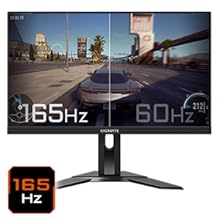
Figure 5.5: Visual comparison of 165Hz vs. 60Hz refresh rate.
- เวลาตอบสนอง: Enjoy a 1ms MPRT (Moving Picture Response Time) for minimal ghosting.
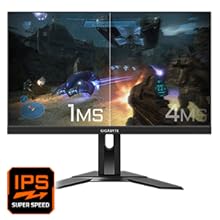
Figure 5.6: Visual comparison of 1ms vs. 4ms response time.
- ช่วงสี: The monitor covers 95% DCI-P3 and 125% sRGB for vibrant and accurate colors.
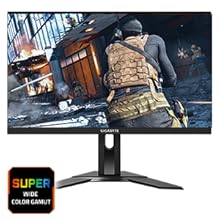
Figure 5.7: Wide color gamut for rich visuals.
- แสงสีฟ้าต่ำ: Reduces blue light emissions to protect your eyes during extended use.
Figure 5.8: Low Blue Light feature for reduced eye strain.
- ปราศจากการสั่นไหว: ขจัดปัญหาการกระพริบของหน้าจอเพื่อความสบายยิ่งขึ้น viewการสร้างประสบการณ์

Figure 5.9: Flicker-Free technology for comfortable viewการไอเอ็นจี
5.5 วิดีโอแนะนำคุณสมบัติผลิตภัณฑ์
วิดีโอ 5.1: จบแล้วview of the GIGABYTE G24F 2 monitor's features and specifications.
6. การบำรุงรักษา
Proper maintenance ensures the longevity of your monitor.
- การทำความสะอาดหน้าจอ: เช็ดหน้าจอเบาๆ ด้วยผ้านุ่ม แห้ง และไม่เป็นขุย สำหรับรอยฝังแน่น ให้เช็ดเบาๆampเทน้ำหรือน้ำยาทำความสะอาดหน้าจอชนิดพิเศษลงบนผ้า (อย่าเทลงบนหน้าจอโดยตรง)
- การทำความสะอาด Casing: ใช้ผ้าแห้งนุ่มเช็ดจอภาพasinก. หลีกเลี่ยงการใช้น้ำยาทำความสะอาดที่มีฤทธิ์กัดกร่อน
- การระบายอากาศ : Ensure the ventilation openings on the monitor are clear of dust and obstructions.
- หมดแรง: Turn off and unplug the monitor when not in use for extended periods.
7 การแก้ไขปัญหา
หากคุณพบปัญหาเกี่ยวกับจอภาพ โปรดดูตารางต่อไปนี้สำหรับปัญหาและวิธีแก้ไขที่พบบ่อย
| ปัญหา | สาเหตุที่เป็นไปได้ | สารละลาย |
|---|---|---|
| ไม่มีภาพบนหน้าจอ | Power cable not connected; Video cable not connected; Incorrect input source selected | ตรวจสอบการเชื่อมต่อสายไฟและสายวิดีโอ เลือกแหล่งสัญญาณเข้าที่ถูกต้องผ่านเมนู OSD |
| ภาพเบลอหรือบิดเบี้ยว | ความละเอียดไม่ถูกต้อง; สายวิดีโอหลวม | ตั้งค่าความละเอียดในการแสดงผลเป็น 1920x1080 ตรวจสอบให้แน่ใจว่าสายวิดีโอเชื่อมต่ออย่างแน่นหนา |
| ไม่มีเสียงจากหูฟัง/ลำโพง | Audio cable not connected; Volume too low; Incorrect audio output selected on PC | Check audio cable connection; Adjust volume; Select monitor as audio output on PC. |
| พอร์ต USB ไม่ทำงาน | สาย USB อัปสตรีมไม่ได้เชื่อมต่อ | Connect the USB 3.2 Gen 1 Upstream cable from the monitor to your PC. |
| หน้าจอกระพริบ | Refresh rate issue; Faulty cable | Ensure refresh rate is set correctly; Try a different video cable. |
8. ข้อมูลจำเพาะ
Detailed technical specifications for the GIGABYTE G24F 2 monitor.

รูปที่ 8.1: ขนาดจอภาพ
| คุณสมบัติ | รายละเอียด |
|---|---|
| ยี่ห้อ | กิกะไบต์ |
| ชื่อรุ่น | G24F 2 |
| หมายเลขรุ่น | 9DG24F2-00-1ABIN |
| ขนาดหน้าจอ | 23.8 นิ้ว |
| ปณิธาน | 1920 x 1080 พิกเซล (FHD 1080p) |
| อัตราส่วนภาพ | 16:9 น. |
| ประเภทจอภาพ | LCD (SS IPS Panel) |
| อัตราการรีเฟรช | 165 Hz (180Hz OC) |
| เวลาตอบสนอง | 1 Milliseconds (MPRT) |
| ความสว่าง | 300 candela_per_square_meter (TYP) |
| อัตราส่วนคอนทราสต์ | 1100:1 น. |
| ความอิ่มตัวของสี | 95% DCI-P3, 125% sRGB |
| Viewอิงแองเกิล | 178 องศา |
| การเชื่อมต่อ | 2 x HDMI 2.0, 1 x DisplayPort 1.2, 2 x USB 3.2 Gen 1 Downstream, 1 x USB 3.2 Gen 1 Upstream, 1 x Earphone Jack |
| การซิงค์แบบปรับตัว | FreeSync พรีเมี่ยม |
| การใช้พลังงาน | 17.5 วัตต์ |
| น้ำหนักสินค้า | 3.2 กิโลกรัม |
| ขนาดสินค้า (ลึก x กว้าง x สูง) | 5.3D x 54.1W x 32.6H เซนติเมตร |
| ประเภทการติดตั้ง | ติดผนัง |
| คุณสมบัติผลิตภัณฑ์ | Flicker-Free, Height Adjustment, High Dynamic Range, Tilt Adjustment |
9. การรับประกันและการสนับสนุน
The GIGABYTE G24F 2 monitor comes with a รับประกัน 3 ปี จากผู้ผลิต
For technical support, warranty claims, or further inquiries, please contact GIGABYTE customer service:
- ผู้ผลิต: GIGABYTE Technology (India) Pvt Ltd
- ที่อยู่: B-808, Naman Midtown, Elphinstone Road, Mumbai – 400013 – INDIA
- โทรศัพท์: +91-22-40633222
โปรดเก็บหลักฐานการซื้อไว้เพื่อรับบริการตามการรับประกัน