
1. บทนำ
This manual provides detailed instructions for the setup, operation, and maintenance of your arVin Wireless Gaming Controller. Please read this manual thoroughly before using the product to ensure optimal performance and longevity.
2. สินค้าหมดview
The arVin Wireless Gaming Controller is designed for mobile gaming on both iOS and Android devices. It features a magnetic separation design for portability and a comfortable grip during gameplay. The controller connects wirelessly via Bluetooth 4.2, offering low latency for an enhanced gaming experience.

Image: arVin Wireless Gaming Controller with a smartphone, demonstrating its use during gameplay.

Image: The controller's magnetic design, showing how the left and right handles separate for compact storage.
Video: arVin Folding Game Controller Show. This video demonstrates the compact, magnetic folding design of the controller.
3. เนื้อหาบรรจุภัณฑ์
ตรวจสอบว่ามีรายการทั้งหมดอยู่ในแพ็คเกจ:
- 1x arVin Wireless Gaming Controller (Left and Right Handles)
- สายชาร์จ USB Type-C 1 เส้น
- 1x คู่มือผู้ใช้ (เอกสารฉบับนี้)
4. การตั้งค่าและการเชื่อมต่อ
4.1 iOS Device Connection
- Ensure your iOS device is running iOS 13.4 or later.
- On the left-hand controller, press and hold the ลง directional key and the ปุ่มเปิดปิด simultaneously for 2 seconds. The blue light on the controller will flash, indicating it is in pairing mode.
- บนอุปกรณ์ iOS ของคุณ ให้ไปที่ การตั้งค่า > บลูทูธ และเปิดบลูทูธ
- In the list of available devices, tap on "ตัวควบคุมไร้สาย Xbox"เพื่อจับคู่"
- Once the left-hand controller is paired, press and hold the ปุ่มเปิดปิด on the right-hand controller for 2 seconds. The blue light will flash and it will automatically pair with the left-hand controller.
- The controller is now ready for use with compatible iOS games.
Video: arVin Controller iOS Wireless Connection Guideline. This video demonstrates the steps to connect the controller to an iOS device via Bluetooth.
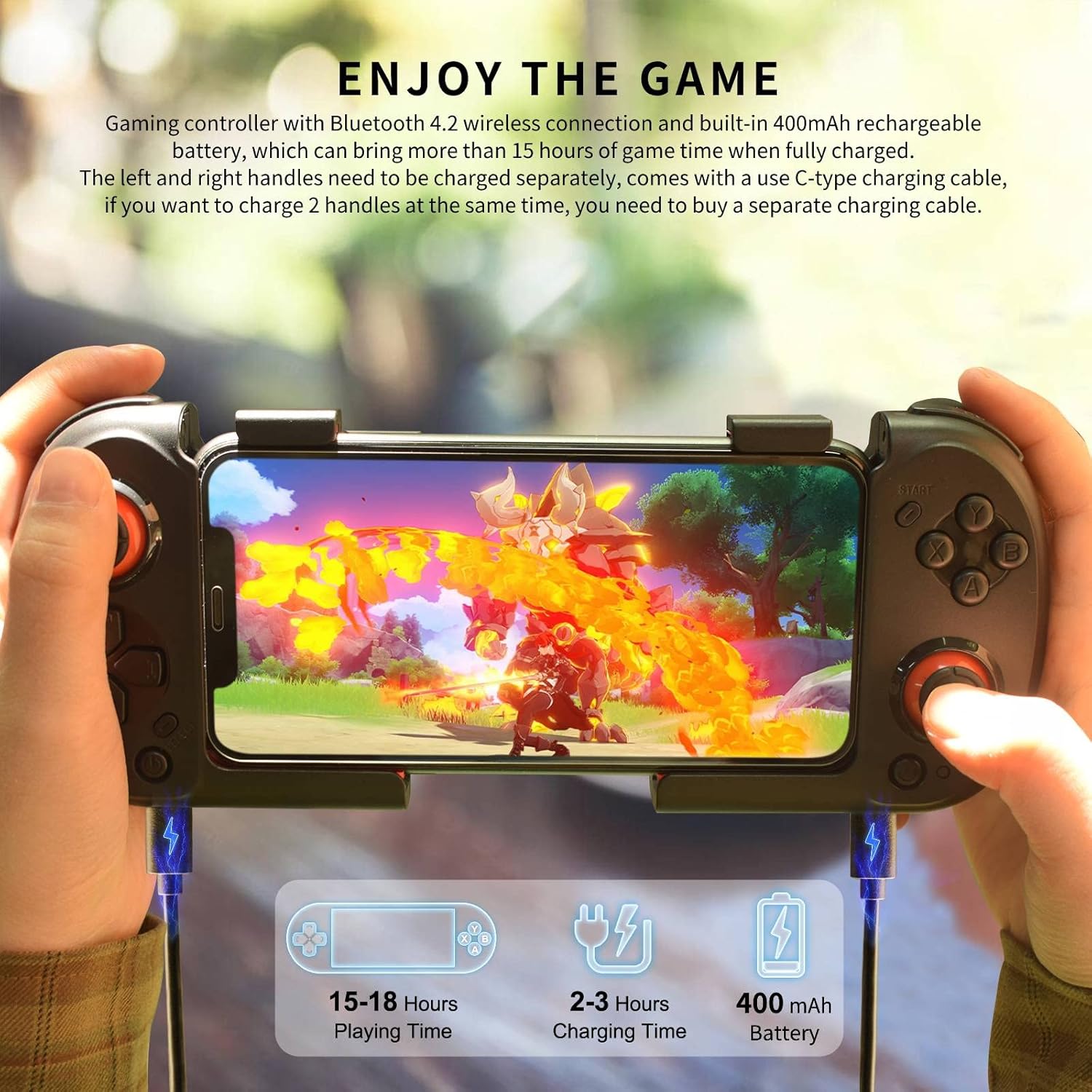
Image: iOS & Android Boot Mode diagram, illustrating the button presses for different connection modes.
4.2 Android Device Connection
- On the left-hand controller, press and hold the ซ้าย directional key and the ปุ่มโฮม simultaneously for 2 seconds. The blue light on the controller will flash, indicating it is in pairing mode.
- บนอุปกรณ์ Android ของคุณ ไปที่ การตั้งค่า > บลูทูธ และเปิดบลูทูธ
- In the list of available devices, tap on "MOCUTE-HIDF13-061-L"เพื่อจับคู่"
- Once the left-hand controller is paired, press and hold the ปุ่มเปิดปิด on the right-hand controller for 2 seconds. The blue light will flash and it will automatically pair with the left-hand controller.
- The controller is now ready for use with compatible Android games. For some Android games like Call of Duty Mobile, APEX Legends Mobile, or Honkai Impact 3, you may need to turn off the controller and then press the ลง directional key + ปุ่มเปิดปิด on the left-hand controller to connect in "Xbox Wireless Controller" mode.
Video: Android wireless connection for Call of Duty. This video demonstrates connecting the controller to an Android device for Call of Duty Mobile.
5. คู่มือการใช้งาน
5.1 ความเข้ากันได้ของเกม
The arVin Wireless Gaming Controller supports most controller-compatible games available on the App Store (iOS) and Google Play Store (Android). Popular supported titles include Call of Duty Mobile (COD), Genshin Impact, Diablo Immortal, Combat Modern 5, Asphalt 8: Airborne & Asphalt 9 Legends.
- หมายเหตุสำหรับ iOS: Not compatible with PUBG.
- หมายเหตุสำหรับ Android: Not compatible with Genshin Impact & PUBG.
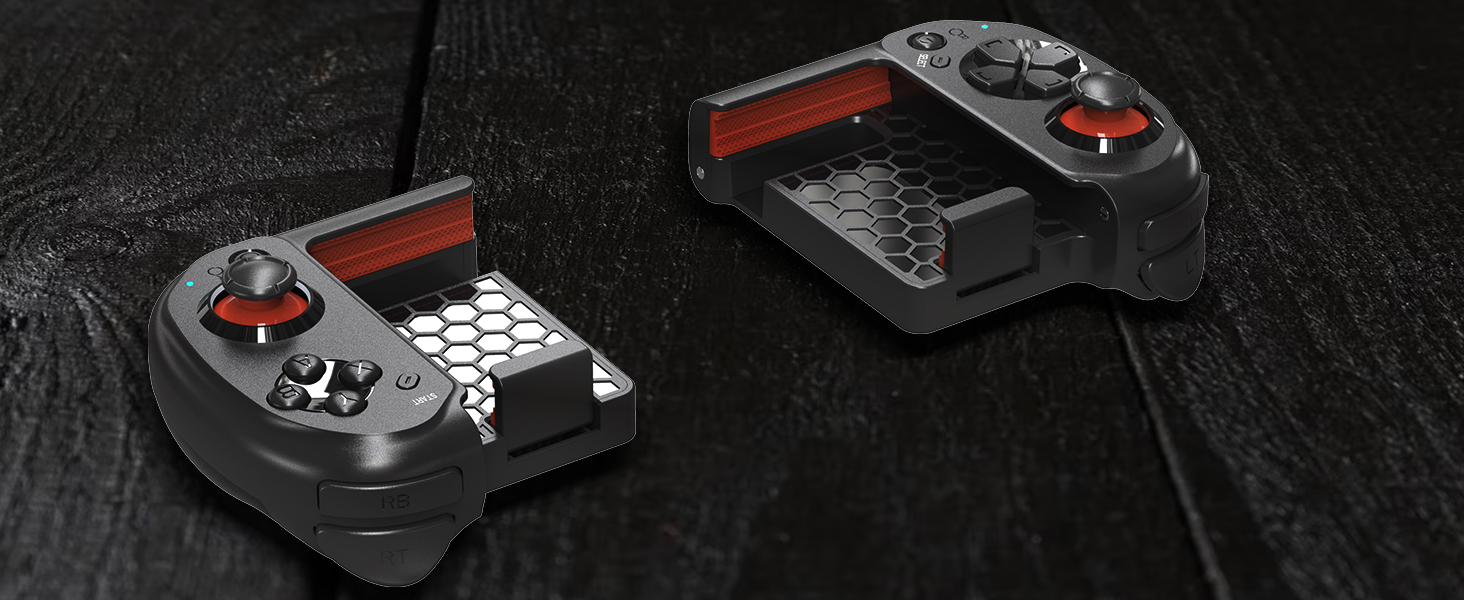
Image: A visual representation of various games compatible with the controller.
5.2 การชาร์จคอนโทรลเลอร์
Each controller handle has a built-in 400mAh rechargeable battery. A full charge provides over 15 hours of playtime. Use the included USB Type-C charging cable to charge the controllers. Note that each handle charges separately. If you wish to charge both handles simultaneously, an additional Type-C charging cable will be required (not included).

Image: The controller being charged, highlighting its long playing time and separate charging ports.
5.3 Six-Finger Operation
The controller's design facilitates a six-finger operation style, allowing for simultaneous aiming, shooting, moving, and switching angles in games. This can enhance control and responsiveness during intense gameplay.
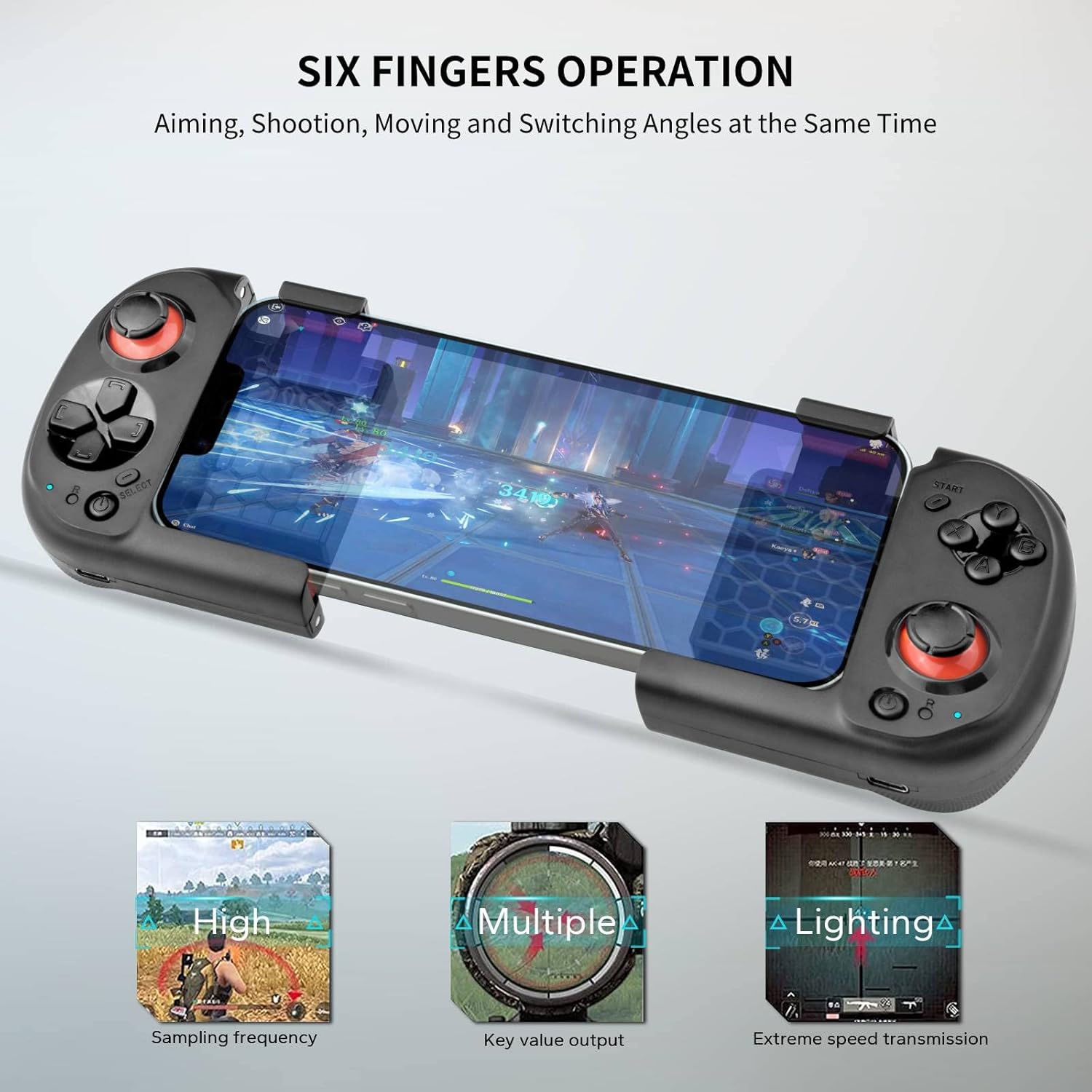
Image: Six-finger operation setup, showing how the controller allows for multiple simultaneous actions.
6. การบำรุงรักษา
- เก็บคอนโทรลเลอร์ให้แห้ง หลีกเลี่ยงการสัมผัสกับความชื้นหรือของเหลว
- Clean the controller with a soft, dry cloth. Do not use abrasive cleaners or solvents.
- เก็บตัวควบคุมไว้ในที่แห้งและเย็น หลีกเลี่ยงแสงแดดโดยตรงและอุณหภูมิที่สูงหรือต่ำเกินไป
- Utilize the magnetic storage feature to keep the two halves securely together when not in use, protecting the internal components and reducing the risk of damage.
7 การแก้ไขปัญหา
| ปัญหา | สาเหตุที่เป็นไปได้ | สารละลาย |
|---|---|---|
| ตัวควบคุมไม่เชื่อมต่อผ่านบลูทูธ | Incorrect pairing mode, Bluetooth off on device, low battery. |
|
| Input lag or unresponsive controls. | สัญญาณรบกวน, ระยะห่างจากอุปกรณ์, แบตเตอรี่เหลือน้อย |
|
| Controller not working with a specific game. | Game not compatible with controllers, incorrect connection mode. |
|
| Right-hand controller does not pair with left-hand controller. | Left-hand controller not paired, right-hand controller not powered on correctly. |
|
8. ข้อมูลจำเพาะ
| คุณสมบัติ | รายละเอียด |
|---|---|
| ยี่ห้อ | อาร์วิน |
| แบบอย่าง | B0BN42TTMD |
| เทคโนโลยีการเชื่อมต่อ | บลูทูธ 4.2 |
| ประเภทตัวควบคุม | แป้นเกม |
| อุปกรณ์ที่รองรับ | Android, iOS (iPhone 15/14/13/12/11/X/XR/XS/XS Max/8/7/6S series; Samsung Galaxy S22/S21/S20/S10/S9/S8 series; Galaxy Note, One Plus, TCL, Motorola, Huawei, Oppo, etc.) |
| ความจุของแบตเตอรี่ | 400mAh (per handle) |
| เวลาเล่น | ใช้งานได้นานกว่า 15 ชั่วโมง (เมื่อชาร์จเต็ม) |
| ช่วงสาย | สูงถึง 32.8 ฟุต (10 เมตร) |
| น้ำหนักสินค้า | 7.8 ออนซ์ |
| ขนาดแพ็คเกจ | 6.02 x 4.49 x 2.32 นิ้ว |
9. การรับประกันและการสนับสนุน
Your arVin Wireless Gaming Controller comes with a standard manufacturer's warranty. For specific warranty details, please refer to the warranty card included in your product packaging or contact arVin customer service.
If you encounter any issues or have questions regarding your product, please do not hesitate to contact our friendly customer service team. Contact information can typically be found on the product packaging or on the official arVin webเว็บไซต์.