
KOORUI 15B1
KOORUI 15.6 inch 1080P FHD Portable Monitor User Manual
รุ่น : 15B1
1. บทนำ
Thank you for choosing the KOORUI 15.6 inch 1080P FHD Portable Monitor. This monitor is designed to provide a vibrant visual experience with its 1920x1080 resolution IPS display, 178° wide viewing angle, and eye care technology. Its lightweight and slim design makes it an ideal companion for extending your screen space for work, entertainment, or gaming on the go.
This manual provides essential information for setting up, operating, and maintaining your portable monitor. Please read it thoroughly before use to ensure proper functionality and to maximize your user experience.
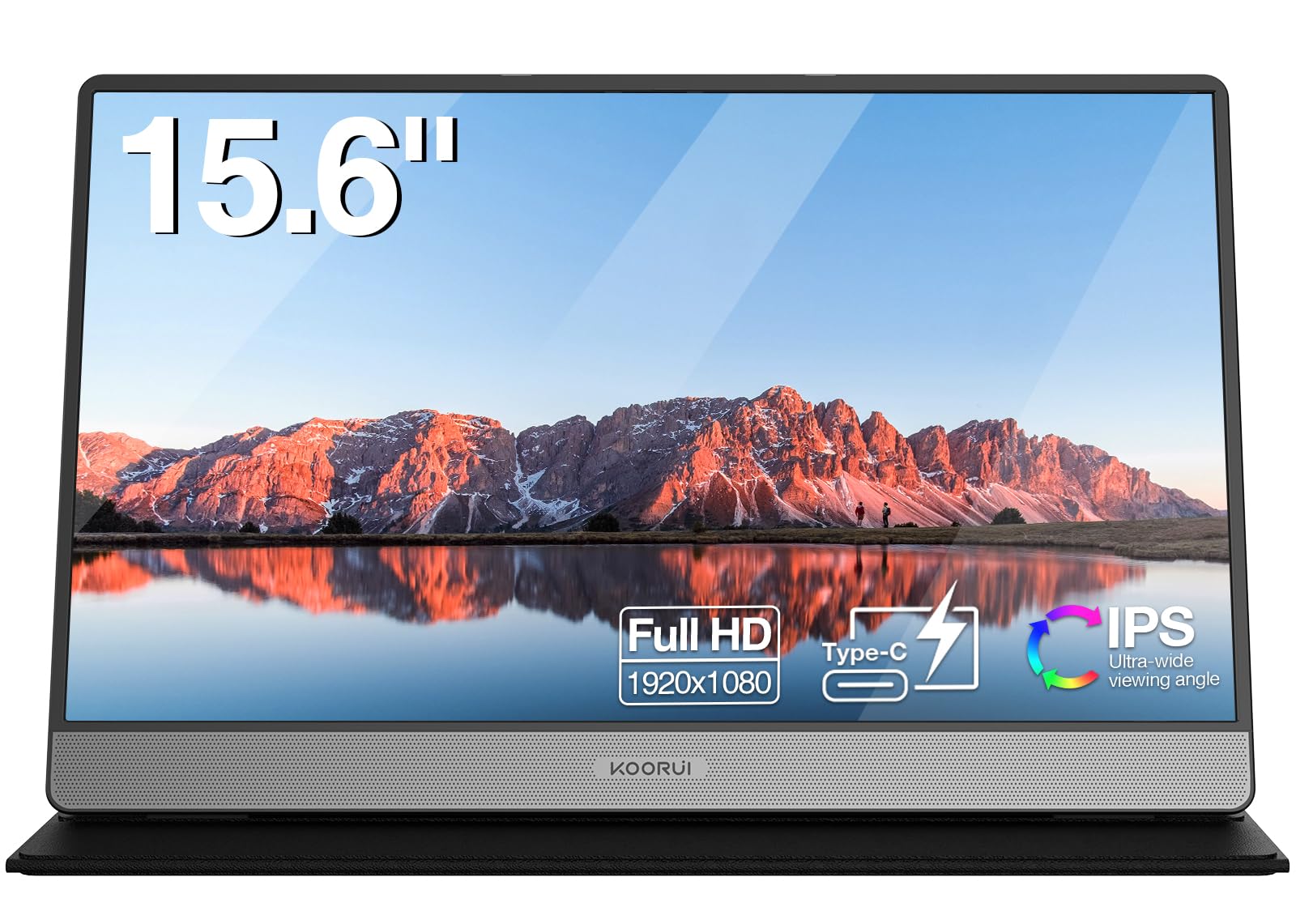
Image: The KOORUI 15.6 inch portable monitor, showcasinด้วยดีไซน์ที่เรียบหรูและขาตั้งในตัว
2. อะไรอยู่ในกล่อง
กรุณาตรวจสอบเนื้อหาในแพ็คเกจเพื่อให้แน่ใจว่ามีสินค้าครบทั้งหมด:
- KOORUI 15.6 inch Portable Monitor (Model: 15B1)
- เคสป้องกัน / ขาตั้ง
- สาย USB-C ถึง USB-C
- สายมินิ HDMI เป็น HDMI
- คู่มือการใช้งาน

Image: A visual representation of the complete package contents, including the monitor, protective case, USB-C cable, Mini HDMI cable, and user manual.
3. สินค้าหมดview
3.1. ขนาดและน้ำหนัก
The KOORUI 15.6 inch portable monitor is designed for portability and convenience.
- ขนาด (ยาว x กว้าง x สูง): ขนาดโดยประมาณ 36.3 ซม. x 23.6 ซม. x 1.6 ซม. (14.3 x 9.1 x 0.4 นิ้ว)
- น้ำหนัก: ประมาณ 1.05 กก. (2.3 ปอนด์)

Image: A diagram illustrating the monitor's dimensions (14.3 inches wide, 9.1 inches high, 0.4 inches thick) and its weight (1.05 kg).
3.2. พอร์ตและส่วนควบคุม
Familiarize yourself with the ports and controls located on the sides of the monitor:
- ปุ่มเปิด/ปิด: เปิด/ปิดมอนิเตอร์
- Menu/Volume Wheel: Navigates the On-Screen Display (OSD) menu and adjusts volume.
- วิทยากร: ลำโพงสเตอริโอแบบบูรณาการเพื่อเอาต์พุตเสียง
- พอร์ต Type-C (2 พอร์ต): For power, data, audio, and video transmission.
- พอร์ตมินิ HDMI: For video input.

ภาพ: รายละเอียด view of the monitor's side, highlighting the power button, menu/volume wheel, speakers, two Type-C ports, and the Mini HDMI port.
4. การตั้งค่าและการเชื่อมต่อ
The KOORUI portable monitor offers flexible connectivity options. Ensure your device supports video output via USB-C or HDMI.
4.1. Connecting via USB-C (Single Cable)
If your device (laptop, smartphone) has a full-featured USB-C port that supports DisplayPort Alternate Mode (DP Alt Mode) and power delivery, you can connect the monitor with a single USB-C cable.
- Connect one end of the provided USB-C cable to a full-featured USB-C port on your device.
- Connect the other end to one of the Type-C ports on the monitor.
- หมายเหตุสำคัญ: When using a single USB-C cable for both power and display, the monitor's brightness may be limited to 50% due to power constraints from the connected device. For full brightness, an external power source is recommended.

Image: A visual guide for single USB-C cable connection, indicating potential brightness limitation.
4.2. Connecting via Mini HDMI and USB-C (Dual Cable)
For devices with an HDMI output or to ensure full brightness, use the Mini HDMI cable for video and a USB-C cable for power.
- Connect one end of the provided Mini HDMI to HDMI cable to your device's HDMI port.
- Connect the Mini HDMI end to the Mini HDMI port on the monitor.
- Connect one end of the USB-C cable to a power adapter (not included) and plug it into a power outlet.
- Connect the other end of the USB-C cable to one of the Type-C ports on the monitor for power.
- บันทึก: When using HDMI for video, a separate power supply via USB-C is always required for the monitor to function.

Image: A diagram illustrating the dual cable connection method, utilizing Mini HDMI for video input and a separate USB-C cable for power.
4.3. ความเข้ากันได้ของอุปกรณ์
The monitor is compatible with a wide range of devices:
- แล็ปท็อป (Windows, macOS)
- พีซี
- แท็บเล็ต
- Smartphones (with compatible USB-C output)
- Gaming Consoles (PS4, PS5, Xbox, Nintendo Switch)
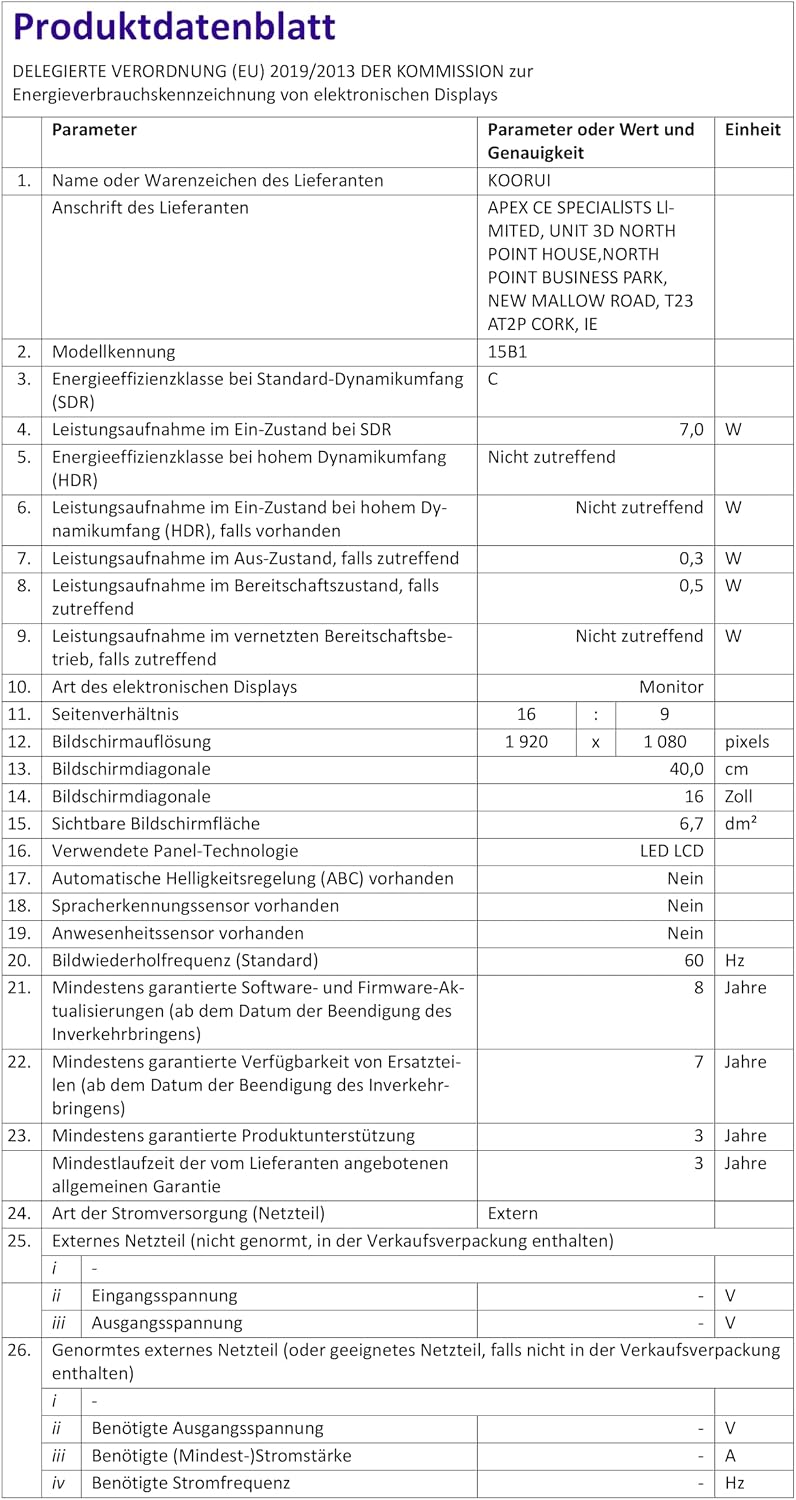
Image: An illustration of the monitor connected to different devices, highlighting its versatility for business and entertainment.
5. คู่มือการใช้งาน
5.1. เปิด/ปิดเครื่อง
กดปุ่มเปิด/ปิดที่อยู่ด้านข้างของจอภาพเพื่อเปิดหรือปิดเครื่อง
5.2. การปรับความสว่างและระดับเสียง
Use the Menu/Volume wheel to access the On-Screen Display (OSD) menu for various settings, including brightness and contrast. Rotate the wheel to adjust volume directly.
- ความสว่าง: Navigate to the 'Brightness' setting in the OSD menu.
- ปริมาณ: Rotate the Menu/Volume wheel up or down to adjust the speaker volume.
5.3. โหมดการแสดงผล
When connected to a computer, you can configure the display mode through your operating system settings (e.g., Windows Display Settings or macOS System Preferences).
- โหมดซ้ำ: The portable monitor mirrors the content of your primary display.
- โหมดขยาย: The portable monitor acts as an extension of your primary display, providing more screen real estate.
- โหมดใช้งานเฉพาะหน้าจอที่สอง: เฉพาะจอภาพพกพาเท่านั้นที่แสดงเนื้อหา ในขณะที่จอแสดงผลหลักปิดอยู่

Image: A visual guide to the three common display modes: Copy Mode (Duplicate), Extended Mode, and Second Screen Mode.

Image: The portable monitor in use, extending a laptop's display for enhanced workspace.
6. การบำรุงรักษา
6.1. การทำความสะอาดจอภาพ
- Always disconnect the monitor from power before cleaning.
- ใช้ผ้านุ่มไม่เป็นขุยเช็ดเล็กน้อยampเคลือบด้วยน้ำหรือน้ำยาทำความสะอาดหน้าจอชนิดอ่อนที่ไม่กัดกร่อน
- ห้ามฉีดน้ำยาทำความสะอาดลงบนหน้าจอโดยตรง
- Avoid using harsh chemicals, alcohol, or ammonia-based cleaners, as they can damage the screen surface.
6.2. Screen Cover Care
The included screen cover protects the monitor and functions as a stand. Keep it clean and avoid placing heavy objects on it to prevent damage to the screen.
7 การแก้ไขปัญหา
If you encounter issues with your KOORUI portable monitor, please refer to the following common solutions:
- ไม่มีจอแสดงผล / หน้าจอสีดำ:
- ตรวจสอบให้แน่ใจว่าสายเคเบิลทั้งหมดเชื่อมต่ออย่างแน่นหนา
- If using HDMI, confirm that a separate USB-C power cable is connected to the monitor.
- Verify your device's USB-C port supports video output (DisplayPort Alt Mode).
- Try connecting to a different device or using different cables to rule out cable or source issues.
- Low Brightness (50%):
- This often occurs when the monitor is powered solely by a single USB-C cable from the host device.
- To achieve full brightness, connect an external power adapter (5V/2.0A or higher) to one of the monitor's Type-C ports.
- ไม่มีเสียง:
- Check the monitor's volume settings using the Menu/Volume wheel.
- Ensure your device's audio output is directed to the portable monitor.
- Note that some USB-C connections may not support audio output.
- Image Flickering or Instability:
- Ensure the monitor is receiving sufficient power. Connect an external power adapter if flickering occurs.
- ตรวจสอบการเชื่อมต่อสายเคเบิลว่าหลวมหรือเสียหายหรือไม่
- Update graphics drivers on your connected device.
8. ข้อมูลจำเพาะ
| คุณสมบัติ | ข้อมูลจำเพาะ |
|---|---|
| หมายเลขรุ่น | 15B1 |
| ขนาดหน้าจอ | 15.6 นิ้ว |
| ปณิธาน | FHD 1920 x 1080p |
| ประเภทแผง | IPS (LCD) |
| อัตราส่วนภาพ | 16:9 น. |
| อัตราการรีเฟรช | 60 เฮิรตซ์ |
| เวลาตอบสนอง | 5 มิลลิวินาที |
| อัตราส่วนคอนทราสต์ | 3000:1 น. |
| ความสว่าง | 250 ซีดี/ตรม. |
| Viewอิงแองเกิล | 178 องศา |
| การเชื่อมต่อ | 2x USB Type-C, 1x Mini HDMI |
| คุณสมบัติพิเศษ | Blue Light Filter, Integrated Speakers, Portable, Flicker-Free, FreeSync |
| ขนาด (กว้าง x ยาว x สูง) | 36.25 x 23.62 x 1.62 ซม. |
| น้ำหนัก | 1.46 กิโลกรัม |
| พลังงานฉบับtage | 240 โวลต์ |

ภาพ: ภาพระยะใกล้ view of the monitor's integrated dual speakers, emphasizing its audio capabilities.

Image: The energy label for the KOORUI monitor, indicating its energy efficiency class 'C' and consumption of 7 kWh/1000h.
9. ข้อมูลการรับประกัน
The KOORUI 15.6 inch Portable Monitor (Model 15B1) comes with a รับประกัน 3 ปี นับจากวันที่ซื้อ การรับประกันนี้ครอบคลุมถึงข้อบกพร่องจากการผลิตและรับรองคุณภาพของผลิตภัณฑ์
โปรดเก็บหลักฐานการซื้อไว้เพื่อใช้ในกรณีเรียกร้องการรับประกัน
10. การสนับสนุนลูกค้า
For any questions, technical assistance, or if you encounter any damages, malfunctions, or missing accessories, please do not hesitate to contact KOORUI customer support. Our team is dedicated to providing premium service and technical support.
Refer to the contact information provided on the KOORUI official webไซต์หรือเอกสารการซื้อของคุณสำหรับช่องทางการสนับสนุนล่าสุด
เอกสารที่เกี่ยวข้อง15B1


Ask a question about this manual
Ask about setup, troubleshooting, compatibility, parts, safety, or missing instructions. Manuals+ will review the question and use this page’s manual context to help answer it.