
การแนะนำ
The Thetis Pro FIDO2 Security Key is a hardware device designed to enhance the security of your online accounts through two-factor authentication (2FA) and passwordless login (Passkey). It supports FIDO2.0 standards and offers versatile connectivity options including USB-A, USB-C, and NFC for multi-layered protection across various operating systems and services.
คุณสมบัติหลัก
- Dual USB Connectivity: Equipped with both USB-A and USB-C ports for broad compatibility with modern and older devices.
- การสนับสนุน NFC: Allows for convenient mobile authentication by tapping the key against your phone's NFC area. Note: NFC is supported only through mobile authentication, not on MacOS/Windows.
- FIDO2.0 Certified: Provides strong, phishing-resistant authentication for supported services.
- Highly Durable Design: Features a 360° rotating metal cover, making it tamper-resistant, water-resistant, and crush-resistant.
- พกพาได้: Compact design easily fits on a keychain and requires no battery or network connectivity.
- ความเข้ากันได้กับหลายแพลตฟอร์ม: Works with Windows, MacOS, Linux, and Chrome OS.
ความเข้ากันได้
The Thetis Pro FIDO2 Security Key is designed for wide compatibility across various operating systems and online services. Please review รายละเอียดดังต่อไปนี้:
- ระบบปฏิบัติการ: Windows, MacOS, Linux (Debian Based or Red Hat Based), and Chrome OS.
- NFC: Supported for mobile authentication on iOS (via Safari/Chrome) and Android (via Chrome). Not supported on MacOS/Windows (NFC readers are rare on these platforms).
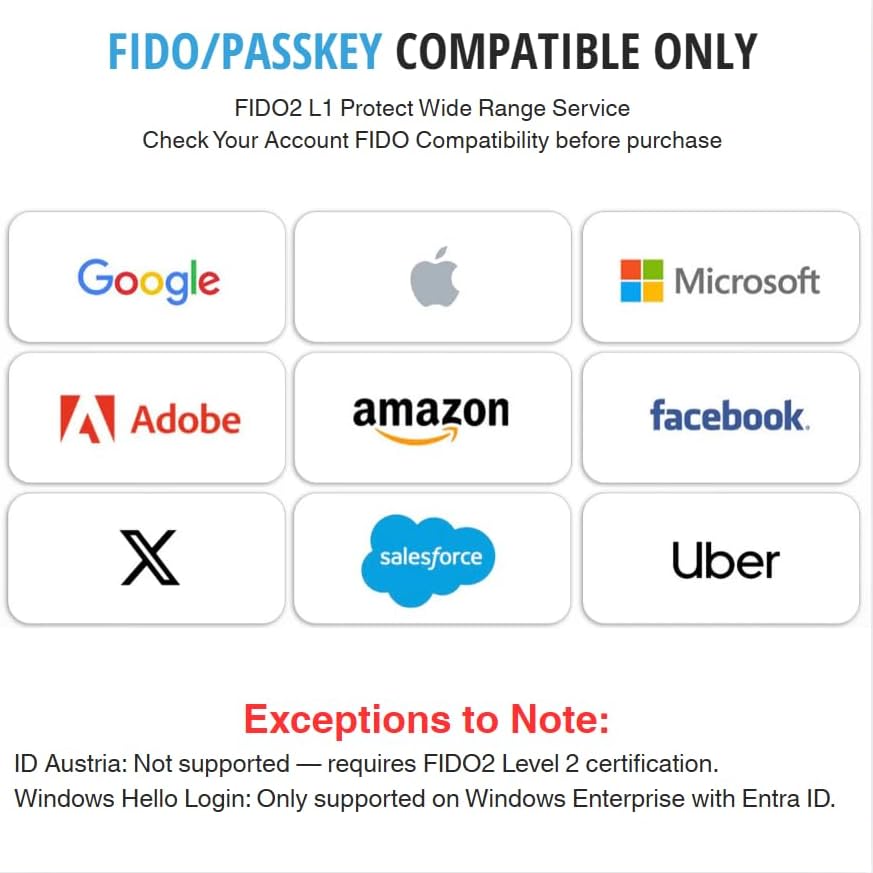
- Supported Services (FIDO/Passkey Compatible): Google, Microsoft, Facebook, Adobe, Amazon, Salesforce, Uber, Netflix, Stripe, and more.
- ข้อ จำกัด ที่ทราบ:
- ID Austria is not supported (requires FIDO2 Level 2).
- Windows Hello login only works with Windows Enterprise editions that support Entra ID.


คำแนะนำการตั้งค่า
1. Initial PIN Setup
Before using your Thetis Pro FIDO2 Security Key, you must set up an initial PIN. This PIN is required for most WebAuthn services and to register passkeys.
- ดาวน์โหลด Thetis Manager app from the official Thetis webงาน (www.thetis.io/start).
- After unzipping, open the Thetis Manager app.
- Insert your Thetis Pro FIDO2 Security Key into an available USB-A or USB-C port on your computer.
- In the Thetis Manager app, navigate to the ฟิโด แท็บ
- คลิ๊กที่นี่ "Set Pin" and follow the on-screen prompts to create and confirm your new PIN. Ensure your PIN meets any specified length requirements (e.g., 8 characters or more).
2. Setting up Passkeys for Amazon Account
You can register your Thetis Pro FIDO2 Security Key as a passkey for your Amazon account to enable passwordless login.
- Log in to your Amazon account on your computer.
- In the top-right corner, hover over "Account & Lists" and click on "Your Account".
- Under "Account & Security", select "Login & Security".
- Locate the "Passkey" option and click "Set up".
- Follow the on-screen prompts. When instructed, insert your Thetis Pro FIDO2 Security Key into an available USB port on your computer.
- Enter the PIN you set earlier for your security key.
- When the light on the security key starts flashing, press the button on the key to confirm.
- Allow the site to see your security key if prompted.
- Once successfully registered, your Amazon account is secured with the Thetis Pro FIDO2 Security Key. You can now sign out and log in again using your key.
3. Setting up TOTP for Gmail Account
You can use your Thetis Pro FIDO2 Security Key to store Time-based One-Time Passwords (TOTP) for services like Gmail, adding an extra layer of security.
- Log into your Gmail account on your computer.
- คลิกโปรของคุณfile ไอคอนที่มุมขวาบนและเลือก "Manage Your Google Account".
- In the left menu, click on the "Security" แท็บ
- Under the "How you sign in to Google" section, click "2-Step Verification".
- Scroll down to "Authenticator app" and click "Set up authenticator".
- Google will display a QR code. Do not scan this QR code with your phone's camera.
- เปิด Thetis Authenticator App on your smartphone (download from App Store or Google Play Store).
- In the Thetis Authenticator App, tap the - ไอคอนที่มุมขวาบนและเลือก "Scan QR Code".
- When prompted by the NFC prompt, unfold your Thetis Pro FIDO2 Security Key and hold it near your phone's NFC reader.
- The TOTP seed will be saved on your security key. Tap "บันทึก".
- Back on your Google Account page, click "ต่อไป" and enter the TOTP displayed in the Thetis Authenticator App.
- คลิก "Verify" แล้วจากนั้น "Turn on 2-Step Verification". You may skip adding a phone number by selecting "Continue Anyway".
4. Setting up Thetis Security Key for GitHub
Enhance your GitHub account security by registering your Thetis Security Key for two-factor authentication.
- Log in to your GitHub account.
- คลิกโปรของคุณfile ไอคอนที่มุมขวาบนและเลือก "การตั้งค่า".
- In the left sidebar, click "Account security".
- Under "Two-factor authentication", click "Enable two-factor authentication".
- เลือก "Setup using an Authenticator App" และคลิก "Continue".
- Scan the displayed QR code using your preferred authenticator app (e.g., Thetis Authenticator App).
- Enter the 6-digit code from the authenticator app into GitHub and click "Continue".
- Save your recovery codes to a secure location and click "I have saved my recovery codes".
- Now, under "Security keys", click "Register new security key".
- Enter a nickname for your key (e.g., "ThetisKey") and click "เพิ่ม".
- When prompted, insert your Thetis Security Key into your computer and press the button on the key to confirm registration.
คำแนะนำการใช้งาน
Using the Security Key for Login (Passkey/FIDO2)
Once your Thetis Pro FIDO2 Security Key is registered with a service, logging in becomes a simple, secure process:
- Navigate to the login page of the service you wish to access.
- ป้อนชื่อผู้ใช้หรือที่อยู่อีเมลของคุณ
- When prompted for your security key, insert the Thetis Pro FIDO2 Security Key into an available USB port on your computer.
- Enter your security key PIN when requested.
- When the key's light flashes, press the button on the key to complete the authentication.
- For NFC-enabled mobile devices, unfold the key and tap it against your phone's NFC reader when prompted.


Using the Thetis Authenticator App for TOTP
For services where you've set up TOTP with your Thetis Security Key:
- When prompted for a 2FA code during login, open the Thetis Authenticator App บนสมาร์ทโฟนของคุณ
- Tap on the app screen or pull down to activate NFC.
- Unfold your Thetis Pro FIDO2 Security Key and tap it against the NFC reader area of your phone.
- The app will display the current TOTP code. Enter this code into the login prompt on your computer or device.

การซ่อมบำรุง
- การทำความสะอาด: Use a soft, dry cloth to clean the security key. Avoid using harsh chemicals or abrasive materials.
- พื้นที่จัดเก็บ: Store the key in a safe place, ideally on your keychain or in the provided carrying case, to prevent loss or damage.
- ความทนทาน: The key is designed to be durable (water-resistant, crush-resistant), but avoid intentional damage or exposure to extreme conditions.
- อัพเดตเฟิร์มแวร์: Periodically check the Thetis website for any firmware updates for your device using the Thetis Manager app.

การแก้ไขปัญหา
- ไม่รู้จักคีย์:
- Ensure the key is fully inserted into the USB port.
- ลองใช้พอร์ต USB อื่น หรือลองใช้กับคอมพิวเตอร์เครื่องอื่นเพื่อตรวจสอบว่าปัญหาไม่ได้เกิดจากพอร์ต
- Make sure the Thetis Manager app is installed and running (if required for the specific operation).
- NFC ใช้งานไม่ได้:
- Confirm NFC is enabled on your mobile device.
- Ensure the key is unfolded into a "T" shape and held directly against the NFC reader area of your phone for a few seconds.
- Remember NFC is primarily for mobile authentication, not desktop OS.
- Incorrect PIN:
- If you forget your PIN, you may need to reset the FIDO functionality of the key using the Thetis Manager app. This will erase all registered passkeys on the key, requiring re-registration.
- Service Compatibility Issues:
- Verify that the online service explicitly supports FIDO2/Passkey authentication.
- Check for any specific requirements or limitations of the service (e.g., FIDO2 Level 2 for ID Austria).
ข้อมูลจำเพาะ
| คุณสมบัติ | รายละเอียด |
|---|---|
| ยี่ห้อ | ธีติส |
| ชื่อรุ่น | Thetis PRO FIDO2 Key (flip-x) |
| หมายเลขรุ่น | เอ็มบี000493 |
| ฮาร์ดแวร์อินเตอร์เฟซ | ยูเอสบี (USB-A, USB-C) |
| คุณสมบัติพิเศษ | Dual USB Connector, NFC Ready |
| อุปกรณ์ที่รองรับ | Windows, MacOS, Linux (Debian Based or Red Hat Based), Chrome OS |
| สี | สีดำ |
| ขนาดสินค้า (ลึก x กว้าง x สูง) | ลึก 2.9 นิ้ว x กว้าง 0.72 นิ้ว x สูง 0.5 นิ้ว |
| น้ำหนักสินค้า | 1 ออนซ์ |
| ยูพีซี | 196852715633 |

การรับประกันและการสนับสนุน
The Thetis Pro FIDO2 Security Key comes with a Standard Express Warranty. For detailed warranty information, technical support, or further assistance, please visit the official Thetis webเว็บไซต์หรือติดต่อฝ่ายบริการลูกค้าของพวกเขา
Official Thetis Store: Thetis Amazon Store