
1. สินค้าหมดview
The havit GK59 Gaming Microphone is designed for clear audio capture during gaming, streaming, and voice communication. It features a condenser microphone for high-quality sound and a versatile design for ease of use.

รูปที่ 1.1 : ด้านหน้า view of the havit GK59 Gaming Microphone, showcasing its main body, stand, and control buttons.
คุณสมบัติหลัก:
- ง่ายต่อการใช้: ใช้งานง่าย เพียงเสียบปลั๊กก็ใช้งานได้ทันที
- Good Performance: Delivers clear and consistent audio.
- Good Quality: Durable construction for reliable use.
- การออกแบบพกพา: ขนาดกะทัดรัด พกพาสะดวก
- ขาตั้งปรับได้: Allows for flexible positioning.
2. คำแนะนำในการตั้งค่า
2.1 เนื้อหาบรรจุภัณฑ์
กรุณาตรวจสอบแพ็คเกจสำหรับรายการต่อไปนี้:
- havit GK59 Gaming Microphone
- สายเชื่อมต่อ USB
- คู่มือการใช้งาน (เอกสารนี้)
2.2 การเชื่อมต่อไมโครโฟน
The GK59 microphone offers versatile connectivity options for various devices.
- การเชื่อมต่อ USB: Connect the provided USB cable to the USB-C port on the back of the microphone and the other end to an available USB port on your computer or gaming console. The microphone is plug-and-play and should be automatically recognized by most operating systems.
- ขั้วต่อแจ็ค 3.5 มม.: For devices supporting a 3.5mm auxiliary input, connect a 3.5mm audio cable (not included) to the 3.5mm jack on the back of the microphone and to your device's audio input.
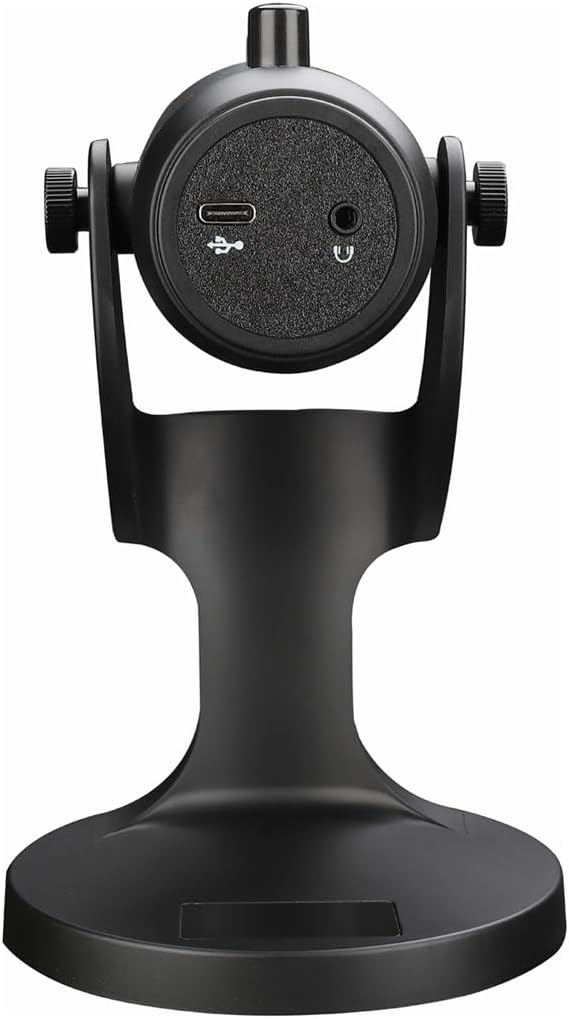
รูปที่ 2.1: ด้านหลัง view of the havit GK59 Gaming Microphone, highlighting the USB-C port for data and power, and the 3.5mm headphone jack for monitoring.
After connecting, ensure the microphone is selected as the default input device in your system's sound settings or your gaming/streaming software.
3. คู่มือการใช้งาน
3.1 การควบคุมขั้นพื้นฐาน
The havit GK59 features intuitive controls located on the front of the microphone body:
- ปุ่มปิดเสียง: Press to mute or unmute the microphone. An indicator light will typically show the mute status.
- MIC +/- Buttons: Adjust the microphone input sensitivity (gain). Press '+' to increase, '-' to decrease.
- ปุ่ม VOL +/-: Adjust the headphone output volume for monitoring. Press '+' to increase, '-' to decrease.
- ECHO +/- Buttons: Adjust the echo effect level. Press '+' to increase, '-' to decrease.
รูปที่ 3.1: รายละเอียด view of the microphone's control panel, including the mute button, microphone gain, volume, and echo adjustment buttons.
3.2 Adjusting Microphone Position
The microphone is equipped with an adjustable stand, allowing you to optimize its position for best sound capture and comfort.
- Gently hold the microphone body and the base of the stand.
- Tilt the microphone forward or backward to achieve the desired angle. The stand's design helps reduce vibration and abnormal sounds during use.
- Position the microphone approximately 6-12 inches (15-30 cm) from your mouth for optimal voice clarity.

Figure 3.2: The havit GK59 microphone demonstrating its adjustable tilt feature on the stand, designed for anti-vibration.
4. การบำรุงรักษา
4.1 การทำความสะอาด
To maintain the microphone's performance and appearance:
- Disconnect the microphone from its power source before cleaning.
- ใช้ผ้าแห้งนุ่มเช็ดพื้นผิวภายนอก
- ห้ามใช้น้ำยาทำความสะอาดชนิดเหลว สเปรย์ หรือตัวทำละลาย เนื่องจากอาจทำให้พื้นผิวหรือชิ้นส่วนภายในเสียหายได้
4.2 พื้นที่จัดเก็บ
When not in use, store the microphone in a cool, dry place away from direct sunlight and extreme temperatures. Protect it from dust and moisture.
5 การแก้ไขปัญหา
If you encounter issues with your havit GK59 Gaming Microphone, please refer to the following table for common problems and solutions:
| ปัญหา | สาเหตุที่เป็นไปได้ | สารละลาย |
|---|---|---|
| No sound input from microphone | เชื่อมต่อไมโครโฟนไม่ถูกต้อง เลือกอุปกรณ์ป้อนข้อมูลไม่ถูกต้อง ปิดเสียงไมโครโฟน | ตรวจสอบให้แน่ใจว่าสาย USB เชื่อมต่ออย่างแน่นหนา Check system sound settings and select GK59 as input. Press the Mute button on the microphone to unmute. |
| ระดับเสียงไมโครโฟนต่ำ | Microphone gain too low ระดับเสียงอินพุตของระบบต่ำเกินไป | Press the 'MIC +' button on the microphone. Adjust input volume in your system's sound settings. |
| เสียงผิดเพี้ยนหรือไม่ชัดเจน | Microphone gain too high ไมโครโฟนอยู่ใกล้ปากมากเกินไป เสียงสิ่งแวดล้อม | Press the 'MIC -' button on the microphone. ปรับตำแหน่งไมโครโฟน (ห่างจากปาก 6-12 นิ้ว) ลดเสียงรบกวนพื้นหลังในสภาพแวดล้อมของคุณ |
| No headphone monitoring sound | หูฟังไม่ได้เชื่อมต่อ Headphone volume too low | Ensure headphones are plugged into the 3.5mm jack. Press the 'VOL +' button on the microphone. |
6. ข้อมูลจำเพาะทางเทคนิค
Below are the technical specifications for the havit GK59 Gaming Microphone:
| คุณสมบัติ | ข้อมูลจำเพาะ |
|---|---|
| ยี่ห้อ | นิสัย |
| หมายเลขรุ่น | GK59 |
| เทคโนโลยีการเชื่อมต่อ | USB, 3.5 mm Jack (Auxiliary) |
| การใช้ที่แนะนำ | การเล่นเกม |
| รูปแบบขั้ว | ทิศทางเดียว |
| ปัจจัยรูปแบบไมโครโฟน | Handheld (with desktop stand) |
| น้ำหนักสินค้า | 429 กรัม |
| อิมพีแดนซ์ | 250 โอห์ม |
| อัตราส่วนสัญญาณต่อเสียงรบกวน | 18 เดซิเบล |
| เสียงดัง | 18 เดซิเบล |
| แหล่งพลังงาน | สายไฟ (ผ่าน USB) |
| อุปกรณ์ที่รองรับ | Gaming Consoles, PCs |
| ขนาดรายการ (LxWxH) | 5.59 x 4.92 x 9.06 นิ้ว |
| สี | สีดำ |
7. การรับประกันและการสนับสนุน
7.1 ข้อมูลการรับประกัน
The havit GK59 Gaming Microphone comes with a standard manufacturer's warranty. Please refer to the warranty card included in your product packaging or visit the official havit webเว็บไซต์สำหรับข้อกำหนดและเงื่อนไขการรับประกันโดยละเอียด
7.2 การสนับสนุนลูกค้า
For technical assistance, troubleshooting not covered in this manual, or warranty claims, please contact havit customer support through their official channels. You can find more information and contact details on the ร้าน Havit บน Amazon หรืออย่างเป็นทางการของพวกเขา webเว็บไซต์.