
การแนะนำ
This manual provides essential information for setting up, operating, maintaining, and troubleshooting your CUPEISI 7-inch Android 14 Tablet. Please read this guide thoroughly to ensure proper use and to maximize your tablet's performance and longevity.
มีอะไรอยู่ในกล่อง
ตรวจสอบว่ามีสินค้าครบทั้งหมดเมื่อแกะกล่อง:
- CUPEISI 7-inch Android 14 Tablet
- สายเคเบิล Type-C
- คู่มือการใช้งาน (เอกสารนี้)
สินค้าเกินview
The CUPEISI Q2S tablet features a 7-inch HD IPS display, powered by a 1.6GHz Quad-core processor and running Android 14. It includes 8GB RAM (4GB physical + 4GB virtual) and 32GB internal storage, expandable up to 1TB via microSD card. The tablet is equipped with dual cameras and supports Wi-Fi and Bluetooth connectivity.
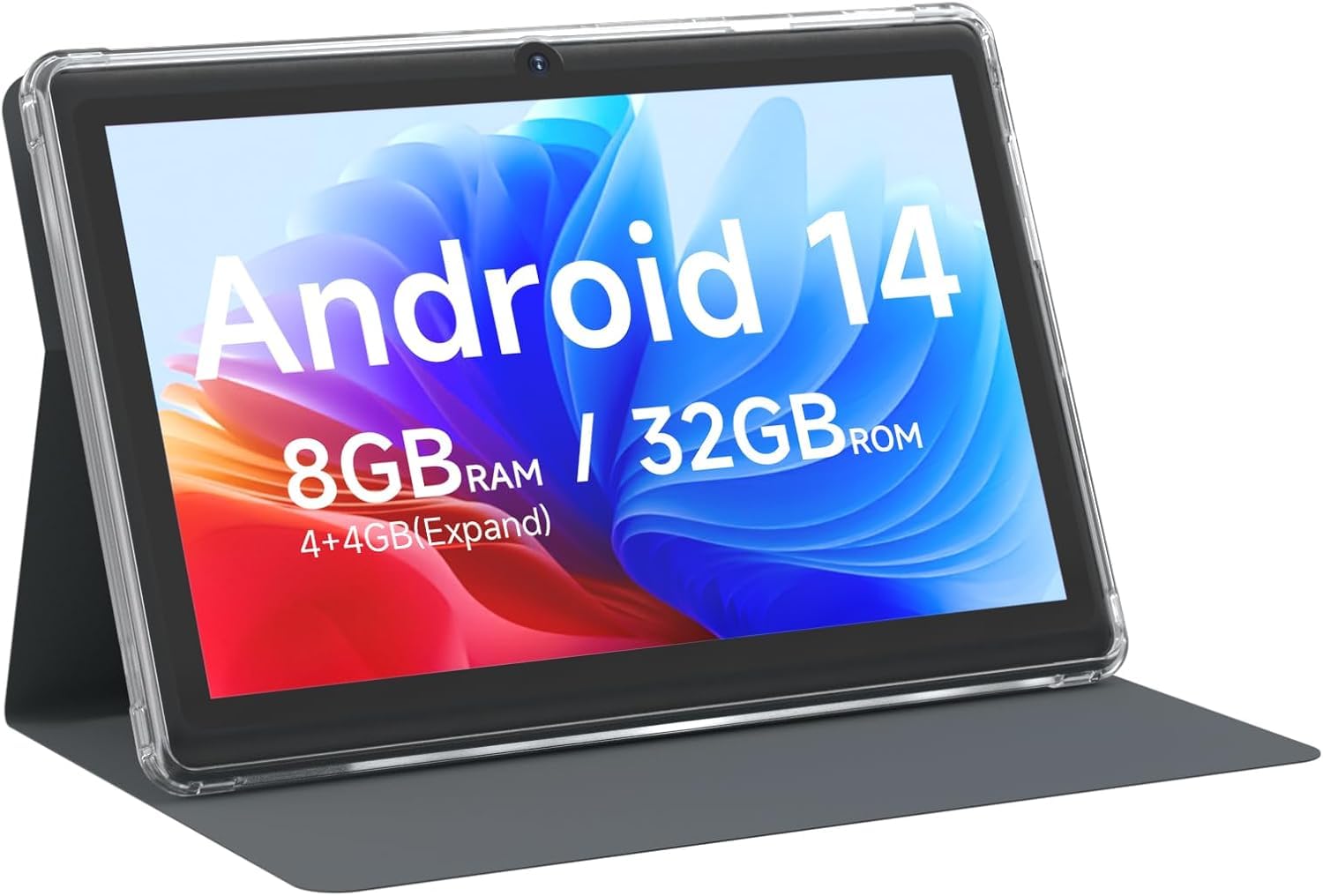
CUPEISI 7-inch Android 14 Tablet, front view.

เกินview of CUPEISI 7-inch Android 14 Tablet features including OS, CPU, RAM, ROM, Screen, Camera, Battery, and WiFi.
การตั้งค่า
1. การชาร์จแท็บเล็ต
Before first use, fully charge the tablet. Connect the provided Type-C cable to the tablet's charging port and the other end to a compatible USB power adapter (not included) or a computer's USB port. The battery indicator on the screen will show charging status.
2. การเปิดเครื่องและการตั้งค่าเริ่มต้น
- กดปุ่มเปิด/ปิดค้างไว้จนกว่าหน้าจอจะสว่างขึ้น
- ทำตามคำแนะนำบนหน้าจอเพื่อเลือกภาษา ภูมิภาค และการตั้งค่าเริ่มต้นอื่นๆ
3. การเชื่อมต่อกับ Wi-Fi
- ไปที่ การตั้งค่า > เครือข่ายและอินเตอร์เน็ต > ไวไฟ.
- สลับ Wi-Fi On.
- เลือกเครือข่าย Wi-Fi ที่คุณต้องการจากรายการ
- ป้อนรหัสผ่านเครือข่ายหากได้รับแจ้ง จากนั้นแตะ เชื่อมต่อ.
4. การตั้งค่าบัญชี Google
A Google account is required to download apps from Google Play Store and access Google services. You can sign in with an existing account or create a new one during the initial setup or later via การตั้งค่า > บัญชี.
การใช้งานแท็บเล็ตของคุณ
1. Basic Navigation and Gestures
- แตะ: เลือกรายการหรือเปิดแอป
- ปัด: เลื่อนดูหน้าจอหรือรายการ
- หยิก: ซูมเข้าหรือออกจากรูปภาพและ web หน้า
- กดแบบยาว: เข้าถึงเมนูบริบทหรือย้ายไอคอน
2. การจัดการแอปพลิเคชัน

Tablet screen showing various application icons, illustrating the 8GB RAM and 32GB ROM storage capacity.
- ติดตั้งแอพ: Open the Google Play Store app, search for your desired app, and tap ติดตั้ง.
- ถอนการติดตั้งแอป: Long-press an app icon on the home screen or app drawer, then drag it to the ถอนการติดตั้ง option, or go to การตั้งค่า > แอปพลิเคชั่น > เลือกแอป > ถอนการติดตั้ง.
3. การจัดการการจัดเก็บข้อมูล
The tablet has 32GB of internal storage. You can expand this by inserting a microSD card (up to 1TB) into the designated slot. To manage storage, go to การตั้งค่า > พื้นที่จัดเก็บ.
4. การใช้กล้อง
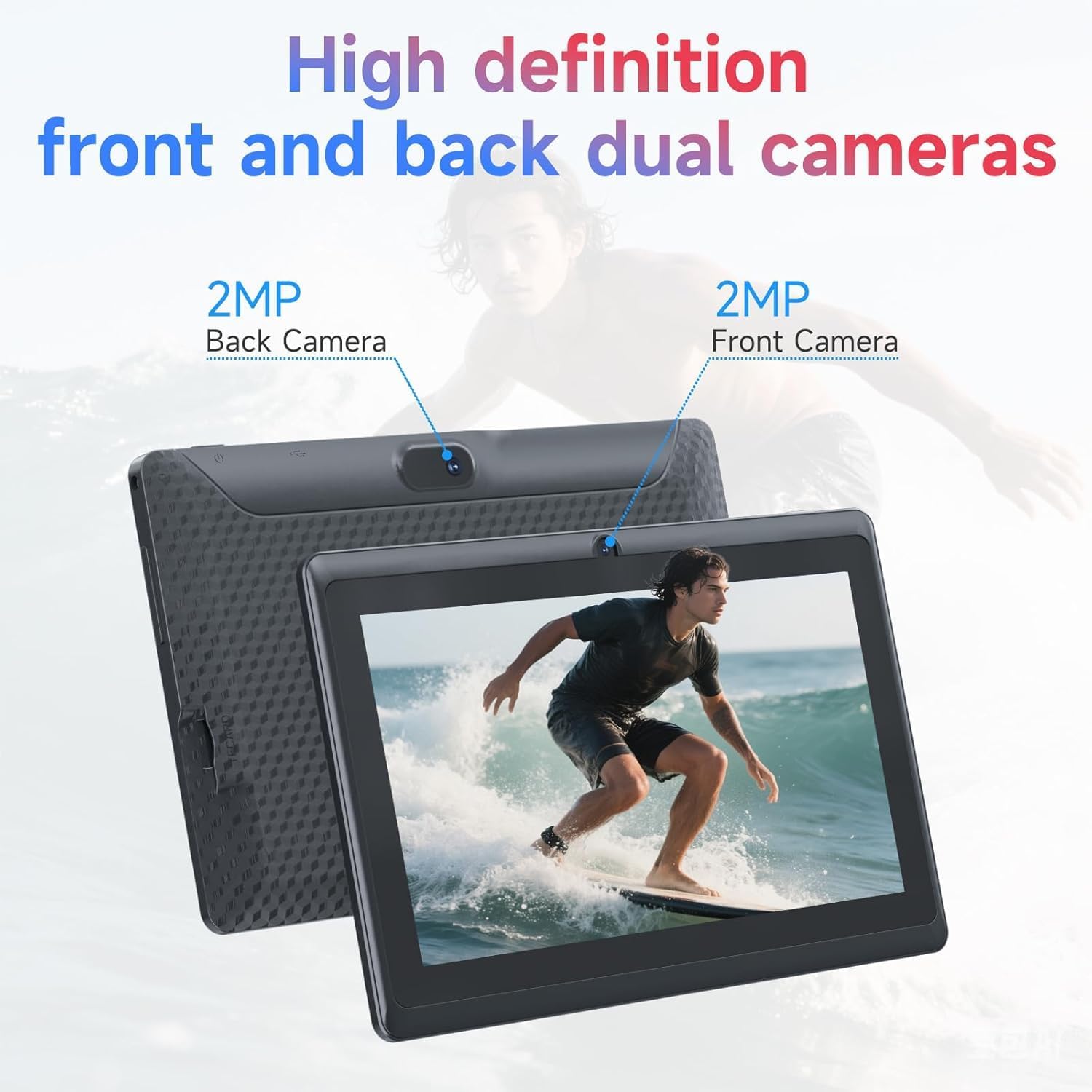
Illustration of the tablet's dual cameras, featuring a 5MP front camera and an 8MP rear camera.
แท็บเล็ตนี้มีกล้องหน้า 5MP และกล้องหลัง 8MP เปิด... กล้อง app to take photos or record videos. Tap the camera icon to switch between front and rear cameras.
5 การเชื่อมต่อ (บลูทูธ)
การเชื่อมต่ออุปกรณ์บลูทูธ:
- ไปที่ การตั้งค่า > อุปกรณ์ที่เชื่อมต่อ > บลูทูธ.
- สลับบลูทูธ On.
- เลือก จับคู่อุปกรณ์ใหม่ และเลือกอุปกรณ์ของคุณจากรายการ
6. โหมดปกป้องดวงตา

The 7-inch IPS HD screen of the tablet displaying a colorful image, highlighting its 1024x600 resolution.
The tablet's display is designed to reduce blue light emission for eye comfort. You can enable or adjust eye protection settings in การตั้งค่า > แสดง.

A user engaged in a video conference on the tablet, demonstrating its suitability for work and study.
การซ่อมบำรุง
1. การทำความสะอาดและการดูแลรักษา
- ใช้ผ้านุ่มที่ไม่เป็นขุยในการทำความสะอาดหน้าจอและตัวเครื่องแท็บเล็ต
- หลีกเลี่ยงการใช้สารเคมีรุนแรงหรือวัสดุที่มีฤทธิ์กัดกร่อน
- ควรเก็บแท็บเล็ตให้ห่างจากอุณหภูมิที่สูงจัด แสงแดดโดยตรง และความชื้น

An image depicting the tablet's drop protection feature, showing it withstands impacts.
2. การอัปเดตซอฟต์แวร์
ตรวจสอบและติดตั้งการอัปเดตซอฟต์แวร์เป็นประจำเพื่อให้มั่นใจถึงประสิทธิภาพและความปลอดภัยที่เหมาะสมที่สุด ไปที่ การตั้งค่า > ระบบ > การอัพเดทระบบ.
3. การเพิ่มประสิทธิภาพแบตเตอรี่
- To prolong battery life, reduce screen brightness, disable Wi-Fi/Bluetooth when not in use, and close background apps.
- หลีกเลี่ยงการปล่อยแบตเตอรี่จนหมดบ่อยครั้ง
การแก้ไขปัญหา
| ปัญหา | วิธีแก้ปัญหาที่เป็นไปได้ |
|---|---|
| แท็บเล็ตไม่สามารถเปิดเครื่องได้ | Ensure the tablet is charged. Connect to a power source and wait a few minutes before attempting to power on again. |
| ปัญหาการเชื่อมต่อ Wi-Fi | Check if Wi-Fi is enabled in settings. Restart your router and the tablet. Ensure you have entered the correct password. |
| ประสิทธิภาพการทำงานช้า | Close unnecessary background applications. Clear cache from apps in Settings > Apps. Consider performing a factory reset if issues persist (back up data first). |
| แอปขัดข้องหรือค้าง | Update the app to the latest version. Clear the app's cache and data in Settings > Apps. Reinstall the app. |
ข้อมูลจำเพาะ
| ยี่ห้อ | คิวเปซี |
| หมายเลขรุ่น | Q2S |
| ระบบปฏิบัติการ | แอนดรอยด์ 14 |
| โปรเซสเซอร์ | 1.6 GHz Quad-core (ARM Cortex) |
| แรม | 8 GB (4GB fixed + 4GB virtual) |
| การจัดเก็บข้อมูลภายใน | 32GB |
| พื้นที่เก็บข้อมูลแบบขยายได้ | รองรับพื้นที่จัดเก็บข้อมูลสูงสุด 1 TB ผ่านการ์ด microSD |
| ขนาดหน้าจอ | 7 นิ้ว |
| ความละเอียดการแสดงผล | 1024 x 600 Pixels IPS HD |
| กล้องหน้า | 5 MP |
| กล้องหลัง | 8 MP |
| ความจุของแบตเตอรี่ | 3000 มิลลิแอมป์ |
| อายุการใช้งานแบตเตอรี่โดยเฉลี่ย | 6 ชั่วโมง |
| การเชื่อมต่อ | Wi-Fi (802.11g), บลูทูธ |
| อินเทอร์เฟซ | ยูเอสบี ไทป์ ซี |
| ขนาด (ยาว x กว้าง x หนา) | 7.5" x 4.3" x 0.3" |
| น้ำหนักสินค้า | 0.38 กิโลกรัม |
ข้อมูลการรับประกัน
The CUPEISI Q2S Tablet comes with a 1-year limited warranty from the date of purchase. This warranty covers manufacturing defects and workmanship under normal use. It does not cover damage caused by misuse, accidents, unauthorized modifications, or external factors. Please retain your proof of purchase for warranty claims.
การสนับสนุนลูกค้า
For further assistance, technical support, or warranty inquiries, please refer to the contact information provided with your product packaging or visit the official CUPEISI website. When contacting support, please have your tablet model number (Q2S) and proof of purchase ready.