
1. บทนำ
Thank you for choosing the Vrriis Wireless HDMI Transmitter and Receiver system. This product allows for wireless transmission of HDMI signals, eliminating the need for long HDMI cables. This specific package includes one transmitter (TX) and four receivers (RX), supporting a maximum configuration of 1 TX to 4 RXs. It is designed for various applications including home entertainment, conference rooms, and educational settings, providing high-quality 1080P video transmission with minimal latency.
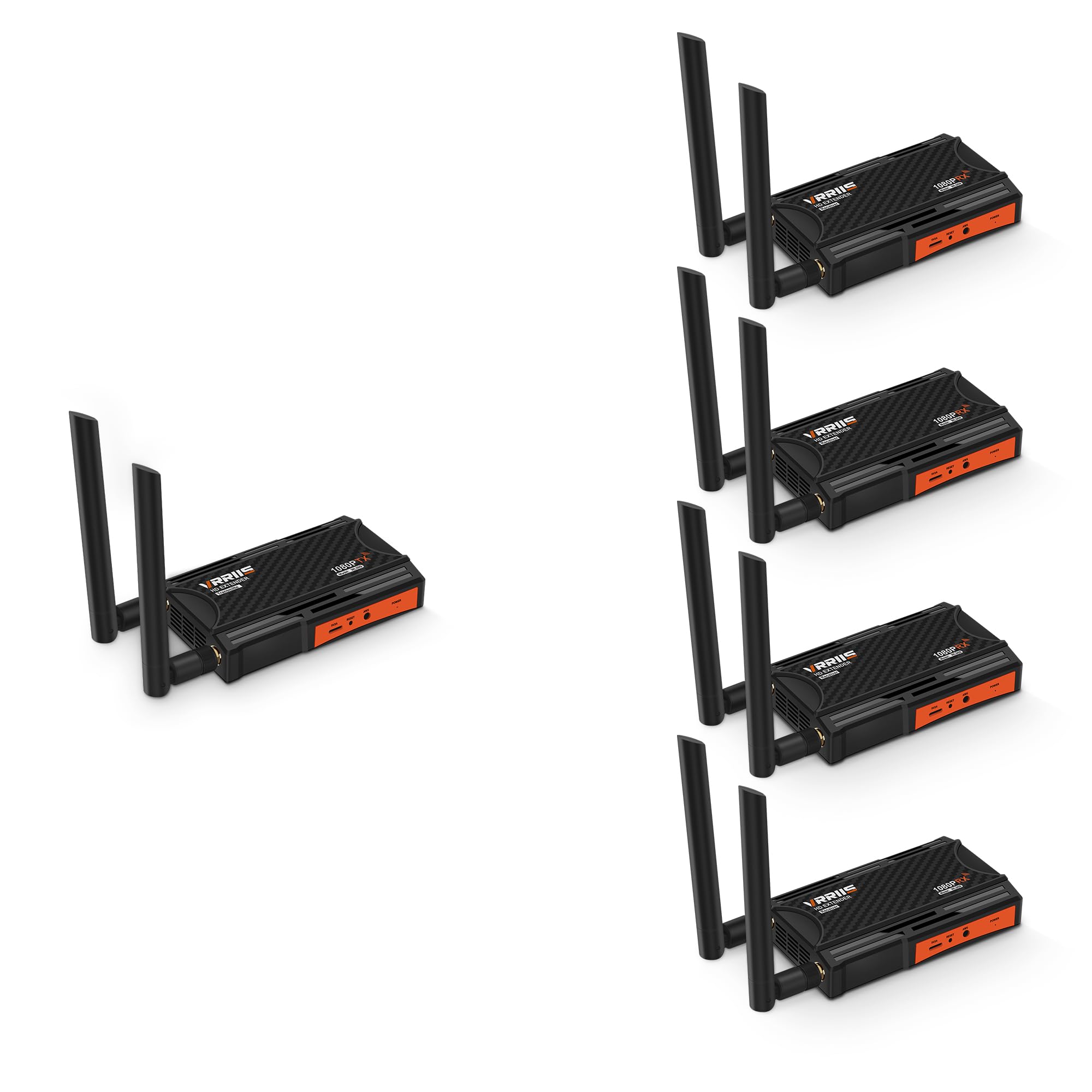
Image 1.1: Vrriis Wireless HDMI Transmitter and Receiver units. The image shows two black rectangular devices with orange accents and dual antennas, labeled 1080P RX.
2. เนื้อหาบรรจุภัณฑ์
Please check the package contents carefully. If any items are missing or damaged, contact Vrriis customer support.
- 1 x Vrriis Wireless HDMI Transmitter (TX)
- 4 x Vrriis Wireless HDMI Receivers (RX)
- 5 x Power Adapters (for TX and RX units)
- 5 x สาย HDMI
- IR Blaster Cable (for TX)
- IR Receiver Cable (for RX)
- คู่มือการใช้งาน (เอกสารนี้)
3. คุณสมบัติของผลิตภัณฑ์
- 1 Transmitter to 4 Receivers (1TX 4RX) Support: Expand your wireless display network by adding up to four receivers.
- ระยะการส่งสัญญาณที่ขยายออกไป: Up to 656 feet (200 meters) line-of-sight. Actual distance may vary based on environmental factors like walls and obstacles.
- 5.8G High-Speed Transmission: Utilizes dual antenna design for strong, stable, and high-speed signal broadcast.
- Full HD 1080P @ 60Hz Support: Delivers crisp and clear video quality. Supports various resolutions including 1080p@50Hz, 1080p@24Hz, 720p@50Hz, 480p@60Hz.
- ความหน่วงต่ำ: Approximately 0.12 seconds wireless transmission latency, suitable for presentations and video playback. Not recommended for real-time gaming.
- รีโมทคอนโทรล IR: Control your source device (e.g., set-top box) remotely from the receiver location.
- HDMI Local Loop-out: The transmitter unit features an HDMI loop-out port, allowing a local display to be connected without delay.
- ความเข้ากันได้กว้าง: Compatible with various HDMI source devices such as set-top boxes, DVRs, laptops, Blu-ray players, and display devices like TVs, monitors, and projectors.
- ปลั๊กแอนด์เพลย์: Easy setup without complex software installation.
- การออกแบบที่กะทัดรัด: Small size, easy to conceal, and can be powered by a portable power station or power adapter.

Image 3.1: Key features of the Vrriis Wireless HDMI Extender. Highlights dual antenna for strong 5.8G signal, simple, secure, speed, and stable transmission.

Image 3.2: Vrriis Wireless HDMI Transmitter and Receiver units, showing screw holes for camera mounting. This illustrates the compact design and versatility.
4. คำแนะนำในการตั้งค่า
Follow these steps to set up your Vrriis Wireless HDMI system.
4.1 การเชื่อมต่อตัวส่งสัญญาณ (TX)
- Connect one end of an HDMI cable to the HDMI output of your source device (e.g., laptop, set-top box).
- เชื่อมต่อปลายอีกด้านหนึ่งของสาย HDMI เข้ากับ HDMI IN port on the Vrriis Transmitter unit.
- (Optional) If you wish to use the local loop-out function, connect another HDMI cable from the วนออก port on the Transmitter to a local display (e.g., TV, monitor).
- เชื่อมต่อสายเคเบิล IR Blaster เข้ากับ ไออาร์ออก port on the Transmitter. Position the IR Blaster head near the IR sensor of your source device.
- Connect the power adapter to the Transmitter's power port and plug it into an electrical outlet. The power indicator light will illuminate.
4.2 การเชื่อมต่อตัวรับสัญญาณ (RX)
- เชื่อมต่อปลายด้านหนึ่งของสาย HDMI เข้ากับ เอาต์พุต HDMI port on the Vrriis Receiver unit.
- Connect the other end of the HDMI cable to the HDMI input of your display device (e.g., TV, projector, monitor).
- เชื่อมต่อสายเคเบิลตัวรับสัญญาณ IR เข้ากับ ไออาร์อิน port on the Receiver. Position the IR Receiver head in a location where it can receive signals from your remote control.
- Connect the power adapter to the Receiver's power port and plug it into an electrical outlet. The power indicator light will illuminate.
- Repeat steps 1-4 for each additional receiver unit.

Image 4.1: Connection diagram for the Vrriis Wireless HDMI Extender. Shows how to connect the transmitter to a source device and the receiver to a display, including HDMI loop-out and IR connections.
5. คู่มือการใช้งาน
5.1 เปิดเครื่อง
Once all connections are made and power adapters are plugged in, both the Transmitter and Receiver units will power on automatically. The status indicators on the units will show their operational status.
5.2 Signal Pairing
The units are designed for plug-and-play operation and should automatically pair. If no signal is detected, ensure both units are powered on and within range. For optimal performance, ensure a clear line of sight between the transmitter and receiver antennas.
5.3 การใช้รีโมทคอนโทรล IR
To control your source device remotely:
- Ensure the IR Blaster is correctly positioned near your source device's IR sensor.
- Ensure the IR Receiver is connected to the RX unit and positioned to receive signals from your remote.
- Point your original remote control at the IR Receiver head connected to the RX unit. The signal will be transmitted wirelessly back to the TX unit and then to your source device via the IR Blaster.

Image 5.1: Illustration of using the IR remote control feature. Shows a user in a bedroom controlling a source device in a living room via the wireless HDMI system.
6. การบำรุงรักษา
- รักษาความสะอาดของอุปกรณ์โดยการเช็ดด้วยผ้าแห้งนุ่มๆ
- ควรหลีกเลี่ยงการวางอุปกรณ์ไว้ในที่ที่มีอุณหภูมิสูง ความชื้นสูง หรือแสงแดดโดยตรง
- Do not disassemble or attempt to repair the devices yourself. This will void the warranty.
- ตรวจสอบให้แน่ใจว่ามีการระบายอากาศที่เหมาะสมรอบๆ อุปกรณ์เพื่อป้องกันความร้อนสูงเกินไป
7 การแก้ไขปัญหา
| ปัญหา | สาเหตุที่เป็นไปได้ | สารละลาย |
|---|---|---|
| ไม่มีสัญญาณแสดงบนหน้าจอ |
|
|
| คุณภาพวิดีโอไม่ดีหรือภาพกระพริบ |
|
|
| รีโมทคอนโทรลอินฟราเรดใช้งานไม่ได้ |
|
|

Image 7.1: Diagram illustrating transmission distance variations with multiple receivers. Shows how distance shortens as more RX units are added (e.g., 1 TX to 1 RX: 820FT/250M, 1 TX to 4 RX: 623FT/190M line of sight).

Image 7.2: Illustration of signal penetration capabilities. Shows signal transmission through walls, with reduced range compared to line-of-sight.
8. ข้อมูลจำเพาะ
| ยี่ห้อ | Vrriis |
| แบบอย่าง | 1TX4RX (Wireless HDMI Transmitter and Receiver) |
| เทคโนโลยีการเชื่อมต่อ | HDMI, Infrared |
| มาตรฐานการสื่อสารไร้สาย | 5.8GHz, Infrared |
| ความละเอียดที่รองรับ | 1080p@60Hz, 1080p@50Hz, 1080p@24Hz, 1080p@25Hz, 1080p@30Hz, 720p@50Hz, 720p@60Hz, 576i@50Hz, 480p@60Hz |
| ความหน่วงเวลา | 0.12 seconds (wireless transmission) |
| ระยะการส่งสัญญาณ (ในแนวสายตา) |
Note: Distances are line-of-sight. Obstacles like walls, bricks, or glass will shorten signal coverage. |
| Transmission Distance (Through Wall) |
Note: Actual distance depends on the structure and material of obstacles. |
| เสาอากาศ | Dual antenna for high-speed transmission |
| IR Remote Control Support | 20-60 กิโลเฮิรตซ์ |
| ประเภทการติดตั้ง | ปลั๊กแอนด์เพลย์ |
| แหล่งพลังงาน | ไฟฟ้าในตัว |
| อุปกรณ์ที่รองรับ | Monitor, PC, Projector, Television, Set-top boxes, DVRs, Blu-ray players |
9. ข้อมูลด้านความปลอดภัย
โปรดอ่านและปฏิบัติตามคำแนะนำด้านความปลอดภัยเหล่านี้ เพื่อให้มั่นใจได้ถึงการใช้งานอย่างปลอดภัยและยืดอายุการใช้งานของอุปกรณ์ของคุณ:
- Handle the wireless HDMI adapter and its components with care.
- Do not disassemble or modify the device. Unauthorized modifications can lead to hazards and void the warranty.
- Keep the adapter away from water, liquids, and extreme temperatures.
- Avoid pointing the infrared emitter directly at other infrared devices to prevent interference.
- โปรดใช้เฉพาะอะแดปเตอร์แปลงไฟที่ให้มาเท่านั้น
- ตรวจสอบให้แน่ใจว่าวางอุปกรณ์ไว้ในพื้นที่ที่มีการระบายอากาศดีเพื่อป้องกันความร้อนสูงเกินไป
- กำจัดขยะอิเล็กทรอนิกส์อย่างถูกวิธีตามกฎระเบียบของท้องถิ่น
10. การรับประกันและการสนับสนุน
Vrriis products are designed for reliability and performance. For warranty information and technical support, please refer to the warranty card included with your product or visit the official Vrriis website. If you encounter any issues that cannot be resolved using the troubleshooting guide, please contact Vrriis customer support for assistance.
Vrriis Customer Support: Visit the Vrriis Store on Amazon