
1. บทนำและเรื่องอื่นๆview
This manual provides detailed instructions for the installation, operation, and troubleshooting of your UNITOPSCI Android Car Stereo. Designed specifically for Subaru Outback and Legacy models from 2010 to 2014, this advanced system integrates features such as wireless CarPlay, Android Auto, GPS navigation, and a high-definition touchscreen to significantly enhance your in-car entertainment and connectivity experience.
Please read this manual thoroughly before installation and operation to ensure proper usage and to maximize the benefits of your new car stereo system.

Image 1.1: UNITOPSCI Android Car Stereo main unit.
2. เนื้อหาบรรจุภัณฑ์
เมื่อเปิดบรรจุภัณฑ์ โปรดตรวจสอบว่ารวมส่วนประกอบทั้งหมดดังต่อไปนี้:
- เครื่องเสียงรถยนต์ระบบแอนดรอยด์
- กล้องสำรอง
- สายไฟ
- เสาอากาศ GPS
- สายเคเบิลอินพุตกล้องด้านหลัง
- อาร์ซีเอเคเบิ้ล
- USB Cable (Dual USB interface)
- ตัวยึด
- สกรู
- คู่มือการใช้งาน
- ชุดแดช
- เครื่องมือติดตั้ง

ภาพที่ 2.1: รายละเอียด view of all included accessories and the main unit dimensions.
3. ความเข้ากันได้
This UNITOPSCI Android Car Stereo is specifically designed for the following vehicle models:
- Subaru Outback (2010-2014)
- Subaru Legacy (2010-2014)
หมายเหตุสำคัญ:
หน่วยนี้เป็น ไม่เข้ากัน with car models equipped with a Harman Kardon Sound System. If your vehicle has this original sound system, please confirm compatibility with the manufacturer before installation, as an extra wire harness may be required or the unit may not function correctly.

ภาพที่ 3.1: ความเข้ากันได้เหนือview for Subaru Outback/Legacy 2010-2014.
4. คุณสมบัติหลัก
The UNITOPSCI Android Car Stereo is equipped with a comprehensive set of features designed for a modern driving experience:
- ระบบปฏิบัติการ: Android 13 with Quad-core processor.
- หน่วยความจำ: RAM 2GB + ROM 64GB เพื่อประสิทธิภาพการทำงานที่ราบรื่น ampที่เก็บของ
- แสดง: 9-inch HD capacitive touchscreen with 1024x600 resolution.
- เอาต์พุตเสียง: 4x45W power output with TDA7388 power ampชิปขยายสัญญาณ
- การเชื่อมต่อไร้สาย: มาพร้อมระบบ Apple CarPlay และ Android Auto แบบไร้สายในตัว เพื่อการเชื่อมต่อสมาร์ทโฟนที่ราบรื่น
- Bluetooth 4.2: Supports A2DP, hands-free calling, phone book sync, and Bluetooth music streaming. Includes built-in microphone and external microphone support.
- การนำทาง GPS: Integrated GPS receiver with support for online and offline maps (preloaded with HERE WEGO).
- ไวไฟ : Built-in Wi-Fi for online functions, app downloads, and real-time media streaming.
- วิทยุ: FM/RDS radio with 18 preset stations for news, music, and weather broadcasts.
- มัลติมีเดีย: Supports various audio (APE/FLAC/WAV/MP3/WMA) and video (MKV/RMVB/AVI/MP4/MDV) formats.
- อินพุตกล้องสำรอง: Supports AHD/CVBS reversing input with included backup camera for safer parking.
- หน้าจอแยก: Allows displaying two applications simultaneously for enhanced multitasking.
- ระบบควบคุมพวงมาลัย (SWC): สามารถใช้งานร่วมกับปุ่มควบคุมบนพวงมาลัยรถยนต์ของคุณ เพื่อความสะดวกในการใช้งาน
- เอฟเฟกต์เสียง: HiFi audio effect settings with customizable equalizer (Classic, Pop, Rock, Jazz, Flat).
- ยูเอสบี: Dual USB interfaces for expanded connectivity.
- เอาท์พุตวิดีโอ: Full video output function to connect to external displays (e.g., headrest monitors).
5. การตั้งค่าและการติดตั้ง
Proper installation is crucial for the optimal performance of your car stereo. It is recommended to have the installation performed by a qualified professional. Refer to the detailed installation instructions provided in the separate "Instruction Manual" included in your package.
5.1 ขั้นตอนการติดตั้งโดยทั่วไป (สรุป)
- ถอดชุดวิทยุติดรถยนต์เดิมออกจากแผงหน้าปัดอย่างระมัดระวัง
- Connect the provided power cable, GPS antenna, and other necessary cables to the new UNITOPSCI stereo.
- If installing the backup camera, route the camera cable and connect it to the "CAM IN" port on the stereo. Ensure the trigger wire for the backup camera is correctly connected to the positive power supply of your vehicle's reverse light.
- Secure the new stereo unit using the included mounting bracket and screws.
- Install the dash kit to ensure a seamless fit with your vehicle's interior.
- ทดสอบฟังก์ชันทั้งหมดก่อนประกอบแผงหน้าปัดกลับเข้าที่อย่างสมบูรณ์

Image 5.1: Before and After Installation view in a compatible Subaru vehicle.
5.2 Installation Troubleshooting Tip: Head Unit Not Turning On
If the head unit does not turn on after installation, check the pink wire in the wiring harness. Sometimes, this wire may block the electricity. Cut this pink wire and leave it disconnected. The car stereo should then function normally.
6. คู่มือการใช้งาน
The UNITOPSCI Android Car Stereo features an intuitive touchscreen interface similar to a tablet or smartphone. Navigate through menus by tapping icons and swiping across the screen.
6.1 การทำงานพื้นฐาน
- เปิด/ปิดเครื่อง: Press and hold the power button (usually located on the front panel or side) to turn the unit on or off. A short press typically mutes or unmutes the audio.
- การควบคุมระดับเสียง: Adjust volume using the physical buttons on the unit or through the touchscreen interface.
- หน้าจอหลัก: Tap the Home icon to return to the main application screen.
- ลิ้นชักแอป: Access all installed applications by tapping the "Apps" icon.
- การตั้งค่า: Customize various system settings, display, audio, and connectivity options via the "Settings" icon.
- หน้าจอแยก: To use split screen, open the first application, then long-press the recent apps button or use the split-screen gesture (refer to Android OS specific instructions) to select a second application.

Image 6.1: Split Screen and Steering Wheel Control interface.
6.2 ระบบควบคุมพวงมาลัย (SWC)
The unit supports your vehicle's original steering wheel controls. You can configure these controls within the system settings to manage functions such as volume, track skipping, and call handling, enhancing driving safety and convenience.
7. การเชื่อมต่อ
7.1 การเชื่อมต่อบลูทูธ
The built-in Bluetooth 4.2 module allows for hands-free calling and audio streaming.
- บนสมาร์ทโฟนของคุณ เปิดใช้งาน Bluetooth และค้นหาอุปกรณ์ที่มีอยู่
- Select "UNITOPSCI" or a similar name from the list of devices.
- Confirm the pairing code on both your phone and the car stereo.
- เมื่อเชื่อมต่อแล้ว คุณสามารถโทรออก/รับสาย และเล่นเพลงแบบไร้สายได้
The unit includes a built-in microphone for calls. For improved call quality, an external microphone can be connected (not included).
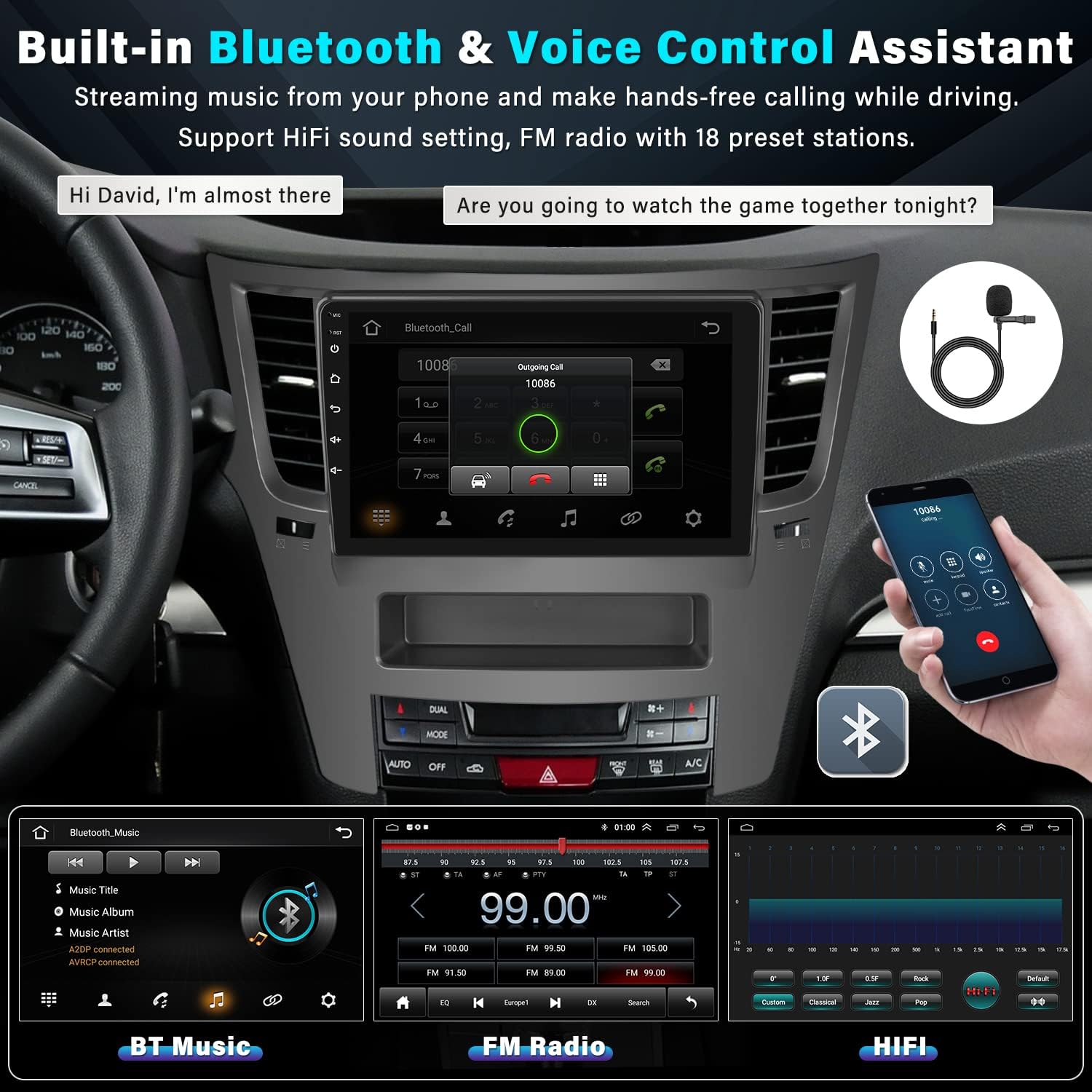
Image 7.1: Bluetooth and Audio Features.
7.2 CarPlay ไร้สายและ Android Auto
Enjoy seamless integration with your smartphone using wireless CarPlay (for iOS) and Android Auto (for Android devices). This allows you to access navigation, music, calls, and messages directly from the stereo's touchscreen or via voice commands (Siri/Google Assistant).
- Ensure Bluetooth and Wi-Fi are enabled on both your phone and the car stereo.
- For wireless connection, pair your phone via Bluetooth first. The system will then prompt you to connect via Wi-Fi for CarPlay/Android Auto functionality.
- For wired connection, simply connect your phone to one of the USB ports using a compatible USB cable.
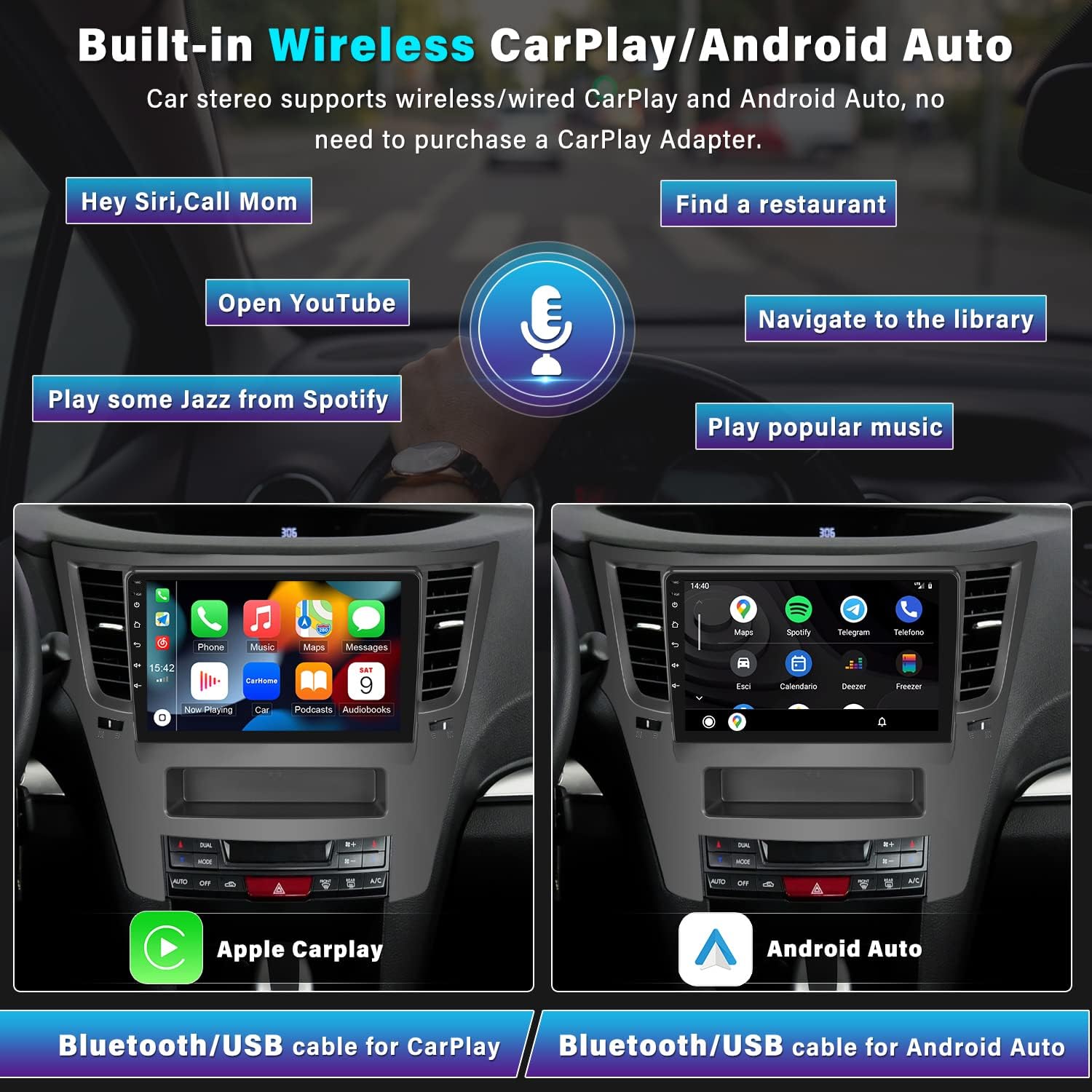
ภาพที่ 7.2: ฟังก์ชันการทำงานของ Wireless CarPlay และ Android Auto
7.3 การเชื่อมต่อ Wi-Fi
Connect the car stereo to a Wi-Fi hotspot (e.g., from your smartphone) to access online features.
- Go to "Settings" on the stereo and select "Wi-Fi".
- เปิดใช้งาน Wi-Fi และเลือกเครือข่ายที่คุณต้องการจากรายการ
- หากได้รับแจ้ง ให้กรอกรหัสผ่าน
Once connected, you can browse the internet, stream online videos and music, and download applications from the Google Play Store.
8. ระบบนำทาง GPS
The car stereo features a built-in GPS receiver for accurate navigation. It supports both online and offline maps.
- แผนที่ออฟไลน์: The unit comes preloaded with the HERE WEGO application. To download offline map data for your region, connect to Wi-Fi and follow the instructions within the HERE WEGO app.
- แผนที่ออนไลน์: With an active Wi-Fi connection, you can use popular online navigation apps like Google Maps, Waze, etc., downloaded from the Play Store.
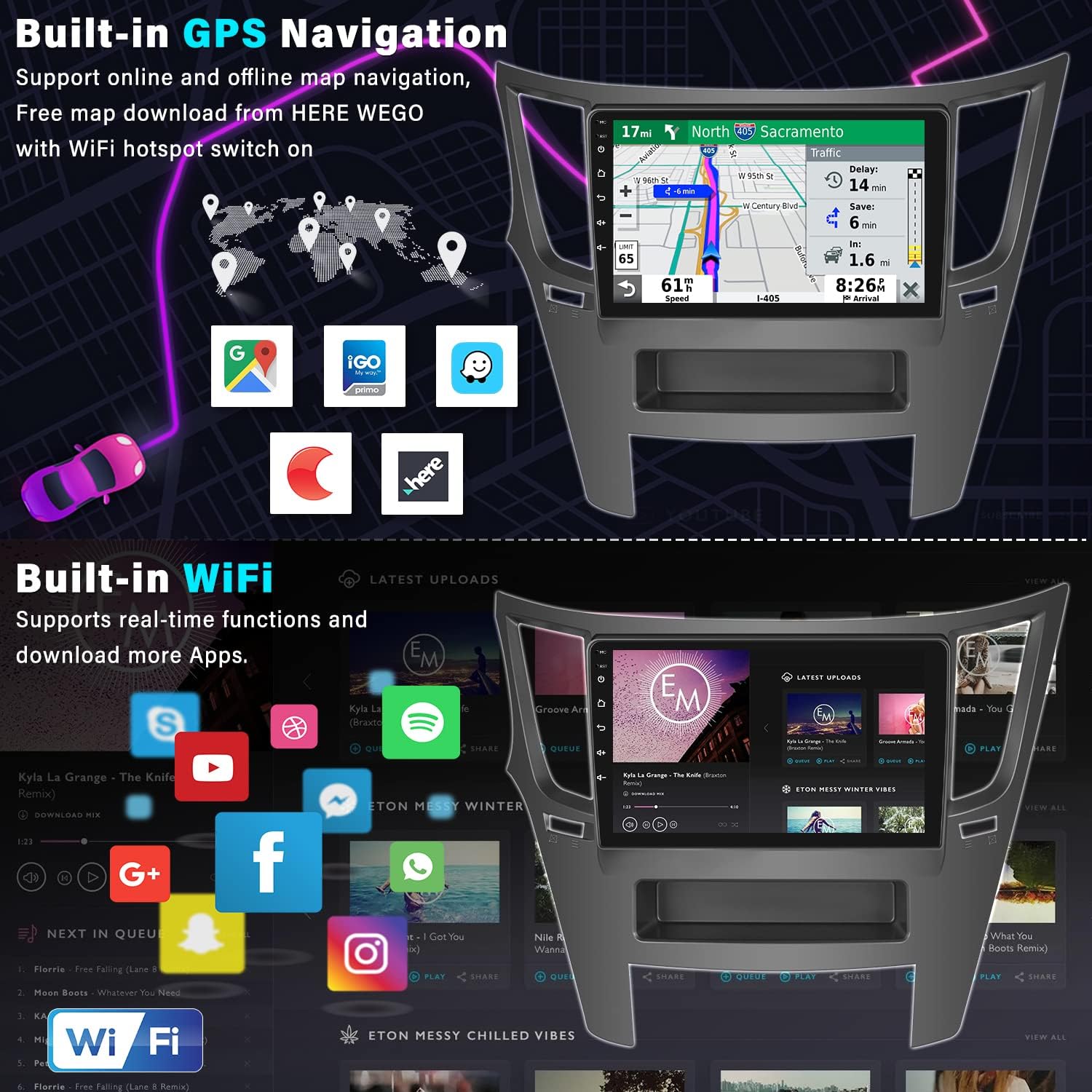
Image 8.1: GPS Navigation and Wi-Fi features.
9. Backup Camera Functionality
กล้องมองหลัง AHD ที่ให้มาด้วยนั้นให้ภาพที่คมชัด view of the area behind your vehicle, making parking safer and easier. The 9-inch touchscreen will automatically display the reverse image when you shift your car into reverse gear.
- คุณสมบัติ: AHD (Analog High Definition) image quality, waterproof design, 170° wide viewing angle, and enhanced night vision.
- การแสดงผลอัตโนมัติ: The carplay stereo will suspend other functions (like radio or music) when in reverse mode to ensure your full attention is on parking.
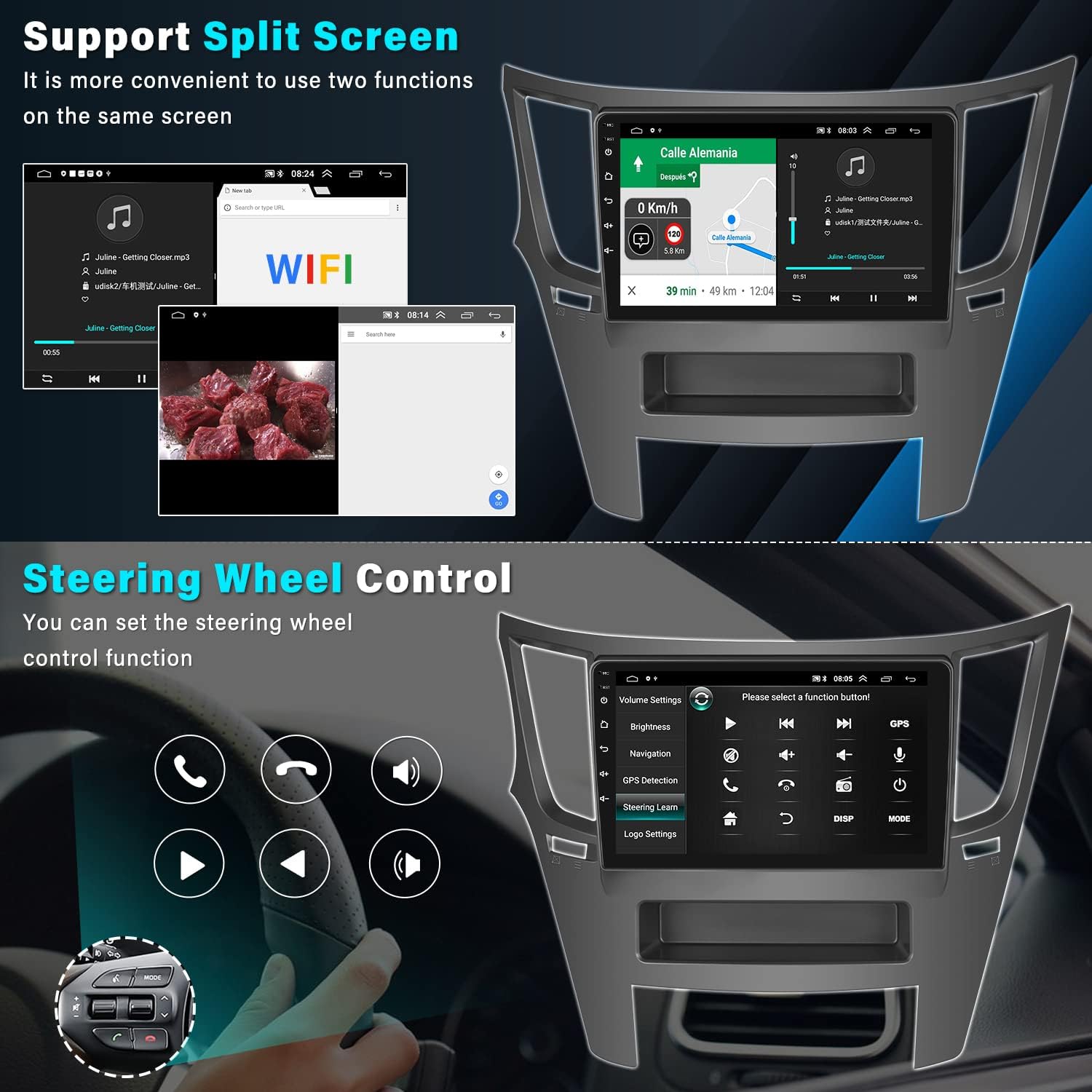
Image 9.1: Backup Camera Input and features.
9.1 แผนภาพการเดินสายกล้องมองหลัง
For correct installation of the backup camera, follow these wiring instructions:
- พลังของกล้อง: The red wire of the camera power cable connects to the positive (+) back battery supply. The black wire connects to the negative (-) battery supply (ground).
- อินพุตวิดีโอ: The yellow RCA video input cable from the camera connects to the "CAM IN" port on the rear of the car radio.
- Trigger Wire: Locate the wire labeled "BACK" or "REVERSE" on the car radio's wire harness. This wire needs to connect to the positive power supply of your vehicle's reverse light. This signal tells the stereo to switch to the camera view เมื่อเข้าเกียร์ถอยหลัง
บันทึก:
If the camera lights up but the reversing image does not appear on the head unit, please double-check the connection of the trigger wire for the backup camera.

ภาพที่ 9.2: ด้านหลัง View แผนผังการเดินสายไฟของกล้องถ่ายรูป
10. การตั้งค่าเสียง
The UNITOPSCI car stereo offers advanced audio customization options to enhance your listening experience.
- HiFi Audio Effect Setting: Access the audio settings to adjust the sound balance and choose from various preset sound styles such as Classic, Pop, Rock, Jazz, and Flat. You can also customize your own sound profile.
- วิทยุ FM/RDS: Tune into your favorite FM radio stations. The RDS (Radio Data System) feature displays station information where available. You can save up to 18 preset stations for quick access.
11 การแก้ไขปัญหา
This section addresses common issues you might encounter with your UNITOPSCI Android Car Stereo.
11.1 Screen Goes Black
If the car stereo screen goes black, follow these steps:
- Check Ribbon Cable: Open the rear cover of the unit and locate the screen ribbon cable (a thin cable connecting the screen to the motherboard). Unplug it and then securely reconnect it.
- Reset or Restart: Turn off the car stereo. Unplug the power cord from the unit, wait for 5 minutes, then plug it back in and turn it on.
- Force Firmware Update: If the issue persists, try a forced firmware update. Refer to the user manual for specific instructions on how to perform this, or contact customer support for guidance.
- ตรวจสอบเอาท์พุตเสียง: Play audio to determine if sound is working even if the screen is black. This helps to ascertain if the device is truly faulty or if it's solely a display issue.
If the problem remains unresolved after these steps, please refer to the product label for the model number and contact UNITOPSCI customer support for further assistance.
11.2 Head Unit Not Turning On (Post-Installation)
As mentioned in the installation section, if the head unit does not power on after initial installation, check for a pink wire in the wiring harness that might be blocking the electrical current. Cutting this wire and leaving it disconnected often resolves this issue.
12. ข้อมูลจำเพาะ
Detailed technical specifications for the UNITOPSCI Android Car Stereo (Model A7321A3018A4):
| คุณสมบัติ | ข้อมูลจำเพาะ |
|---|---|
| ระบบปฏิบัติการ | แอนดรอยด์ 13 |
| ชิปเซ็ต | 8227L-DEMO (Quad-core) |
| แรม | 2GB |
| รอม | 64GB |
| ขนาดหน้าจอ | 9 นิ้ว |
| ความละเอียดหน้าจอ | 1024 x 600 |
| กำลังขับ | 4*45วัตต์ |
| พลัง Ampชิปลิฟายเออร์ | TDA7388 |
| ชิปวิทยุ | MT6625 |
| เวอร์ชันบลูทูธ | 4.2 |
| วงวิทยุ | FM/RDS (87.5-108MHz) |
| จีพีเอส | GPS Enabled (Supports online/offline maps) |
| ไวไฟ | มี Wi-Fi ในตัว |
| อินเทอร์เฟซ USB | USB คู่ |
| การย้อนกลับอินพุต | ระบบ AHD/CVBS |
| อุณหภูมิในการทำงาน | -20℃ ถึง 75℃ (-4°F ถึง 167°F) |
| ขนาดสินค้า | 0.39 x 0.39 x 0.39 inches (Unit only, without frame) |
| น้ำหนักสินค้า | 3.83 ปอนด์ |
| หมายเลขรุ่น | A7321A3018A4 |
13. การรับประกันและการสนับสนุน
UNITOPSCI is committed to providing high-quality products and excellent customer service. Your car stereo comes with the following support and warranty:
- การทดแทน: Available within 24 months of purchase.
- การส่งคืน: 60-day no-worry return policy.
- การสนับสนุนด้านเทคนิค: Lifetime after-sales consultation and technical support.
- เวลาตอบสนอง: ตอบข้อซักถามอย่างรวดเร็วภายใน 16 ชั่วโมง
For any questions, technical assistance, or warranty claims, please contact us directly:
อีเมล: UNITOPSCI@126.com

Image 13.1: UNITOPSCI Customer Support Information.