
1. บทนำ
Thank you for choosing the AUN AKEY6S Native Full HD 1080p Projector. This manual provides essential information for setting up, operating, maintaining, and troubleshooting your projector. Please read this manual thoroughly before use to ensure optimal performance and longevity of your device.
The AUN AKEY6S projector features native 1920x1080p resolution with 4K support, 8000 lumens brightness, a 12000:1 contrast ratio, and runs on Android 9.0. It offers versatile connectivity options including WiFi (2.4G/5G) and Bluetooth 5.2, making it suitable for various home cinema and presentation needs.
2. การตั้งค่า
2.1 การแกะกล่องและสิ่งของภายในบรรจุภัณฑ์
นำส่วนประกอบทั้งหมดออกจากบรรจุภัณฑ์อย่างระมัดระวัง ตรวจสอบให้แน่ใจว่ามีอุปกรณ์ครบตามรายการด้านล่าง:
- 1x AUN AKEY6S Projector
- 1x รีโมทคอนโทรล
- 1x คู่มือผู้ใช้ (เอกสารนี้)
- แหล่งจ่ายไฟ 1x
2.2 การจัดวางโปรเจ็กเตอร์
Position the projector on a stable, flat surface or mount it securely. Ensure there is adequate ventilation around the device. The optimal projection distance and screen size are as follows:
- ขนาดการฉายภาพ: 50 ถึง 300 นิ้ว
- ระยะฉายภาพ: Approximately 1.5 meters (50 inches) to 6.2 meters (300 inches)

Image: Illustration of the AUN AKEY6S projector demonstrating adjustable projection sizes from 50 to 300 inches based on distance from the screen.
2.3 การเชื่อมต่อสายไฟ
Connect the provided power supply cable to the projector's power input port and then plug it into a standard electrical outlet.
2.4 การเปิดเครื่องครั้งแรก
กดปุ่มเปิด/ปิดบนโปรเจคเตอร์หรือรีโมทคอนโทรลเพื่อเปิดเครื่อง โปรเจคเตอร์จะเริ่มทำงานและแสดงหน้าจอ Android 9.0
2.5 การปรับโฟกัสและคีย์สโตน
- จุดสนใจ: หมุนวงแหวนโฟกัสบนเลนส์โปรเจ็กเตอร์จนกว่าภาพที่ฉายจะชัดเจนและคมชัด
- การแก้ไขคีย์สโตน: The AKEY6S features an electronic keystone correction of ±40°. Access this setting through the projector's menu to adjust the image shape if it appears trapezoidal.
2.6 ตัวเลือกการติดตั้ง
The projector supports multiple mounting configurations:
- เดสก์ท็อป: วางโปรเจคเตอร์บนพื้นผิวเรียบ
- ติดเพดาน: Secure the projector to the ceiling using a compatible projector mount (not included). Ensure the image orientation is adjusted in the projector settings if mounted upside down.

Image: Visual representation of various mounting options for the AUN AKEY6S projector, including ceiling and desktop placements.
3. คู่มือการใช้งาน
3.1 User Interface Navigation (Android 9.0)
Navigate the Android 9.0 interface using the remote control. Use the directional buttons to move between icons and options, and the OK button to select. The Back button returns to the previous screen, and the Home button returns to the main menu.
3.2 การเชื่อมต่ออุปกรณ์ภายนอก
The AKEY6S projector offers multiple ports for connecting various devices:

ภาพ: รายละเอียด view of the AUN AKEY6S projector's rear panel, highlighting all available input and output ports for connectivity.
- HDMI (HD-IN): Connect devices like laptops, gaming consoles (X-BOX, PS4), TV sticks, or set-top boxes using an HDMI cable. Select the corresponding HDMI input source from the projector's menu.
- USB (USB-IN): เสียบแฟลชไดรฟ์ USB เพื่อเล่นสื่อ files (videos, photos, music) directly.
- AV (AV-IN): เชื่อมต่ออุปกรณ์รุ่นเก่าโดยใช้สาย AV
- SD Card (SD Card-IN): ใส่การ์ด SD เพื่อเข้าถึงสื่อ files.
- เอาต์พุตเสียง 3.5 มม.: เชื่อมต่อลำโพงภายนอกหรือหูฟัง
- RJ45 (แลน): For wired internet connection (Android version only).
- VGA (VGA-IN): Connect computers or laptops using a VGA cable.
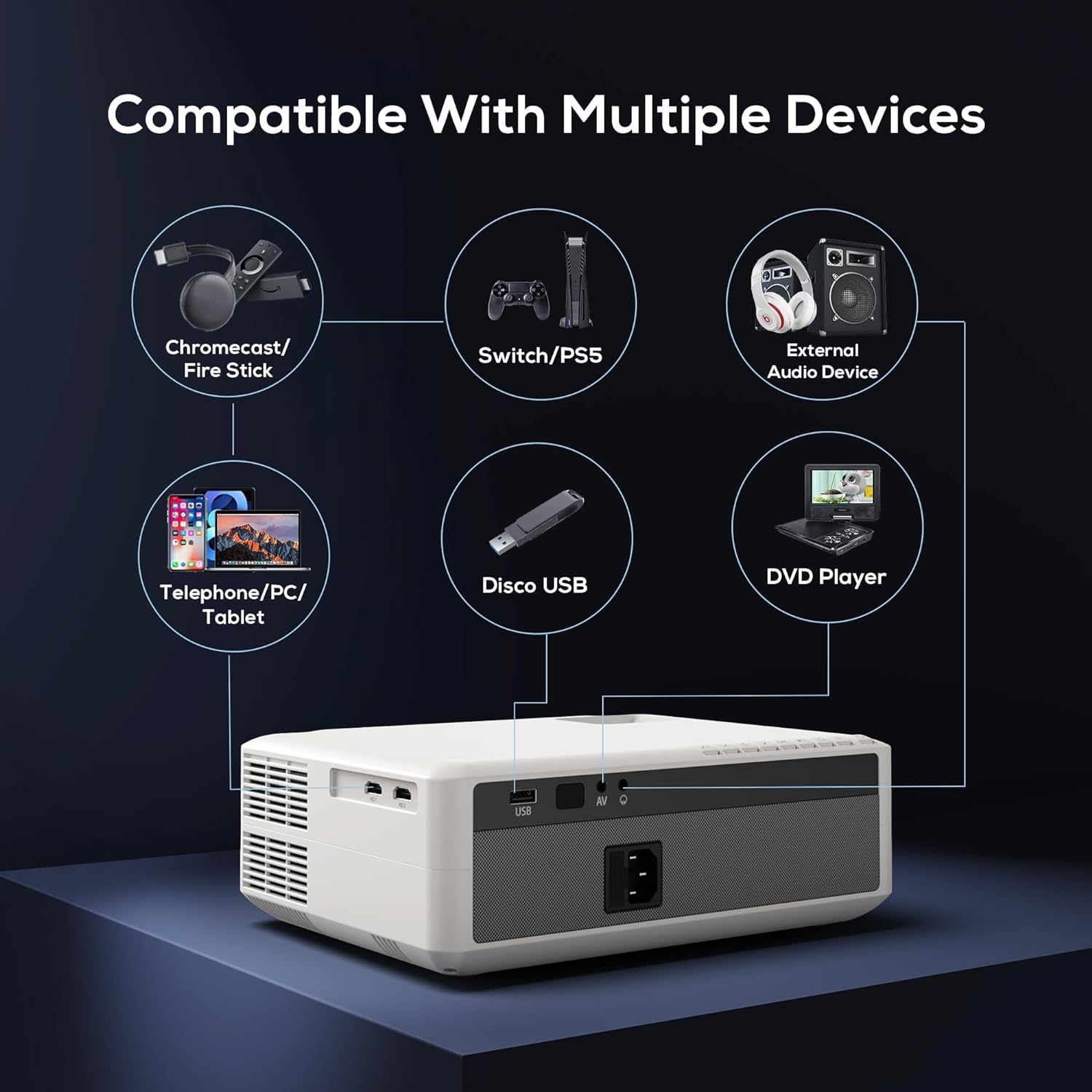
Image: Diagram illustrating the AUN AKEY6S projector's compatibility with a wide range of external devices such as streaming sticks, gaming consoles, audio systems, mobile devices, USB drives, and DVD players.
3.3 การเชื่อมต่อไร้สาย (WiFi)
ในการเชื่อมต่อกับเครือข่ายไร้สาย:
- เข้าไปที่เมนูการตั้งค่าของโปรเจ็กเตอร์
- เลือก เครือข่ายและอินเตอร์เน็ต.
- เปิดเครื่อง ไวไฟ and select your desired 2.4G or 5G network from the list.
- กรอกรหัสผ่านหากได้รับแจ้งและเชื่อมต่อ
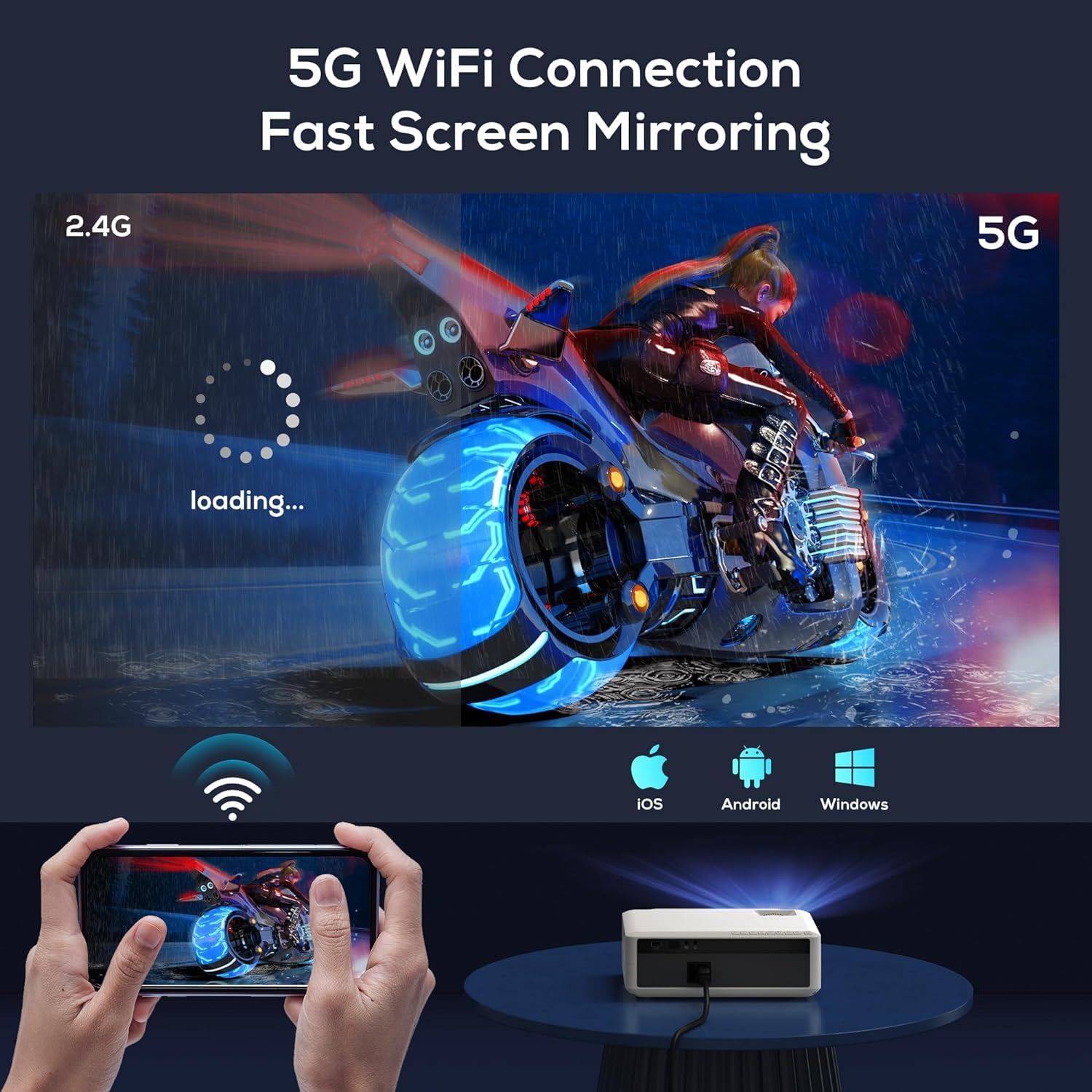
Image: The AUN AKEY6S projector displaying a loading screen, illustrating its 5G WiFi capability for fast screen mirroring from a mobile device.
3.4 การเชื่อมต่อเสียงบลูทูธ
Pair Bluetooth speakers or headphones for enhanced audio:
- เข้าไปที่เมนูการตั้งค่าของโปรเจ็กเตอร์
- เลือก อุปกรณ์ที่เชื่อมต่อ or บลูทูธ.
- Turn on Bluetooth and put your audio device into pairing mode.
- เลือกอุปกรณ์ของคุณจากรายการที่จะเชื่อมต่อ
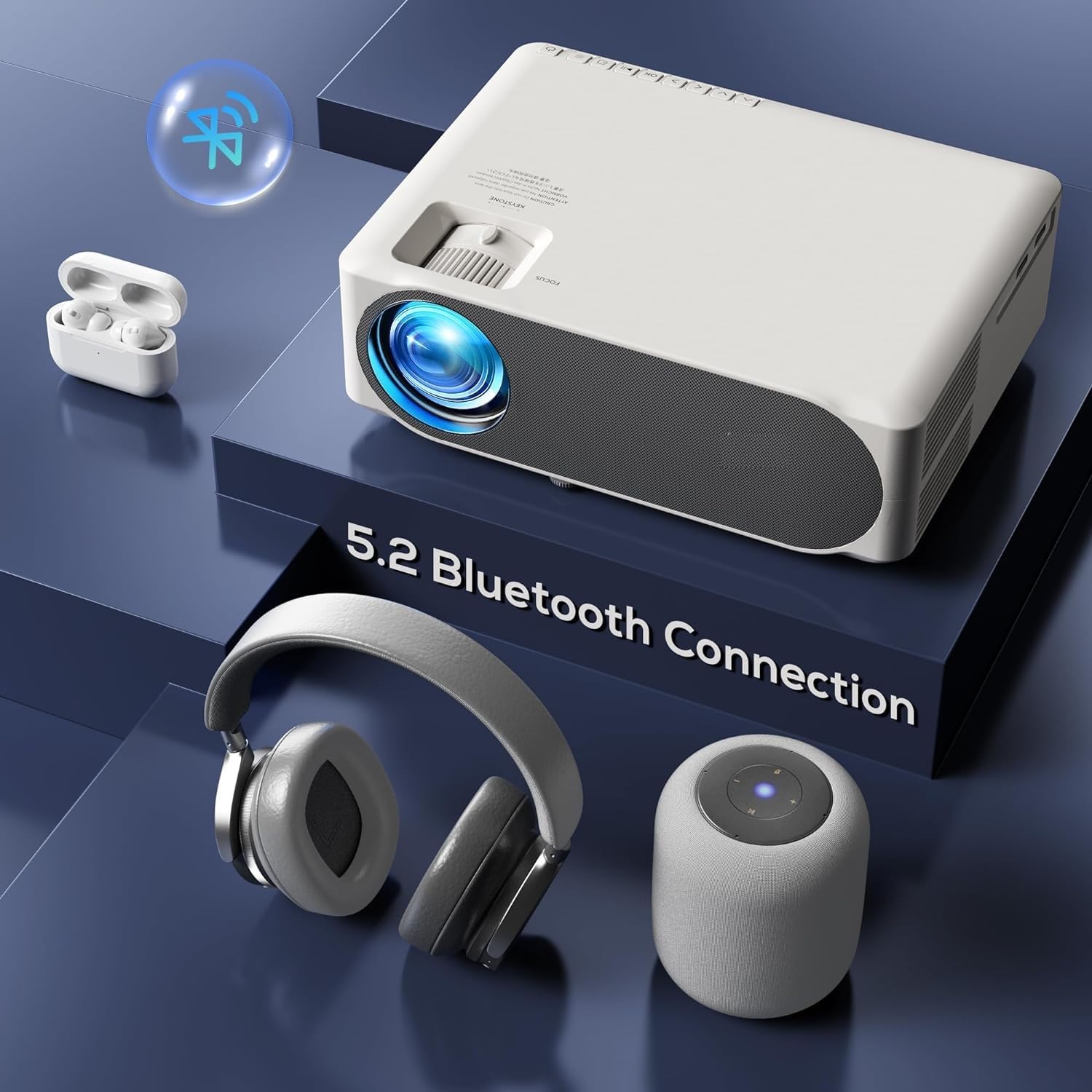
Image: The AUN AKEY6S projector shown with various Bluetooth audio devices, highlighting its Bluetooth 5.2 connectivity for wireless sound.
3.5 การมิเรอร์หน้าจอ
The projector supports screen mirroring from iOS, Android, and Windows devices via WiFi. Refer to the specific screen mirroring application or setting on your device and follow the on-screen instructions to connect to the projector.
3.6 การจัดการแอปพลิเคชัน
The AKEY6S comes with Android 9.0 and pre-installed applications. You can also install more apps:
- แอพที่ติดตั้งล่วงหน้า: YouTube, Netflix, Hotstar, Prime Video.
- การติดตั้งแอปพลิเคชันใหม่:
- The projector supports Google Play Store and APK installation.
- To install Aptoide TV App Store: Open the browser, search for "Aptoide TV APK", download the APK, then open File Manager and install.
- Download other apps like Netflix, Hotstar, Prime Video from Aptoide TV App Store if not pre-installed or if updates are needed.
4. การบำรุงรักษา
4.1 การทำความสะอาด
- เลนส์: ใช้ผ้าเนื้อนุ่ม ปราศจากขน ที่ออกแบบมาสำหรับทำความสะอาดเลนส์โดยเฉพาะ ห้ามใช้น้ำยาทำความสะอาดที่มีฤทธิ์กัดกร่อน หรือออกแรงมากเกินไป
- ตัวโปรเจ็กเตอร์: Wipe the exterior with a soft, dry cloth. For stubborn dirt, slightly dampเทน้ำลงบนผ้า
- ช่องระบายอากาศ: Regularly check and clean the ventilation openings to prevent dust buildup, which can affect cooling performance. Use a soft brush or compressed air.
4.2 Dust Protection
The AUN AKEY6S projector features an advanced dustproof design to minimize dust ingress and maintain image quality over time. Regular cleaning of external vents is still recommended.
4.3 พื้นที่จัดเก็บ
When not in use for extended periods, store the projector in a cool, dry place, away from direct sunlight and extreme temperatures. Cover the lens with its cap to protect it from dust and scratches.
5 การแก้ไขปัญหา
If you encounter issues with your AUN AKEY6S projector, refer to the following common problems and solutions:
5.1 ไม่มีไฟฟ้า
- ตรวจสอบให้แน่ใจว่าสายไฟเชื่อมต่อกับโปรเจ็กเตอร์และเต้ารับไฟฟ้าอย่างแน่นหนาแล้ว
- ตรวจสอบว่าเต้ารับไฟฟ้าใช้งานได้โดยเสียบอุปกรณ์อื่น
- Check if the power indicator light on the projector is on.
5.2 ไม่มีภาพหรือภาพเบลอ
- ปรับวงแหวนปรับโฟกัสบนเลนส์จนกว่าภาพจะคมชัด
- Check the keystone correction settings if the image is trapezoidal.
- Ensure the input source is correctly selected (e.g., HDMI 1, USB).
- Verify that the connected source device (laptop, TV stick) is powered on and outputting a signal.
- หากเลนส์โปรเจ็กเตอร์ดูสกปรก ให้ทำความสะอาด
5.3 ไม่มีเสียง
- เพิ่มระดับเสียงทั้งบนโปรเจ็กเตอร์และอุปกรณ์แหล่งสัญญาณที่เชื่อมต่ออยู่
- ตรวจสอบว่าลำโพงภายนอกหรือหูฟังเชื่อมต่อหรือจับคู่ผ่านบลูทูธอย่างถูกต้องหรือไม่
- Ensure the audio output setting on the projector is correct.
- Verify that the source video/audio file is not muted or corrupted.
5.4 รีโมทคอนโทรลไม่ตอบสนอง
- เปลี่ยนแบตเตอรี่ในรีโมทคอนโทรล
- ตรวจสอบให้แน่ใจว่าไม่มีสิ่งกีดขวางระหว่างรีโมทคอนโทรลและตัวรับสัญญาณอินฟราเรดของโปรเจ็กเตอร์
- ชี้รีโมทไปที่ตัวรับสัญญาณอินฟราเรดของโปรเจ็กเตอร์โดยตรง
5.5 WiFi or Bluetooth Connectivity Issues
- Ensure WiFi/Bluetooth is enabled in the projector's settings.
- รีสตาร์ทโปรเจคเตอร์และเราเตอร์/อุปกรณ์บลูทูธของคุณ
- Check if the WiFi password is entered correctly.
- Move the projector closer to the WiFi router or Bluetooth device to improve signal strength.
5.6 App Installation Issues
For issues related to app installation, refer to the following:
- How to Install YouTube? The projector comes with a preinstalled YouTube App.
- How to install Aptoide TV App Store?
- Open the Browser.
- Type for Aptoide TV APK.
- Download the APK to the Projector.
- เปิด File Manager and Install the Aptoide TV App Store.
- How to download Netflix, Hotstar, Prime Video Apps?
- Projector comes with preinstalled Netflix, Hotstar, Prime Video Apps.
- Otherwise, download the apps from Aptoide TV App Store.
6. ข้อมูลจำเพาะ
| คุณสมบัติ | รายละเอียด |
|---|---|
| ยี่ห้อ | อั๋น |
| แบบอย่าง | อะคีย์6เอส |
| ความละเอียดดั้งเดิม | 1920 x 1080p Full HD |
| รองรับ 4K | ใช่ |
| ความสว่าง | 8000 ลูเมน |
| อัตราส่วนคอนทราสต์ | 12000:1 น. |
| ขนาดการฉายภาพ | 50 - 300 นิ้ว |
| อัตราส่วนภาพ | 16:9 น. |
| Lamp ชีวิต | 30,000 ชั่วโมง |
| ระบบปฏิบัติการ | แอนดรอยด์ 9.0 |
| หน่วยความจำ (RAM / ROM) | แรม 1GB / รอม 8GB |
| ซีพียู | 4-Cores ARM 64 |
| จีพียู | ARM A35 GPU |
| ไวไฟ | 2.4กรัม / 5กรัม |
| บลูทูธ | บลูทูธ 5.2 |
| การเชื่อมต่อ | 2x HDMI, AV, USB, SD Card, 3.5mm Audio Out, RJ45, VGA |
| อิเล็กทรอนิกส์ คีย์สโตน | ±40° |
| ขนาดสินค้า | 30 x 25 x 8 ซม. |
| น้ำหนักสินค้า | 2 กก. |
| วัดtage | 150 วัตต์ |
| อัตราการรีเฟรช | 60 เฮิรตซ์ |
บันทึก: ข้อมูลจำเพาะอาจมีการเปลี่ยนแปลงโดยไม่ต้องแจ้งให้ทราบล่วงหน้าเพื่อการปรับปรุงผลิตภัณฑ์
7. การรับประกันและการสนับสนุน
7.1 การรับประกันสินค้า
The AUN AKEY6S Projector comes with a รับประกัน 1 ปี from the date of purchase. This warranty covers manufacturing defects and workmanship under normal use. Please retain your purchase receipt as proof of purchase.
7.2 การสนับสนุนลูกค้า
For technical assistance, warranty claims, or any product-related inquiries, please contact Megaa Electronics, the authorized support provider:
- อีเมล: support@megaaelectronics.com or megaaelectronics@gmail.com
- วอทส์แอป: 8328671337
Please provide your product model (AKEY6S) and purchase details when contacting support to facilitate a quicker resolution.