
การแนะนำ
Welcome to the Tesvor Robot Vacuum user manual. This guide provides detailed instructions on how to set up, operate, maintain, and troubleshoot your new Tesvor Robot Vacuum with Lidar Navigation. Designed for efficient cleaning of hard floors and suitable for homes with pets, this robotic vacuum cleaner offers powerful suction and smart features to keep your living space tidy.

Image: The Tesvor Robot Vacuum S6 Black, a sleek, round robotic vacuum cleaner with a lidar sensor on top, shown next to a smartphone displaying its mapping capabilities.
คุณสมบัติหลัก:
- พลังดูดอันทรงพลัง: Equipped with 2700 Pa suction and dual spinning edge brushes for effective debris and pet hair removal.
- Lidar Mapping: Advanced laser sensors map your home for precise navigation and efficient cleaning paths.
- Long-Lasting & Self-Charging: Up to 100 minutes runtime, automatically recharges and resumes cleaning.
- Z-shape Route: Optimizes cleaning efficiency and speed.
- การควบคุมแอพอัจฉริยะ: Manage cleaning modes, schedules, zone cleaning, and no-go zones via the Tesvor App (2.4Ghz Wi-Fi compatible).
การตั้งค่า
สิ่งที่รวมอยู่:

Image: All components included with the Tesvor Robot Vacuum: the robot vacuum itself, charging base, power adapter, remote control, cleaning tool, extra high-performance filters, and four side brushes.
เมื่อแกะกล่อง ให้แน่ใจว่ามีส่วนประกอบทั้งหมดครบถ้วน:
- หุ่นยนต์ดูดฝุ่น
- Remote Control (2 AAA batteries required, not included)
- ฐานชาร์จ
- อะแดปเตอร์แปลงไฟ
- เครื่องมือทำความสะอาด
- Extra Set of High-Performance Filters
- แปรงด้านข้าง 4 อัน
- คู่มือการใช้งาน
ขั้นตอนการตั้งค่าเริ่มต้น:
- ตำแหน่งการวางฐานชาร์จ: Place the charging base against a wall in an open area, ensuring there are no obstacles within 1 meter (3 feet) to the sides and 2 meters (6 feet) in front of the base. Connect the power adapter to the charging base and plug it into a power outlet.
- ติดตั้งแปรงด้านข้าง: Attach the side brushes to the corresponding posts on the bottom of the robot vacuum until they click into place.
- ค่าใช้จ่ายเริ่มต้น: Place the robot vacuum onto the charging base. Ensure the charging contacts on the robot align with those on the base. The indicator light on the robot will show charging status. Fully charge the robot before first use (approximately 4-5 hours).
- Download Tesvor App: ค้นหา "Tesvor" in your mobile app store (iOS or Android) and download the official application.
- เชื่อมต่อกับ Wi-Fi: Open the Tesvor App and follow the on-screen instructions to connect your robot vacuum to your home Wi-Fi network. บันทึก: The robot is only compatible with 2.4Ghz Wi-Fi networks.
คำแนะนำการใช้งาน
เริ่มต้นการทำความสะอาด:
Once fully charged and connected to the app, you can initiate cleaning in several ways:
- เริ่มต้นด้วยตนเอง: Press the power button on the robot or the "Clean" button on the remote control.
- การควบคุมแอพ: Use the Tesvor App to start, pause, or stop cleaning.
- การทำความสะอาดตามกำหนดเวลา: Set up cleaning schedules through the Tesvor App for automated cleaning.
Lidar Navigation and Mapping:
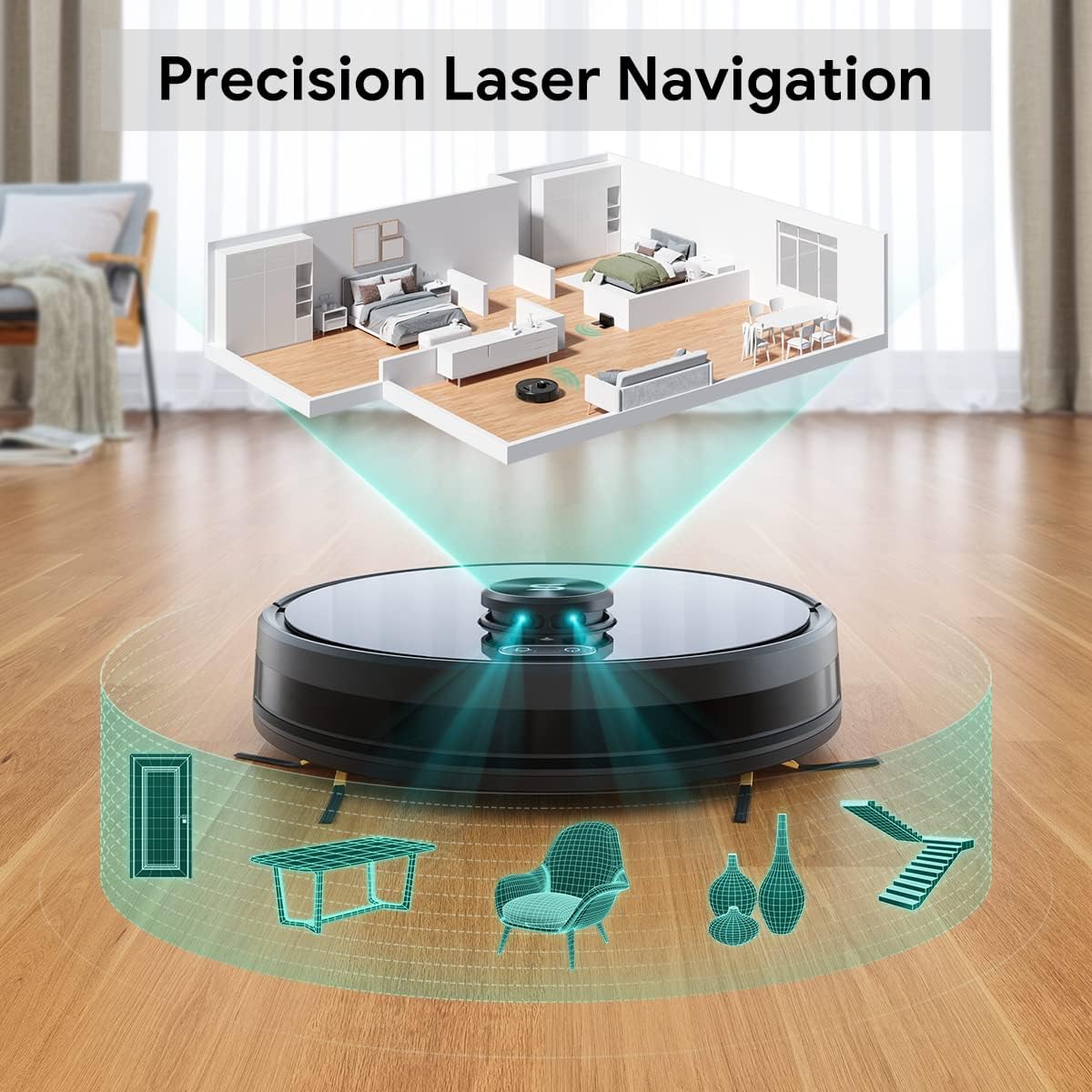
Image: A diagram illustrating the Tesvor Robot Vacuum's lidar navigation system, showing laser beams mapping out a room with furniture and walls.
The Tesvor Robot Vacuum utilizes advanced LiDAR sensors to create a precise map of your home. This allows it to navigate efficiently, avoid obstacles, and clean systematically. The more it cleans, the more accurately it learns your home's layout.
โหมดและคุณสมบัติการทำความสะอาด:
- Z-shape Route: The robot follows an optimized Z-shaped cleaning pattern to ensure thorough coverage and efficiency.

Image: The Tesvor Robot Vacuum cleaning a tiled floor, with a green path indicating its efficient Z-shaped cleaning route.
- เขตห้ามเข้าและกำแพงที่มองไม่เห็น: Through the Tesvor App, you can define specific areas the robot should avoid, such as pet bowls or delicate furniture.

Image: The Tesvor Robot Vacuum operating near a bed, with a blue grid indicating an "invisible wall" or "no-go zone" preventing it from entering a specific area.
- พลังดูดอันทรงพลัง: The 2700Pa suction power effectively picks up dirt, dust, and pet hair from various floor types.
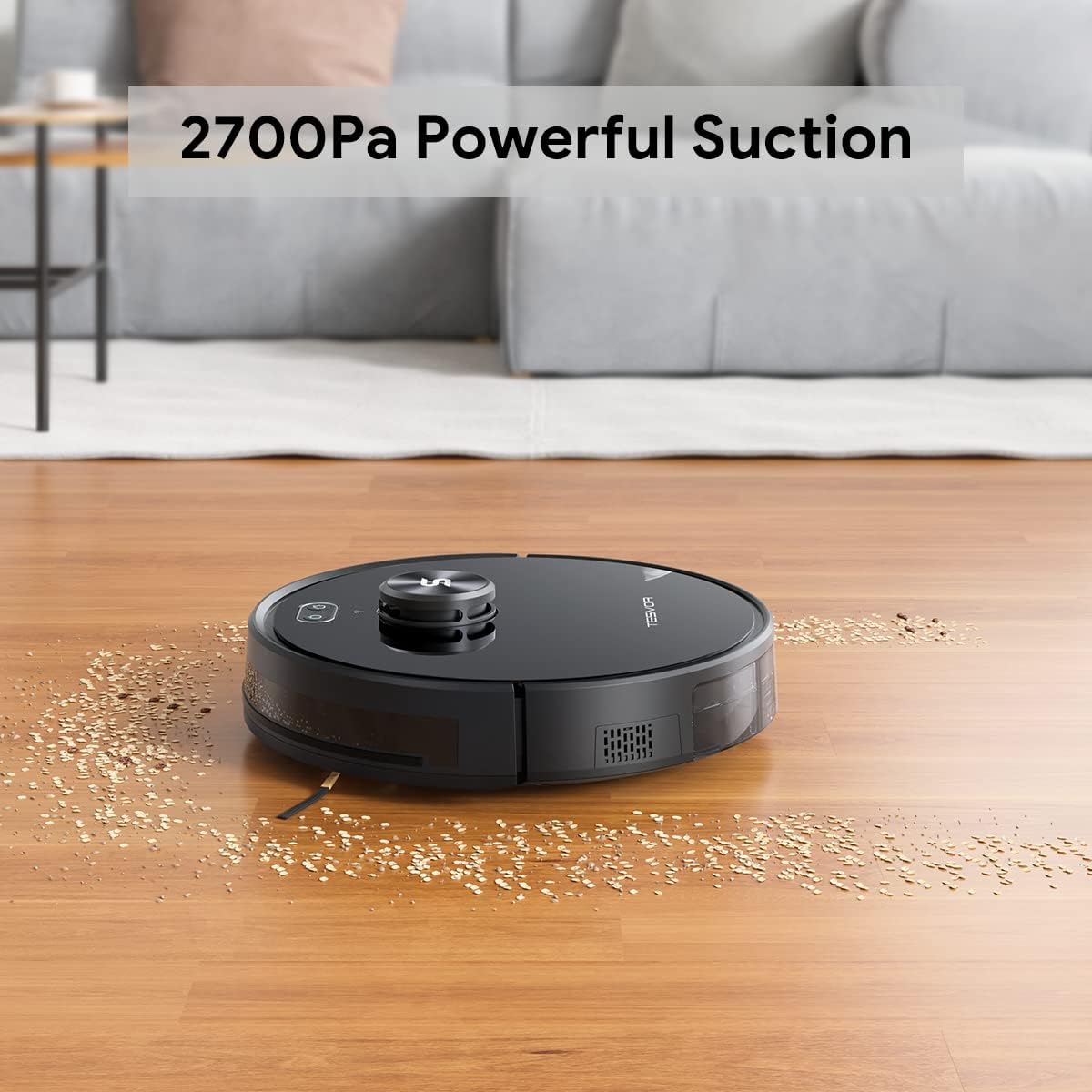
Image: The Tesvor Robot Vacuum cleaning a wooden floor, effectively picking up scattered debris, demonstrating its powerful suction.
- การชาร์จตัวเอง: When the battery runs low, the robot will automatically return to its charging base. Once recharged, it will resume cleaning from where it left off.
- Tesvor App Control: The app provides comprehensive control over your robot vacuum.

Image: A hand holding a smartphone displaying the Tesvor App interface, showing options for schedules, real-time map, no-go zones, custom cleaning zones, and spot cleaning.
- Schedules: Set specific times for cleaning.
- แผนที่เรียลไทม์: View เส้นทางการทำความสะอาดของหุ่นยนต์และพื้นที่ที่ทำเครื่องหมายไว้
- No-go Zones: Define areas to avoid.
- Custom Cleaning Zone: Direct the robot to clean specific areas.
- Spot Cleaning: Focus cleaning on a particular dirty spot.
การซ่อมบำรุง
Regular maintenance ensures optimal performance and extends the lifespan of your Tesvor Robot Vacuum.
- การล้างถังเก็บฝุ่น:
The dust bin should be emptied after each cleaning cycle, especially in homes with pets or high traffic. Press the release button to remove the dust bin, open it, and discard collected debris. Close the bin securely and reinsert it into the robot.
- การทำความสะอาดตัวกรอง:
The high-performance filter inside the dust bin should be cleaned regularly. Tap the filter gently to remove dust, or use the provided cleaning tool. For best results, replace the filter every 1-3 months depending on usage.
- ทำความสะอาดแปรงด้านข้าง:
Inspect the side brushes for tangled hair or debris. Carefully pull off any tangled material. If brushes are worn or damaged, replace them with new ones from the extra set provided.
- Cleaning Main Brush (if applicable):
Remove the main brush cover and lift out the main brush. Use the cleaning tool to cut and remove any tangled hair or fibers. Reinstall the main brush and cover.
- การทำความสะอาดเซ็นเซอร์และหน้าสัมผัสการชาร์จ:
Wipe the anti-drop sensors, wall sensors, and charging contacts on both the robot and the charging base with a clean, dry cloth. This ensures proper navigation and charging.
- ฟังก์ชั่นถูพื้น:
The Tesvor Robot Vacuum supports a mopping function, however, water tank accessories are sold separately. Please contact service@tesvor.com for more information on obtaining mopping accessories.
การแก้ไขปัญหา
If you encounter issues with your Tesvor Robot Vacuum, refer to the following common problems and solutions:
| ปัญหา | สาเหตุที่เป็นไปได้ | สารละลาย |
|---|---|---|
| หุ่นยนต์ไม่เปิดและไม่ชาร์จ | Battery low or charging contacts are dirty/misaligned. | Ensure the robot is properly placed on the charging base. Clean charging contacts on both the robot and base. Check power adapter connection. |
| หุ่นยนต์ติดขัดบ่อยครั้ง | Obstacles, tangled brushes, or uneven surfaces. | Clear cables, small objects, and thick rugs from the cleaning path. Clean main and side brushes. Use no-go zones in the app for problematic areas. |
| ปัญหาการเชื่อมต่อแอป | Incorrect Wi-Fi band (not 2.4Ghz), weak signal, or incorrect password. | Ensure your router is broadcasting a 2.4Ghz Wi-Fi signal. Move the robot closer to the router. Re-enter Wi-Fi password carefully. Restart the robot and your router. |
| ประสิทธิภาพการทำความสะอาดไม่ดี | Full dust bin, dirty filter, or worn brushes. | Empty the dust bin. Clean or replace the filter. Clean or replace side and main brushes. |
| หุ่นยนต์ตกบันได | Anti-drop sensors are dirty or obstructed. | Clean the anti-drop sensors located on the bottom of the robot with a dry cloth. Ensure there are no reflective surfaces near stairs that might interfere with sensors. |
For further assistance, please contact Tesvor customer support.
ข้อมูลจำเพาะ
| คุณสมบัติ | รายละเอียด |
|---|---|
| ยี่ห้อ | Tesvor |
| แบบอย่าง | S6 สีดำ |
| คุณสมบัติพิเศษ | LiDAR Navigation, No Go Zone |
| พลังดูด | 2700 ปา |
| ประเภทตัวกรอง | ดิสก์ |
| อายุการใช้งานแบตเตอรี่ | 100 นาที |
| แหล่งพลังงาน | ใช้พลังงานจากแบตเตอรี่ |
| วิธีการควบคุม | รีโมท, แอป |
| อุปกรณ์ที่รองรับ | Amazon Echo (Alexa), Google Assistant |
| ฟอร์มแฟกเตอร์ | หุ่นยนต์ |
| น้ำหนักสินค้า | 11.92 ปอนด์ |
| ขนาดแพ็คเกจ | 19 x 17 x 6.5 นิ้ว |
| แบตเตอรี่ | แบตเตอรี่ลิเธียมไอออน 1 ก้อน (รวมอยู่ด้วย) |
การรับประกันและการสนับสนุน
Your Tesvor Robot Vacuum comes with a worry-free รับประกัน 12 เดือน นับจากวันที่ซื้อ การรับประกันนี้ครอบคลุมถึงข้อบกพร่องจากการผลิตและรับรองว่าผลิตภัณฑ์ของคุณทำงานได้ตามที่ตั้งใจไว้ภายใต้การใช้งานปกติ
For technical support, warranty claims, or any inquiries regarding your product, please contact Tesvor customer service:
- อีเมล: service@tesvor.com
- Tesvor Store: เยี่ยมชมอย่างเป็นทางการ Tesvor Store on Amazon สำหรับผลิตภัณฑ์และข้อมูลเพิ่มเติม
Please have your product model and purchase information ready when contacting support to expedite the process.