
Cuifati Cuifatip0izksa79g3281
Cuifati Wireless Smart Remote Control User Manual
Model: Cuifatip0izksa79g3281
การแนะนำ
This manual provides comprehensive instructions for the Cuifati Wireless Smart Remote Control. It covers setup, operation, maintenance, and troubleshooting to ensure optimal performance and longevity of your device. This remote control features 2.4G and Bluetooth 5.0 connectivity, voice control, and IR learning capabilities, making it compatible with a wide range of devices such as Nvidia Shield, PCs, Projectors, Smart TVs, and Android TV Boxes.
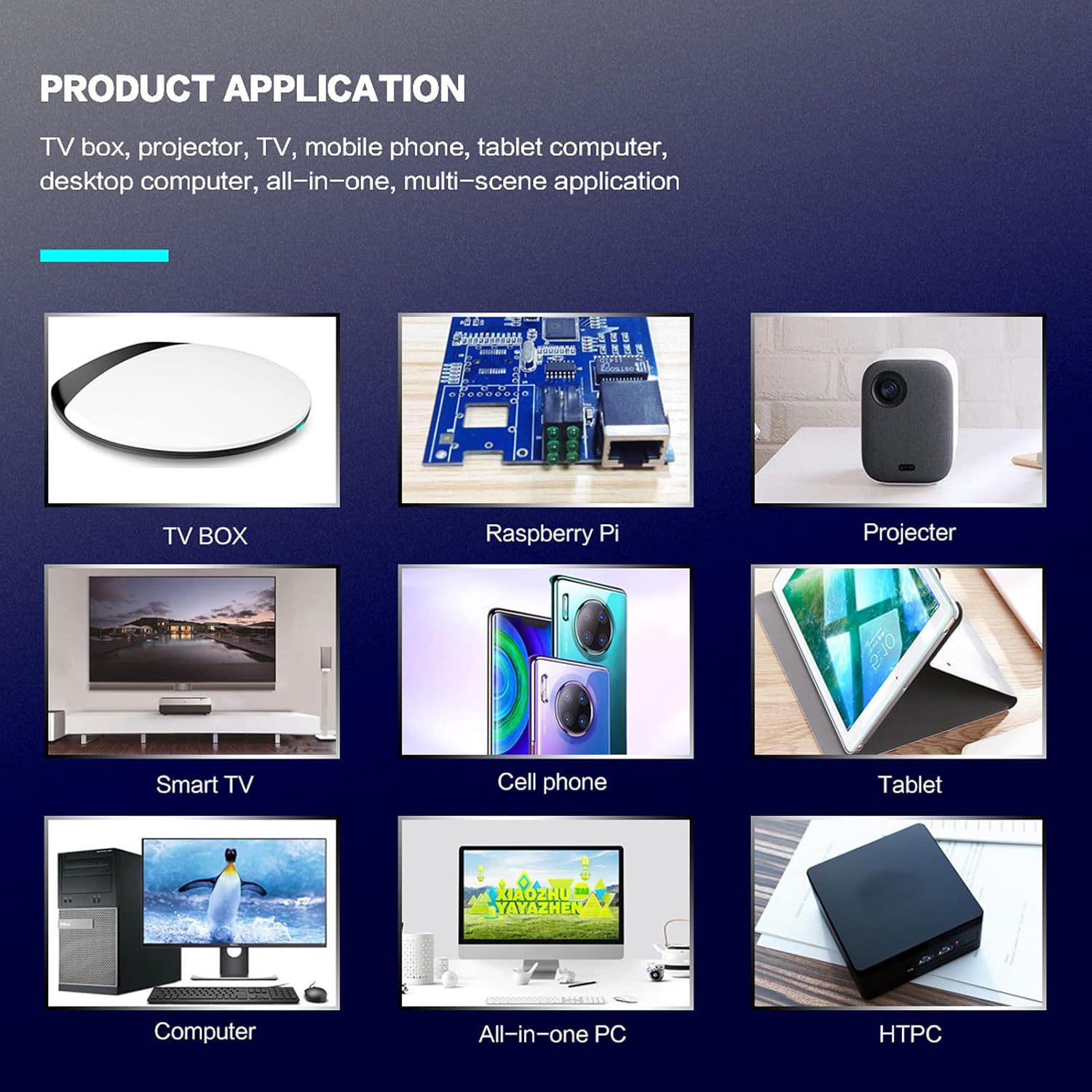
รูปที่ 1: การประยุกต์ใช้ผลิตภัณฑ์ เช่นampเลส.
เนื้อหาแพ็คเกจ
โปรดตรวจสอบว่าสินค้าทั้งหมดมีอยู่ในแพ็คเกจของคุณ:
- 1 x Cuifati Wireless Smart Remote Control
- ตัวรับสัญญาณ USB 1 x 2.4G
- 1 x คู่มือผู้ใช้
ข้อมูลจำเพาะ
| คุณสมบัติ | รายละเอียด |
|---|---|
| ยี่ห้อ | กุยฟาติ |
| หมายเลขรุ่น | Cuifatip0izksa79g3281 |
| วัสดุ | เอบีเอส |
| เล่มที่tage | 3.0 โวลต์ |
| โหมดการเชื่อมต่อ | 2.4G, บลูทูธ 5.0 |
| กระแสไฟฟ้าที่ใช้งาน | <15มิลลิแอมป์ |
| กระแสไฟสแตนด์บาย | <20 ไมโครเอ |
| ระยะการทำงาน | >10 meters (32.8 feet) |
| ประเภทแบตเตอรี่ | แบตเตอรี่ AAA 2 ก้อน (ไม่รวม) |
| จำนวนปุ่ม | 5 (Control buttons, total buttons are more) |
| อุปกรณ์ที่รองรับ | Streaming devices, Televisions, PCs, Projectors, Smart TVs, Android TV Boxes |
| คุณสมบัติพิเศษ | Universal, Voice Control, IR Learning, Backlit |
คู่มือการติดตั้ง
1. การติดตั้งแบตเตอรี่
รีโมทคอนโทรลต้องใช้แบตเตอรี่ AAA สองก้อน (ไม่รวม)
- เปิดฝาครอบช่องใส่แบตเตอรี่ที่ด้านหลังของรีโมทคอนโทรล
- ใส่แบตเตอรี่ AAA สองก้อน โดยตรวจสอบให้แน่ใจว่าขั้ว (+ และ -) ถูกต้อง
- ปิดฝาช่องใส่แบตเตอรี่ให้แน่น

รูปที่ 2: Battery compartment with AAA batteries.
2. Connecting the Remote Control
The remote control supports both 2.4G wireless and Bluetooth 5.0 connectivity.
2.1. การเชื่อมต่อไร้สาย 2.4G (ผ่านตัวรับสัญญาณ USB)
- Insert the 2.4G USB receiver into an available USB port on your device (e.g., Smart TV, Android TV Box, PC).
- อุปกรณ์ควรตรวจจับและติดตั้งไดรเวอร์ที่จำเป็นโดยอัตโนมัติ
- รีโมทคอนโทรลพร้อมใช้งานแล้ว
2.2. การเชื่อมต่อบลูทูธ 5.0
For Bluetooth connection, ensure your device supports Bluetooth 5.0 or higher.
- บนรีโมทคอนโทรล ให้กด . ค้างไว้ OK ปุ่มและ กลับ button simultaneously for 3 seconds. The indicator light on the remote will flash rapidly, indicating it is in pairing mode.
- บนอุปกรณ์ของคุณ ให้ไปที่การตั้งค่าบลูทูธ แล้วค้นหาอุปกรณ์ที่ใช้งานได้
- Select "G20s Pro" (or similar device name) from the list of found devices to pair.
- เมื่อจับคู่แล้ว ไฟแสดงสถานะบนรีโมทจะหยุดกะพริบ

รูปที่ 3: คำแนะนำในการจับคู่บลูทูธ
คำแนะนำการใช้งาน
1. ฟังก์ชันปุ่มเหนือview
Familiarize yourself with the layout and functions of the remote control buttons.

รูปที่ 4: Remote control button layout and functions.
- Power (IR Learning Key): Turns the device on/off. Can be programmed via IR learning.
- ไมค์: Activates voice input.
- ไฟแสดงสถานะ: Shows status (pairing, IR learning).
- Mute (IR Learning Key): Mutes/unmutes audio. Can be programmed via IR learning.
- Pg+ / Pg-: Page Up / Page Down.
- Navigation Keys (Up/Down/Left/Right): For menu navigation.
- OK / Enter / Mouse Left: Confirms selection or acts as left mouse click.
- Return / Mouse Right: Goes back or acts as right mouse click.
- บ้าน: Returns to the home screen.
- Open Google Voice Assistant: Dedicated button for voice assistant.
- Volume - / Volume +: ปรับระดับเสียง
- เล่น/หยุดชั่วคราว: ควบคุมการเล่นสื่อ
- ก่อนหน้าถัดไป: Skips to previous or next media track.
- แบ็คสเปซ: Deletes characters.
- เมนู: Press and hold to turn on/off the backlight.
2. การควบคุมด้วยเสียง
The remote control supports voice commands for compatible devices. Press the ไมค์ button and speak clearly into the remote to issue commands or search content.
3. ฟังก์ชันการเรียนรู้ IR
The Power and Mute buttons can learn infrared signals from your existing TV remote control, allowing you to control basic TV functions with this remote.

รูปที่ 5: IR Learning process for the Power button.
- กดปุ่มค้างไว้ พลัง ปุ่ม (หรือ ปิดเสียง button) on the Cuifati remote for 3 seconds. The red indicator light will flash slowly, entering IR learning mode.
- Point the infrared emitter of your original TV remote control directly at the infrared receiver of the Cuifati remote (approximately 2-3 cm apart).
- Press the desired button on your original TV remote (e.g., Power button). The Cuifati remote's red indicator light will flash rapidly and then turn off, indicating successful learning.
- Repeat the process for other buttons if desired.
4. Motion Sensing (Air Mouse)
The remote control features a gyroscope core compensation algorithm for motion sensing, allowing it to function as an air mouse. Move the remote in the air to control the cursor on your screen.

รูปที่ 6: Motion sensing in action.
การซ่อมบำรุง
- ควรเก็บรีโมทคอนโทรลให้แห้ง หลีกเลี่ยงการสัมผัสกับความชื้นหรือของเหลว
- เช็ดทำความสะอาดรีโมทคอนโทรลด้วยผ้าแห้งเนื้อนุ่ม ห้ามใช้สารทำความสะอาดที่มีฤทธิ์กัดกร่อนหรือตัวทำละลาย
- หากจะไม่ใช้รีโมทคอนโทรลเป็นเวลานาน ควรถอดแบตเตอรี่ออกเพื่อป้องกันการรั่วไหล
- หลีกเลี่ยงการทำรีโมทคอนโทรลตกหรือโดนแรงกระแทกรุนแรง
การแก้ไขปัญหา
- รีโมทคอนโทรลไม่ตอบสนอง:
- ตรวจสอบให้แน่ใจว่าได้ติดตั้งแบตเตอรี่อย่างถูกต้องและแบตเตอรี่ไม่หมด หากจำเป็นให้เปลี่ยนแบตเตอรี่ใหม่
- Check if the 2.4G USB receiver is properly inserted into the device's USB port.
- For Bluetooth connection, ensure the remote is paired correctly. Re-pair if connection is lost.
- Ensure there are no obstructions between the remote and the device (for 2.4G) or within Bluetooth range.
- ระบบควบคุมด้วยเสียงใช้งานไม่ได้:
- Ensure the remote is properly connected via 2.4G or Bluetooth.
- Verify that your device supports voice input and that the microphone is enabled.
- พูดให้ชัดเจนและใกล้ไมโครโฟนของรีโมท
- การเรียนรู้ IR ล้มเหลว:
- Ensure the original remote's IR emitter is pointed directly at the Cuifati remote's IR receiver, within 2-3 cm.
- Make sure the original remote has sufficient battery power.
- Repeat the learning steps carefully.
การรับประกันและการสนับสนุน
Specific warranty information is not provided in this manual. For warranty details, technical support, or service inquiries, please refer to the product packaging or contact the manufacturer directly through their official webเว็บไซต์หรือช่องทางการบริการลูกค้า
Ask a question about this manual
Ask about setup, troubleshooting, compatibility, parts, safety, or missing instructions. Manuals+ will review the question and use this page’s manual context to help answer it.