
1. บทนำ
Thank you for choosing the VOYEE WE-07 Wired Game Controller. This manual provides detailed instructions for setting up, operating, and maintaining your controller. The WE-07 is designed for a responsive and immersive gaming experience on both PC and PlayStation 3 platforms.

Image: The VOYEE WE-07 wired game controller, featuring a black and red design with prominent VOYEE branding and illuminated rumble effects, indicating its dual shock capabilities.
2. คุณสมบัติของผลิตภัณฑ์
- การเชื่อมต่อแบบมีสาย: Equipped with a 1.8-meter (5.9ft) USB cable for a stable connection and comfortable gaming distance.
- ระบบสั่นแบบ Dual Shock: Built-in dual motion motors provide varied intensity feedback for an authentic gaming experience.
- การออกแบบตามหลักสรีรศาสตร์: Features a special matte layer for a comfortable grip during extended gaming sessions.
- ความเข้ากันได้กว้าง: Supports Windows 7/8/8.1/10/11 PC games (DInput and XInput modes) and is fully compatible with Sony PlayStation 3 consoles.

Image: An illustration highlighting the internal dual shock rumble motor within the VOYEE WE-07 controller, emphasizing its vibration feedback capability.
3. เค้าโครงของตัวควบคุม
Familiarize yourself with the buttons and controls of your VOYEE WE-07 controller:

Image: A detailed diagram of the VOYEE WE-07 controller, labeling all buttons and joysticks, including R1/R2/L1/L2 buttons, LED indicators, SELECT, START, HOME, D-Pad, Left/Right Joysticks, and A/B/X/Y buttons.
- จอยสติ๊กซ้าย: สำหรับการเคลื่อนไหวแบบมีทิศทาง
- จอยสติ๊กขวา: สำหรับควบคุมหรือเล็งกล้อง
- ดี-แพด: แผงทิศทางสำหรับการป้อนข้อมูลที่แม่นยำ
- ปุ่มการกระทำ (A, B, X, Y): สำหรับการกระทำในเกม
- กระดุมไหล่ (ซ้าย 1, ขวา 1): ปุ่มที่อยู่ด้านบน
- ปุ่มทริกเกอร์ (L2, R2): ทริกเกอร์แบบอนาล็อกที่ติดตั้งด้านล่าง
- ปุ่มเลือก: Typically for menu navigation or specific game functions.
- ปุ่มเริ่มต้น: Typically for pausing or starting games.
- HOME/P3 Button: For accessing system menus or PlayStation 3 home screen.
- ไฟแสดงสถานะ LED (1-4): Show player number or connection status.
4. คำแนะนำในการตั้งค่า
Connecting your VOYEE WE-07 controller is a straightforward process:
4.1. Connecting to a PC (Windows 7/8/8.1/10/11)
- ค้นหาพอร์ต USB ที่มีอยู่ในคอมพิวเตอร์ของคุณ
- Plug the USB connector of the VOYEE WE-07 controller into the USB port.
- Your computer will automatically detect and install the necessary drivers. This may take a few moments.
- Once installed, the controller will be ready for use. You may need to configure the controller settings within your game or platform (e.g., Steam) for optimal performance.
The controller supports both DInput (DirectInput) and XInput modes. Most modern PC games use XInput, which is automatically recognized. For older games, DInput might be used.
4.2. Connecting to a PlayStation 3 (PS3)
- โปรดตรวจสอบให้แน่ใจว่าเครื่อง PS3 ของคุณเปิดอยู่
- Plug the USB connector of the VOYEE WE-07 controller into an available USB port on your PS3.
- The PS3 will recognize the controller. The LED indicators on the controller will light up to show the assigned player number.
- The controller is now ready for use with your PlayStation 3 games.

Image: A close-up of the VOYEE WE-07 controller's USB cable connecting to a device, illustrating the wired connection process.
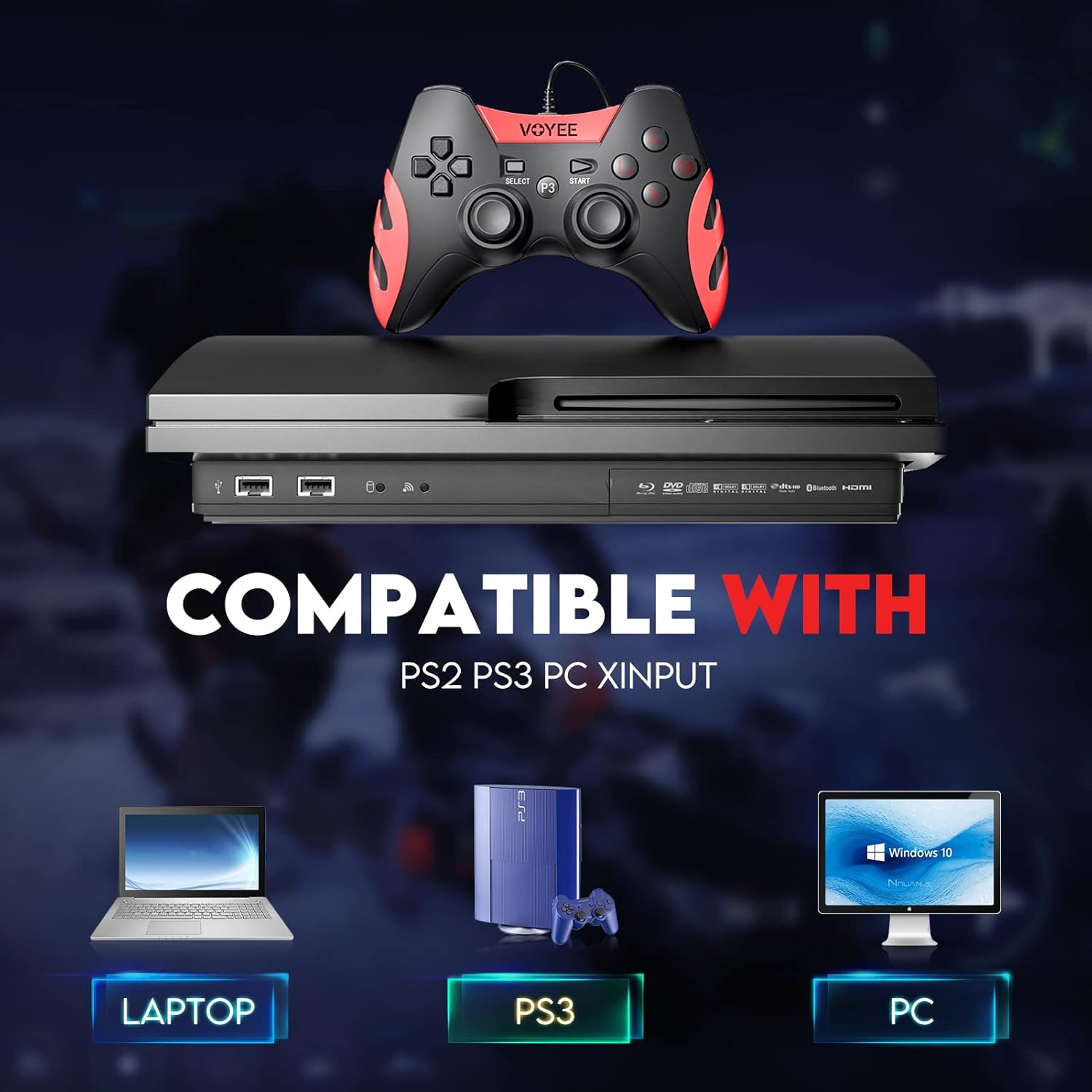
Image: A graphic demonstrating the VOYEE WE-07 controller's compatibility with various platforms, including laptops, PlayStation 3 consoles, and desktop PCs, highlighting its versatility.
5. คู่มือการใช้งาน
Once connected, the VOYEE WE-07 controller functions similarly to standard gamepads. Here are some general operating tips:
- การควบคุมเกม: Use the joysticks and D-Pad for movement and navigation. The action buttons (A, B, X, Y) and shoulder/trigger buttons (L1, R1, L2, R2) perform in-game actions as defined by the specific game.
- ข้อเสนอแนะการสั่นสะเทือน: The dual shock motors will provide tactile feedback during gameplay, enhancing immersion. This feature is automatically enabled when supported by the game.
- HOME/P3 Button: Press this button to access the system menu on PS3 or to bring up the game overlay on PC (depending on the game or platform).
- ศาสตร์: The controller's matte finish and ergonomic design are intended for comfortable use during long gaming sessions.
6 การแก้ไขปัญหา
If you encounter issues with your VOYEE WE-07 controller, please refer to the following common solutions:
| ปัญหา | สารละลาย |
|---|---|
| Controller not recognized by PC/PS3. |
|
| ระบบสั่นเตือนไม่ทำงาน |
|
| ปุ่มกดหรือจอยสติ๊กไม่ตอบสนอง |
|
7. การบำรุงรักษา
To ensure the longevity and optimal performance of your VOYEE WE-07 controller, follow these maintenance guidelines:
- การทำความสะอาด: ใช้ผ้านุ่มและแห้งเช็ดพื้นผิวของคอนโทรลเลอร์ สำหรับสิ่งสกปรกฝังแน่น ให้เช็ดเบาๆampชุบผ้าด้วยน้ำ หลีกเลี่ยงการใช้สารเคมีรุนแรงหรือน้ำยาทำความสะอาดที่มีฤทธิ์กัดกร่อน
- พื้นที่จัดเก็บ: Store the controller in a cool, dry place away from direct sunlight and extreme temperatures. Avoid placing heavy objects on the controller.
- การดูแลสายเคเบิล: Do not sharply bend or pull the USB cable. Always grasp the plug when disconnecting, not the cable itself.
- หลีกเลี่ยงการหยด: ปกป้องตัวควบคุมจากการตกหล่นและแรงกระแทกซึ่งอาจทำให้ส่วนประกอบภายในเสียหายได้
8. ข้อมูลจำเพาะ
| แบบอย่าง | เรา -07 |
| ยี่ห้อ | วออี้ |
| การเชื่อมต่อ | สาย USB |
| ความยาวสายเคเบิล | 1.8 เมตร (5.9 ฟุต) |
| อุปกรณ์ที่รองรับ | PC (Windows 7/8/8.1/10/11), PlayStation 3 |
| ประเภทตัวควบคุม | Gamepad, Joystick (DInput & XInput) |
| คุณสมบัติเพิ่มเติม | Dual Shock Vibration, Ergonomic Design, Matte Finish |
| จำนวนปุ่ม | 17 |
9. การรับประกันและการสนับสนุน
VOYEE provides a รับประกัน 365 วัน for the WE-07 wired gamepad controller from the date of purchase. This warranty covers manufacturing defects under normal use.
If you encounter any problems or have questions regarding your VOYEE WE-07 controller, please do not hesitate to contact our customer service team via e-mail. Our friendly customer service is available to assist you.
For support, please visit the official VOYEE webไซต์หรือดูเอกสารการซื้อของคุณเพื่อดูข้อมูลการติดต่อ