
1. บทนำ
The IOGEAR Mini Wireless 4K HDMI Video Screen Sharing Adapter (GWAVR4K) provides a convenient solution for wirelessly displaying content from your devices onto a larger screen. This adapter supports 4K resolution at 30Hz and operates on 2.4/5GHz Wi-Fi with WPA-2 security, offering a reliable connection up to 30 feet in-room. It is compatible with various operating systems including Windows 10+, Mac OS 10.14+, iOS 10.10+, Android 10+, and Chromebook.

Image: The IOGEAR Mini Wireless 4K HDMI Video Screen Sharing Adapter, a compact device with an HDMI connector.
2. เนื้อหาบรรจุภัณฑ์
ตรวจสอบว่ามีรายการทั้งหมดอยู่ในแพ็คเกจของคุณ:
- IOGEAR Mini Wireless 4K Screen Sharing Receiver (GWAVR4K)
- USB Power Cable with Antenna

Image: The IOGEAR GWAVR4K adapter shown with its USB power cable and wireless antenna.
3. การตั้งค่า
Follow these steps to set up your IOGEAR GWAVR4K adapter:
- เชื่อมต่อเครื่องรับ: Plug the IOGEAR GWAVR4K receiver into an available HDMI port on your 4K UHDTV, projector, or monitor.
- เปิดเครื่องอุปกรณ์: Connect the provided USB power cable to the receiver and then to a USB power source (e.g., a USB port on your TV or a USB wall adapter). The device requires power to function.
- การแสดงผลเริ่มต้น: Once powered, your display device should show a setup screen with instructions and a Wi-Fi network name (SSID) and password.
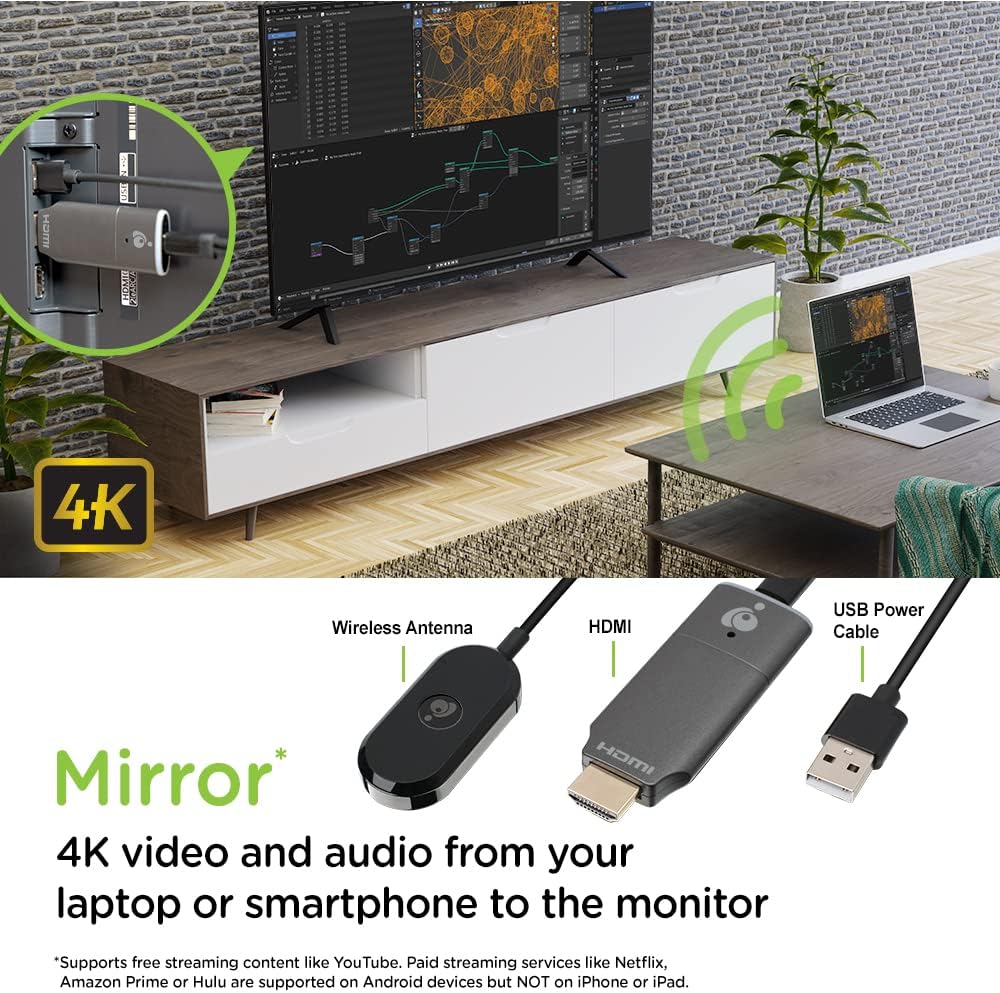
Image: The GWAVR4K adapter plugged into an HDMI port on the back of a television, with a laptop wirelessly mirroring content.
Video: Setup and Usage Overview
Video: An official IOGEAR video demonstrating the setup and basic operation of the Mini Wireless 4K HDMI Screen Sharing Adapter. It shows how to connect the device and initiate screen mirroring from various devices.
4. คู่มือการใช้งาน
The IOGEAR GWAVR4K adapter is designed for plug-and-play operation. Once connected and powered, follow the on-screen instructions on your display device to connect your source device.
การเชื่อมต่ออุปกรณ์ของคุณ:
- For Windows/Mac/Chromebook:
- On your computer, open your Wi-Fi settings and connect to the network name (SSID) displayed on your TV screen.
- Enter the password shown on the TV screen.
- Once connected, use your operating system's screen mirroring or casting feature (e.g., "Cast" in Chrome, "Display Settings" in Windows, "AirPlay" for Mac if supported by the adapter's firmware) to select the GWAVR4K device.
- สำหรับ iOS/Android:
- On your mobile device, open your Wi-Fi settings and connect to the network name (SSID) displayed on your TV screen.
- Enter the password shown on the TV screen.
- Activate your device's screen mirroring feature (e.g., "Screen Mirroring" on iOS, "Smart View" or "Cast" on Android) and select the GWAVR4K device from the list.
The adapter supports wireless mirroring of 4K video and audio up to 30 feet in-room. Ensure your source device is within this range for optimal performance.

Image: A laptop and a smartphone wirelessly mirroring 4K video and audio to a large monitor using the IOGEAR GWAVR4K adapter.

Image: A teacher and students in a classroom setting, demonstrating how the GWAVR4K adapter can be used to mirror a tablet wirelessly to a large screen for presentations.
5. การบำรุงรักษา
The IOGEAR GWAVR4K adapter requires minimal maintenance to ensure optimal performance and longevity.
- การทำความสะอาด: ใช้ผ้าแห้งนุ่มเช็ดทำความสะอาดภายนอกของอะแดปเตอร์ ห้ามใช้น้ำยาทำความสะอาดหรือสเปรย์กระป๋อง
- พื้นที่จัดเก็บ: เมื่อไม่ใช้งาน ให้เก็บอะแดปเตอร์ไว้ในที่แห้งและเย็น ห่างจากแสงแดดโดยตรงและอุณหภูมิที่สูงหรือต่ำเกินไป
- อัพเดตเฟิร์มแวร์: Periodically check the IOGEAR website for any available firmware updates for the GWAVR4K model. Firmware updates can improve performance, add features, or fix bugs. Follow the instructions provided with the update carefully.
- การจัดการ: Avoid dropping the device or subjecting it to strong impacts. Handle the HDMI connector with care to prevent damage.
6 การแก้ไขปัญหา
If you encounter issues with your IOGEAR GWAVR4K adapter, refer to the following common solutions:
| ปัญหา | สาเหตุที่เป็นไปได้ | สารละลาย |
|---|---|---|
| ไม่แสดงผลบนทีวี/จอมอนิเตอร์ |
|
|
| Cannot connect to the adapter's Wi-Fi. |
|
|
| Screen mirroring is lagging or unstable. |
|
|
| No audio during screen mirroring. |
|
|
7. ข้อมูลจำเพาะ
| คุณสมบัติ | รายละเอียด |
|---|---|
| หมายเลขรุ่น | GWAVR4K |
| ยี่ห้อ | ไอโอเกียร์ |
| ความละเอียดสูงสุด | 4K @ 30Hz |
| ความถี่ไร้สาย | 2.4GHz / 5GHz |
| ความปลอดภัยแบบไร้สาย | WPA-2 |
| ระยะการทำงาน | Up to 30 ft (in-room) |
| ความเข้ากันได้ของระบบปฏิบัติการ | Windows 10+, Mac OS 10.14+, iOS 10.10+, Android 10+, Chromebook |
| น้ำหนักสินค้า | 2.4 ออนซ์ |
| ขนาดสินค้า (กว้าง x ยาว x สูง) | 4.12 x 1.37 x 5.25 นิ้ว |
| อุปกรณ์ที่รองรับ | โทรทัศน์ |
| ประเภทการเสร็จสิ้น | HDMI |
8. การรับประกันและการสนับสนุน
สำหรับข้อมูลการรับประกันและการสนับสนุนทางเทคนิค โปรดเยี่ยมชมเว็บไซต์อย่างเป็นทางการของ IOGEAR website or contact their customer service. Details regarding product registration, warranty claims, and support resources can typically be found on the manufacturer's support pages.
IOGEAR Official Webเว็บไซต์: www.iogear.com