
HATOKU XD010
คู่มือผู้ใช้ไดรฟ์ CD/DVD ภายนอก HATOKU
รุ่น: XD010
สินค้าเกินview
The HATOKU External CD DVD Drive (Model XD010) is a versatile and portable optical drive designed for modern computers lacking an internal CD/DVD reader/burner. It features high-speed USB 3.0 connectivity, a Type-C port, an integrated SD/TF card reader, and two additional USB 3.0 ports, making it a comprehensive solution for data transfer, multimedia playback, and system installations.

Figure 1: HATOKU External CD DVD Drive, showcasing its compact design and multiple connectivity options including USB 3.0, Type-C, SD, and TF card slots.
คุณสมบัติหลัก
- พอร์ต USB 3.0 ความเร็วสูง: Offers data transfer speeds up to 5 Gbps, backward compatible with USB 2.0/1.0.
- มัลติฟังก์ชัน: Supports reading and writing for CD, CD-R, CD-RW, DVD-RW, DVD±R, DVD±R DL, DVD±RW, DVD-RAM, and DVD formats.
- เครื่องอ่านการ์ดในตัว: Features SD and TF card slots for convenient data access. Note: SD and TF slots cannot be used simultaneously.
- พอร์ต USB เพิ่มเติม: Includes two USB 3.0 ports for connecting other peripherals.
- ความเข้ากันได้กว้าง: Compatible with Windows 2000/XP/2003/Vista/7/8/10/11, Linux, and Mac operating systems.
- ปลั๊กแอนด์เพลย์: No additional drivers or external power supply typically required (see Troubleshooting for exceptions).
- การออกแบบพกพา: Compact and lightweight with an integrated cable for easy transport.

Figure 2: Illustration of the high-speed data transmission capabilities (USB 3.0 up to 5Gbps) and supported disc types (DVD, CD, VCD ROM).
คำแนะนำการตั้งค่า
- เชื่อมต่อกับคอมพิวเตอร์:
Locate an available USB port (USB 3.0 or USB 2.0) on your desktop PC, laptop, or MacBook. Plug the integrated USB cable from the HATOKU External CD DVD Drive into this port. For optimal performance, use a USB 3.0 port.

Figure 3: The external drive connected to a laptop via its integrated USB cable, demonstrating its plug-and-play setup.
- System Recognition and Compatibility:
The operating system (Windows, Linux, or Mac) should automatically detect and install the necessary drivers. This is a plug-and-play device, so no manual driver installation is typically required.

Figure 4: The drive's wide compatibility with Windows (11, 10, 8.1, 7, Vista, XP), Mac OS, and Linux, and various computer types (desktops, laptops, iMac, MacBook).
- Power Supply (If Needed):
For some low-power USB ports on certain laptops (e.g., Microsoft Surface Pro, Lenovo Yoga) or front USB ports on desktop PCs (which may not be directly connected to the motherboard), an additional power supply might be necessary. If the drive is not recognized or functions intermittently, connect the included power supply cable to the drive's power port and a USB power source (e.g., a wall adapter or another USB port with sufficient power).

Figure 5: The external drive showing the optional power supply cable connection for situations where additional power is required.
คำแนะนำการใช้งาน
Using the CD/DVD Drive
- การใส่แผ่นดิสก์:
Press the eject button on the front of the drive to open the disc tray. Carefully place a CD or DVD onto the tray, ensuring it is centered on the spindle. Gently push the tray back into the drive until it clicks shut.
- Reading a Disc:
Once the disc is inserted, your computer's operating system should automatically detect it. You can then access the disc's contents through "My Computer" (Windows) or "Finder" (Mac). For multimedia discs, playback software may launch automatically or can be opened manually.
- Burning a Disc:
To burn files to a blank CD-R/RW or DVD±R/RW, you will need disc burning software (e.g., Windows Media Player, Nero, Roxio). Open your preferred burning software, select the files you wish to burn, and follow the software's instructions to initiate the burning process.

Figure 6: Visual representation of the disc burning process: dragging files to software, burning, and completion.
- การดีดแผ่นดิสก์ออก:
To eject a disc, either press the eject button on the drive or use the software eject function from your computer's operating system (right-click the drive icon and select "Eject").
Using the Card Reader and USB Ports
- เครื่องอ่านการ์ด SD/TF:
Insert your SD or TF (Micro SD) card into the corresponding slot on the side of the drive. The card will appear as a removable drive on your computer, allowing you to transfer files. Remember: SD and TF slots cannot be used simultaneously.
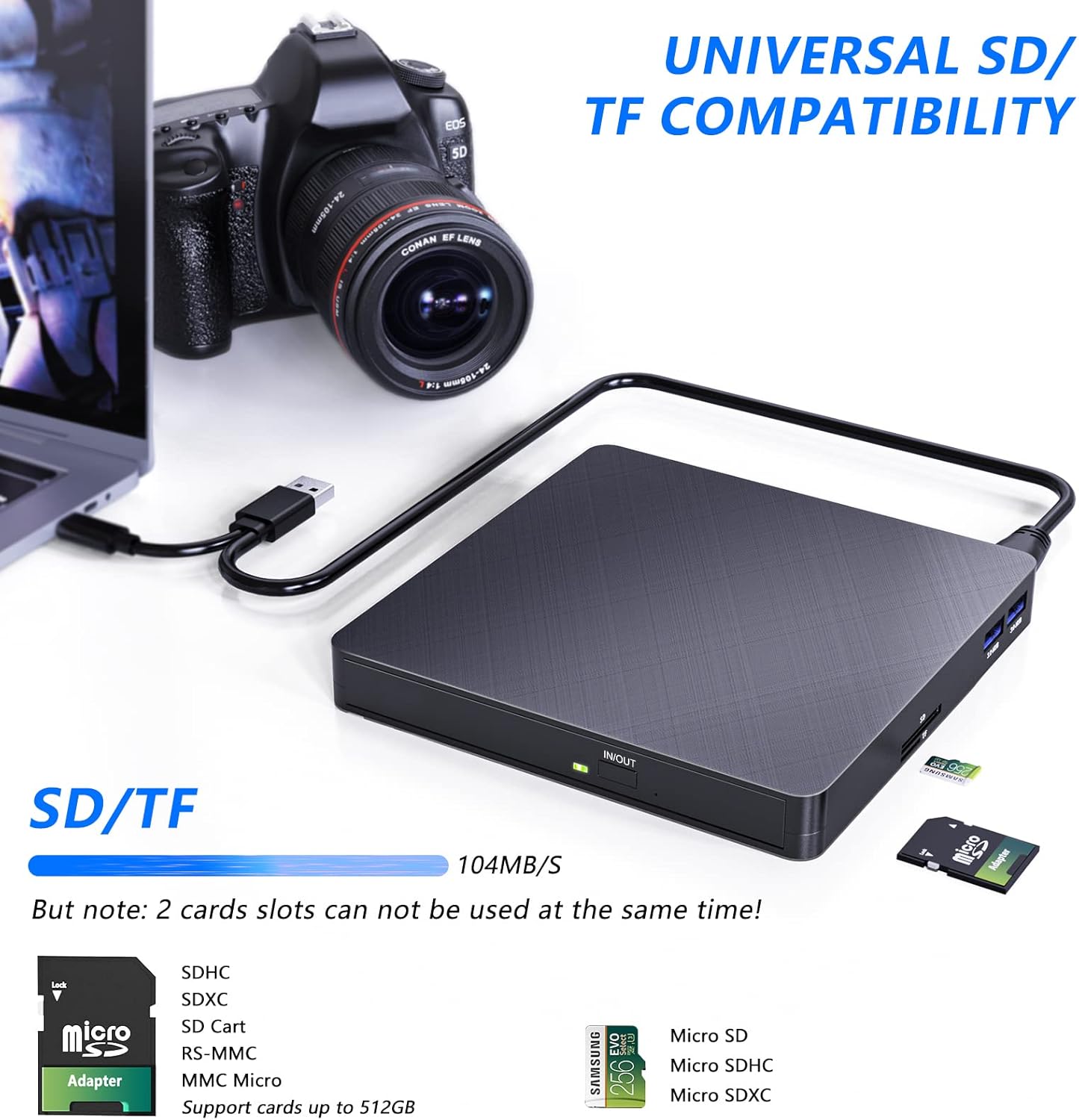
Figure 7: The external drive highlighting its universal SD/TF card compatibility, showing cards inserted into the respective slots.
- พอร์ต USB 3.0:
The two USB 3.0 ports on the side of the drive can be used to connect other USB devices such as flash drives, external hard drives, or charging cables for mobile devices. These ports offer high-speed data transfer for connected devices.
- Typical Usage Scenarios:

รูปที่ 8: อดีตamples of how the drive can be used, including copying music, watching movies, transferring data, and installing systems.
การซ่อมบำรุง
- การทำความสะอาด: Use a soft, dry cloth to wipe the exterior of the drive. Do not use liquid cleaners or abrasive materials.
- การดูแลรักษาแผ่นดิสก์: จับแผ่นดิสก์ที่ขอบเพื่อป้องกันรอยนิ้วมือและรอยขีดข่วน เก็บแผ่นดิสก์ไว้ในกล่องเมื่อไม่ได้ใช้งาน
- พื้นที่จัดเก็บ: เก็บฮาร์ดไดรฟ์ไว้ในที่แห้งและเย็น หลีกเลี่ยงแสงแดดโดยตรงและอุณหภูมิที่สูงหรือต่ำเกินไป
- หลีกเลี่ยงผลกระทบ: While the drive is shock-resistant, avoid dropping or subjecting it to strong impacts to prevent internal damage.
การแก้ไขปัญหา
| ปัญหา | สาเหตุที่เป็นไปได้ | สารละลาย |
|---|---|---|
| คอมพิวเตอร์ไม่รู้จักไดรฟ์ | Insufficient power from USB port; loose connection; driver issue. |
|
| Disc not reading or burning correctly. | Dirty or scratched disc; incompatible disc format; software issue. |
|
| ไม่พบการ์ด SD/TF | Card not fully inserted; SD and TF slots used simultaneously. |
|
ข้อมูลจำเพาะ
| คุณสมบัติ | รายละเอียด |
|---|---|
| ยี่ห้อ | ฮาโตกุ |
| หมายเลขรุ่น | เอ็กซ์ดี010 |
| สี | สีดำ |
| อินเทอร์เฟซ | พอร์ต USB 3.0, Type-C |
| พอร์ต USB | พอร์ต USB 2 จำนวน 3.0 พอร์ต |
| เครื่องอ่านการ์ด | SD, TF (Micro SD) |
| ความเร็วในการเขียน | 8x (ดีวีดี), 24x (ซีดี) |
| ความเร็วในการอ่าน | 8x (ดีวีดี), 24x (ซีดี) |
| ความเข้ากันได้ | Windows 2000/XP/2003/Vista/7/8/10/11, Linux, Mac OS |
| ขนาด (กว้าง x ยาว x สูง) | 14.3 x 14.3 x 2 ซม. (5.6 x 5.6 x 0.8 นิ้ว) |
| น้ำหนัก | 370 กรัม |
| คุณสมบัติพิเศษ | ทนทานต่อแรงกระแทก |

Figure 9: Detailed product view showing dimensions, port types (USB 3.0, Type-C), and card slots (SD, TF).
การรับประกันและการสนับสนุน
HATOKU provides a lifetime warranty for this external CD DVD drive from the date of purchase. We are committed to ensuring customer satisfaction.
For any questions or issues regarding your HATOKU External CD DVD Drive, please contact our customer support team. We offer 24/7 online support to assist you. If necessary, we will ensure a refund or replacement.
หากต้องการความช่วยเหลือ โปรดเยี่ยมชมเว็บไซต์อย่างเป็นทางการของเรา webไซต์หรือดูข้อมูลการติดต่อที่ให้มาพร้อมกับบรรจุภัณฑ์ผลิตภัณฑ์ของคุณ
Ask a question about this manual
Ask about setup, troubleshooting, compatibility, parts, safety, or missing instructions. Manuals+ will review the question and use this page’s manual context to help answer it.