
1. สินค้าหมดview
The MAIWO K3016CL is a versatile M.2 SATA/NVMe Docking Station designed for efficient data management. It supports both M.2 NVMe and M.2 SATA SSDs, as well as SD Express 7.0/7.1 cards, offering high-speed data transfer and convenient offline cloning capabilities. This device is ideal for system disk migration, data backup, and recovery tasks.

Figure 1.1: MAIWO K3016CL Docking Station with M.2 SSDs
This image displays the MAIWO K3016CL M.2 SATA/NVMe Docking Station from a front-top perspective, showcasing two M.2 SSDs vertically inserted into its slots. The device features an SD Express slot at the front and LED indicators for clone progress.
2. คุณสมบัติหลัก
- One-Key Offline Clone: Easily duplicate drives without a computer. Supports 4 clone modes: NVMe to SATA, SATA to NVMe, SD to NVMe, and SD to SATA. Perfect for system disk migration, backup, and data recovery.
- 10Gbps High-Speed USB-C: Features USB 3.1 Gen 2 Type-C interface, delivering transfer speeds up to 10Gbps. Plug & play, no drivers or tools required. LED indicators clearly display the working status.
- แหล่งจ่ายไฟที่เสถียร: Comes with a 5V 3A power adapter, ensuring faster and more stable SSD performance. Provides reliable and consistent power for long-term operation.
- การกระจายความร้อนที่มีประสิทธิภาพ: Equipped with bottom cooling holes and non-slip silicone pads, ensuring stable performance and extended SSD lifespan while keeping the docking station secure on your desk.
- ความเข้ากันได้กว้าง: Works with M.2 SATA SSDs, M.2 NVMe SSDs, and SD Express 7.0/7.1 cards. Supports reading/writing of two M.2 SSDs simultaneously. Fully compatible with Windows / Mac / Linux systems.
3. เนื้อหาบรรจุภัณฑ์
เมื่อเปิดบรรจุภัณฑ์ โปรดตรวจสอบว่าอุปกรณ์ทุกชิ้นครบถ้วนและอยู่ในสภาพดี:
- MAIWO K3016CL M.2 Clone Duplicator (Docking Station)
- อะแดปเตอร์ไฟ 5V 3A
- สาย USB-C ถึง USB-C
- คู่มือการใช้งาน (เอกสารนี้)
4. คู่มือการติดตั้ง
4.1 การติดตั้ง SSD แบบ M.2
- Identify the M.2 SATA and M.2 NVMe slots on the docking station. The slots are clearly labeled.
- Gently insert your M.2 SSD (SATA or NVMe) into the corresponding slot, ensuring the notch on the SSD aligns with the key in the slot.
- Push the SSD down until it clicks into place. No screws are typically required for this vertical design.
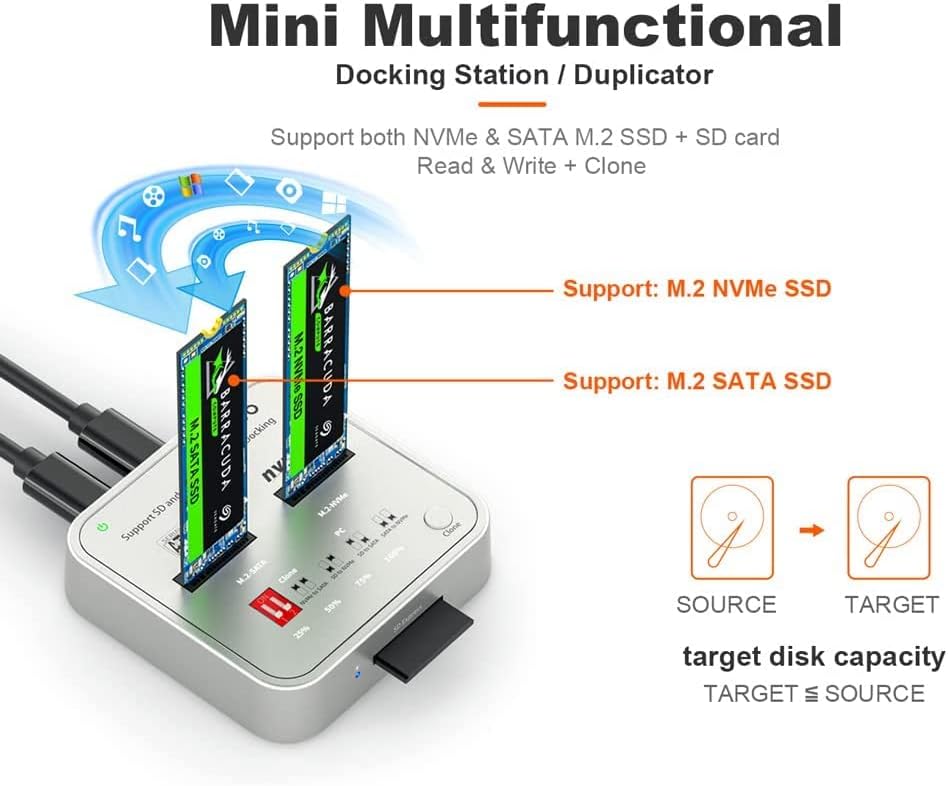
Figure 4.1: M.2 SSD Slot Identification
This image illustrates the MAIWO K3016CL docking station, highlighting the distinct slots for M.2 NVMe SSD and M.2 SATA SSD. It also shows the concept of source and target drives for cloning operations.
4.2 Connecting to Power and Host Device
- Connect the provided 5V 3A power adapter to the DC IN port on the docking station and then to a power outlet.
- For data transfer, connect the docking station to your computer (PC or Mac) using the supplied USB-C cable. The device is plug-and-play and does not require driver installation.
5. คู่มือการใช้งาน
5.1 การถ่ายโอนข้อมูล (โหมดพีซี)
When connected to a computer via USB-C, the MAIWO K3016CL functions as an external SSD reader/writer. Both M.2 SSDs can be accessed simultaneously. The USB 3.1 Gen 2 Type-C interface supports data transfer speeds up to 10Gbps.
- ตรวจสอบให้แน่ใจว่าแท่นวางเชื่อมต่อเปิดใช้งานอยู่และเชื่อมต่อกับคอมพิวเตอร์ของคุณแล้ว
- The installed SSDs will appear as removable drives in your operating system.
- ตอนนี้คุณสามารถลากและวางได้แล้ว fileหรือใช้เครื่องมือจัดการดิสก์เพื่อฟอร์แมตหรือแบ่งพาร์ติชั่นไดรฟ์

รูปที่ 5.1: การถ่ายโอนข้อมูลความเร็วสูง
This image shows the MAIWO K3016CL docking station connected to a laptop, illustrating its 10Gbps Super-Speed capability for data transfer. A comparison chart highlights the significant speed advantage over USB 2.0.
5.2 One-Key Offline Clone Function
The offline clone function allows you to duplicate an SSD without connecting to a computer. Ensure the target SSD capacity is equal to or greater than the source SSD capacity.

Figure 5.2: Offline Clone Function Diagram
This diagram details the four offline clone modes (NVMe to SATA, SD to NVMe, SD to SATA, SATA to NVMe) available on the MAIWO K3016CL. It also provides step-by-step instructions for initiating a clone and shows the LED progress indicators (25%, 50%, 75%, 100%).
ขั้นตอนการโคลนนิ่งแบบออฟไลน์:
- Unplug Data Cable: Ensure the USB data cable is disconnected from the docking station. The device must be in standalone mode for offline cloning.
- เชื่อมต่อพลังงาน: Connect the 5V 3A power adapter to the docking station and a power outlet.
- Insert SSDs/SD Card:
- For M.2 to M.2 clone: Insert the ที่มา SSD into the designated Source slot (e.g., M.2 SATA or M.2 NVMe) and the เป้าหมาย SSD into the other slot.
- For SD to M.2 clone: Insert the Source SD Express card into the SD slot and the Target M.2 SSD into the desired M.2 slot.
- เลือกโหมดโคลน: Use the dial key on the docking station to select the desired clone mode (e.g., NVMe to SATA, SD to NVMe). Refer to Figure 5.2 for dial key positions and corresponding modes.
- เริ่มการโคลน: Short press the 'Clone' button twice. The 25% LED indicator will start flashing, indicating the cloning process has begun.
- ติดตามความคืบหน้า: The LED indicators (25%, 50%, 75%, 100%) will light up sequentially to show the cloning progress. When the 100% LED is solid, the clone is complete.
- หมดแรง: Once cloning is complete, power off the docking station before removing the SSDs/SD card.
Important: Data on the Target SSD will be overwritten during the cloning process. Ensure you have backed up any important data from the Target SSD before proceeding.
6. การระบายความร้อน
The MAIWO K3016CL is designed with efficient heat dissipation in mind to ensure stable performance and extend the lifespan of your SSDs. It features:
- การออกแบบแนวตั้ง: Allows for natural convection and easier heat escape from the SSDs.
- Bottom Cooling Holes: Strategically placed vents at the base facilitate airflow.
- Metal Heat Dissipation Plate: An internal metal plate helps to draw heat away from the circuit board and SSDs, ensuring stable operation even during prolonged use.

Figure 6.1: Internal Design for Heat Dissipation
ภาพนี้แสดงภาพแบบระเบิด view of the MAIWO K3016CL, illustrating its vertical design, high-strength ABS shell, high-precision circuit board, and the crucial metal heat dissipation plate that contributes to stable and long-term operation.
7. ความเข้ากันได้
The MAIWO K3016CL offers broad compatibility with various storage devices and operating systems:
- SSD M.2: Supports both M.2 SATA SSDs and M.2 NVMe SSDs.
- M.2 Form Factors: Compatible with M.2 SSDs of sizes 2230, 2242, 2260, 2280, and 22110.
- การ์ด SD: Supports SD Express 7.0/7.1 cards.
- ระบบปฏิบัติการ: Fully compatible with Windows, macOS, and Linux operating systems.
- อุปกรณ์: Can be used with laptops, desktop PCs, smart TVs, PS4, mobile phones (with OTG support), XBOX, and other compatible devices for storage expansion.

รูปที่ 7.1: ความเข้ากันได้ในวงกว้าง
This image illustrates the extensive compatibility of the MAIWO K3016CL, showing supported M.2 SSD sizes (2230 to 22110), various M.2 key types (M Key, B+M Key, B Key), and compatibility with PCI Express, Serial ATA, and NVMe standards. It also confirms support for Windows, Mac, and Linux operating systems.
8. ข้อมูลจำเพาะ
| คุณสมบัติ | ข้อมูลจำเพาะ |
|---|---|
| ขนาดสินค้า | 3.07 x 2.99 x 0.75 นิ้ว |
| น้ำหนักสินค้า | 5.4 ออนซ์ (154 กรัม) |
| หมายเลขรุ่น | M.2 SATA/NVMe/SD Clone |
| ยี่ห้อ | มายโว |
| สี | สีดำ |
| ฮาร์ดแวร์อินเตอร์เฟซ | USB 3.1 Gen2 Type-C (10Gbps) |
| อุปกรณ์ที่รองรับ | Laptops, PC, Smart TVs, PS4, Mobile Phones (OTG), XBOX |
| พอร์ต USB รวม | 1 (ประเภท C) |
| แหล่งจ่ายไฟ | อะแดปเตอร์ไฟ 5V 3A |
| SSD ที่รองรับ | M.2 SATA SSD, M.2 NVMe SSD |
| การ์ด SD ที่รองรับ | SD Express 7.0/7.1 |
| Offline Clone Modes | NVMe to SATA, SATA to NVMe, SD to NVMe, SD to SATA |
9 การแก้ไขปัญหา
If you encounter issues with your MAIWO K3016CL docking station, please refer to the following common troubleshooting steps:
- ไม่รู้จักอุปกรณ์:
- ตรวจสอบให้แน่ใจว่าเสียบอะแดปเตอร์แปลงไฟแน่นสนิทและเปิดใช้งานอุปกรณ์แล้ว
- Verify the USB-C cable is properly connected to both the docking station and your computer. Try a different USB port or cable.
- Check your computer's Disk Management (Windows) or Disk Utility (macOS) to see if the SSD is detected but uninitialized or unformatted.
- Ensure the M.2 SSD is correctly seated in its slot.
- ความเร็วในการถ่ายโอนข้อมูลช้า:
- Ensure you are connected to a USB 3.1 Gen 2 (10Gbps) compatible port on your computer. Older USB 2.0 or 3.0 ports will result in lower speeds.
- Check the health and performance of your SSDs.
- ปิดแอปพลิเคชันพื้นหลังใดๆ ที่อาจใช้ทรัพยากรระบบหรือดิสก์ I/O
- การโคลนแบบออฟไลน์ล้มเหลวหรือไม่เริ่มทำงาน:
- Ensure the USB data cable is disconnected from the docking station. Offline cloning requires the device to be standalone.
- Verify that the target SSD's capacity is equal to or greater than the source SSD's capacity.
- Double-check that the source and target SSDs are correctly inserted into their respective slots.
- Confirm the correct clone mode is selected using the dial key.
- Press the 'Clone' button twice quickly to initiate the process.
- ความร้อนสูงเกินไป:
- ตรวจสอบให้แน่ใจว่าได้วางแท่นวางบนพื้นผิวเรียบ มั่นคง และมีการระบายอากาศที่เพียงพอ
- Avoid blocking the bottom cooling holes.
- Prolonged heavy use can generate heat; allow the device to cool down if it feels excessively hot.
If the issue persists after trying these steps, please contact MAIWO customer support for further assistance.
10. การบำรุงรักษา
To ensure the longevity and optimal performance of your MAIWO K3016CL docking station, follow these maintenance guidelines:
- การทำความสะอาด: ใช้ผ้านุ่มและแห้งเช็ดภายนอกอุปกรณ์ ห้ามใช้น้ำยาทำความสะอาดหรือวัสดุขัดถู
- พื้นที่จัดเก็บ: เมื่อไม่ใช้งาน ควรเก็บแท่นวางไว้ในที่แห้งและเย็น หลีกเลี่ยงแสงแดดโดยตรงและอุณหภูมิที่สูงหรือต่ำเกินไป
- การจัดการ: ใช้งานอุปกรณ์ด้วยความระมัดระวัง หลีกเลี่ยงการทำตกหรือกระแทกแรงๆ
- หมดแรง: Always power off the docking station and disconnect it from the power source when not in use or before moving it.
11. การรับประกันและการสนับสนุน
MAIWO products are designed for reliability and performance. For warranty information and technical support, please refer to the warranty card included with your product or visit the official MAIWO webไซต์ โปรดเก็บใบเสร็จรับเงินไว้เป็นหลักฐานการซื้อสำหรับการเรียกร้องการรับประกัน
For further assistance, you may contact MAIWO customer support through their official channels. Please provide your product model number (K3016CL) and a detailed description of the issue when seeking support.