
1. บทนำ
The Xetron STC-1000ProTH is a pre-wired digital temperature and humidity controller designed for precise environmental management. This device allows simultaneous or independent control of both temperature (heating or cooling) and humidity (humidification or dehumidification) within a specified range. It is suitable for various applications including seed fermentation, reptile habitats, incubators, greenhouses, and more.
This manual provides detailed instructions for the safe and effective use of your STC-1000ProTH controller. Please read it thoroughly before operation.
2. ข้อมูลด้านความปลอดภัย
- ตรวจสอบแหล่งจ่ายไฟ voltage matches the controller's specifications (110V 10A).
- Do not immerse the controller or sensor probe in water or expose to excessive moisture.
- Always unplug the controller from the power outlet before cleaning or performing any maintenance.
- Do not exceed the maximum load capacity of 10A for the outlets.
- เก็บให้พ้นจากมือเด็ก
- The controller is made of anti-flame ABS material for enhanced safety.
3. สินค้าหมดview และคุณสมบัติ
The Xetron STC-1000ProTH features a large LCD screen for clear display of current and set values, along with intuitive 3-button operation for easy programming.

Figure 3.1: Xetron STC-1000ProTH Controller, sensor, and power outlets.
คุณสมบัติหลัก:
- การควบคุมแบบคู่: Manages both temperature and humidity simultaneously or independently.
- ระยะการใช้งานกว้างและความแม่นยำสูง: Temperature control from 23℉ to 158℉ (-5℃ to 70℃) with ±1℉/±0.5℃ accuracy. Humidity control from 5%RH to 99%RH with ±5%RH accuracy.
- การออกแบบแบบมีสายล่วงหน้า: Includes two pre-wired outlets (Work1 for temperature, Work2 for humidity) and a 2.5-inch LCD screen for plug-and-play operation.
- พารามิเตอร์ที่สามารถปรับแต่งได้: Supports settings for ℃/℉, temperature & humidity calibration, high/low alarm values, start-up delay, and protection time.
- ระบบเตือนภัยแบบคู่: Visual (bell icon) and audible (buzzer) alerts activate if temperature or humidity exceeds set limits.
- ระบบป้องกันการหน่วงเวลาของคอมเพรสเซอร์: Extends the service life of connected equipment by preventing rapid cycling.
- โครงสร้างทนทาน: Made from anti-flame ABS material, compliant with CE and FCC standards.

Figure 3.2: The controller supports both humidification/dehumidification and heating/cooling functions.

Figure 3.3: Visual and audible alerts, along with compressor delay protection.
4. เนื้อหาบรรจุภัณฑ์
ตรวจสอบว่ามีรายการทั้งหมดอยู่ในแพ็คเกจ:
- 1x Xetron STC-1000ProTH Temperature and Humidity Controller
- 1x คู่มือผู้ใช้ (เอกสารนี้)
- 1x Temperature and Humidity Sensor Probe
5. คู่มือการติดตั้ง
5.1 การเชื่อมต่อคอนโทรลเลอร์
- Plug the main power cord of the Xetron STC-1000ProTH controller into a standard 110V AC power outlet.
- Connect the temperature and humidity sensor probe to the designated port on the controller. Ensure it is securely inserted.
- Identify the 'WORK1' outlet for temperature control and 'WORK2' for humidity control.
- Plug your heating or cooling device into the 'WORK1' outlet.
- Plug your humidifying or dehumidifying device into the 'WORK2' outlet.

Figure 5.1: Connection points for the sensor and controlled devices.

Figure 5.2: Features including the large LCD screen, 2m NTC sensor, pre-wired sockets, and safe plug.
6. คู่มือการใช้งาน
6.1 ทำความเข้าใจกับจอแสดงผล
The large LCD screen displays key information:
- TPV: Temperature Present Value (current temperature).
- HPV: Humidity Present Value (current humidity).
- TSV: Temperature Set Value (desired temperature).
- HSV: Humidity Set Value (desired humidity).
The display also shows icons for heating, cooling, humidifying, dehumidifying, and alarms.

Figure 6.1: Screen display with value definitions.
6.2 Basic Parameter Settings
หากต้องการเข้าสู่โหมดการตั้งค่า ให้กดปุ่ม ชุด button for 3 seconds until the display beeps or flashes. Use the UP และ ลง buttons to navigate through parameters. Press ชุด once to select a parameter, use UP/ลง to adjust the value, then press ชุด again to confirm. Hold ชุด for 3 seconds to exit setting mode.
Example: Setting Humidity Range (e.g., 55% to 65% RH)
- กดค้างไว้ ชุด ใช้เวลา 3 วินาทีเพื่อเข้าสู่โหมดการตั้งค่า
- ใช้ UP/ลง to navigate to the 'HS' (Humidity Start) setting.
- กด ชุด once, then use UP/ลง to set the value to '60' (for 60% RH). Press ชุด เพื่อยืนยัน.
- Navigate to the 'HD' (Humidity Differential) setting.
- กด ชุด once, then use UP/ลง to set the value to '5' (for 5% RH differential). Press ชุด to confirm. This means the humidity will turn on at 55% (60-5) and turn off at 60%.
- ถือ ชุด for 3 seconds to exit setting mode.

รูปที่ 6.2: อดีตample of setting humidity parameters (HS and HD).
6.3 การตั้งค่าสัญญาณเตือน
The controller features dual alarms for both temperature and humidity. You can set high and low alarm limits. If the measured value goes outside these limits, the controller will sound a buzzer and display a bell icon.

Figure 6.3: Audible and visual alarm indicators.
6.4 การป้องกันการหน่วงเวลาของคอมเพรสเซอร์
This feature prevents rapid cycling of connected compressors (e.g., in refrigerators or dehumidifiers), which can extend their lifespan. You can set a delay time in the parameter settings.

Figure 6.4: Compressor delay protection mechanism.
6.5 Screen Display Options
The controller allows you to set the screen display to always remain ON. Refer to the manual's parameter list for the specific setting (e.g., 'BL' to 'O').

Figure 6.5: Option to keep the screen display continuously ON.
7. การใช้งานทั่วไป
The Xetron STC-1000ProTH controller is versatile and can be used in various environments requiring precise temperature and humidity control:
- Reptile Habitats: Maintain optimal temperature and humidity levels for the health and well-being of reptiles.
- Seed Germination/Cultivation: Create ideal conditions for plant growth and seed starting in greenhouses or grow tents.
- การหมัก: Control temperature for consistent results in home brewing, yogurt making, or other fermentation processes.
- ตู้ฟักไข่: Regulate temperature and humidity for successful egg incubation.
- Freezers/Refrigerators: Convert a standard refrigerator into a freezer or maintain specific storage temperatures.
- Home Brewing: Ensure precise temperature control for fermentation.
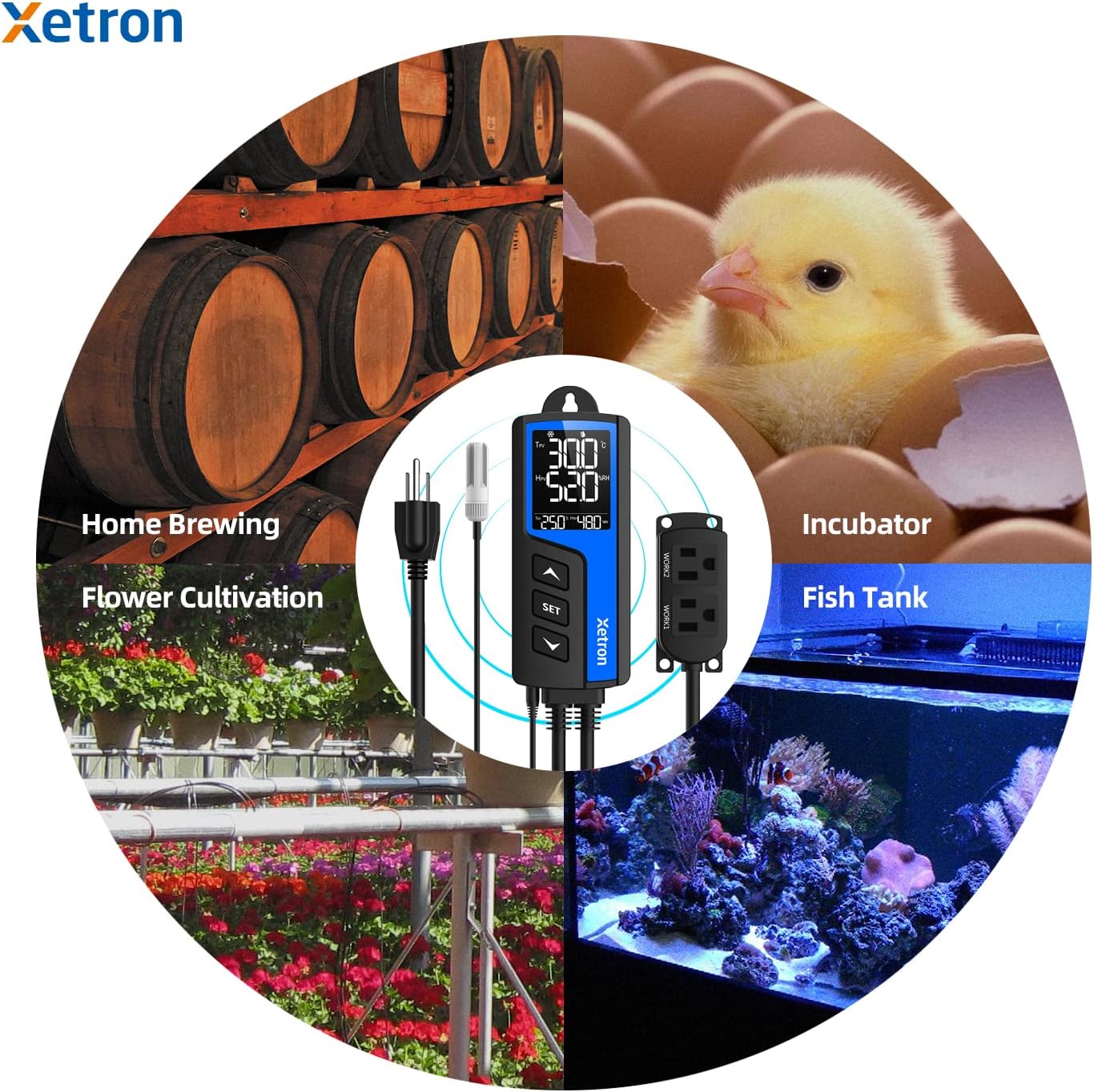
Figure 7.1: Diverse applications of the Xetron STC-1000ProTH controller.

Figure 7.2: Reptile temperature and humidity control.

Figure 7.3: Seedling temperature and humidity control.

Figure 7.4: Fermentation temperature control.

รูปที่ 7.5: การควบคุมอุณหภูมิช่องแช่แข็ง
8. การบำรุงรักษา
- การทำความสะอาด: Wipe the controller and sensor probe with a soft, dry cloth. Do not use abrasive cleaners or immerse in liquids.
- การดูแลเซ็นเซอร์: Handle the sensor probe carefully. Avoid bending or damaging the cable. Ensure the sensor is free from dust or debris for accurate readings.
- พื้นที่จัดเก็บ: When not in use, store the controller in a cool, dry place away from direct sunlight.
9 การแก้ไขปัญหา
- ตัวควบคุมไม่เปิดเครื่อง: Check if the main power plug is securely inserted into a live outlet.
- อุปกรณ์ที่เชื่อมต่อไม่ทำงาน:
- Verify that the device is correctly plugged into the 'WORK1' (temperature) or 'WORK2' (humidity) outlet.
- Ensure the device itself is functional by plugging it directly into a wall outlet.
- Check your set parameters (TSV, HSV, differentials) to ensure the current conditions should trigger the device.
- Review alarm settings; if an alarm is active, it might prevent normal operation.
- Consider the compressor delay protection setting if applicable.
- การอ่านค่าที่ไม่ถูกต้อง:
- Ensure the sensor probe is clean and unobstructed.
- Verify the sensor is properly connected to the controller.
- Perform a temperature and humidity calibration if you have a reference instrument.
- สัญญาณเตือนดังขึ้นตลอดเวลา: Adjust the high and low alarm limits to suit your desired operating range.
10. ข้อมูลจำเพาะทางเทคนิค
| ข้อมูลจำเพาะ | ค่า |
|---|---|
| หมายเลขรุ่น | STC-1000Pro TH |
| อินพุต Voltage | กระแสสลับ 110 โวลต์ |
| โหลดสูงสุดในปัจจุบัน | 10เอ |
| ช่วงการควบคุมอุณหภูมิ | 23 ℉ ~ 158 ℉ (-5 ℃ ~ 70 ℃) |
| ความแม่นยำของอุณหภูมิ | ±1℉ / ±0.5℃ |
| ช่วงการควบคุมความชื้น | 5% RH ~ 99% RH |
| ความแม่นยำของความชื้น | ± 5% RH |
| ประเภทจอภาพ | จอแอลซีดี |
| วัสดุ | Anti-flame ABS Plastic |
| ขนาดสินค้า | 7.87 x 5.91 x 2.36 inches (Controller: 2.36"L x 1.2"W x 5.5"H) |
| น้ำหนักสินค้า | 14.1 ออนซ์ (0.4 กิโลกรัม) |
| ส่วนประกอบที่รวมอยู่ | Controller, User Manual, T&H Sensor Probe |
11. การรับประกันและการสนับสนุนลูกค้า
Xetron provides a one-year warranty for this product, covering manufacturing defects and ensuring continuous customer assistance. For technical support, troubleshooting, or warranty claims, please contact Xetron customer service through the retailer's platform or visit the official Xetron webเว็บไซต์สำหรับข้อมูลการติดต่อ