
การแนะนำ
This instruction manual provides comprehensive guidance for the CARPURIDE 7-inch Portable CarPlay Android Auto Screen, Model 701Black+Cam. It covers installation, operation, maintenance, and troubleshooting to ensure optimal performance and user experience. Please read this manual thoroughly before using the device.

Figure 1: CARPURIDE 7-inch Portable CarPlay Android Auto Screen.
เนื้อหาแพ็คเกจ
ตรวจสอบว่าสินค้าทั้งหมดที่ระบุไว้ด้านล่างนี้รวมอยู่ในแพ็คเกจของคุณแล้ว หากมีสินค้าใดสูญหายหรือเสียหาย โปรดติดต่อฝ่ายสนับสนุนลูกค้า
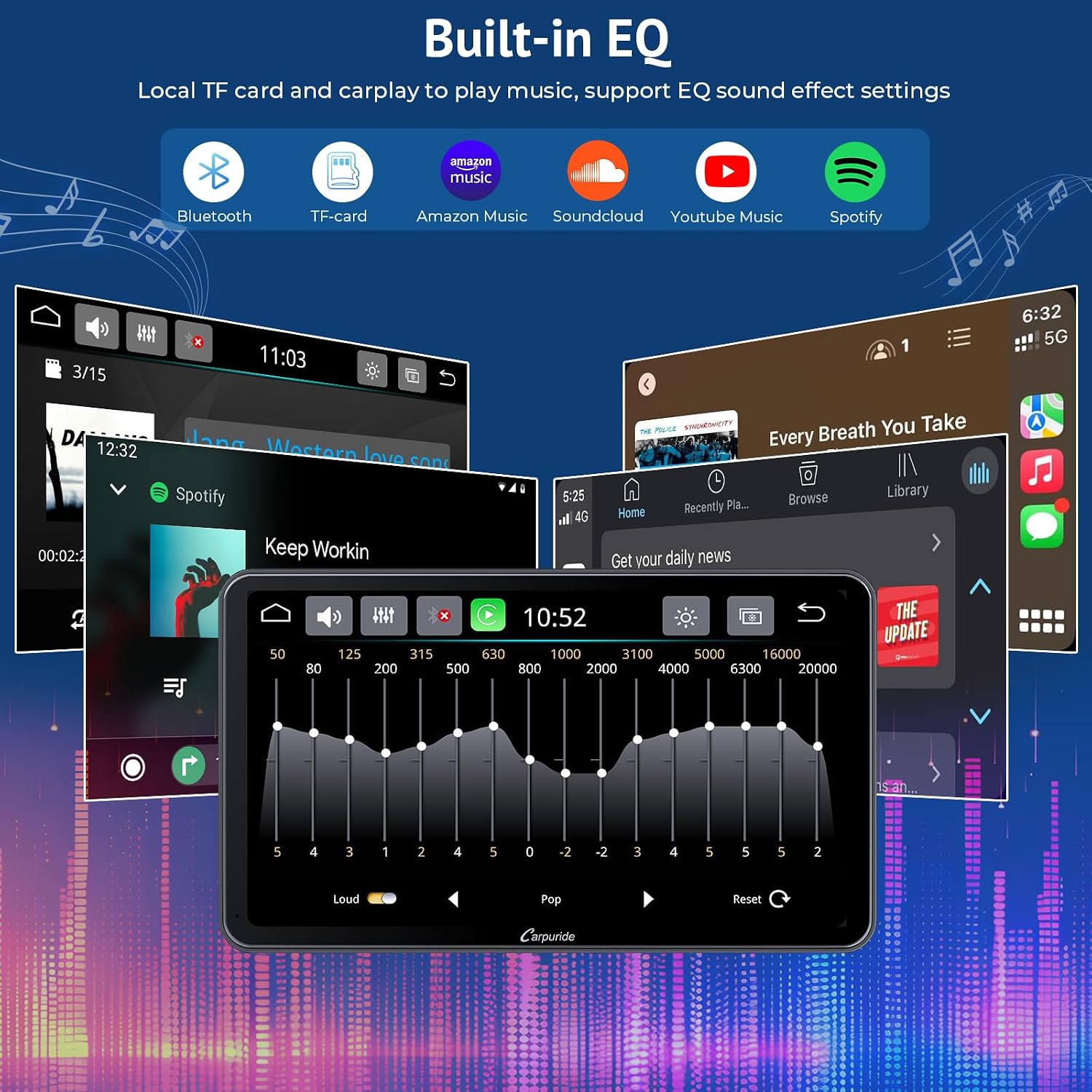
Figure 2: Package Contents. Includes the main 7-inch display unit, suction cup mount, adhesive mount, car charger, AUX cable, user manual, and backup camera.
- Main 7-inch Car Stereo Unit (x1)
- Suction Cup Mount (x1)
- Adhesive Mount (x1)
- Backup Camera (x1)
- Car Charger (DC 5V 2.5A/3A) (x1)
- สาย AUX (x1)
- คู่มือผู้ใช้ (x1)
การติดตั้งและการตั้งค่า
The CARPURIDE 701Black+Cam is designed for quick and easy installation, typically taking around 5 minutes. No specialized knowledge is required.
1. การติดตั้งอุปกรณ์
Choose between the suction cup mount or the adhesive mount based on your preference and vehicle's dashboard or windshield.
- ถ้วยดูด: Attach the suction cup firmly to your windshield or a smooth, clean part of your dashboard. Ensure it is secure before attaching the main unit.
- ติดกาว: Clean the desired dashboard surface thoroughly. Peel off the protective film from the adhesive mount and press it firmly onto the surface. Allow sufficient time for the adhesive to bond before attaching the main unit.
The mount supports 360-degree rotation, allowing you to adjust the height and length for optimal viewการไอเอ็นจี

Figure 3: Device mounted on a dashboard using the suction cup mount.
2. การเชื่อมต่อไฟฟ้า
Connect the provided car charger to the Type-C port on the CARPURIDE unit and plug the other end into your vehicle's cigarette lighter socket.
Important: Ensure the power supply is 5V 2.5A or 5V 3A to prevent the CarPlay screen from automatically shutting down due to insufficient power. The unit is compatible with 12V to 24V vehicle power systems.
3. ช่องต่อสัญญาณเสียงออก
คุณมีตัวเลือกการส่งออกเสียงหลายแบบ:
- การส่งสัญญาณ FM: Tune the CARPURIDE unit and your car's FM radio to the same unused FM frequency to transmit audio wirelessly.
- เอาต์พุต AUX: Connect the provided AUX cable from the CARPURIDE unit's AUX port to your car's AUX input. This provides the best audio quality.
- ลำโพงในตัว: The unit has an integrated speaker suitable for voice prompts and calls.
- บลูทูธ: Connect the CARPURIDE unit to your car's Bluetooth system for audio output (if your car supports it).

Figure 4: Connectivity diagram showing power, AUX, and FM connections.
4. Backup Camera Installation (Optional)
Connect the included backup camera to the designated input on the CARPURIDE unit. The display will automatically switch to the camera view when your vehicle is in reverse.
คำแนะนำการใช้งาน
1. การเปิดเครื่องและการตั้งค่าเริ่มต้น
Once connected to power, the unit will automatically power on. The boot-up sequence takes approximately 20 seconds. Follow the on-screen prompts for initial language and time settings.
2. Apple CarPlay และ Android Auto
The CARPURIDE 701Black+Cam supports both wireless and wired Apple CarPlay and Android Auto.
- การเชื่อมต่อแบบไร้สาย: Enable Bluetooth and Wi-Fi on your smartphone. On the CARPURIDE unit, select either CarPlay or Android Auto. Follow the pairing instructions on both devices.
- การเชื่อมต่อแบบมีสาย: Connect your smartphone to the CARPURIDE unit using a USB cable. The system will automatically detect and launch CarPlay or Android Auto.
บันทึก: Compatible with iOS 6 and above, Android 11 and above. Not compatible with phones running HarmonyOS.

Figure 5: Apple CarPlay interface on the 7-inch display.
3. Mirrorlink (Screen Mirroring)
Mirrorlink allows you to display your smartphone's screen directly onto the CARPURIDE unit.
- For iOS (iPhone 6 and above): Use Airplay for wireless or wired mirroring.
- For Android (Android 11 and above): Use Autolink for wired mirroring. Ensure the "Autolink Pro" application is installed on your smartphone first.
4. Navigation and GPS
Utilize real-time GPS navigation through CarPlay or Android Auto. Popular applications like Google Maps and Waze are supported, providing enlarged map details for better visibility.

Figure 6: Navigation display via CarPlay/Android Auto.
5. ฟังก์ชั่นบลูทูธ
Connect your phone via Bluetooth for hands-free calling and music streaming. The unit features an integrated clear microphone for calls.
6. การควบคุมด้วยเสียง (Siri/Google Assistant)
Access Siri or Google Assistant directly through the unit for voice commands such as "play music," "make calls," or "get directions." An external 3.5mm microphone input is available for enhanced audio quality.
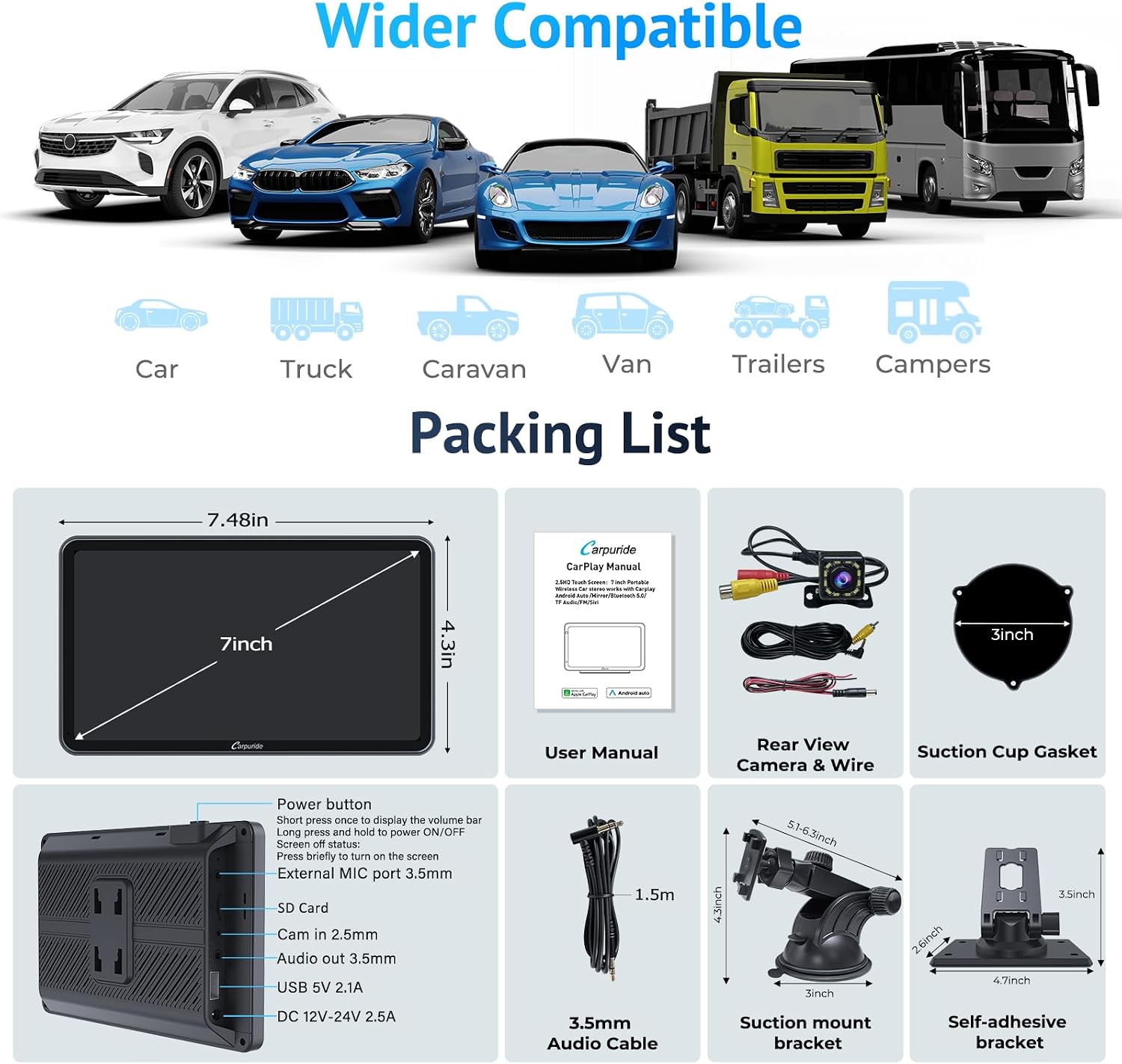
Figure 7: Voice control activation on the touch screen.
7. Audio Equalizer
Customize your audio experience with the built-in equalizer. It includes preset options and a user-customizable 10-band HD equalizer with 12 adjustable frequency sections.
8. จอแสดงผลกล้องสำรอง
When the backup camera is connected and the vehicle is in reverse, the screen will automatically display the rear view, ช่วยเหลือในการจอดรถและการเคลื่อนที่

รูปที่ 8: กล้องสำรอง view บนจอแสดงผล
9. การปรับแต่ง
The unit supports custom boot logos and boot screens. You can set a boot logo that matches your car model or use a personal photo as the boot screen. Refer to the device settings for customization options.
ข้อมูลจำเพาะ
| ยี่ห้อ | คาร์พูไรด์ |
| หมายเลขรุ่น | 701Black+Cam |
| ขนาดจอแสดงผล | 7 นิ้ว |
| ความละเอียดการแสดงผล | ความคมชัดสูง 1024 x 600 |
| เทคโนโลยีการเชื่อมต่อ | USB, FM, Bluetooth, AUX |
| เทคโนโลยีไร้สาย | Bluetooth, Apple CarPlay, Android Auto |
| ประเภทตัวควบคุม | แอนดรอยด์, ไอโอเอส |
| คุณสมบัติพิเศษ | Android Auto, Apple CarPlay, Volume Control, Sirius XM, Touch Screen, Mirrorlink, Voice Control |
| อุปกรณ์ที่รองรับ | สมาร์ทโฟน |
| พอร์ต HDMI ทั้งหมด | 1 |
| โหมดเอาต์พุตเสียง | สเตอริโอ |
| การกำหนดค่าช่องเสียงรอบทิศทาง | 4.1 |
| การเข้ารหัสวิดีโอ | H.264, H.265/HEVC |
| กำลังขับ | 45 วัตต์ |
| จำนวนช่องสัญญาณ | 4 |
| Internet Applications | Android Auto, Apple CarPlay, Skype, YouTube |
| วิธีการควบคุม | Application, Touch, Voice |
| ขนาดรายการ (ยาว x กว้าง x สูง) | 19 x 2.7 x 11.1 ซม. |
| ประเทศต้นกำเนิด | จีน |
การแก้ไขปัญหา
If you encounter issues with your CARPURIDE unit, please refer to the following common problems and solutions:
| ปัญหา | สารละลาย |
|---|---|
| Unit does not power on or restarts frequently. |
|
| CarPlay/Android Auto ไม่สามารถเชื่อมต่อแบบไร้สายได้ |
|
| ไม่มีเสียงหรือคุณภาพเสียงไม่ดี |
|
| Mirrorlink (Autolink) not working for Android. |
|
| กล้องสำรองไม่แสดงผล |
|
การซ่อมบำรุง
To ensure the longevity and optimal performance of your CARPURIDE 701Black+Cam, follow these maintenance guidelines:
- การทำความสะอาดหน้าจอ: ใช้ผ้านุ่มไม่เป็นขุยเช็ดหน้าจอสัมผัสเบาๆ สำหรับรอยเปื้อนฝังแน่น ให้เช็ดเบาๆampชุบผ้าด้วยน้ำหรือน้ำยาทำความสะอาดที่ปลอดภัยต่อหน้าจอ หลีกเลี่ยงสารเคมีรุนแรงหรือวัสดุที่มีฤทธิ์กัดกร่อน
- การทำความสะอาดหน่วย: Wipe the exterior of the unit with a dry, soft cloth. Do not use liquid cleaners directly on the unit.
- การจัดการสายเคเบิล: Ensure all cables are neatly routed and not pinched or excessively bent to prevent damage.
- อุณหภูมิ: ควรหลีกเลี่ยงการวางเครื่องไว้ในที่ที่มีอุณหภูมิสุดขั้ว (ร้อนจัดหรือเย็นจัด) เป็นเวลานาน เนื่องจากอาจส่งผลต่อประสิทธิภาพและอายุการใช้งาน
- พื้นที่จัดเก็บ: หากต้องเก็บรักษาเครื่องไว้เป็นเวลานาน ควรตัดการเชื่อมต่อจากแหล่งจ่ายไฟและเก็บไว้ในที่แห้งและเย็น
การรับประกันและการสนับสนุน
CARPURIDE products are designed for quality and reliability. For specific warranty details, please refer to the warranty card included with your product or contact CARPURIDE customer service.
การสนับสนุนลูกค้า: If you have any questions, require technical assistance, or experience issues not covered in this manual, please contact our customer service team. We are committed to providing high-quality support and will assist you promptly.
You can typically find contact information on the CARPURIDE official webเว็บไซต์หรือผ่านทางร้านค้าปลีกที่คุณซื้อผลิตภัณฑ์