
1. บทนำ
The CZUR Shine Ultra Pro is a professional 24-megapixel document camera scanner designed for high-resolution scanning of various materials, including documents, books, and cards. It features advanced OCR (Optical Character Recognition) technology, a foldable design for portability, and adjustable fill lights for optimal image quality. This manual provides comprehensive instructions for its setup, operation, maintenance, and troubleshooting.

The CZUR Shine Ultra Pro document camera scanner, showcasing its sleek, foldable design and integrated lighting.
2. เนื้อหาบรรจุภัณฑ์
ก่อนดำเนินการติดตั้ง โปรดตรวจสอบให้แน่ใจว่ามีสินค้าทั้งหมดที่ระบุไว้ด้านล่างนี้อยู่ในบรรจุภัณฑ์ของคุณ:
- Main Device (CZUR Shine Ultra Pro Scanner)
- คู่มือการใช้งาน
- แป้นเหยียบ
- สาย USB
- ซอฟต์แพด

The package includes the main CZUR Shine Ultra Pro device, a user manual, a convenient foot pedal for hands-free scanning, a USB cable for connectivity, and a soft pad to protect documents during scanning.
3. คำแนะนำในการตั้งค่า
3.1 การตั้งค่าทางกายภาพ
- Unfold the Scanner: Gently unfold the scanner arm to its upright position. The arm is 90-degree foldable for compact storage and portability.
- Place the Soft Pad: Position the included soft pad on a flat surface directly beneath the scanner's camera lens. This pad provides a stable and contrasting background for scanning.
- เชื่อมต่อสาย USB: Connect one end of the USB cable to the scanner and the other end to an available USB port on your computer.
- เชื่อมต่อแป้นเหยียบ (ทางเลือก): If desired, connect the foot pedal to the designated port on the scanner. This allows for hands-free scanning operation.

The scanner's portable design allows for a 90-degree foldable arm and adjustable height, accommodating scanning areas up to A3 (16.5 x 11.69 inches) and A4 (8.26 x 11.69 inches).
3.2 การติดตั้งซอฟต์แวร์
The CZUR Shine Ultra Pro requires dedicated software for full functionality. Please follow these steps:
- ดาวน์โหลดซอฟต์แวร์: เยี่ยมชมเว็บไซต์อย่างเป็นทางการของ CZUR website to download the latest version of the CZUR scanning software for your operating system.
- ข้อกำหนดของระบบ: The software is compatible with Windows XP, 7, 8, 10 (32/64-bit), and macOS 10.11 or newer (including macOS 12 Monterey).
- ติดตั้งซอฟต์แวร์: Run the downloaded installer and follow the on-screen prompts to complete the installation.
- เปิดตัวซอฟต์แวร์: Once installed, launch the CZUR scanning application. The scanner should be automatically detected if properly connected.
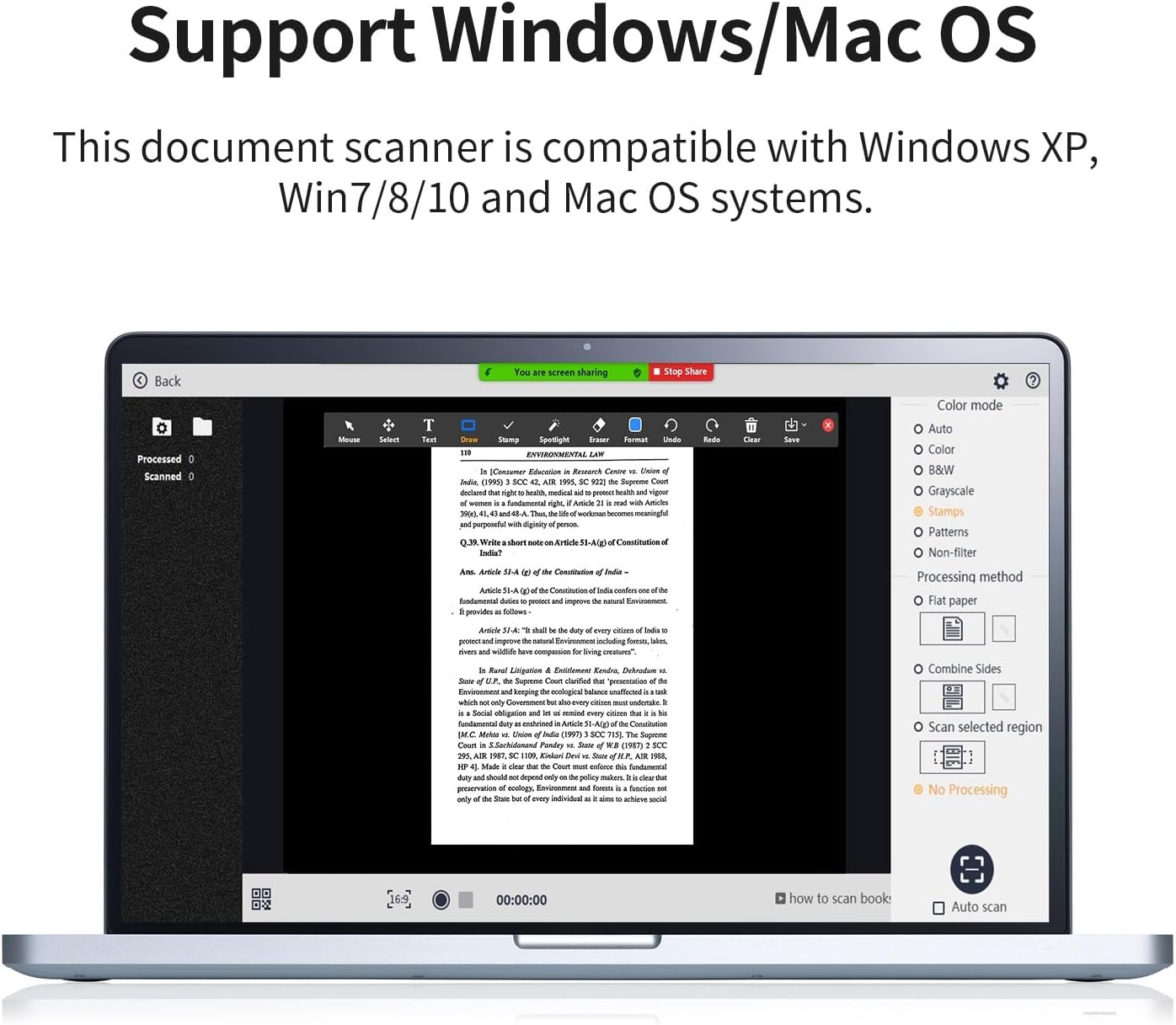
The CZUR scanning software, compatible with Windows XP, 7, 8, 10, and macOS 10.11 or newer, provides various scanning modes (color, B&W, grayscale), processing options (flat paper, combine sides), and an auto-scan function.
4. คู่มือการใช้งาน
4.1 Adjusting Scanner Height and Lights
- การปรับความสูง: The scanner features an extendable arm. Adjust the height to match the size of your document. For A4 documents, use a lower height; for A3 documents, extend the arm to its maximum height.
- ไฟเติม: The scanner is equipped with two top-mounted fill lights. Rotate the knob on the device to adjust the brightness of these lights. Adjust the brightness according to ambient light conditions to achieve the best scanning results.

This image highlights the 24-megapixel camera sensor for high-resolution scanning and the integrated LED lights for optimal illumination. It also indicates scanning resolutions for A4 (440 DPI) and A3 (320 DPI) documents.
4.2 การสแกนเอกสาร
- สถานที่จัดเก็บเอกสาร: Place the document flat on the soft pad, ensuring it is within the scanning area indicated by the software preview.
- เลือกโหมดการสแกน: In the software, choose your desired scan mode (e.g., Color, Black & White, Grayscale, Stamp, Pattern).
- เริ่มการสแกน: Click the scan button in the software or press the foot pedal to capture the image. The scanner can capture one page in approximately 1 second.
- คุณสมบัติการสแกนอัตโนมัติ: The scanner supports an auto-scan function, which can automatically detect and scan pages as they are turned.
4.3 Scanning Books and Curved Pages
The CZUR Shine Ultra Pro features patented flattening technology for scanning books:
- Place Book: Open the book and place it on the soft pad. The software's AI algorithm will intelligently flatten the curved pages.
- Smart Image Processing: The scanner automatically removes finger marks, converts unwrapped sheets into two single pages, and corrects tilt, cropping, or merging pages.
4.4 OCR Text Recognition
The integrated OCR technology allows you to convert scanned images into editable text formats:
- Process Scanned Images: After scanning, select the images you wish to process with OCR within the software.
- Convert to Editable Formats: The software can convert scanned JPG images into editable Word, PDF, Excel, or TIFF files. It supports 185 languages.

The scanner features advanced OCR (Optical Character Recognition) technology, capable of recognizing text in 185 languages and converting scanned JPG images into editable Word, PDF, Excel, or TIFF documents with a single click.
4.5 Video Recording and Screen Sharing
The scanner can also synchronize video recording and screen display, making it suitable for online meetings or teaching:
- Initiate Video Recording: Use the software to start video recording of the scanned area.
- แชร์หน้าจอ: Share the scanned images or live video feed through platforms like Zoom, Skype, or Microsoft Teams for convenient online collaboration.
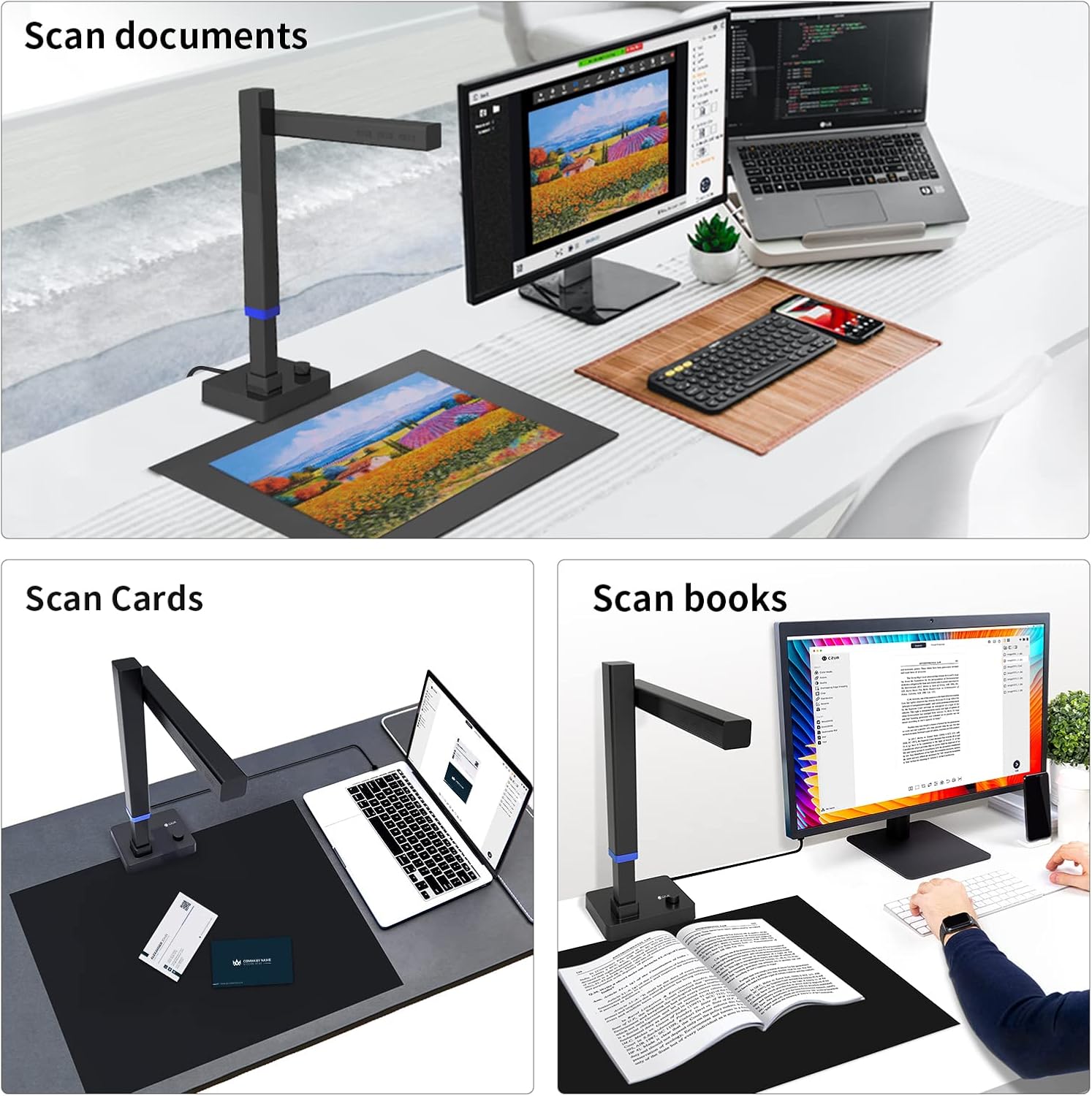
The CZUR Shine Ultra Pro is versatile, suitable for scanning various materials including standard documents, business cards, and books, making it ideal for diverse office and home use.
5. การบำรุงรักษา
- การทำความสะอาดเลนส์: Use a soft, dry, lint-free cloth to gently clean the camera lens. Avoid abrasive materials or harsh chemicals.
- การทำความสะอาดอุปกรณ์: Wipe the exterior of the scanner with a slightly damp ผ้า. ตรวจสอบให้แน่ใจว่าไม่มีความชื้นเข้าไปในอุปกรณ์
- การอัปเดตซอฟต์แวร์: ตรวจสอบเว็บไซต์ CZUR อย่างเป็นทางการเป็นประจำ webเว็บไซต์สำหรับอัปเดตซอฟต์แวร์เพื่อให้มั่นใจได้ถึงประสิทธิภาพสูงสุดและการเข้าถึงคุณสมบัติใหม่ๆ
- พื้นที่จัดเก็บ: When not in use, fold the scanner arm down for compact storage. Store in a dry, dust-free environment.
6 การแก้ไขปัญหา
- ตรวจไม่พบเครื่องสแกนเนอร์:
- ตรวจสอบให้แน่ใจว่าสาย USB เชื่อมต่อกับสแกนเนอร์และคอมพิวเตอร์อย่างแน่นหนา
- ลองเชื่อมต่อกับพอร์ต USB อื่น
- Restart your computer and the scanning software.
- ตรวจสอบให้แน่ใจว่าได้ติดตั้งไดรเวอร์ที่ถูกต้องแล้ว หากจำเป็น ให้ติดตั้งซอฟต์แวร์ใหม่อีกครั้ง
- คุณภาพของภาพต่ำ:
- Adjust the fill light brightness using the knob on the device.
- ตรวจสอบให้แน่ใจว่าวางเอกสารราบเรียบและอยู่ในพื้นที่สแกน
- Clean the camera lens for any smudges or dust.
- Avoid scanning highly glossy materials (e.g., glossy photos, magazines) as they are not recommended due to potential glare.
- OCR Issues:
- ตรวจสอบให้แน่ใจว่าภาพที่สแกนมีความคมชัดและมีแสงสว่างเพียงพอ
- Check if the correct language is selected for OCR processing in the software.
- ซอฟต์แวร์ขัดข้อง/หยุดทำงาน:
- ตรวจสอบให้แน่ใจว่าคอมพิวเตอร์ของคุณตรงตามข้อกำหนดขั้นต่ำของระบบ
- อัปเดตซอฟต์แวร์เป็นเวอร์ชันล่าสุด
- ปิดแอปพลิเคชันที่ใช้ทรัพยากรมากอื่นๆ ที่กำลังทำงานอยู่เบื้องหลัง
7. ข้อมูลจำเพาะ
| คุณสมบัติ | ข้อมูลจำเพาะ |
|---|---|
| ประเภทสแกนเนอร์ | กล้องเอกสาร |
| ยี่ห้อ | ซูร์ |
| ชื่อรุ่น | CZUR Shine Ultra Pro |
| เทคโนโลยีการเชื่อมต่อ | ยูเอสบี |
| ขนาดสินค้า (ลึก x กว้าง x สูง) | 29.5 x 11.7 x 40.9 cm (11.63 x 4.61 x 16.12 inches extended) |
| ปณิธาน | 24 Megapixels (A4: 440 DPI, A3: 320 DPI) |
| น้ำหนักผลิตภัณฑ์ | 1 กิโลกรัม |
| ความลึกของสี | 24 บิต |
| เทคโนโลยีเซ็นเซอร์ออปติคัล | ซีมอส |
| แหล่งกำเนิดแสง | นำ |
| ข้อกำหนดขั้นต่ำของระบบ | Windows XP, 7, 8, 10 (32/64-bit), macOS 10.11 or newer |

This diagram illustrates the compact dimensions of the CZUR Shine Ultra Pro, showing its height and base measurements when folded (13.19 inches high, 6.22 inches wide base) and extended (16.12 inches high, 4.61 inches wide base).
8. การรับประกันและการสนับสนุน
8.1 ข้อมูลการรับประกัน
The CZUR Shine Ultra Pro comes with a รับประกันหนึ่งปี นับจากวันที่ซื้อ การรับประกันนี้ครอบคลุมข้อบกพร่องจากการผลิตและการทำงานผิดปกติภายใต้การใช้งานปกติ โปรดเก็บหลักฐานการซื้อไว้เพื่อขอรับสิทธิ์การรับประกัน
8.2 การสนับสนุนลูกค้า
For technical assistance, troubleshooting, or warranty inquiries, please contact CZUR customer support through their official website. Provide your product model and a detailed description of the issue to receive prompt assistance.