
1. บทนำ
This manual provides detailed instructions for the BoxWave SlimKeys Bluetooth Keyboard with Trackpad, designed for use with the Apple iPhone 13 mini. Please read this manual thoroughly before using the product to ensure proper operation and to maximize its lifespan.
The SlimKeys Bluetooth Keyboard integrates responsive chiclet-style keys and a full-functioning trackpad, transforming your iPhone 13 mini into a portable workstation. Its ultra-thin and lightweight design makes it an ideal travel companion.
2. เนื้อหาบรรจุภัณฑ์
- BoxWave SlimKeys Bluetooth Keyboard with Trackpad
- สายชาร์จ USB
- คู่มือการใช้งาน
3. คุณสมบัติของผลิตภัณฑ์
- Integrated Keyboard and Trackpad: Combines a full QWERTY keyboard with a responsive trackpad for enhanced navigation.
- การออกแบบบางและน้ำหนักเบา: At approximately 3/16 inch thick, it is highly portable without compromising key size for comfortable typing.
- บลูทูธเวอร์ชั่น 3.0: Ensures fast pairing and seamless wireless communication with your device.
- การประหยัดพลังงานแบตเตอรี่: Features an on/off switch to extend battery life when not in use.
- พกพาได้: Designed for easy transport in bags or luggage.

รูปที่ 3.1: จากบนลงล่าง view of the SlimKeys Bluetooth Keyboard, showing the full keyboard layout and integrated trackpad.
4. การตั้งค่า
4.1 การชาร์จคีย์บอร์ด
- Locate the charging port on the side of the keyboard.
- Connect the small end of the provided USB charging cable to the keyboard's charging port.
- ต่อปลายสาย USB ด้านที่ใหญ่กว่าเข้ากับแหล่งจ่ายไฟ USB (เช่น พอร์ต USB ของคอมพิวเตอร์ อะแดปเตอร์ติดผนัง USB)
- The charging indicator light will illuminate. Once fully charged, the light will typically change color or turn off.
4.2 การเปิด/ปิดเครื่อง
- To power on the keyboard, slide the 'ON/OFF' switch, usually located on the side or back, to the 'ON' position. A power indicator light will briefly illuminate.
- To power off the keyboard, slide the 'ON/OFF' switch to the 'OFF' position. This conserves battery life when the keyboard is not in use.
4.3 การจับคู่บลูทูธ
Follow these steps to pair your BoxWave SlimKeys Bluetooth Keyboard with your Apple iPhone 13 mini:
- Ensure the keyboard is fully charged and powered on.
- On your iPhone 13 mini, go to การตั้งค่า > บลูทูธ.
- Turn on Bluetooth. Your iPhone will begin searching for nearby Bluetooth devices.
- On the keyboard, press the Bluetooth pairing button (often labeled 'Connect' or with a Bluetooth symbol). The Bluetooth indicator light on the keyboard will start blinking, indicating it is in pairing mode.
- On your iPhone, locate 'BoxWave Keyboard' or a similar name in the list of 'Other Devices' and tap on it.
- If prompted, enter the pairing code displayed on your iPhone screen using the keyboard, then press Enter.
- Once paired, the Bluetooth indicator light on the keyboard will stop blinking and remain solid or turn off, and your iPhone will show the keyboard as 'Connected'.

Figure 4.1: Keyboard with highlighted power switch and Bluetooth pairing button locations.
5. คู่มือการใช้งาน
5.1 การใช้งานแป้นพิมพ์
Once paired, the keyboard functions like a standard computer keyboard. Simply open any application on your iPhone that requires text input (e.g., Messages, Notes, Safari) and begin typing. The on-screen keyboard will automatically disappear, allowing you to use the physical keyboard.
5.2 การใช้งานแทร็กแพด
The integrated trackpad allows for precise cursor control and navigation on your iPhone 13 mini. Basic gestures include:
- แตะนิ้วเดียว: Functions as a left-click to select items or activate buttons.
- การเลื่อนด้วยสองนิ้ว: Drag two fingers up or down on the trackpad to scroll through content.
- การเคลื่อนไหวของเคอร์เซอร์: Move a single finger across the trackpad to move the cursor on your iPhone screen.
5.3 ปุ่มฟังก์ชันพิเศษ
The keyboard may include function keys (F1-F12) or dedicated media control keys. These keys often require pressing the 'Fn' key simultaneously with the desired function key to activate their secondary functions (e.g., volume control, play/pause, screen lock).
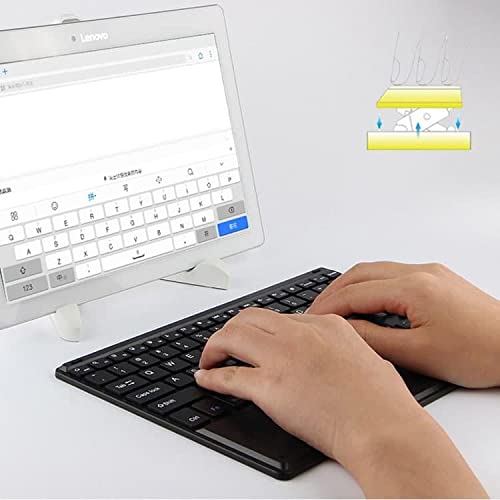
Figure 5.1: User demonstrating typing on the SlimKeys Bluetooth Keyboard.
6. การบำรุงรักษา
6.1 การทำความสะอาด
- โปรดตรวจสอบให้แน่ใจว่าได้ปิดแป้นพิมพ์แล้วก่อนทำการทำความสะอาด
- ใช้ผ้านุ่มไม่เป็นขุยเช็ดเล็กน้อยampened with water or a mild electronics cleaner to wipe the surface.
- หลีกเลี่ยงการใช้สารเคมีรุนแรง น้ำยาทำความสะอาดที่มีฤทธิ์กัดกร่อน หรือความชื้นมากเกินไป เพราะอาจทำให้แป้นพิมพ์เสียหายได้
- For dust or debris between keys, use compressed air.
6.2 การดูแลแบตเตอรี่
- To prolong battery life, power off the keyboard when not in use.
- หลีกเลี่ยงการปล่อยแบตเตอรี่จนหมดบ่อยๆ ชาร์จใหม่เมื่อไฟแสดงสถานะแบตเตอรี่อ่อนปรากฏขึ้น
- ควรเก็บแป้นพิมพ์ไว้ในที่แห้งและเย็นหากไม่ได้ใช้งานเป็นเวลานาน
7 การแก้ไขปัญหา
If you encounter issues with your BoxWave SlimKeys Bluetooth Keyboard, refer to the following common solutions:
- แป้นพิมพ์ไม่เปิดใช้งาน: ตรวจสอบให้แน่ใจว่าแบตเตอรี่ชาร์จเต็มแล้ว เสียบสายชาร์จและปล่อยให้ชาร์จอย่างน้อย 30 นาทีก่อนลองเปิดเครื่องอีกครั้ง
- คีย์บอร์ดไม่จับคู่:
- Ensure the keyboard is in pairing mode (Bluetooth indicator blinking).
- Make sure Bluetooth is enabled on your iPhone 13 mini.
- Move the keyboard closer to your iPhone.
- Forget the device from your iPhone's Bluetooth settings and attempt to pair again.
- Restart both the keyboard and your iPhone.
- คีย์ไม่ตอบสนอง:
- Check if the keyboard is still connected via Bluetooth.
- ตรวจสอบให้แน่ใจว่าแบตเตอรี่ไม่เหลือน้อยมากจนน่าเป็นห่วง
- Try reconnecting the keyboard by turning it off and on, or by re-pairing.
- แทร็กแพดใช้งานไม่ได้:
- โปรดตรวจสอบให้แน่ใจว่าได้เสียบแป้นพิมพ์แล้ว
- Check for any settings on your iPhone that might disable external trackpads.
- ทำความสะอาดพื้นผิวแทร็กแพดเพื่อกำจัดเศษฝุ่นหรือสิ่งสกปรกต่างๆ
8. ข้อมูลจำเพาะ
| คุณสมบัติ | ข้อมูลจำเพาะ |
|---|---|
| ยี่ห้อ | บ็อกซ์เวฟ |
| หมายเลขรุ่น | บีดับบลิว-1977-29861-11782 |
| ฮาร์ดแวร์อินเตอร์เฟซ | บลูทูธ |
| เวอร์ชันบลูทูธ | 3.0 |
| อุปกรณ์ที่รองรับ | Apple iPhone 13 mini, Smartphones, Laptops |
| คำอธิบายแป้นพิมพ์ | ไร้สาย |
| คุณสมบัติพิเศษ | Portable, Integrated Trackpad |
| แหล่งพลังงาน | ใช้พลังงานจากแบตเตอรี่ |
| ขนาด (โดยประมาณ) | 257มม. x 172มม. x 5มม. |

Figure 8.1: Dimensions and operating system compatibility of the SlimKeys Bluetooth Keyboard.
9. การรับประกันและการสนับสนุน
9.1 ข้อมูลการรับประกัน
For specific warranty details, please refer to the warranty card included with your product or visit the official BoxWave webไซต์ เก็บหลักฐานการซื้อของคุณไว้เพื่อใช้ในกรณีเรียกร้องการรับประกัน
9.2 การสนับสนุนลูกค้า
If you require further assistance or have questions not covered in this manual, please contact BoxWave customer support through their official webไซต์หรือข้อมูลการติดต่อที่ให้มาพร้อมกับเอกสารการซื้อของคุณ