
1. บทนำและเรื่องอื่นๆview
The AVM FRITZ!Box 7510 is a versatile Wi-Fi 6 DSL router designed to provide a high-performance home network experience. It integrates fast internet access via VDSL Supervectoring 35b, advanced Wi-Fi 6 (WLAN AX) technology for efficient wireless connectivity, and a range of features including WLAN Mesh, a DECT base station for telephony, and a media server.
This manual provides essential information for setting up, operating, and maintaining your FRITZ!Box 7510, ensuring optimal performance and connectivity for your devices.
2. เนื้อหาบรรจุภัณฑ์
Please verify that all items are present in your FRITZ!Box 7510 package:
- FRITZ!Box 7510 Router
- หน่วยจ่ายไฟ
- 4-meter DSL Connection Cable
- 1.5-meter LAN Cable
- Installation Instructions (English language may vary by region)
3. การตั้งค่า
Follow these general steps to set up your FRITZ!Box 7510. For detailed, country-specific instructions, refer to the included installation guide or the AVM webเว็บไซต์.
3.1 Connecting to the DSL Line
- Connect one end of the 4-meter DSL connection cable to the "DSL" port on the back of your FRITZ!Box 7510.
- Connect the other end of the DSL cable to your DSL wall socket.
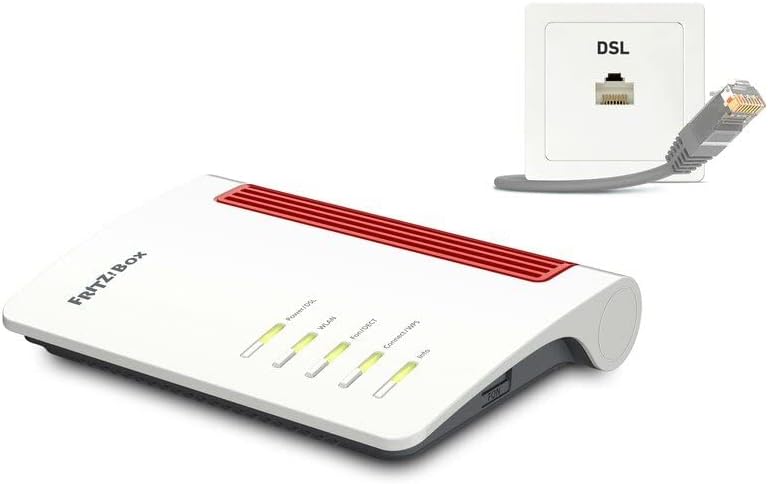
Image: FRITZ!Box 7510 connected to a DSL wall socket. This illustrates the physical connection required for internet access.
3.2 การเชื่อมต่อพาวเวอร์ซัพพลาย
- Connect the power supply unit to the "Power" port on the back of the FRITZ!Box 7510.
- Plug the power supply into an electrical outlet. The "Power/DSL" LED on the front of the router will light up.
3.3 การกำหนดค่าเริ่มต้น
- Connect a computer to the FRITZ!Box 7510 using the included LAN cable or via Wi-Fi (default Wi-Fi name and password are on the bottom of the device).
- เปิด web เบราว์เซอร์และเข้าสู่ fritz.box ในแถบที่อยู่
- Follow the on-screen wizard to configure your internet access, Wi-Fi settings, and telephony. Note that automatic configuration for internet providers is primarily supported in Germany.

ภาพ: ด้านหน้า view of the FRITZ!Box 7510. The LED indicators provide status information for Power/DSL, WLAN, Fon/DECT, Connect/WPS, and Info.
4. คู่มือการใช้งาน
4.1 การเชื่อมต่ออุปกรณ์ผ่าน Wi-Fi
To connect a device (smartphone, tablet, laptop) to your FRITZ!Box 7510 via Wi-Fi:
- ค้นหาเครือข่าย Wi-Fi ที่พร้อมใช้งานบนอุปกรณ์ของคุณ
- Select the Wi-Fi network name (SSID) of your FRITZ!Box (found on the bottom of the device or in the FRITZ!Box interface).
- Enter the Wi-Fi network key (password) when prompted.
- Alternatively, use the WPS (Wi-Fi Protected Setup) function by pressing the "Connect/WPS" button on the FRITZ!Box and initiating WPS on your device within two minutes.
4.2 Connecting Devices via LAN
The FRITZ!Box 7510 features one Gigabit LAN port:
- Connect one end of a LAN cable to the "LAN" port on the back of the FRITZ!Box.
- Connect the other end to the network port of your computer, smart TV, or other network-enabled device.
4.3 DECT Telephony
The integrated DECT base station supports up to six cordless telephones:
- To register a DECT phone, put the phone into registration mode.
- Press and hold the "Fon/DECT" button on the FRITZ!Box for about 6 seconds until the "Fon/DECT" LED flashes.
- Complete the registration process on your DECT phone.
4.4 Media Server Functionality
The FRITZ!Box 7510 can act as a media server:
- Connect a USB storage device (e.g., a USB stick or external hard drive) to the USB port on the FRITZ!Box.
- Access the FRITZ!Box user interface (fritz.box) to configure the media server and share content.
- Compatible devices in your home network (e.g., smart TVs, tablets, HiFi systems) can then stream music, videos, and view images from the connected USB storage.
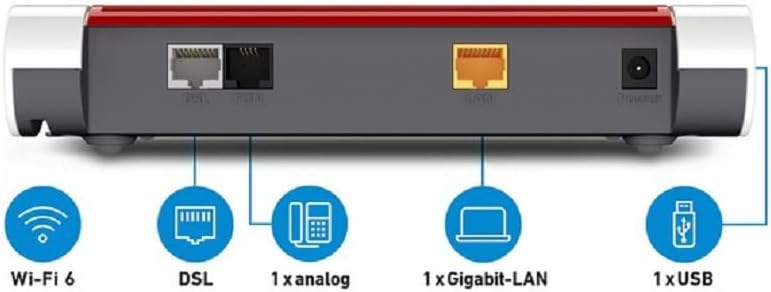
Image: Rear panel of the FRITZ!Box 7510. This view clearly labels the ports for DSL, analog phone, Gigabit LAN, and USB, along with an indication of Wi-Fi 6 capability.
5. คุณสมบัติขั้นสูง
5.1 Wi-Fi 6 (WLAN AX)
The FRITZ!Box 7510 supports the latest Wi-Fi 6 standard (802.11ax), offering:
- ความเร็วที่สูงขึ้น: Up to 600 Mbps on the 2.4 GHz band, ideal for demanding applications.
- ประสิทธิภาพที่เพิ่มขึ้น: Better performance in environments with many connected devices, reducing latency and improving overall network capacity.
- ช่วงที่เพิ่มขึ้น: Optimized signal transmission for broader coverage within your home.
5.2 VDSL Supervectoring 35b
This technology enables internet speeds of up to 300 Mbps over your DSL line, providing fast and reliable broadband access for streaming, gaming, and online work.
5.3 WLAN Mesh
The FRITZ!Box 7510 can serve as the central hub for a FRITZ! Mesh network. This allows you to combine multiple FRITZ! products (e.g., FRITZ!Repeaters) into a single, intelligent Wi-Fi network. Devices automatically connect to the FRITZ! product with the best signal, ensuring seamless coverage and optimal performance throughout your home.
5.4 VoIP Telephone System
The integrated VoIP telephone system offers comprehensive call management features:
- Support for analog, DECT, and IP phones.
- Call blocking for unwanted numbers.
- Call forwarding and dialing rules for flexible accessibility.
- Integration with DECT-enabled smart home devices like switchable sockets and radiator controllers.
6. การบำรุงรักษา
Regular maintenance helps ensure the longevity and optimal performance of your FRITZ!Box 7510.
- อัพเดตเฟิร์มแวร์: AVM regularly releases firmware updates that improve performance, add new features, and enhance security. Access the FRITZ!Box user interface (fritz.box) to check for and install available updates.
- การทำความสะอาด: Gently wipe the exterior of the device with a soft, dry cloth. Avoid using liquid cleaners or abrasive materials. Ensure ventilation openings are clear of dust.
- ตำแหน่งที่เหมาะสมที่สุด: Place the FRITZ!Box in a central location, away from large metal objects, thick walls, and other electronic devices that may cause interference, to maximize Wi-Fi coverage.
7 การแก้ไขปัญหา
If you encounter issues with your FRITZ!Box 7510, try the following basic troubleshooting steps:
- ไม่มีการเชื่อมต่ออินเทอร์เน็ต:
- Check if the "Power/DSL" LED is solid green. If it's flashing or off, verify the DSL cable connection and contact your internet service provider.
- Restart the FRITZ!Box by unplugging the power cord, waiting 10 seconds, and plugging it back in.
- Access the FRITZ!Box user interface (fritz.box) and check the "Internet" section for connection status and error messages.
- ปัญหาการเชื่อมต่อ Wi-Fi:
- Ensure the "WLAN" LED on the FRITZ!Box is lit. If not, press the "WLAN" button to activate Wi-Fi.
- โปรดตรวจสอบให้แน่ใจว่าคุณใช้ชื่อเครือข่าย Wi-Fi (SSID) และรหัสผ่านที่ถูกต้อง
- Move closer to the FRITZ!Box to rule out range issues.
- ความเร็วอินเตอร์เน็ตช้า:
- Check for active downloads or streaming on other devices in your network.
- โปรดตรวจสอบให้แน่ใจว่าเฟิร์มแวร์ของ FRITZ!Box ของคุณเป็นเวอร์ชันล่าสุด
- Consider the placement of your router for optimal Wi-Fi signal.
For more advanced troubleshooting or specific error codes, please consult the AVM support webเว็บไซต์หรือติดต่อฝ่ายบริการลูกค้าของพวกเขา
8. ข้อมูลจำเพาะ
| คุณสมบัติ | รายละเอียด |
|---|---|
| ยี่ห้อ | เอวีเอ็ม |
| ชื่อรุ่น | ฟริตซ์!บ็อกซ์ 7510 |
| หมายเลขรุ่นสินค้า | 20002983 |
| ขนาดสินค้า | 8.19 x 5.91 x 1.46 นิ้ว |
| น้ำหนักสินค้า | 11.3 ออนซ์ |
| เทคโนโลยีการเชื่อมต่อ | Wi-Fi, DSL |
| มาตรฐานการสื่อสารไร้สาย | DECT, Wi-Fi 6 (802.11ax) |
| ระดับย่านความถี่ | แบนด์เดียว (2.4 GHz) |
| ความเร็ว Wi-Fi สูงสุด | ความเร็วสูงสุด 600 Mbps (2.4 GHz) |
| Max DSL Speed | Up to 300 Mbps (VDSL Supervectoring 35b) |
| พอร์ต | 1x Gigabit LAN, 1x USB 2.0, 1x DSL, 1x Analog Phone |
| คุณสมบัติพิเศษ | Remote Access, WLAN Mesh, DECT Base, Media Server |
| อุปกรณ์ที่รองรับ | คอมพิวเตอร์ส่วนบุคคล, แล็ปท็อป, แท็บเล็ต, สมาร์ทโฟน, เครื่องเล่นเกม |
| การใช้ที่แนะนำ | ธุรกิจ, บ้าน |
9. การรับประกันและการสนับสนุน
AVM provides a manufacturer's warranty for the FRITZ!Box 7510. Specific warranty terms and duration may vary by region and retailer. Please retain your proof of purchase for warranty claims.
For technical support, detailed FAQs, and the latest firmware updates, please visit the official AVM webเว็บไซต์:
You can also find comprehensive documentation and support resources tailored to your specific FRITZ!Box model on their webเว็บไซต์.


