
1. บทนำ
Thank you for choosing the ACT AC5105 Wireless Optical Mouse. This device is designed for comfortable and efficient use at home, in the office, or while traveling. It features a compact Nano USB receiver and an intelligent power-saving mode to extend battery life. This manual provides detailed instructions for setup, operation, and maintenance of your new wireless mouse.
2. เนื้อหาบรรจุภัณฑ์
- ACT AC5105 Wireless Optical Mouse
- ตัวรับสัญญาณ Nano USB
- แบตเตอรี่ AA 1 ก้อน (รวมอยู่ด้วย)
3. คู่มือการติดตั้ง
- ใส่แบตเตอรี่:
Open the battery compartment cover located on the underside of the mouse. Insert the included AA battery, ensuring correct polarity (+/-). Close the battery compartment cover securely.

Figure 3.1: Battery and Nano Receiver Storage
This image illustrates the underside of the mouse with the battery compartment open, showing where to insert the AA battery and store the Nano USB receiver. The on/off switch is also visible.
- Connect the Nano USB Receiver:
Remove the Nano USB receiver from its storage slot inside the battery compartment. Plug the receiver into an available USB-A port on your computer. Your operating system will automatically detect and install the necessary drivers.
- เปิดเครื่องเมาส์:
Locate the On/Off switch on the underside of the mouse and slide it to the "ON" position. The mouse is now ready for use.
4. คู่มือการใช้งาน
4.1 ฟังก์ชั่นพื้นฐาน
- คลิกซ้าย: Primary function, typically for selecting items or opening links.
- คลิกขวา: Secondary function, typically for opening context menus.
- ล้อเลื่อน: เลื่อนขึ้นหรือลงผ่านเอกสารและ web หน้าต่างๆ สามารถกดวงล้อเลื่อนเพื่อใช้งานฟังก์ชันคลิกกลางได้เช่นกัน

Figure 4.1: Mouse Features Overview
This diagram highlights key features such as silent click buttons, the scroll wheel, the USB-A wireless receiver, the 1600 DPI optical sensor, and the use of recycled materials in its construction.
4.2 การปรับ DPI
The ACT AC5105 mouse features an adjustable DPI (Dots Per Inch) setting, allowing you to change the cursor speed and sensitivity. You can cycle through 800, 1200, and 1600 DPI settings by pressing the DPI switch button located behind the scroll wheel.
- 800 จุดต่อนิ้ว: การเคลื่อนที่ของเคอร์เซอร์ช้าลง เหมาะสำหรับงานที่ต้องการความแม่นยำสูง
- 1200 จุดต่อนิ้ว: การเคลื่อนที่เคอร์เซอร์แบบมาตรฐาน เหมาะสำหรับการใช้งานทั่วไป
- 1600 จุดต่อนิ้ว: การเคลื่อนที่ของเคอร์เซอร์ที่เร็วขึ้น เหมาะสำหรับการนำทางอย่างรวดเร็วบนหน้าจอขนาดใหญ่
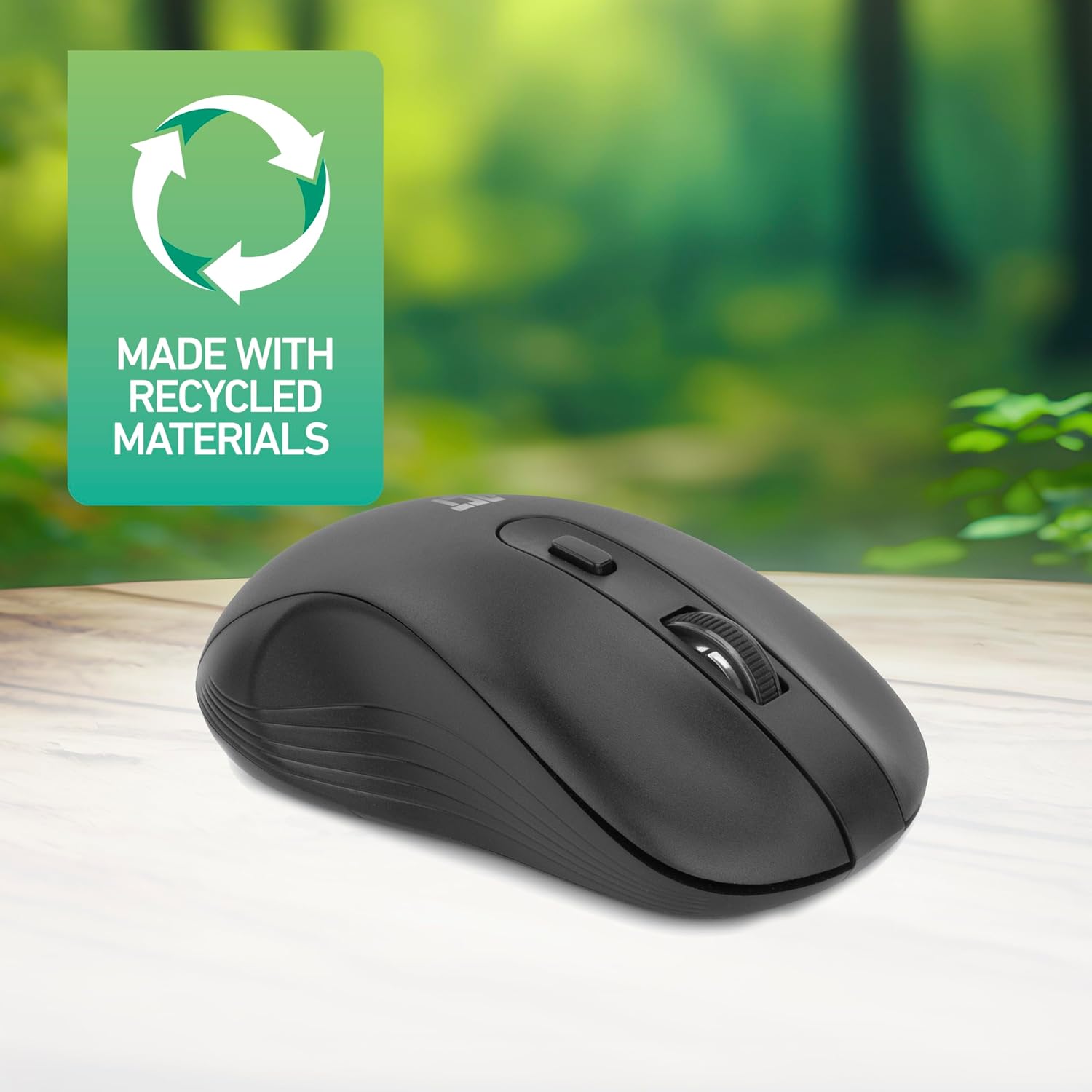
Figure 4.2: DPI Switch Location
This image shows the mouse in use on a desk, highlighting the DPI switch button for adjusting sensitivity between 800, 1200, and 1600 DPI.
4.3 โหมดประหยัดพลังงาน
The mouse is equipped with an intelligent power-saving feature. If the mouse is inactive for a period, it will automatically enter standby mode to conserve battery power. To wake the mouse, simply move it or click any button.
For extended periods of non-use, it is recommended to switch the mouse off using the On/Off switch on the underside of the device.
5. การบำรุงรักษา
- การทำความสะอาด: ใช้ผ้านุ่มและแห้งเช็ดทำความสะอาดเมาส์ หลีกเลี่ยงการใช้สารเคมีรุนแรงหรือวัสดุที่มีฤทธิ์กัดกร่อน
- การเปลี่ยนแบตเตอรี่: When the mouse performance degrades or it stops responding, replace the AA battery with a new one. Follow the steps in Section 3.1.
- พื้นที่จัดเก็บ: When not in use, especially during travel, you can store the Nano USB receiver inside the mouse's battery compartment to prevent loss.
6 การแก้ไขปัญหา
| ปัญหา | สารละลาย |
|---|---|
| เมาส์ไม่ตอบสนอง |
|
| การเคลื่อนที่ของเคอร์เซอร์ผิดปกติหรือช้า |
|
| ปัญหาการเชื่อมต่อไร้สาย |
|
7. ข้อมูลจำเพาะ
| คุณสมบัติ | รายละเอียด |
|---|---|
| หมายเลขรุ่น | เอซี5105 |
| เทคโนโลยีการเชื่อมต่อ | 2.4GHz Radio Frequency Wireless |
| ช่วงสาย | สูงสุด 10 เมตร |
| เทคโนโลยีตรวจจับการเคลื่อนไหว | ออฟติคอล |
| การตั้งค่า DPI | 800 / 1200 / 1600 DPI (ปรับได้) |
| จำนวนปุ่ม | 4 (Left, Right, Scroll Wheel Click, DPI Switch) |
| การวางแนวมือ | ตีสองหน้า (เหมาะสำหรับทั้งผู้ใช้ที่ถนัดซ้ายและถนัดขวา) |
| แหล่งพลังงาน | 1x AA แบตเตอรี่ |
| ขนาดสินค้า (กว้าง x ยาว x สูง) | 10.5 x 6.5 x 3.5 ซม. |
| น้ำหนัก | 60 กรัม |
| อุปกรณ์ที่รองรับ | PC |
| ระบบปฏิบัติการ | ChromeOS, Linux Mint 22 (minimum required version) |
| คุณสมบัติพิเศษ | Wireless, Intelligent Power Saving, Silent Click |

รูปที่ 7.1: ขนาดของเมาส์
This image provides a top-down and side view of the mouse, clearly indicating its physical dimensions: 105mm in length, 65mm in width, and 35mm in height.
8. การรับประกันและการสนับสนุน
ACT products are manufactured to high quality standards. This product comes with a 2-year warranty from the date of purchase against defects in materials and workmanship.
For technical support, warranty claims, or further assistance, please refer to the official ACT webไซต์หรือติดต่อผู้ค้าปลีกในพื้นที่ของคุณ
โปรดเก็บหลักฐานการซื้อไว้เพื่อวัตถุประสงค์การรับประกัน