
1. บทนำ
This manual provides detailed instructions for the installation, operation, and maintenance of your VEIKK VK1560 Pro Drawing Monitor. Please read this manual thoroughly before using the device to ensure proper functionality and to maximize your creative experience. The VK1560 Pro is a 15.6-inch full-laminated pen display designed for digital artists, designers, and educators, offering a high-definition display and precise pen input.
2. เนื้อหาบรรจุภัณฑ์
ตรวจสอบว่ามีสินค้าทั้งหมดที่ระบุไว้ด้านล่างอยู่ในแพ็คเกจของคุณ:
- VEIKK VK1560 Pro Drawing Monitor
- Battery-Free Stylus (Digital Pen)
- ขาตั้งปรับได้
- Detachable Pen Holder
- USB-C to USB-C Cable (for Android device connection)
- อะแดปเตอร์แปลงไฟ
- สาย HDMI
- สาย USB
- Pen Nibs and Nib Remover
- ผ้าเช็ดทำความสะอาด
- คู่มือเริ่มต้นอย่างรวดเร็ว

Image: Contents of the VEIKK VK1560 Pro package, including the monitor, stylus, stand, and various cables.
3. คู่มือการติดตั้ง
3.1 Connecting the Monitor to Your Computer
Follow these steps to connect your VK1560 Pro to your computer:
- เชื่อมต่อพลังงาน: Plug the power adapter into the monitor's power port and then into a wall outlet.
- เชื่อมต่อวิดีโอ: Connect one end of the HDMI cable to the monitor's HDMI port and the other end to your computer's HDMI port. If your computer does not have an HDMI port, you may need an adapter (not included).
- เชื่อมต่อ USB: Connect one end of the USB cable to the monitor's USB port and the other end to an available USB port on your computer. This connection enables pen input and data transfer.
- เปิดเครื่อง: Press the power button on the side of the monitor to turn it on.
- ติดตั้งไดรเวอร์: เยี่ยมชมเว็บไซต์อย่างเป็นทางการของ VEIKK website to download and install the latest driver for your operating system (Windows or macOS). Ensure any previous tablet drivers are uninstalled before installing the VEIKK driver.
- กำหนดการตั้งค่าการแสดงผล: After driver installation, configure your display settings (e.g., extend or duplicate display) and pen calibration through your operating system's display settings and the VEIKK driver software.

Image: Diagram illustrating how to connect the VEIKK VK1560 Pro to a computer using HDMI, USB, and power cables.
3.2 การเชื่อมต่อกับอุปกรณ์ Android
The VK1560 Pro can be connected to compatible Android devices using the included full-featured USB-C to USB-C cable. Ensure your Android device supports display output via USB-C.
- Connect one end of the USB-C to USB-C cable to the monitor's USB-C port.
- Connect the other end of the USB-C to USB-C cable to your Android device's USB-C port.
- The monitor should automatically detect and display content from your Android device.
3.3 Adjustable Stand Installation
Attach the adjustable stand to the back of the VK1560 Pro for comfortable viewing and drawing angles. The stand allows for various tilt adjustments.
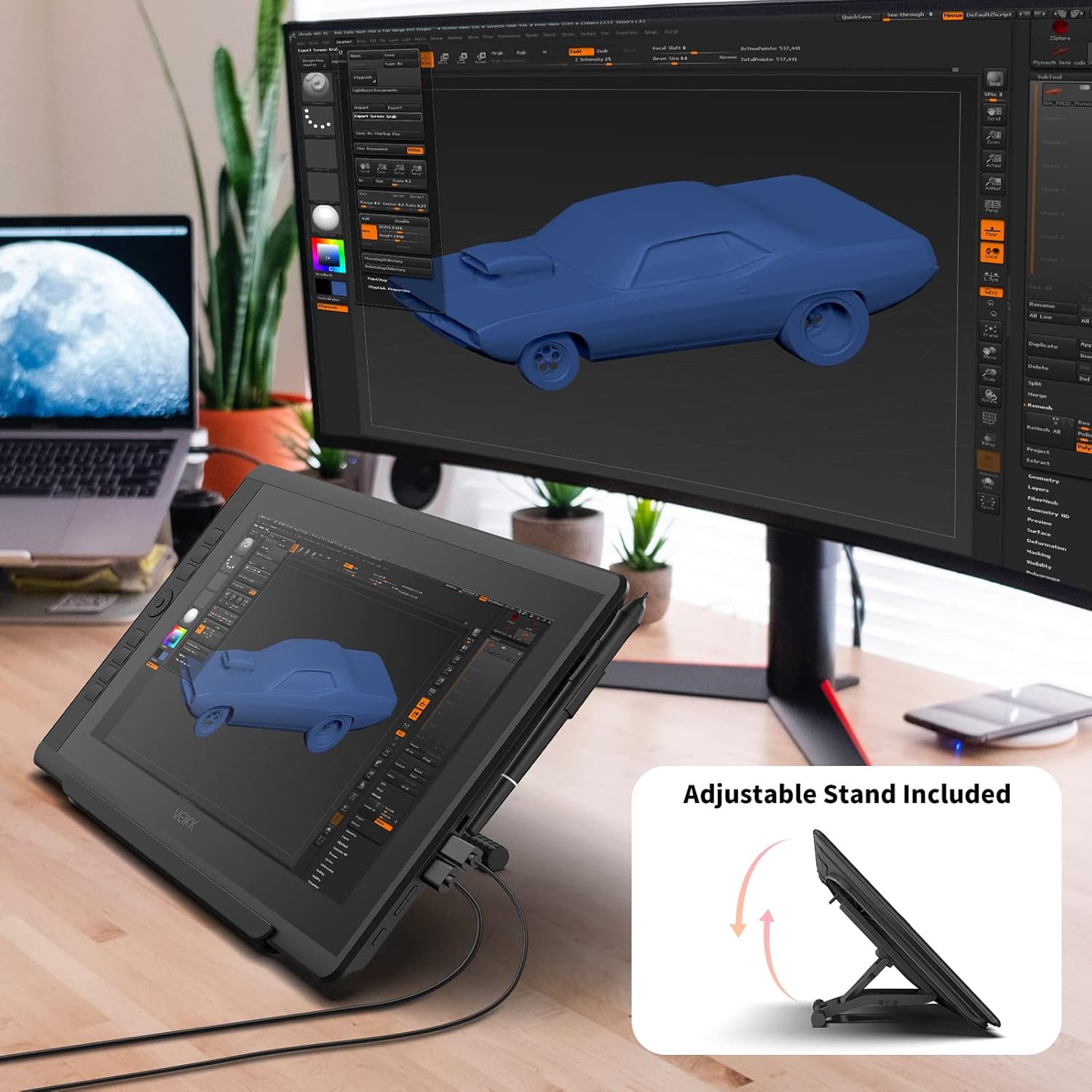
Image: The VEIKK VK1560 Pro drawing monitor shown with its adjustable stand, demonstrating various viewมุมการเอียง
4. การดำเนินการ
4.1 Using the Battery-Free Stylus
The VK1560 Pro comes with a battery-free stylus that offers 8192 levels of pressure sensitivity and tilt support for a natural drawing experience.
- การวาดภาพ: Use the stylus directly on the monitor's screen to draw, paint, and edit.
- ปุ่ม: The stylus features programmable buttons. Customize their functions (e.g., right-click, eraser) through the VEIKK driver software.
- ที่วางปากกา: Store the stylus in the detachable pen holder when not in use to prevent loss or damage.
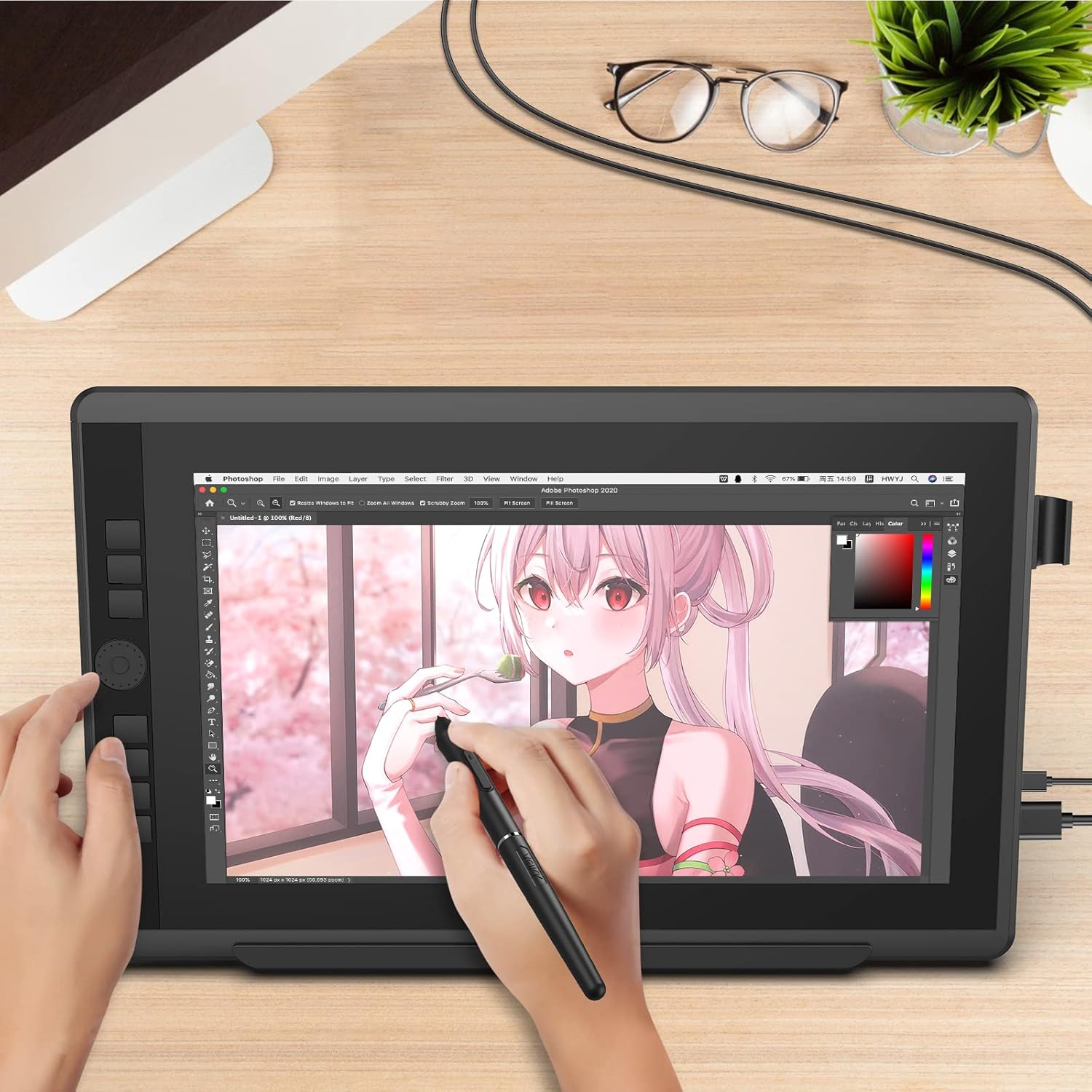
Image: A user actively drawing on the VEIKK VK1560 Pro screen using the battery-free stylus, demonstrating its use in creative applications.
4.2 Using the Quick Dial and Shortcut Keys
The VK1560 Pro features an upgraded Quick Dial and customizable shortcut keys for efficient workflow.
- การปรับแต่ง: Access the VEIKK driver software to assign specific functions (e.g., zoom, brush size, undo) to the Quick Dial and shortcut keys.
- ประสิทธิภาพ: Utilize these features to quickly access frequently used tools and commands, reducing reliance on keyboard shortcuts.

ภาพ: ภาพระยะใกล้ view of the VEIKK VK1560 Pro's Quick Dial and programmable shortcut keys, highlighting their ergonomic placement for workflow customization.
4.3 คุณสมบัติการแสดงผล
The 15.6-inch Full HD IPS display offers a vibrant visual experience:
- ปณิธาน: 1920x1080 Full HD for clear and detailed visuals.
- ความแม่นยำของสี: Supports 16.7 million display colors and 92% NTSC color gamut for accurate color reproduction.
- ป้องกันแสงจ้า: The anti-glare film reduces reflections and provides a paper-like drawing surface.
- Viewอิงมุม: กว้าง 178° viewing angles ensure consistent image quality from various perspectives.

Image: The VEIKK VK1560 Pro screen showcasing its 1920x1080 FHD IPS display, 92% NTSC color gamut, and 16.7 million colors.
5. การบำรุงรักษา
5.1 การทำความสะอาดจอภาพ
- ปิดเครื่องและถอดปลั๊กจอภาพทุกครั้งก่อนทำความสะอาด
- Use a soft, lint-free cloth (preferably the included cleaning cloth) to gently wipe the screen and body.
- สำหรับรอยเปื้อนฝังแน่น ให้เช็ดเบาๆampชุบผ้าด้วยน้ำหรือน้ำยาทำความสะอาดที่ปลอดภัยสำหรับหน้าจอ อย่าฉีดน้ำยาลงบนหน้าจอโดยตรง
- หลีกเลี่ยงการใช้สารเคมีรุนแรง น้ำยาทำความสะอาดที่มีฤทธิ์กัดกร่อน หรือสารละลายที่มีแอลกอฮอล์เป็นส่วนประกอบ เนื่องจากอาจทำให้พื้นผิวหน้าจอเสียหายได้
5.2 การเปลี่ยนหัวปากกาสไตลัส
Over time, the stylus nib may wear down. Replace it when it becomes too short or feels rough.
- Use the nib remover tool to gently pull out the old nib from the stylus.
- ใส่หัวปากกาใหม่เข้าไปในสไตลัสให้แน่นจนกระทั่งได้ยินเสียงคลิก
5.3 พื้นที่จัดเก็บ
- เก็บจอภาพไว้ในที่แห้งและเย็น หลีกเลี่ยงแสงแดดโดยตรงและอุณหภูมิที่สูงหรือต่ำเกินไป
- Protect the screen from scratches by using a soft cover or returning it to its original packaging when transporting.
6 การแก้ไขปัญหา
| ปัญหา | สาเหตุที่เป็นไปได้ | สารละลาย |
|---|---|---|
| ไม่มีการแสดงผลบนจอภาพ |
|
|
| Pen not working or no pressure sensitivity |
|
|
| Cursor offset or inaccurate |
|
|
| Quick Dial or shortcut keys not responding |
|
|
7. ข้อมูลจำเพาะ
| คุณสมบัติ | รายละเอียด |
|---|---|
| ยี่ห้อ | วีค |
| หมายเลขรุ่น | วีเค1560โปร |
| ขนาดหน้าจอ | 15.6 นิ้ว |
| ความละเอียดดั้งเดิม | 1920x1080 (Full HD) |
| ประเภทจอภาพ | IPS LCD with Anti-Glare Film |
| การรองรับสี | 16.7 Million Colors, 92% NTSC Color Gamut |
| เทคโนโลยีปากกา | ปากกาสไตลัสแบบไม่ต้องใช้แบตเตอรี่ |
| Pen Pressure Levels | 8192 |
| รองรับการเอียง | ใช่ |
| การเชื่อมต่อ | USB, HDMI, USB-C |
| ความเข้ากันได้ของระบบปฏิบัติการ | Windows 7 or later, MacOS 10.12 or later, Android (via USB-C) |
| สื่อในตัว | Digital Pen, Stand, Stylus |
| สี | สีดำ |
| การใช้งานเฉพาะ | Designing, Drawing, Online Education |
8. สินค้าหมดview วีดีโอ
วิดีโอ: เจ้าหน้าที่ผ่านview of the VEIKK VK1560 Pro drawing tablet, showcasing its features, design, and functionality. This video demonstrates the product's components, setup, and usage in various creative tasks.
9. การรับประกันและการสนับสนุน
The VEIKK VK1560 Pro Drawing Monitor comes with a รับประกัน 1 ปี from the date of purchase. VEIKK also provides การสนับสนุนทางเทคนิคตลอดอายุการใช้งาน สำหรับผลิตภัณฑ์นี้
For technical assistance, driver downloads, or warranty claims, please visit the official VEIKK webเข้าชมเว็บไซต์หรือติดต่อฝ่ายบริการลูกค้าโดยตรง เก็บใบเสร็จรับเงินไว้เป็นหลักฐานการซื้อเพื่อใช้ในการขอรับบริการตามการรับประกัน
Official VEIKK Webเว็บไซต์: www.veikk.com