
weelikeit C72W
weelikeit 7-inch Kids Tablet C72W User Manual
รุ่น : C72W
1. บทนำ
The weelikeit 7-inch Kids Tablet is designed to provide a safe and engaging digital experience for children. Running on Android 11.0, it features a durable kid-proof case, parental control functions, and access to educational content. This manual will guide you through the setup, operation, and maintenance of your new tablet.

Figure 1: weelikeit 7-inch Kids Tablet
2. อะไรอยู่ในกล่อง
กรุณาตรวจสอบเนื้อหาในแพ็คเกจเพื่อให้แน่ใจว่ามีสินค้าครบทั้งหมด:
- 1 x 7-inch Android Tablet
- ฟิล์มกันรอยหน้าจอ 1 ชิ้น
- สไตลัส 1 x
- สายเคเบิล Type-C 1 เส้น
- 1 x UL Certified Charger
- 1 x คู่มือผู้ใช้ (เอกสารนี้)

Figure 2: Stylus and Screen Protector included with the tablet.
3. สินค้าหมดview
The weelikeit Kids Tablet features a 7-inch IPS HD display, dual cameras (2MP front, 5MP rear), and a durable kid-proof case with an integrated stand. It is equipped with a 1.5 GHz quad-core processor, 2GB RAM, and 32GB ROM, expandable up to 256GB via an SD card.

Figure 3: Tablet Features and Ports
คุณสมบัติหลัก:
- แสดง: 7-inch IPS HD (1024x600)
- โปรเซสเซอร์: ควอดคอร์ 1.5 GHz
- หน่วยความจำ: 2GB RAM, 32GB ROM (expandable to 256GB with SD card)
- กล้องถ่ายรูป: ด้านหน้า 2MP, ด้านหลัง 5MP
- การเชื่อมต่อ: ไวไฟ, บลูทูธ
- ระบบปฏิบัติการ: แอนดรอยด์ 11.0
- พอร์ต: Type-C, 3.5mm Headphone Jack, Micro SD Card Slot
- การป้องกัน: Built-in Kid-Proof Case with Stand
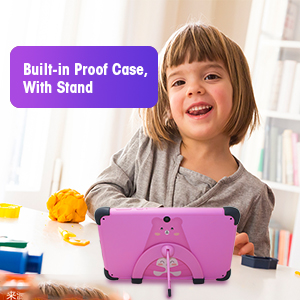
Figure 4: Built-in Kid-Proof Case with Stand
4. การตั้งค่า
Follow these steps to set up your weelikeit Kids Tablet for the first time:
- ชาร์จแท็บเล็ต: Before first use, fully charge the tablet using the provided Type-C cable and UL Certified Charger. The charging port is located on the side of the tablet.
- เปิดเครื่อง: Press and hold the Power button (refer to Figure 3) for a few seconds until the screen lights up.
- วิซาร์ดการตั้งค่าเริ่มต้น: The tablet will guide you through the initial setup process. This includes selecting your language, connecting to a Wi-Fi network, and setting up a Google account. A Google account is required to download apps from the Google Play Store.
- การเชื่อมต่อ Wi-Fi: During setup, you will be prompted to connect to a Wi-Fi network. Select your network from the list and enter the password. If you encounter issues, ensure your Wi-Fi router is on and within range.
- บัญชี Google: You can choose to set up the tablet with a parent's Google account or create a new one. This account will be used for app downloads and parental control management.
5. คู่มือการใช้งาน
5.1 เปิด/ปิดและรีสตาร์ท
- เปิดเครื่อง: กดปุ่มเปิด/ปิดค้างไว้จนกว่าหน้าจอจะเปิดขึ้น
- หมดแรง: Press and hold the Power button until a menu appears. Select "Power off" to shut down the tablet.
- เริ่มต้นใหม่อีกครั้ง: Press and hold the Power button until a menu appears. Select "Restart" to reboot the tablet.
5.2 การนำทางพื้นฐาน
The tablet uses a touchscreen interface. Swipe, tap, and pinch gestures are used for navigation and interaction. Swipe up from the bottom of the screen to access the app drawer or navigate between screens.
5.3 Parental Control Function (iWawa App)
The tablet comes with the iWawa App pre-installed, offering robust parental control features. This allows parents to manage content and screen time for their children.
- Access iWawa: Turn on the tablet and open the iWawa application.
- Set Up Profiles: Parents can create separate profileสำหรับเด็กแต่ละคน
- จัดการเนื้อหา: Within the parental control settings, you can add or block specific applications, filter web content, and set screen time limits.
- Lock Device: The tablet can be locked with a password to prevent children from exiting the child mode without permission.
- Exit Child Mode: Parents can exit the child mode using a password to use the tablet as a regular Android device.
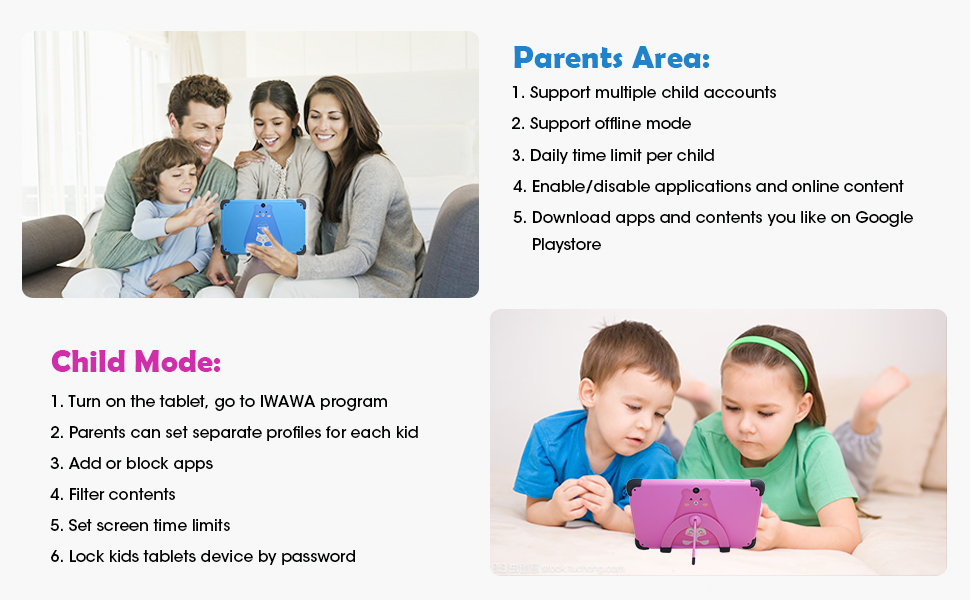
รูปที่ 5: อินเทอร์เฟซการควบคุมโดยผู้ปกครอง
5.4 Learning and Entertainment
The iWawa App provides a range of age-appropriate creative and educational content. Additionally, the tablet is GMS Certified, allowing access to the Google Play Store for downloading more educational apps like ABC Mouse, YouTube Kids, and Zoom.

Figure 6: Children engaging with the tablet
วิดีโอ 1: จบview of the weelikeit Kids Tablet features, including ports, parental control, and learning apps.
6. การบำรุงรักษา
เพื่อให้แท็บเล็ตของคุณใช้งานได้ยาวนานและทำงานได้อย่างมีประสิทธิภาพสูงสุด โปรดปฏิบัติตามคำแนะนำในการบำรุงรักษาเหล่านี้:
- การทำความสะอาด: ใช้ผ้านุ่มที่ไม่เป็นขุยทำความสะอาดหน้าจอและตัวเครื่องแท็บเล็ต หลีกเลี่ยงการใช้สารเคมีรุนแรงหรือวัสดุที่มีฤทธิ์กัดกร่อน
- การดูแลแบตเตอรี่ Avoid completely draining the battery frequently. Charge the tablet regularly. Do not expose the tablet to extreme temperatures.
- การอัปเดตซอฟต์แวร์: Periodically check for system updates to ensure your tablet has the latest features and security patches.
- การจัดการพื้นที่เก็บข้อมูล: เคลียร์สิ่งที่ไม่จำเป็นออกเป็นประจำ files and apps to maintain optimal performance. Consider using an SD card for additional storage.
- เคสป้องกัน: The built-in kid-proof case provides protection against drops and bumps. Ensure it remains properly fitted.
7 การแก้ไขปัญหา
หากคุณพบปัญหาเกี่ยวกับแท็บเล็ต โปรดดูปัญหาและวิธีแก้ไขที่พบบ่อยต่อไปนี้:
| ปัญหา | วิธีแก้ปัญหาที่เป็นไปได้ |
|---|---|
| แท็บเล็ตเปิดไม่ติด | Ensure the tablet is charged. Connect it to the charger for at least 30 minutes, then try powering it on again. If it still doesn't turn on, try pressing and holding the power button for 10-15 seconds. |
| ปัญหาการเชื่อมต่อ Wi-Fi | Check if your Wi-Fi router is working correctly. Restart the tablet and your router. Ensure you are entering the correct Wi-Fi password. Try connecting to a different Wi-Fi network if available. |
| ประสิทธิภาพการทำงานช้า | Close unused applications. Clear cache and data for frequently used apps. Uninstall unnecessary apps. Restart the tablet. |
| อายุการใช้งานแบตเตอรี่สั้น | Reduce screen brightness. Close background apps. Disable Wi-Fi or Bluetooth when not in use. Limit continuous video streaming or gaming. |
| หน้าจอสัมผัสไม่ตอบสนอง | Restart the tablet. If specific areas are unresponsive, ensure the screen is clean and free of debris. If the issue persists, contact customer support. |
| Cannot download apps | Ensure you are connected to Wi-Fi. Check your Google account settings and payment methods if applicable. Verify that parental controls are not blocking the app. |
8. ข้อมูลจำเพาะ
Detailed technical specifications for the weelikeit 7-inch Kids Tablet C72W:
| คุณสมบัติ | รายละเอียด |
|---|---|
| ยี่ห้อ | วีไลค์อิท |
| ชื่อรุ่น | สัมผัส |
| หมายเลขรุ่น | C72W |
| ระบบปฏิบัติการ | แอนดรอยด์ 11.0 |
| ขนาดหน้าจอ | 7 นิ้ว |
| ความละเอียดการแสดงผล | 1024x600 IPS HD |
| ความเร็วของโปรเซสเซอร์ | ควอดคอร์ 1.5 GHz |
| หน่วยความจำแรม | 2GB |
| การจัดเก็บข้อมูลภายใน | 32GB |
| พื้นที่เก็บข้อมูลแบบขยายได้ | สูงสุด 256GB (ไมโครเอสดี) |
| กล้องหลัง | 5 MP |
| กล้องหน้า | 2 MP |
| ความจุของแบตเตอรี่ | 3000 มิลลิวินาทีamp ชั่วโมง (ลิเธียมไอออน) |
| การเชื่อมต่อ | บลูทู ธ Wi-Fi |
| พอร์ต | Type-C, 3.5mm Headphone Jack, MicroSD Slot |
| อินพุตอินเทอร์เฟซของมนุษย์ | จอสัมผัส, จอสัมผัสพร้อมรองรับสไตลัส |
| GTIN / UPC | 608571029989 |
9. การรับประกันและการสนับสนุน
weelikeit tablets come with a one-year warranty. For any questions or technical assistance regarding your weelikeit Kids Tablet, please refer to the following:
- การรับประกัน: หนึ่งปีนับจากวันที่ซื้อ
- ติดต่อฝ่ายสนับสนุน: If you purchased through Amazon, find your order and click "Get Product Support." Weelikeit aims to assist you within 24 hours.
- แหล่งข้อมูลออนไลน์: Visit the official weelikeit store on Amazon for additional product information and FAQs: weelikeit Store
Ask a question about this manual
Ask about setup, troubleshooting, compatibility, parts, safety, or missing instructions. Manuals+ will review the question and use this page’s manual context to help answer it.