
การแนะนำ
This manual provides detailed instructions for the setup, operation, and maintenance of your LENVII R777 Portable 2D Barcode Scanner. The R777 is a versatile handheld device designed for efficient barcode scanning, featuring multiple connectivity options and an LCD screen for real-time feedback. Please read this manual thoroughly before using the device to ensure optimal performance and longevity.
คุณสมบัติหลัก
- การออกแบบการเชื่อมต่อแบบ 3-in-1: Supports Bluetooth, 2.4G Wireless (with USB adapter), and Wired (USB cable) connections.
- ความเข้ากันได้กว้าง: Easily connects with laptops, PCs, mobile phones, tablets, and POS systems. Compatible with Windows XP/7/8/10, Mac OS, Windows Mobile, Android OS, and iOS.
- ออกแบบตามหลักสรีรศาสตร์และพกพาสะดวก: Small, lightweight design for comfortable extended use and easy portability.
- Instant Upload & Offline Storage: Equipped with 16MB memory, capable of storing up to 12,500 barcodes. Allows for immediate data upload or storage for later transfer.
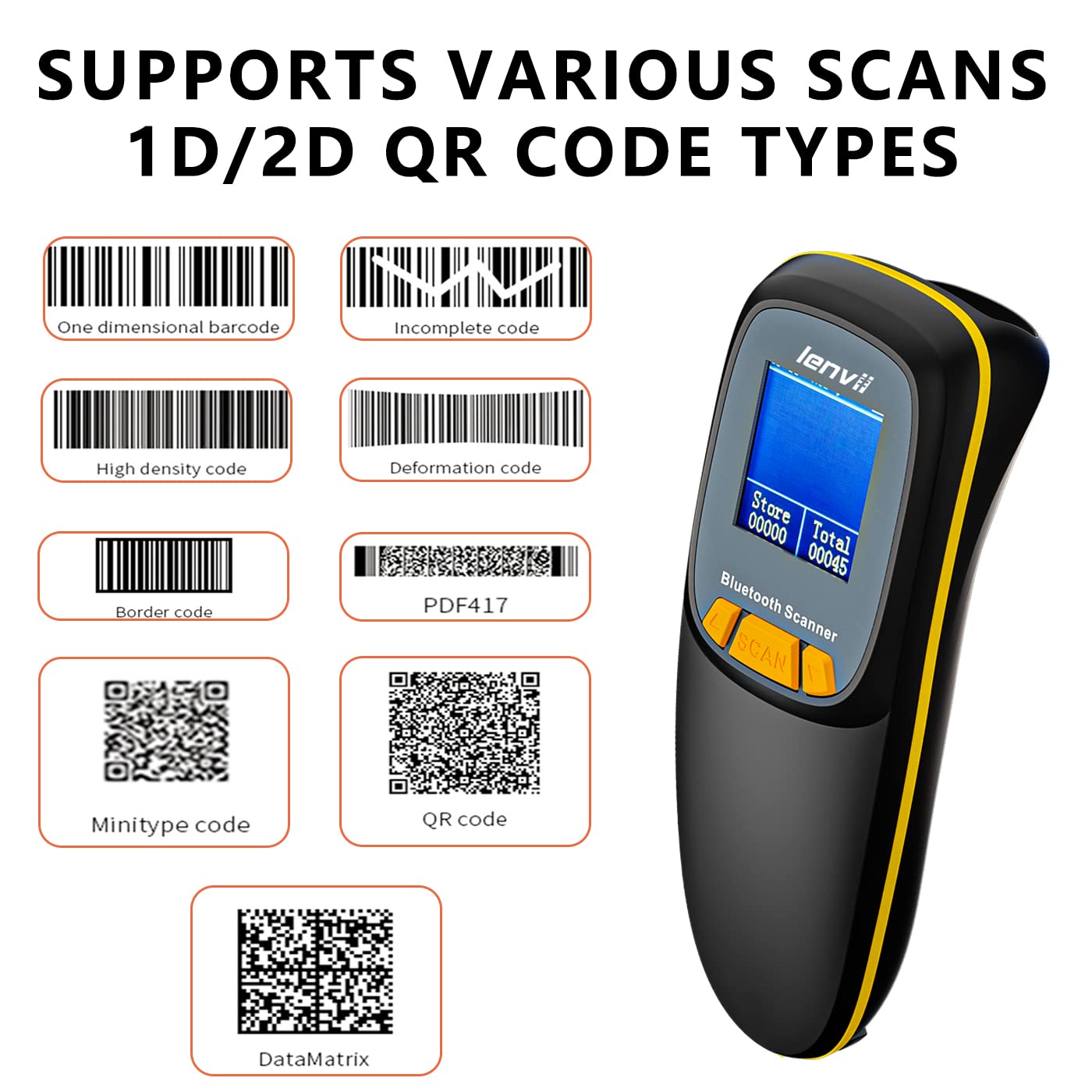
- รองรับบาร์โค้ดหลากหลายรูปแบบ: Scans both 1D and 2D barcodes, including PDF417, Data Matrix, QR Code, UPC, EAN, Code128, Code39, Code11, Interleaved 2 of 5, and Codabar.
- จอแสดงผล LCD: Provides real-time information on connection mode, storage status, battery level, and scanned content.
- ระยะการส่งสัญญาณไกล: Offers super long transmission distances of up to 100m (328ft) in barrier-free environments for 2.4G wireless and 40m (131ft) for Bluetooth.
คู่มือการติดตั้ง
1. การชาร์จเครื่องสแกน
Before initial use, ensure the scanner is fully charged. Connect the provided Type-C USB cable to the scanner and a power source (e.g., computer USB port or USB wall adapter). The LCD screen will indicate charging status.
2. โหมดการเชื่อมต่อ
The LENVII R777 offers three connection methods:
- การเชื่อมต่อไร้สาย 2.4G:
Insert the included 2.4G USB adapter into your computer's USB port. The scanner will automatically pair with the adapter. This is a plug-and-play connection requiring no driver installation.

Image: LENVII R777 scanner demonstrating 2.4G wireless connection to a laptop.
- การเชื่อมต่อบลูทู ธ :
On the scanner, navigate to the Bluetooth pairing mode using the navigation buttons. On your host device (smartphone, tablet, or Bluetooth-enabled PC), enable Bluetooth and search for available devices. Select "LENVII Scanner" (or similar) to pair. The scanner's LCD will confirm successful pairing.

Image: LENVII R777 scanner displaying high compatibility with various operating systems for Bluetooth connection.
- การเชื่อมต่อแบบมีสาย:
Connect the scanner directly to your computer using the provided Type-C USB cable. The scanner will function as a wired device, and scanned data will be transmitted directly to your computer.
Video: Demonstration of LENVII R777 scanner's 2.4G wireless, USB wired, and Bluetooth connection methods, including scanning various barcode types and using the offline storage function.
คำแนะนำการใช้งาน
1. การสแกนขั้นพื้นฐาน
To scan a barcode, point the scanner's window at the barcode and press the "SCAN" button. A successful scan will be indicated by an audible beep and the barcode data appearing on the LCD screen or your connected device.
2. ข้อมูลหน้าจอ LCD
The integrated LCD screen provides essential operational details:
- โหมดการเชื่อมต่อ: Displays the current connection type (e.g., 2.4G, Bluetooth, USB).
- โหมดการจัดเก็บ: Indicates if the scanner is in instant upload or offline storage mode.
- แบตเตอรี่ที่เหลืออยู่: แสดงระดับแบตเตอรี่ปัจจุบัน
- Scan Content: Displays the last scanned barcode data.
- Store Count: Shows the number of barcodes collected and saved in offline storage.
ภาพ: รายละเอียด view of the LENVII R777's LCD screen and its displayed information.
โหมดการถ่ายโอนข้อมูล
The scanner supports two primary data transfer modes:
- โหมดอัปโหลดทันใจ:
In this mode, scanned barcodes are immediately transmitted to the connected device. This is ideal for real-time inventory updates or point-of-sale operations.
- โหมดจัดเก็บข้อมูลแบบออฟไลน์:
When not connected or when real-time transfer is not required, the scanner can store up to 12,500 barcodes in its internal 16MB memory. Data can be uploaded to a connected device later by switching to instant upload mode or using a specific upload function (refer to scanner settings on the LCD).

Image: Visual representation of the two data transfer modes: instant upload and offline storage.
ความเข้ากันได้ของบาร์โค้ด
The LENVII R777 scanner supports a wide range of 1D and 2D barcode symbologies:
บาร์โค้ด 1 มิติ:
- UPC/EAN/JAN (UPC-A, UPC-E, EAN-8, EAN-13, JAN-8, JAN-13)
- ISBN/ISSN
- Code 39 (with full ASCII)
- Codabar (NW7)
- Code 128 & EAN 128
- รหัส 93
- สลับ 2 จาก 5 (ITF)
- Appendix 2 of 5 IATA code
- MSI/Plessy
- Chinese postal code
- Code 32 (Italian Pharmacopoeia)
- RSS 14, RSS Limited, RSS Extension
บาร์โค้ด 2 มิติ:
- รหัส QR
- เมทริกซ์ข้อมูล
- PDF417
- แอซเท็ก
- แม็กซิโค้ด
- GS1 DataBar Stack

ภาพ: อดีตamples of 1D and 2D barcode types supported by the LENVII R777 scanner.
การซ่อมบำรุง
1. การทำความสะอาด
Regularly clean the scanner's window and exterior with a soft, dry, lint-free cloth. Avoid using abrasive cleaners or solvents, which can damage the device.
2. การดูแลแบตเตอรี่
The scanner is equipped with a 1500mAh rechargeable lithium battery. For optimal battery life, avoid fully discharging the battery frequently. Charge the device using the provided Type-C USB cable. The battery provides 8-10 hours of continuous scanning and 25 days of standby time.

Image: Information on the LENVII R777's 1500mAh battery capacity and usage times.
3. การจัดเก็บ
Store the scanner in a cool, dry place away from direct sunlight and extreme temperatures. The maximum storage temperature is 60 degrees Celsius.
การแก้ไขปัญหา
- เครื่องสแกนเชื่อมต่อไม่ได้: Ensure the scanner is charged and in the correct connection mode (2.4G, Bluetooth, or Wired). For wireless connections, verify the USB adapter is properly inserted or Bluetooth is enabled and paired on your host device.
- ไม่มีการส่งข้อมูล: Check the connection status on the LCD screen. Ensure the host device is ready to receive input (e.g., a text editor or application is open and active).
- ไม่สามารถสแกนบาร์โค้ดบางประเภทได้: Verify the barcode is not damaged or smudged. Ensure the scanner's settings support the specific barcode symbology. Adjust scanning distance if necessary.
- ความเร็วในการสแกนช้า: Ensure the scanner's firmware is up to date. Environmental factors or complex barcode types can sometimes affect speed.
หากคุณพบปัญหาอย่างต่อเนื่อง โปรดดูข้อมูลการติดต่อได้ในส่วนการสนับสนุน
ข้อมูลจำเพาะทางเทคนิค
| คุณสมบัติ | ข้อมูลจำเพาะ |
|---|---|
| แบบอย่าง | R777 |
| เทคโนโลยีการเชื่อมต่อ | USB Cable, 2.4G Wireless, Bluetooth |
| อุปกรณ์ที่รองรับ | Laptop, Tablet, Smartphone (Windows XP/7/8/10, Mac OS, Windows Mobile, Android OS, iOS) |
| แหล่งพลังงาน | ใช้พลังงานจากแบตเตอรี่ (รวมแบตเตอรี่ลิเธียมไอออน 1 ก้อน) |
| ความจุของแบตเตอรี่ | 1500mAh |
| อัตราการสแกน | 30 เฟรมต่อวินาที |
| เซ็นเซอร์รับภาพ | ซีมอส |
| ความละเอียดในการอ่าน | Exceeds 5 million |
| ความจุหน่วยความจำ | 16MB (up to 12,500 EAN 13 codes) |
| ระยะการสื่อสาร 2.4G | 100 เมตร (กลางแจ้ง) |
| ระยะการสื่อสารด้วยบลูทูธ | 40 เมตร (กลางแจ้ง) |
| ปฏิบัติการฉบับที่tage | 5VDC ± 10% |
| น้ำหนักสินค้า | 0.25 Kilograms (104 grams for scanner only) |
| ขนาด | 135มม. * 51มม. * 40มม. (ยาว * กว้าง * สูง) |
| ความทนทานต่อการตก | Can withstand a drop of 2 meters |
| Energy Specifications Standard | CE |
การสนับสนุนและการรับประกัน
For any questions regarding product usage, technical assistance, or warranty information, please contact LENVII customer support:
- อีเมล: support@lenvii.net
- โทรศัพท์/WhatsApp: +86 13316203488
LENVII is committed to providing high-quality products and excellent after-sales service. Our team can assist with product usage and provide professional purchase plans based on your specific needs.