
ELISWEEN 72ed368d-9dff-42ae-ba96-5d07f9731cf6
ELISWEEN Presentation Remote with Air Mouse Function User Manual
Model: 72ed368d-9dff-42ae-ba96-5d07f9731cf6
การแนะนำ
This manual provides detailed instructions for the ELISWEEN Presentation Remote with Air Mouse Function. This wireless presenter is designed to enhance your presentations by offering flexible control, including an air mouse, laser pointer, and intuitive slide navigation. It is compatible with various operating systems and presentation software.
เนื้อหาแพ็คเกจ
โปรดตรวจสอบว่าสินค้าทั้งหมดมีอยู่ในแพ็คเกจของคุณ:
- 1 x ELISWEEN Wireless Presenter Remote
- 1 x USB Receiver
- 1 x คู่มือผู้ใช้ (เอกสารนี้)
คุณสมบัติผลิตภัณฑ์
- ฟังก์ชั่นเมาส์แอร์: Combines traditional clicker functions with wireless cursor control, acting like a true mouse for enhanced interaction.
- เลเซอร์พอยเตอร์สีแดงสดใส: Easily highlight key points on most backgrounds with a visible red laser.
- ช่วงควบคุมที่ขยายกว้างขึ้น: Wireless range up to 165 feet, air mouse function range up to 50 feet, and laser light range up to 328 feet.
- การออกแบบตามหลักสรีรศาสตร์: Shaped to fit comfortably in hand with intuitive touch-keys for seamless control without needing to look at the device.
- Full-Functionality: Includes controls for volume, window switching, hyperlinks, video playback, full/black screen toggle, page up/down, and label/eraser functions.
- ปลั๊กแอนด์เพลย์: No drivers required. Simply plug the USB dongle into a compatible port.
- ความเข้ากันได้กว้าง: Supports Windows 2003/XP/Vista/7/8/10, Mac OS, Linux, Android. Compatible with software like PowerPoint, iWork (Keynote, Numbers, Pages), Prezi, MS Word, Excel, ACDSee, and web browsers. (Note: Not compatible with Google Slides).
คำแนะนำการตั้งค่า
- ใส่แบตเตอรี่:
Open the battery compartment on the back of the presenter. Insert two AAA batteries (not included), ensuring correct polarity (+/-). Close the compartment securely.
- เชื่อมต่อตัวรับสัญญาณ USB:
Locate the USB receiver stored within the presenter's battery compartment or a dedicated slot. Plug the USB receiver into an available USB-A port on your computer or laptop.
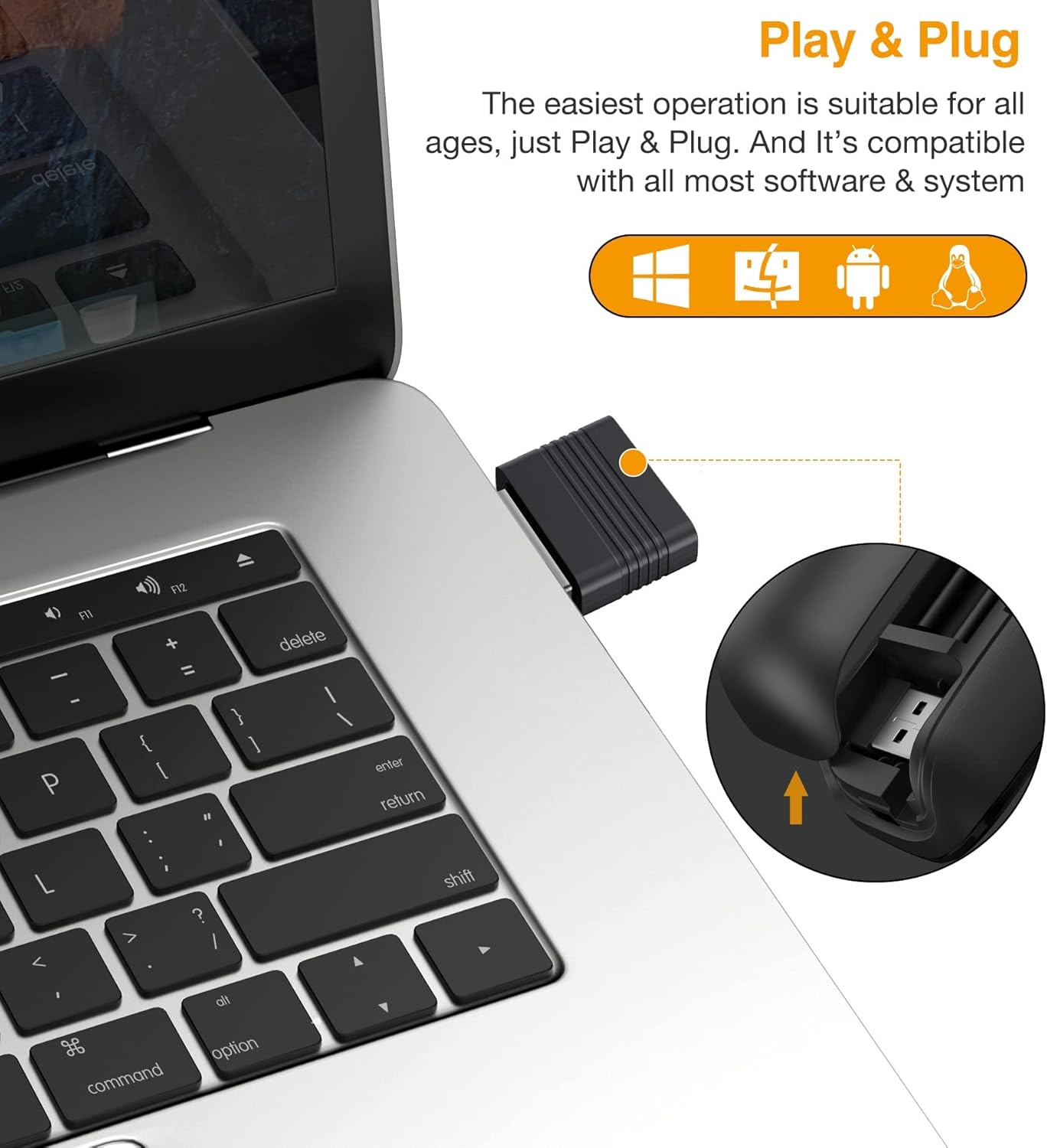
The USB receiver is designed for easy storage within the presenter and connects directly to your computer's USB-A port for instant plug-and-play functionality.
- เปิดเครื่อง:
Turn on the presenter using the power switch, usually located on the side or bottom. A blue indicator light may illuminate to confirm it is powered on and connected.
- การจดจำระบบ:
Your computer should automatically detect and install the necessary drivers. This process typically takes a few seconds. No manual driver installation is required.
คำแนะนำการใช้งาน
Familiarize yourself with the buttons and functions of your ELISWEEN Presentation Remote:
ฟังก์ชั่นปุ่มโอเวอร์view

This image illustrates the various control buttons on the presentation remote and their corresponding functions, including navigation, annotation, and screen control.
- เลื่อนหน้าขึ้น/ลง: Navigate through slides.
- Left/Right Clicker: Flexible control for computer interface interactions.
- Label/Eraser: Activate annotation mode to highlight points or erase markings.
- Full/Black Screen: Toggle between full screen presentation mode and a black screen.
- สลับหน้าต่าง: Quickly switch between open applications.
- Play Slideshow: Start or pause video playback within your presentation.
- การควบคุมระดับเสียง: ปรับเอาท์พุตเสียง
- ไฮเปอร์ลิงก์: Activate embedded hyperlinks in your presentation.
ฟังก์ชั่นเมาส์อากาศ
The presenter features an air mouse function, allowing you to control the cursor by moving the remote in the air. This provides greater flexibility during presentations.
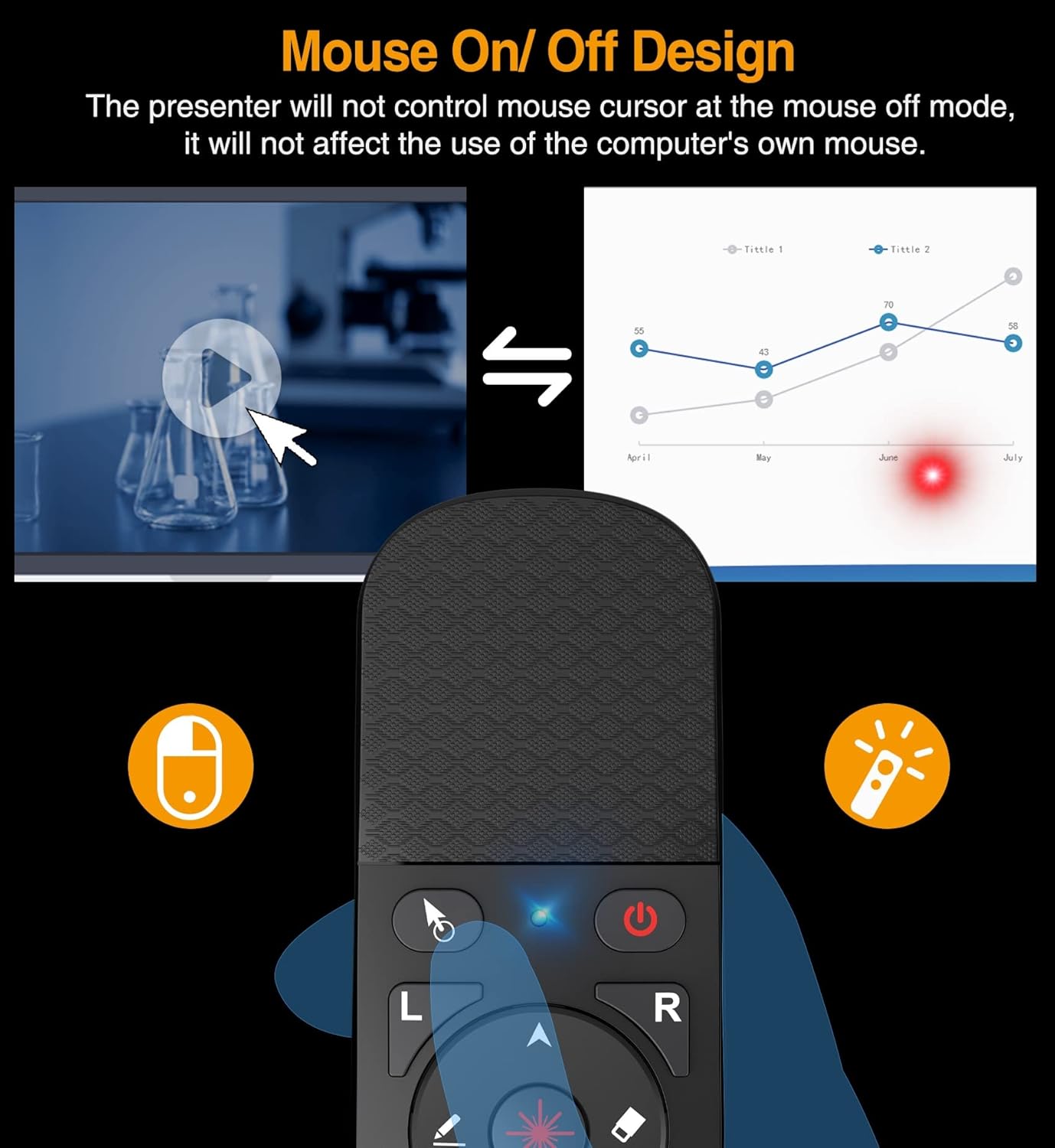
The remote includes a dedicated switch to activate or deactivate the air mouse function. When the air mouse is off, the presenter will not control the mouse cursor, allowing you to use your computer's own mouse without interference.
- Activating Air Mouse: Press the dedicated air mouse button or toggle the switch (refer to the device layout). The cursor will appear on your screen.
- Controlling Cursor: Move the presenter in the air to control the cursor's movement.
- Deactivating Air Mouse: Press the air mouse button or toggle the switch again to turn off the air mouse function. This allows you to use your computer's mouse without interference from the presenter.
พอยเตอร์เลเซอร์
Use the integrated red laser pointer to draw attention to specific areas on your presentation screen.

The bright red laser pointer is effective for highlighting content during presentations and meetings. Its visibility helps guide the audience's focus.
- การเปิดใช้งานเลเซอร์: Press and hold the laser button (typically marked with a laser icon) to emit the red laser beam.
- การปิดใช้งานเลเซอร์: Release the button to turn off the laser.
- บันทึก: The laser pointer is designed for traditional projection screens. Its visibility may be reduced or absent on LED/LCD screens.
ช่วงสาย

This image highlights the effective operational ranges for the laser pointer, air mouse, and general wireless control, allowing for freedom of movement during presentations.
The ELISWEEN Presentation Remote offers significant freedom of movement:
- ระยะการควบคุมแบบไร้สาย: สูงสุด 165 ฟุต (50 เมตร)
- Air Mouse Function Range: สูงสุด 50 ฟุต (15 เมตร)
- Laser Light Range: สูงสุด 328 ฟุต (100 เมตร)
Note that environmental factors and obstacles may affect the actual operating range.
การซ่อมบำรุง
- การทำความสะอาด: Use a soft, dry cloth to clean the surface of the presenter. Avoid using liquid cleaners or abrasive materials.
- การเปลี่ยนแบตเตอรี่: When the indicator light dims or the presenter becomes unresponsive, replace the two AAA batteries. Ensure correct polarity.
- พื้นที่จัดเก็บ: Store the USB receiver inside the presenter when not in use to prevent loss. Store the device in a cool, dry place away from direct sunlight and extreme temperatures.
- การจัดการ: Avoid dropping the device, as this may cause the battery cover to detach or damage internal components.
การแก้ไขปัญหา
| ปัญหา | สาเหตุที่เป็นไปได้ | สารละลาย |
|---|---|---|
| ผู้บรรยายไม่ตอบสนอง | Low batteries; USB receiver not connected; presenter not powered on. | Replace batteries; ensure USB receiver is securely plugged in; turn on the presenter. |
| Laser pointer does not work. | Laser button not pressed; low batteries; pointing at an LED/LCD screen. | Press and hold the laser button; replace batteries; note that the laser is less visible on LED/LCD screens. |
| Air mouse cursor lags or is difficult to control. | Interference; distance from receiver; rapid movements. | Reduce distance to USB receiver; ensure no major obstructions; use smoother, deliberate movements. |
| Presenter disconnects frequently. | Low batteries; USB receiver interference; out of range. | Replace batteries; try a different USB port; stay within the recommended wireless range. |
| Functions (e.g., page up/down) do not work in specific software. | Software incompatibility; software not in focus. | Ensure the software is supported (e.g., not Google Slides); click on the presentation window to ensure it is the active application. |
ข้อมูลจำเพาะ
- หมายเลขรุ่น: 72ed368d-9dff-42ae-ba96-5d07f9731cf6
- วัสดุ: เอบีเอส
- สีอ่อน: Red (Laser)
- ความถี่วิทยุ: 2.4กิกะเฮิรตซ์
- ระยะการควบคุมแบบไร้สาย: ≤ 165 ft (50 meters)
- Air Mouse Function Range: ≤ 50 ft (15 meters)
- Laser Light Range: ≤ 328 ft (100 meters)
- แหล่งพลังงาน: แบตเตอรี่ AAA 2 ก้อน (ไม่รวม)
- ขนาด : 5.31 x 1.65 x 0.95 นิ้ว
- น้ำหนักสินค้า: 1.76 ออนซ์
- ระบบปฏิบัติการที่รองรับ: Win 2000, XP, Vista, Win7, Win8, Win10, MAC OS, Linux, Android
- อุปกรณ์ที่รองรับ: Personal Computer (Laptop, Desktop)
- จำนวนสูงสุดของอุปกรณ์ที่รองรับ: 10
การรับประกันและการสนับสนุน
For warranty information and technical support, please contact ELISWEEN customer service. Details can typically be found on the product packaging or the official ELISWEEN webไซต์ โปรดเก็บหลักฐานการซื้อไว้เพื่อใช้ในการเรียกร้องการรับประกัน
Manufacturer: SHENZHEN QIXUN SPACE TECHNOLOGY CO.,LTD
Ask a question about this manual
Ask about setup, troubleshooting, compatibility, parts, safety, or missing instructions. Manuals+ will review the question and use this page’s manual context to help answer it.