
การแนะนำ
This manual provides detailed instructions for the HXSJ L300 104-Key Wired Mechanical Gaming Keyboard. Please read this manual thoroughly before using the product to ensure proper operation and to maximize your user experience.
The HXSJ L300 keyboard is designed to offer responsive operational capabilities and an immersive gaming experience. Its sensitive, tactile keys provide good resistance, aiding in precise typing. The keyboard features multiple lighting effects and durable keycaps made with double-shot injection molding technology to prevent fading and wear. It is compatible with various operating systems, including Win Me/2000/XP/7/8/10/Vista.
เนื้อหาแพ็คเกจ
- 1 x HXSJ L300 Mechanical Gaming Keyboard
- 1 x คู่มือผู้ใช้
ข้อมูลจำเพาะ
| คุณสมบัติ | รายละเอียด |
|---|---|
| ยี่ห้อ | Goshyda (HXSJ) |
| แบบอย่าง | L300 |
| วัสดุ | เอบีเอส |
| สี | สีดำ |
| จำนวนคีย์ | 104 คีย์ |
| ประเภทสวิตซ์ | Clicky Mechanical Switches |
| อินเทอร์เฟซ | สาย USB |
| ความยาวสายเคเบิล | ประมาณ 168 ซม. (66 นิ้ว) |
| อายุการใช้งานที่สำคัญ | การกดแป้น 50 ล้านครั้ง |
| เอฟเฟกต์แบ็คไลท์ | Color Backlight (RGB) |
| ระบบที่เข้ากันได้ | Win Me/2000/XP/7/8/10/Vista |
| เทคโนโลยีการเชื่อมต่อ | ยูเอสบี |
| อุปกรณ์ที่รองรับ | พีซี, แล็ปท็อป |

ภาพ: จากบนลงล่าง view of the HXSJ L300 mechanical keyboard, showcasing its full 104-key layout, black keycaps, and the attached USB cable with its connector.
การตั้งค่า
- แกะคีย์บอร์ดออก: Carefully remove the HXSJ L300 keyboard from its packaging.
- เชื่อมต่อกับคอมพิวเตอร์: Locate an available USB port on your PC or laptop. Insert the USB connector of the keyboard cable into the USB port.
- การติดตั้งไดร์เวอร์ (อัตโนมัติ): The keyboard is plug-and-play. Your operating system (Windows Me/2000/XP/7/8/10/Vista) should automatically detect and install the necessary drivers. No manual driver installation is typically required.
- ตรวจสอบการทำงาน: Once connected, the keyboard's backlight should illuminate. Test typing and key responsiveness to ensure proper function.

Image: The HXSJ L300 mechanical keyboard in use, connected to a laptop. The keyboard's RGB backlighting is visible, and a mouse and pen are also on the wooden desk, illustrating a typical setup.
คำแนะนำการใช้งาน
Multimedia Key Combinations (FN Key Functions)
The HXSJ L300 keyboard features a Function (FN) key that, when combined with specific F-keys, provides quick access to multimedia and system controls. Press and hold the FN key, then press the desired F-key.
- FN+F1: Open Computer / My Computer
- FN+F2: ค้นหา
- FN+F3: เปิดเครื่องคิดเลข
- FN+F4: Open CD Player / Media Player
- FN+F5: เพลงก่อนหน้า
- FN+F6: เพลงถัดไป
- FN+F7: เล่น/หยุดชั่วคราว
- FN+F8: ซีดีสต็อป
- FN+F9: ปิดเสียง
- FN+F10: ลดระดับเสียง
- FN+F11: เพิ่มระดับเสียง
- FN+F12: ล็อคกุญแจทั้งหมด
- WIN + L: Lock Windows and Applications
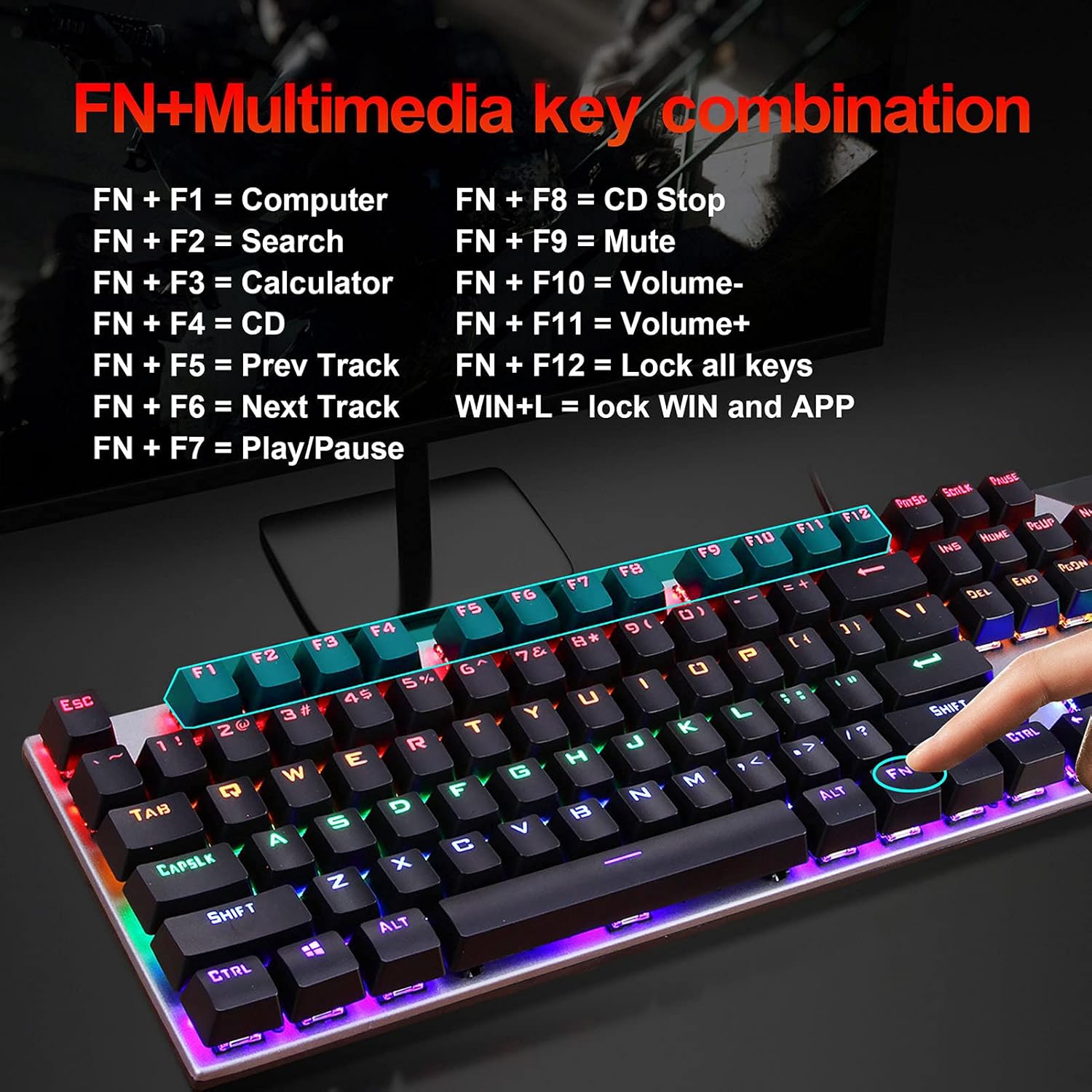
Image: A visual guide to the FN+Multimedia key combinations available on the HXSJ L300 keyboard, detailing functions like opening applications, media control, and volume adjustment.
การควบคุมแบ็คไลท์
The keyboard features various RGB backlight effects. You can adjust these effects using specific key combinations:
- FN + อิน: สลับไปมาระหว่างโหมด/เอฟเฟกต์แสงไฟด้านหลังต่างๆ
- FN + "↑" (Up Arrow): เพิ่มความสว่างของไฟแบ็คไลท์ (6 ระดับ)
- FN + "↓" (Down Arrow): ลดความสว่างของไฟแบ็คไลท์ (6 ระดับ)
- FN + "←" (Left Arrow): Decrease backlight effect speed (5 levels).
- FN + "→" (Right Arrow): Increase backlight effect speed (5 levels).

Image: A visual representation of the RGB backlight control functions, showing how to adjust brightness and speed of lighting effects using FN key combinations.

Image: The HXSJ L300 mechanical keyboard illuminated with vibrant RGB backlighting, showcasing its aesthetic appeal and customizable lighting options.
การซ่อมบำรุง
- การทำความสะอาด: Use a soft, dry cloth to wipe the surface of the keyboard. For deeper cleaning, you may use a can of compressed air to remove dust and debris from between the keycaps. Avoid using liquid cleaners directly on the keyboard.
- Keycap Removal (Optional): If necessary, keycaps can be carefully removed for thorough cleaning of the switches. Use a keycap puller tool (not included) to avoid damage. Reinstall keycaps by aligning them with the switch stem and pressing down gently.
- พื้นที่จัดเก็บ: เมื่อไม่ได้ใช้งานเป็นเวลานาน ควรเก็บแป้นพิมพ์ไว้ในที่แห้งและปราศจากฝุ่น
- หลีกเลี่ยงของเหลว: Do not expose the keyboard to liquids, as this can cause damage to the internal components.

ภาพ: รายละเอียด view of the HXSJ L300 keyboard's keycaps and mechanical switches. This image illustrates the two-color injection molding process for durable key legends and the structure of the mechanical switches, which have a lifespan of 50 million keystrokes.

Image: An exploded diagram of a mechanical keyboard switch, detailing its various components such as the stem, spring, and housing. This illustrates the "automated shaft exchange real machinery" aspect of the keyboard's design, contributing to its 50 million keystroke lifespan.
การแก้ไขปัญหา
- แป้นพิมพ์ไม่ตอบสนอง:
- ตรวจสอบให้แน่ใจว่าเสียบสาย USB เข้ากับทั้งแป้นพิมพ์และพอร์ต USB ของคอมพิวเตอร์อย่างแน่นหนาแล้ว
- ลองเสียบคีย์บอร์ดเข้ากับพอร์ต USB อื่นบนคอมพิวเตอร์ของคุณ
- รีสตาร์ทเครื่องคอมพิวเตอร์ของคุณ
- ลองทดสอบแป้นพิมพ์กับคอมพิวเตอร์เครื่องอื่นเพื่อตรวจสอบว่าปัญหาอยู่ที่แป้นพิมพ์หรือคอมพิวเตอร์
- ไฟแบ็คไลท์ไม่ทำงานหรือไม่ถูกต้อง:
- Check if the backlight is turned off or set to the lowest brightness. Use FN + "↑" เพื่อเพิ่มความสว่าง
- หมุนเวียนผ่านโหมดแบ็คไลท์โดยใช้ FN + อิน to see if it resolves the issue.
- คีย์ไม่ลงทะเบียนหรือพิมพ์ซ้ำ:
- Clean the affected key(s) using compressed air to remove any debris that might be obstructing the switch.
- If comfortable, carefully remove the keycap and inspect the switch for any visible damage or obstruction.
- ปุ่มมัลติมีเดียไม่ทำงาน:
- ตรวจสอบให้แน่ใจว่าคุณกำลังกดปุ่ม FN กดคีย์พร้อมกับปุ่ม F ที่ต้องการ
- Some multimedia functions may require specific software or drivers on your operating system. Ensure your system is up to date.
การรับประกันและการสนับสนุน
Information regarding specific warranty terms and customer support for the HXSJ L300 keyboard is not provided in the product details. For warranty claims or technical assistance, please refer to the retailer where the product was purchased or contact the manufacturer directly if contact information is available on the product packaging or official webเว็บไซต์.
Ergonomics and Keycap Design
The HXSJ L300 keyboard features a floating high and low keycap layout designed for ergonomics, aiming to fit fingers comfortably and provide a pleasant typing experience.
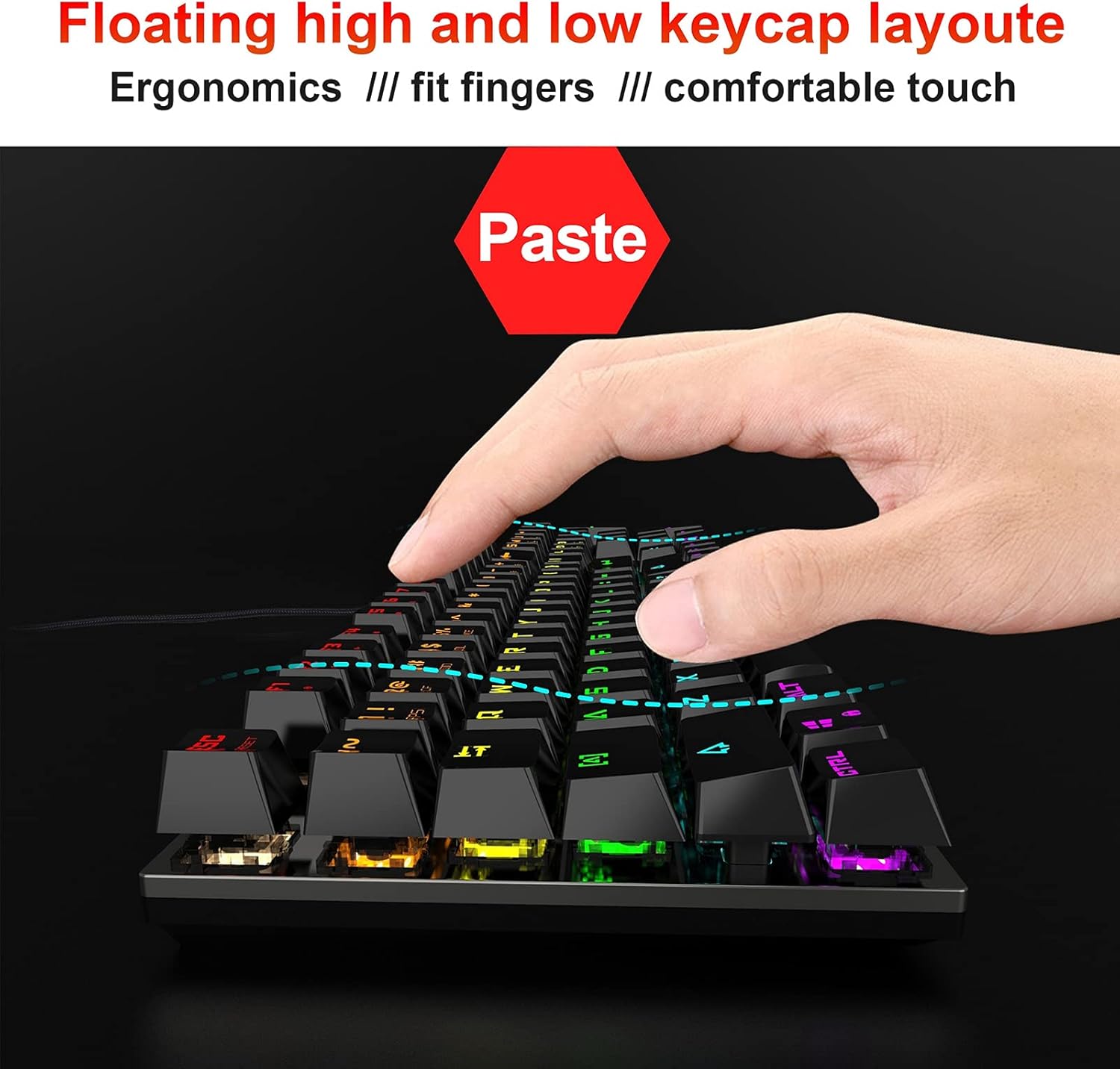
Image: A hand positioned over the HXSJ L300 keyboard, demonstrating the ergonomic "floating high and low keycap layout" which is designed to provide a comfortable and natural typing or gaming posture.