
การแนะนำ
This manual provides detailed instructions for the setup, operation, and maintenance of your LENVII R999 Mini Wireless Barcode Scanner. Please read this manual thoroughly before using the device to ensure proper functionality and to prevent damage.
สินค้าเกินview
The LENVII R999 is a versatile 3-in-1 barcode scanner designed for various applications. It supports 1D and 2D barcodes, including QR codes, and offers multiple connection modes for flexible use.

รูปที่ 1: LENVII R999 Barcode Scanner Appearance Details. This image highlights key components: the scan window, indicator light, trigger button, and the data interface/charging port at the base.
- หน้าต่างสแกน: บริเวณที่เครื่องสแกนอ่านบาร์โค้ด
- ไฟแสดงสถานะ: Provides visual feedback on scanner status (e.g., connection, battery, scan success).
- สิ่งกระตุ้น: Activates the scanning function.
- Data Interface and Charging Port: Used for wired connection and charging the device.
การตั้งค่า
โหมดการเชื่อมต่อ
The LENVII R999 scanner offers three connection modes: 2.4GHz Wireless, USB Wired, and Bluetooth. No driver installation is required for any mode.

รูปที่ 2: Three available connection modes for the LENVII R999 scanner: 2.4GHz Wireless, USB Wired, and Bluetooth. Each mode is depicted with an icon and an example device.
- การเชื่อมต่อไร้สาย 2.4GHz:
Plug the provided 2.4GHz USB dongle into your computer or device. The scanner will automatically connect. This mode offers a transmission distance of up to 50m (164ft) in barrier-free environments and 20m (66ft) with obstacles.
- การเชื่อมต่อแบบใช้สาย USB:
เชื่อมต่อเครื่องสแกนเข้ากับคอมพิวเตอร์โดยตรงโดยใช้สาย USB เครื่องสแกนจะทำงานเหมือนอุปกรณ์แบบมีสายและชาร์จไฟไปพร้อมกัน
- การเชื่อมต่อบลูทู ธ :
Turn on the scanner and activate Bluetooth pairing mode (refer to the scanner's quick start guide for specific steps). ค้นหา "LENVII R999" on your host device (PC, laptop, tablet, smartphone) and pair. This mode offers a transmission distance of up to 30m (98ft) in barrier-free environments and 15m (49ft) with obstacles.
ความเข้ากันได้ของระบบ
The LENVII R999 scanner is highly compatible with various operating systems, allowing for flexible integration into your existing setup.
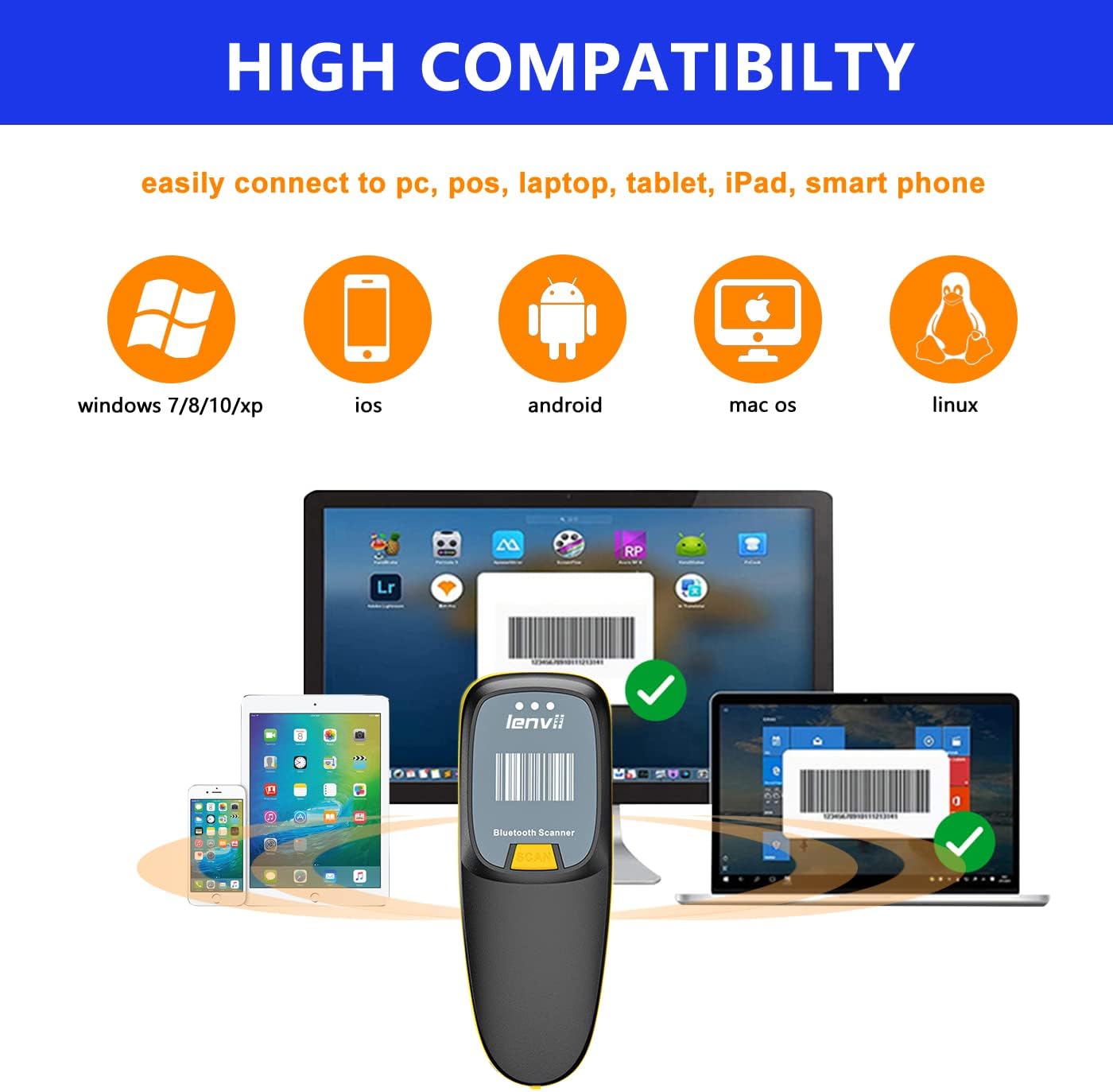
รูปที่ 3: The LENVII R999 scanner demonstrates high compatibility with various operating systems, including Windows (7/8/10/XP), iOS, Android, Mac OS, and Linux, connecting to PCs, POS systems, laptops, tablets, iPads, and smartphones.
- ระบบปฏิบัติการที่รองรับ: Windows (7/8/10/XP), iOS, Android, Mac OS, Linux.
- อุปกรณ์ที่รองรับ: คอมพิวเตอร์ส่วนบุคคล, ระบบ POS, แล็ปท็อป, แท็บเล็ต, ไอแพด, สมาร์ทโฟน
คำแนะนำการใช้งาน
สแกนบาร์โค้ด
The scanner supports a wide range of 1D and 2D barcode types, including QR codes, and can scan directly from screens.
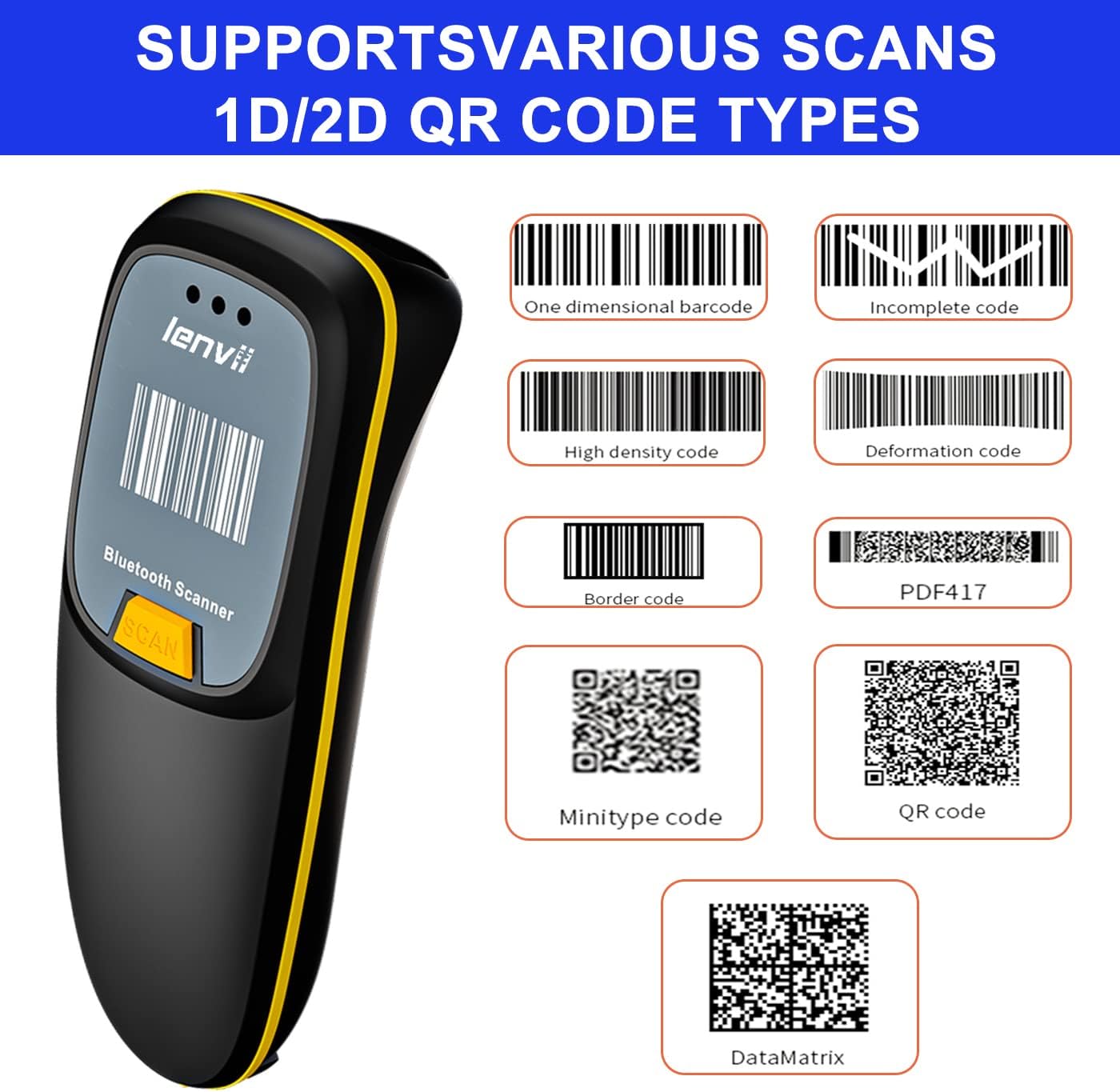
รูปที่ 4: The LENVII R999 scanner supports various 1D and 2D QR code types, including One Dimensional, Incomplete, High Density, Deformation, Border, PDF417, Minitype, QR Code, and DataMatrix.
- ประเภทบาร์โค้ดที่รองรับ: One Dimensional, Incomplete, High Density, Deformation, Border, PDF417, Minitype, QR Code, DataMatrix.
- Screen Scan: The scanner is capable of reading barcodes directly from digital screens.
- ขั้นตอนการสแกน: Point the scan window at the barcode and press the trigger button. A successful scan will typically be indicated by an audible beep and/or a change in the indicator light.
โหมดการถ่ายโอนข้อมูล
The LENVII R999 offers two primary data transfer modes to suit different operational needs.

รูปที่ 5: The LENVII R999 scanner supports two data transfer modes: Instant Upload Mode, where scanned data is immediately sent to the connected device, and Offline Storage Mode, where data is stored internally for later upload.
- โหมดอัปโหลดทันใจ: Scanned data is immediately transmitted to the connected host device. This is ideal for real-time inventory management or point-of-sale operations.
- โหมดจัดเก็บข้อมูลแบบออฟไลน์: Scanned data is stored internally in the scanner's memory. This mode is useful when working out of range of a host device. Data can be uploaded later when the scanner is reconnected.
Refer to the scanner's quick start guide or advanced settings for instructions on switching between these modes.
การซ่อมบำรุง
การจัดการแบตเตอรี่
The LENVII R999 is equipped with a 1200mAh Lithium Ion battery, providing extended continuous use and standby time.

รูปที่ 6: The LENVII R999 barcode scanner features a 1200mAh battery, offering significantly longer operational time compared to scanners with 500mAh batteries.
- การชาร์จ: Connect the scanner to a power source using the provided USB cable. The indicator light will show charging status.
- อายุการใช้งานแบตเตอรี่: A fully charged battery provides prolonged operation. Actual battery life may vary based on usage patterns.
- พื้นที่จัดเก็บ: If storing the scanner for an extended period, ensure the battery is partially charged (around 50%) to maintain battery health.
การทำความสะอาด
To ensure optimal performance, keep the scanner clean.
- หน้าต่างสแกน: Gently wipe the scan window with a soft, lint-free cloth. For stubborn dirt, slightly dampชุบผ้าด้วยน้ำหรือน้ำยาทำความสะอาดอ่อนๆ ที่ไม่ทำให้เกิดรอยขีดข่วน หลีกเลี่ยงสารเคมีรุนแรง
- ภายนอก: ทำความสะอาดภายนอกasinก. ด้วยผ้าแห้งนุ่มๆ
- หลีกเลี่ยง: Do not immerse the scanner in water or use abrasive materials.
การแก้ไขปัญหา
If you encounter issues with your LENVII R999 scanner, refer to the following common problems and solutions:
| ปัญหา | สาเหตุที่เป็นไปได้ | สารละลาย |
|---|---|---|
| สแกนเนอร์ไม่เปิด | แบตเตอรี่เหลือน้อยหรือมีปัญหาเรื่องไฟเลี้ยง | Charge the scanner using the provided USB cable. Ensure the cable and power source are working. |
| เครื่องสแกนไม่สามารถเชื่อมต่อผ่านบลูทูธ/2.4GHz ได้ | Not in pairing mode, out of range, or interference. | Ensure the scanner is in the correct pairing mode. Check the distance to the host device. Remove potential sources of interference. Re-pair the device. |
| เครื่องสแกนไม่สามารถอ่านบาร์โค้ดได้ | Barcode damaged, poor lighting, scan window dirty, or incorrect barcode type settings. | Ensure the barcode is clear and undamaged. Provide adequate lighting. Clean the scan window. Verify the scanner is configured for the specific barcode type. |
| ข้อมูลที่สแกนไม่ถูกต้องหรือไม่สมบูรณ์ | การสแกนไม่สมบูรณ์ การตั้งค่ารูปแบบข้อมูลไม่ถูกต้อง | Ensure a complete scan of the barcode. Check the scanner's configuration for data formatting. |
หากปัญหายังคงมีอยู่ โปรดติดต่อฝ่ายสนับสนุนลูกค้า
ข้อมูลจำเพาะ
Key technical specifications for the LENVII R999 Mini Wireless Barcode Scanner:
- หมายเลขรุ่น: R999
- ยี่ห้อ: เลนวี
- เทคโนโลยีการเชื่อมต่อ: Bluetooth, 2.4GHz Wireless, USB Wired
- แหล่งพลังงาน: ใช้พลังงานจากแบตเตอรี่
- ประเภทแบตเตอรี่: 1 Lithium Ion battery (1200mAh capacity)
- น้ำหนัก: Approximately 130g (as indicated in product imagery)
- บาร์โค้ดที่รองรับ: 1D and 2D (including QR Code, DataMatrix, PDF417, etc.)
- Transmission Distance (Bluetooth): Up to 30m (98ft) barrier-free, 15m (49ft) with obstacles.
- Transmission Distance (2.4GHz Wireless): Up to 50m (164ft) barrier-free, 20m (66ft) with obstacles.
- ความเข้ากันได้: Windows (7/8/10/XP), iOS, Android, Mac OS, Linux.

รูปที่ 7: The LENVII R999 barcode scanner is designed for portability, featuring a mini size and a weight of approximately 130g, making it suitable for various scenarios such as retail, warehousing, and libraries.
การรับประกันและการสนับสนุน
For warranty information, technical support, or further assistance, please contact the manufacturer or your point of purchase.
You may also visit the official LENVII store for support and product information: LENVII Official Store