
1. สินค้าหมดview
The UNITOPSCI UT-CP501 is a versatile single DIN car stereo featuring a 7-inch HD retractable touch screen. It integrates modern connectivity options such as Apple CarPlay, Android Auto, Bluetooth, FM Radio, Mirror Link, and supports various multimedia inputs. This manual provides essential information for installation, operation, and maintenance.

ภาพที่ 1.1: ด้านหน้า view of the UNITOPSCI UT-CP501 Single Din Car Stereo with its 7-inch retractable screen extended, displaying a smartphone-like interface. The main unit features a volume knob, buttons for various functions, and USB/AUX inputs.
2. เนื้อหาบรรจุภัณฑ์
ตรวจสอบว่ามีรายการทั้งหมดอยู่ในแพ็คเกจก่อนดำเนินการติดตั้ง:
- UNITOPSCI UT-CP501 Car Stereo Unit
- สายรัดสายไฟ
- รีโมทคอนโทรล
- ตัวควบคุมพวงมาลัย
- หลัง View กล้อง
- ขายึด
- คู่มือการใช้งาน (เอกสารนี้)

Image 2.1: A visual representation of the UNITOPSCI UT-CP501 package contents, including the main stereo unit, power cable, remote control, mounting brackets, steering wheel controller, user manual, and rear camera.
3. การตั้งค่าและการติดตั้ง
Proper installation is crucial for optimal performance and safety. If you are unfamiliar with car audio wiring, professional installation is recommended.
3.1. แผนภาพการเดินสายไฟ
Refer to the detailed wiring diagram provided with your unit's physical manual for specific connections. Key connections typically include:
- พลัง: สายไฟหลัก 12V (สีเหลือง), สายไฟเสริม 12V (สีแดง), สายไฟกราวด์ (สีดำ)
- วิทยากร: Connect to appropriate positive and negative speaker wires.
- เสาอากาศ: เชื่อมต่อกับเสาอากาศวิทยุของรถยนต์
- หลัง View กล้อง: Connect video input and power to the reverse light circuit.
- ระบบควบคุมพวงมาลัย (SWC): Connect to the vehicle's SWC wires (may require an adapter for some vehicles).
- ช่องต่อสัญญาณเข้า: สำหรับแหล่งเสียงภายนอก
- USB/การ์ด TF: For multimedia playback.
ภาพที่ 3.1: รายละเอียด view of the UNITOPSCI UT-CP501's rear interface, showing various input/output ports such as ANT, OUT-L, OUT-R, V-OUT1, V-IN, CAM-IN, and the Power cable connector. Dimensions of the unit are also indicated.
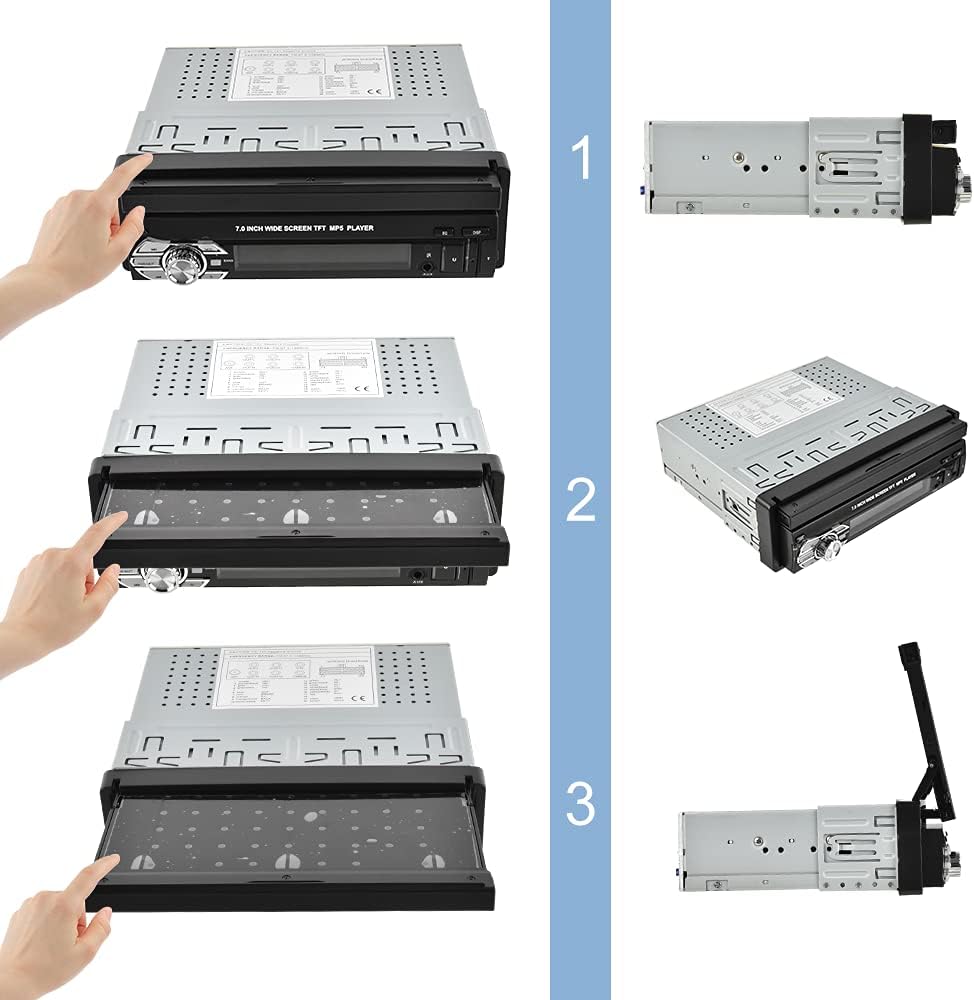
3.2. Screen Retraction and Extension
The 7-inch screen is retractable. To extend or retract the screen, gently pull or push the screen until it locks into position. Ensure no obstructions are present during movement.

Image 3.2: A sequence of three images demonstrating the manual retraction and extension of the 7-inch screen on the UNITOPSCI UT-CP501 car stereo. The screen can be folded down into the unit or pulled up for use.
3.3. เปิดเครื่องครั้งแรก
After installation, turn on your vehicle's ignition. The stereo should power on automatically. If not, press the power button on the unit. Adjust basic settings like language, time, and radio region as prompted.
Video 3.1: This video demonstrates the UNITOPSCI Single Din 7 Inch Flip Out Car Stereo in operation, showcasing its retractable screen mechanism, USB/TF card input, and the user interface for CarPlay and Android Auto. It highlights the seamless integration and functionality within a car's dashboard.
4. คู่มือการใช้งาน
4.1. Apple CarPlay และ Android Auto
Connect your compatible iPhone or Android smartphone via a USB cable to enable CarPlay or Android Auto. This allows access to navigation, music, calls, and messages directly from the stereo's touch screen.
- การนำทาง: Use maps applications like Apple Maps, Google Maps, or Waze.
- การสื่อสาร: Make calls, send messages, and access contacts.
- สื่อ: Play music, podcasts, and audiobooks.
- การควบคุมด้วยเสียง: ใช้ Siri หรือ Google Assistant เพื่อการใช้งานแบบแฮนด์ฟรี

Image 4.1: The car stereo screen displaying the Apple CarPlay interface, showing icons for Phone, Music, Maps, Messages, and other applications. A user is shown interacting with voice commands like 'Hi, Siri' and 'Call John'.

Image 4.2: A comparison showing the interfaces for Wired CarPlay (supporting iOS), Android Auto (supporting Android System), and Mirror Link (for both iOS/Android) on the car stereo screen, demonstrating the wired connectivity options.
4.2. ลิงก์มิเรอร์
Mirror Link allows you to display your smartphone's screen directly onto the car stereo. This feature is compatible with both iOS and Android devices. Connect your phone via USB and follow the on-screen prompts to activate Mirror Link.

Image 4.3: The car stereo screen displaying a mirrored smartphone interface, showing various apps. The image also highlights multimedia input options including USB, TF card, and AUX-in.
4.3. การเชื่อมต่อบลูทูธ
Pair your smartphone with the stereo via Bluetooth for hands-free calling and audio streaming.
- เปิดใช้งานบลูทูธบนสมาร์ทโฟนของคุณ
- บนเครื่องเสียงรถยนต์ ให้เข้าไปที่เมนูบลูทูธ
- ค้นหา available devices on your phone and select 'UNITOPSCI' (or similar device name).
- ยืนยันรหัสการจับคู่หากได้รับแจ้ง

Image 4.4: The car stereo screen showing the Bluetooth interface for making calls, with a smartphone displaying an incoming call. This illustrates the hands-free calling capability.
4.4. วิทยุ FM
Access the FM radio tuner to listen to local radio stations. Use the touch screen or physical buttons to scan for stations, save presets, and adjust settings.

Image 4.5: The car stereo screen displaying the FM radio interface, showing the current frequency (107.90 MHz) and options for scanning and saving presets.
4.5. การเล่นมัลติมีเดีย
The unit supports multimedia playback from USB drives, TF cards, and AUX-in connections. Insert the storage device or connect an external audio player to the respective ports.

Image 4.6: The car stereo screen showing multimedia options like Radio, USB, Card, BT Music, and BT Phone. Below, icons represent a 3.5mm jack (AUX), a USB drive, and a TF card, indicating various input methods.
4.6. ด้านหลัง View กล้อง
When the vehicle is shifted into reverse, the stereo automatically displays the feed from the connected rear view camera, assisting with parking and maneuvering.

Image 4.7: The car stereo screen displaying a clear view from a rear camera, showing parking guidelines and a vehicle in a parking lot. Features like HD 1080, 170° wide angle, night vision, and waterproof design are highlighted.
4.7. ระบบควบคุมพวงมาลัย (SWC)
Program the stereo to respond to your vehicle's existing steering wheel controls for convenient operation without taking your hands off the wheel. Refer to the SWC setup section in the full manual for detailed programming steps.

Image 4.8: The car stereo screen showing the Steering Wheel Control setup interface, with various function icons. A separate steering wheel controller is also depicted, indicating compatibility with external controllers.
4.8. การควบคุมด้วยเสียง
Utilize voice commands through CarPlay or Android Auto for hands-free control of navigation, music, and calls, enhancing driving safety.

Image 4.9: The car stereo screen displaying a voice assistant interface, with text bubbles indicating voice commands like 'Hey, Siri' and 'Play popular music'.
4.9. ส่วนติดต่อผู้ใช้และการตั้งค่า
The stereo features a customizable user interface with various settings for audio, display, and system preferences. Explore the settings menu to personalize your experience.

Image 4.10: A collage of multiple screen captures from the car stereo's user interface, showing various settings menus including FM radio, date/time, Bluetooth, equalizer, language selection, and display adjustments (brightness, contrast, hue).
4.10. 7-Color Backlight
The unit features a customizable 7-color backlight for the physical buttons, allowing you to match it with your vehicle's interior lighting or personal preference.

Image 4.11: The car stereo unit with its screen extended, showcasing the 7-color backlight options for the control buttons, displayed as a row of colored circles below the unit.
5. การบำรุงรักษา
การบำรุงรักษาอย่างสม่ำเสมอจะช่วยให้เครื่องเสียงรถยนต์ของคุณมีอายุการใช้งานยาวนานและทำงานได้อย่างมีประสิทธิภาพสูงสุด
- การทำความสะอาดหน้าจอ: Use a soft, lint-free cloth to gently wipe the touch screen. Avoid abrasive cleaners or harsh chemicals.
- การทำความสะอาดหน่วย: Use a dry, soft cloth to clean the main unit. Do not spray liquids directly onto the device.
- การอัปเดตซอฟต์แวร์: ตรวจสอบผู้ผลิตเป็นระยะ website for any available firmware updates to improve performance and add new features. Follow the provided instructions carefully for any update procedures.
6 การแก้ไขปัญหา
If you encounter issues with your UNITOPSCI UT-CP501 car stereo, refer to the following common problems and solutions:
| ปัญหา | สาเหตุที่เป็นไปได้ | สารละลาย |
|---|---|---|
| ไม่มีไฟฟ้า | การเดินสายไฟไม่ถูกต้อง; ฟิวส์ขาด; สวิตช์กุญแจรถดับ | Check power connections (Yellow, Red, Black wires). Inspect vehicle fuses. Ensure ignition is on. |
| ไม่มีเสียง | สายลำโพงหลุด; ระดับเสียงต่ำเกินไป; เปิดใช้งานโหมดปิดเสียง | ตรวจสอบการเชื่อมต่อลำโพง เพิ่มระดับเสียง ตรวจสอบว่าฟังก์ชันปิดเสียงทำงานอยู่หรือไม่ |
| Screen freezes or is unresponsive | Software glitch; Temporary system error | Restart the unit by turning the vehicle ignition off and on. If persistent, perform a factory reset (refer to the full manual for instructions). |
| บลูทูธไม่เชื่อมต่อ | Bluetooth off on phone/stereo; Device not in pairing mode; Interference | Ensure Bluetooth is enabled on both devices. Put stereo in pairing mode. Try pairing in a different location to avoid interference. |
| Radio not receiving stations | Antenna disconnected; Poor signal area; Incorrect region settings | Check antenna connection. Move to an area with better signal. Verify radio region settings in the system menu. |
| CarPlay/Android Auto ไม่เปิดใช้งาน | Faulty USB cable; Incompatible phone; Software issue | Use a high-quality, original USB cable. Ensure your phone's OS is updated and compatible. Restart both phone and stereo. |
หากปัญหายังคงมีอยู่หลังจากลองวิธีแก้ไขเหล่านี้แล้ว โปรดติดต่อฝ่ายสนับสนุนลูกค้า
7. ข้อมูลจำเพาะ
| คุณสมบัติ | ข้อมูลจำเพาะ |
|---|---|
| ขนาดสินค้า | 6.77 x 5.39 x 2.24 นิ้ว |
| น้ำหนักสินค้า | 3.58 ปอนด์ |
| หมายเลขรุ่นสินค้า | UT-CP501 |
| เทคโนโลยีการเชื่อมต่อ | อุปกรณ์เสริม, บลูทูธ, USB |
| ประเภทตัวควบคุม | แอนดรอยด์, ไอโอเอส |
| คุณสมบัติพิเศษ | บลูทูธในตัว, หน้าจอสัมผัส |
| อุปกรณ์ที่รองรับ | ลำโพง |
| พอร์ต HDMI ทั้งหมด | 1 |
| ประเภทขั้วต่อ | แจ็คขนาด 3.5 มม. |
| โหมดเอาต์พุตเสียง | ออซ, สเตอริโอ |
| การกำหนดค่าช่องเสียงรอบทิศทาง | 4.0 |
8. ข้อมูลการรับประกัน
This product is covered by a manufacturer's warranty. Please refer to the warranty card included in your product packaging or visit the official UNITOPSCI webดูรายละเอียดข้อกำหนดและเงื่อนไขการรับประกันได้ที่เว็บไซต์ โปรดเก็บใบเสร็จรับเงินไว้เป็นหลักฐานการซื้อสำหรับกรณีที่มีการเรียกร้องการรับประกัน
9. การสนับสนุนลูกค้า
For further assistance, technical support, or inquiries regarding your UNITOPSCI UT-CP501 car stereo, please contact UNITOPSCI customer service through their official webไซต์หรือข้อมูลการติดต่อที่ระบุไว้ในเอกสารผลิตภัณฑ์ของคุณ