
1. บทนำ
Welcome to your new HAOVM 10-inch Android 11 Tablet. This manual provides essential information to help you set up, operate, maintain, and troubleshoot your device. Please read it carefully to ensure optimal performance and longevity of your tablet.

Image: The HAOVM 10-inch Android 11 Tablet, showcasinด้วยการออกแบบและการแสดงผลที่เพรียวบาง
2. การเริ่มต้นใช้งาน (การตั้งค่า)
2.1 การชาร์จแท็บเล็ต
Before first use, ensure your tablet is fully charged.
- เสียบสาย USB Type-C เข้ากับพอร์ตชาร์จของแท็บเล็ต
- ต่อปลายอีกด้านของสายเคเบิลเข้ากับอะแดปเตอร์แปลงไฟที่ใช้งานร่วมกันได้ แล้วเสียบเข้ากับเต้ารับที่ผนัง
- The battery icon on the screen will indicate the charging status.
2.2 เปิด/ปิดเครื่อง
- การเปิดเครื่อง: Press and hold the Power Button (located on the side) until the HAOVM logo appears on the screen.
- วิธีปิดเครื่อง: Press and hold the Power Button until a power options menu appears. Select "Power off" and confirm.
2.3 การตั้งค่าเริ่มต้น
เมื่อเปิดเครื่องครั้งแรก คุณจะได้รับคำแนะนำเกี่ยวกับกระบวนการตั้งค่าเบื้องต้น:
- เลือกภาษาที่คุณต้องการ
- เชื่อมต่อกับเครือข่าย Wi-Fi เพื่อเข้าถึงอินเทอร์เน็ต
- ลงชื่อเข้าใช้ด้วยบัญชี Google ของคุณหรือสร้างบัญชีใหม่
- Follow the remaining prompts to complete the setup.

Image: Close-up of the tablet's USB Type-C port, highlighting its modern connectivity.
3. การใช้งานแท็บเล็ตของคุณ
3.1 การแสดงผลและการนำทาง
The HAOVM tablet features a vibrant 10.1-inch IPS FHD display with a resolution of 1920x1200 pixels, providing clear and crisp visuals. The capacitive touchscreen allows for smooth and responsive navigation.
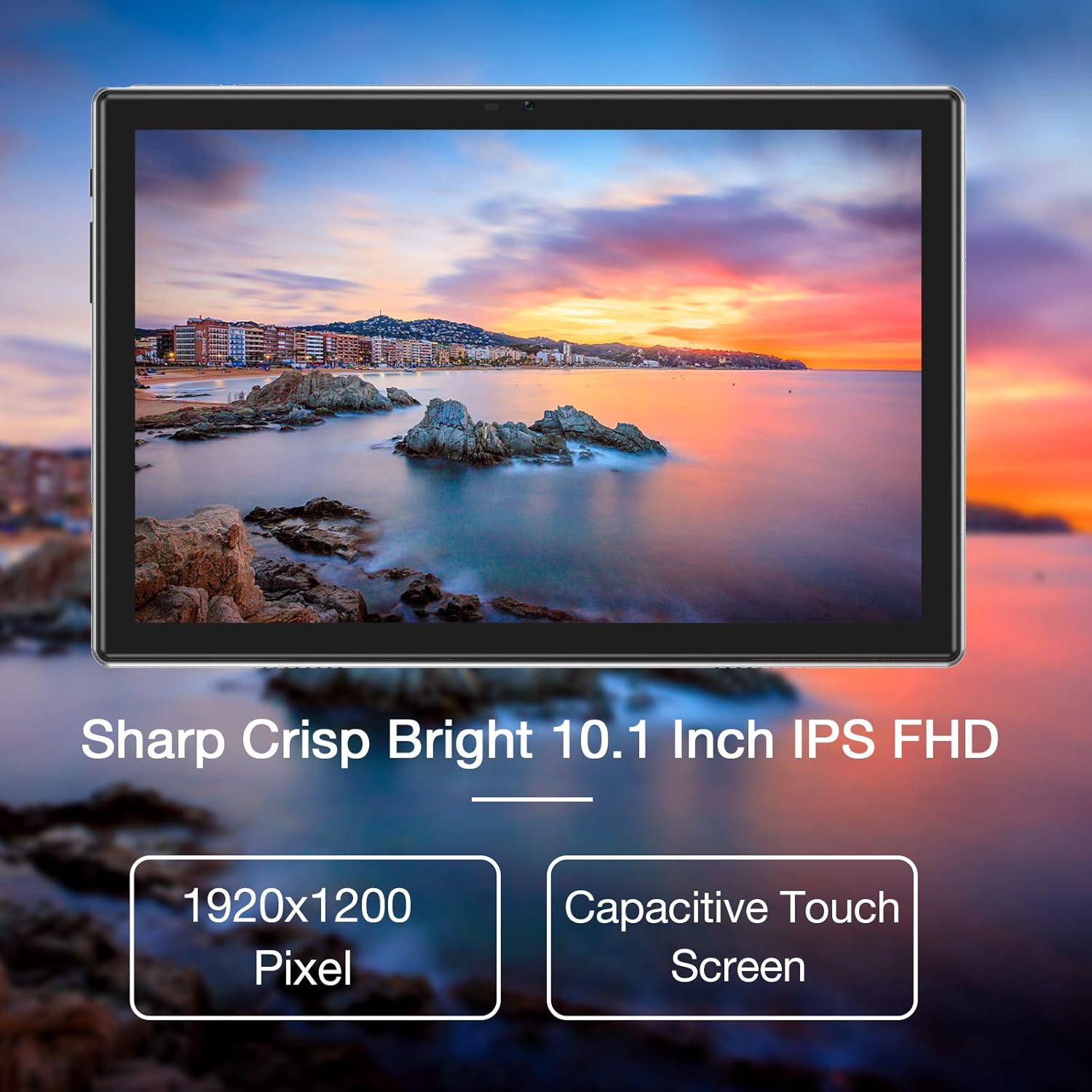
Image: The tablet's 10.1-inch IPS FHD display showcasing its sharp and bright visual quality.
3.2 การเชื่อมต่อ
Your tablet offers robust connectivity options:
- ไวไฟ : Supports 5G WiFi (802.11ac) for high-speed internet access. To connect, go to การตั้งค่า > เครือข่ายและอินเทอร์เน็ต > Wi-Fiเลือกเครือข่ายของคุณ แล้วป้อนรหัสผ่าน
- บลูทูธ: Equipped with Bluetooth 5.0 for connecting to wireless headphones, speakers, and other compatible devices. Enable it via การตั้งค่า > อุปกรณ์ที่เชื่อมต่อ > การตั้งค่าการเชื่อมต่อ > Bluetooth.
กล้อง 3.3 ตัว
Capture moments and make video calls with the tablet's dual cameras:
- กล้องหน้า: 5 Megapixels, ideal for video conferencing and selfies.
- กล้องหลัง: 13 Megapixels, suitable for taking photos and recording videos.

Image: Illustration showing the tablet's 5.0MP front camera and 13.0MP back camera capabilities.
3.4 การจัดเก็บและประสิทธิภาพการทำงาน
The tablet is designed for efficient multitasking and ampที่เก็บของ:
- แรม : 3GB of RAM ensures smooth operation and efficient multitasking.
- พื้นที่เก็บข้อมูลภายใน: 64GB of internal storage for your apps, photos, and files.
- พื้นที่เก็บข้อมูลที่ขยายได้: Storage can be expanded up to 128GB using a microSD card (not included).
- โปรเซสเซอร์: Powered by a 1.6 GHz Octa-Core processor, providing fast and fluid performance for various applications.

Image: Diagram illustrating the tablet's powerful internal configuration, including the Octa-Core CPU, 3GB RAM, and 64GB storage.
3.5 ฟังก์ชัน GPS
The integrated GPS system allows for accurate navigation and location-based services, making it a useful tool for travel and exploration.

Image: The tablet being used for navigation, demonstrating its GPS capabilities and long-lasting 6000mAh battery.
4. การบำรุงรักษา
4.1 การทำความสะอาด
- ใช้ผ้าเนื้อนุ่มที่ไม่เป็นขุยเช็ดหน้าจอและตัวเครื่องแท็บเล็ตเบาๆ
- Avoid using abrasive cleaners, alcohol, or chemical solvents, as they may damage the surface.
4.2 การดูแลแบตเตอรี่
- To prolong battery life, avoid exposing the tablet to extreme temperatures (hot or cold).
- Do not frequently allow the battery to fully discharge to 0%.
- หากจะเก็บแท็บเล็ตไว้เป็นเวลานาน ควรชาร์จแบตเตอรี่ให้ได้ประมาณ 50% ก่อนปิดเครื่อง
4.3 การอัปเดตซอฟต์แวร์
- Regularly check for system updates to ensure your tablet has the latest features, performance improvements, and security patches.
- You can usually find update options in การตั้งค่า > ระบบ > อัปเดตระบบ.
5 การแก้ไขปัญหา
5.1 ปัญหาทั่วไปและแนวทางแก้ไข
| ปัญหา | สารละลาย |
|---|---|
| แท็บเล็ตไม่สามารถเปิดได้ | Ensure the battery is charged. Connect to a power source for at least 30 minutes. Press and hold the power button for 10-15 seconds to force a restart. |
| ปัญหาการเชื่อมต่อ Wi-Fi | Restart the tablet and your Wi-Fi router. Go to Wi-Fi settings, forget the network, and then reconnect. Ensure you are within range of the Wi-Fi signal. |
| แอปขัดข้องหรือค้าง | ปิดแอปแล้วเปิดใหม่ ล้างแคชและข้อมูลของแอป การตั้งค่า > แอป > [ชื่อแอป] > ที่เก็บข้อมูล > ล้างแคช/ล้างข้อมูล. Ensure sufficient storage space is available. |
| ประสิทธิภาพการทำงานช้า | Close unused background apps. Clear system cache (if option available). Uninstall unnecessary apps. If issues persist, consider a factory reset (backup all data first). |
| หน้าจอไม่ตอบสนอง | Restart the tablet by holding the power button. If unresponsive, let the battery drain completely and then recharge and power on. |
6. ข้อมูลจำเพาะ
6.1 ข้อมูลจำเพาะทางเทคนิค
| คุณสมบัติ | รายละเอียด |
|---|---|
| ยี่ห้อ | ฮาววีม |
| หมายเลขรุ่น | Tablet (HP20) |
| ระบบปฏิบัติการ | แอนดรอยด์ 11 |
| โปรเซสเซอร์ | Octa-Core 1.6 GHz |
| แรม | 3GB |
| การจัดเก็บข้อมูลภายใน | 64GB |
| พื้นที่เก็บข้อมูลแบบขยายได้ | สูงสุด 128GB (ไมโครเอสดี) |
| ขนาดหน้าจอ | 10.1 นิ้ว |
| ความละเอียดการแสดงผล | 1920 x 1200 พิกเซล (FHD IPS) |
| กล้องหน้า | 5 MP |
| กล้องหลัง | 13 MP |
| การเชื่อมต่อ | Wi-Fi (802.11ac), Bluetooth 5.0, GPS |
| อินเทอร์เฟซ | ยูเอสบี ไทป์ ซี |
| แบตเตอรี่ | 6000mAh |
| ขนาด (กว้าง x ยาว x สูง) | 27.2 x 18 x 6.1 ซม. |
| น้ำหนัก | 5 กรัม |
7. การรับประกันและการสนับสนุน
7.1 ข้อมูลการรับประกัน
Your HAOVM tablet comes with a limited warranty. Please refer to the warranty card or documentation included in the product packaging for specific terms, conditions, and duration of the warranty. Keep your proof of purchase for warranty claims.
7.2 การสนับสนุนลูกค้า
For technical assistance, troubleshooting beyond this manual, or service inquiries, please contact HAOVM customer support. You can typically find contact information on the official HAOVM webเว็บไซต์หรือผ่านทางร้านค้าปลีกที่คุณซื้อผลิตภัณฑ์