
การแนะนำ
This manual provides detailed instructions for the installation, operation, maintenance, and troubleshooting of your GIGABYTE GeForce RTX 3080 Vision OC 10G graphics card. This high-performance graphics card is designed for demanding visual tasks, powered by NVIDIA's Ampere architecture, featuring 2nd Generation RT Cores, 3rd Generation Tensor Cores, and 10GB GDDR6X memory. It incorporates the WINDFORCE 3X Cooling System for efficient thermal management and RGB Fusion 2.0 for customizable lighting.
การติดตั้งและการตั้งค่า
1. ข้อกำหนดของระบบ
- มาเธอร์บอร์ดที่รองรับ PCI Express พร้อมสล็อตกราฟิก x16 สองความกว้างหนึ่งช่อง
- แหล่งจ่ายไฟขั้นต่ำ 750W พร้อมขั้วต่อไฟ PCIe 8 พินจำนวน 2 ช่อง
- Microsoft Windows 10 64-bit or Linux 64-bit operating system.
- 32GB system memory recommended for optimal performance.
- ต้องใช้การเชื่อมต่ออินเทอร์เน็ตเพื่อดาวน์โหลดไดรเวอร์
2. เนื้อหาบรรจุภัณฑ์
- GIGABYTE GeForce RTX 3080 Vision OC 10G Graphics Card
- คู่มือการใช้งาน (เอกสารนี้)
3. การติดตั้งทางกายภาพ
- เตรียมระบบของคุณ: ปิดเครื่องคอมพิวเตอร์และถอดสายทั้งหมดออก เปิดเคสคอมพิวเตอร์
- Locate the PCIe slot: ระบุสล็อต PCI Express x16 ที่พร้อมใช้งานบนเมนบอร์ดของคุณ
- ถอดฝาครอบช่องเสียบออก: Remove the necessary expansion slot covers from the back of your computer case to accommodate the graphics card.
- ใส่การ์ดจอ: ค่อยๆ จัดตำแหน่งการ์ดกราฟิกให้ตรงกับสล็อต PCIe แล้วกดให้แน่นจนกระทั่งเข้าที่ ตรวจสอบให้แน่ใจว่าคลิปยึดบนสล็อต PCIe ล็อคเข้าที่

ภาพ: ด้านหน้า view of the GIGABYTE GeForce RTX 3080 Vision OC 10G Graphics Card, showcasing the triple WINDFORCE fans and the white/silver shroud design.
- รักษาความปลอดภัยของบัตร: Fasten the graphics card to the computer case using screws.
- เชื่อมต่อสายไฟ: Connect the two 8-pin PCIe power connectors from your power supply to the corresponding ports on the graphics card. Ensure a firm connection.
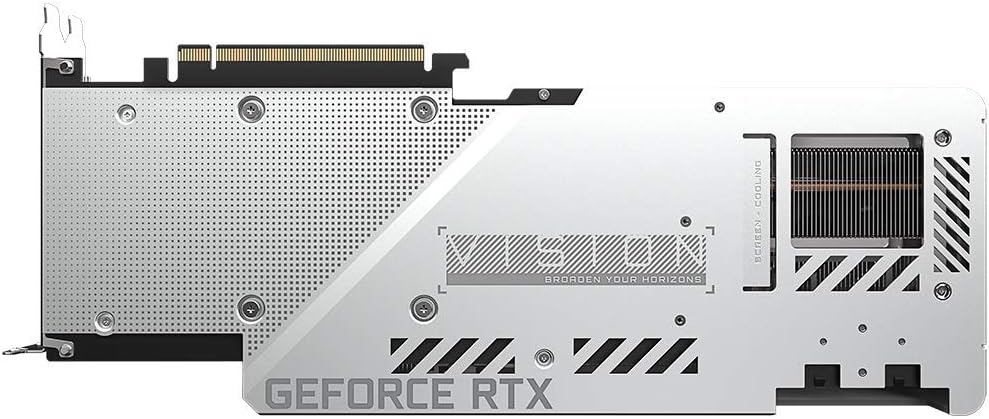
ภาพ: ด้านหลัง view of the GIGABYTE GeForce RTX 3080 Vision OC 10G Graphics Card, highlighting the protective metal backplate with ventilation cutouts and the GeForce RTX branding.
- ปิดเคส: Replace the computer case cover and reconnect all cables.
- เชื่อมต่อจอแสดงผล: เชื่อมต่อจอภาพของคุณเข้ากับเอาต์พุตจอแสดงผลช่องใดช่องหนึ่ง (HDMI หรือ DisplayPort) บนการ์ดกราฟิก
คำแนะนำการใช้งาน
1. การติดตั้งไดร์เวอร์
- เปิดเครื่อง: Turn on your computer. The system may boot into a lower resolution or use a generic display driver.
- ดาวน์โหลดไดร์เวอร์: เยี่ยมชม GIGABYTE อย่างเป็นทางการ webงาน (www.gigabyte.com) หรือเจ้าหน้าที่ของ NVIDIA webงาน (www.nvidia.com/drivers).
- Select product: Navigate to the support section and locate the drivers for the GeForce RTX 3080 series.
- ติดตั้งไดรเวอร์: Download the latest recommended drivers and follow the on-screen instructions to complete the installation. A system restart may be required.
2. การกำหนดค่าซอฟต์แวร์
- ศูนย์ควบคุม GIGABYTE / AORUS Engine: For advanced control over your graphics card, including fan speed adjustment, overclocking profiles, and RGB Fusion 2.0 lighting customization, download and install the GIGABYTE Control Center or AORUS Engine software from the GIGABYTE webเว็บไซต์.
- ประสบการณ์ NVIDIA GeForce: Install NVIDIA GeForce Experience for optimal game settings, driver updates, and access to features like ShadowPlay.
การซ่อมบำรุง
- การกำจัดฝุ่น: ทำความสะอาดฝุ่นออกจากพัดลมการ์ดจอและฮีตซิงก์เป็นประจำโดยใช้ลมอัด ตรวจสอบให้แน่ใจว่าได้ปิดระบบและถอดปลั๊กออกก่อนทำความสะอาด
- การตรวจสอบพัดลม: Periodically check the fans for any obstructions or unusual noises.
- การอัปเดตไดรเวอร์: Keep your graphics drivers updated to ensure optimal performance and stability.
การแก้ไขปัญหา
ไม่มีเอาท์พุตการแสดงผล
- ตรวจสอบให้แน่ใจว่าสายเคเบิลจอภาพเชื่อมต่อกับการ์ดจอและจอภาพอย่างแน่นหนา
- ตรวจสอบว่าการ์ดกราฟิกเสียบอยู่ในสล็อต PCIe อย่างสมบูรณ์
- Check that all required PCIe power connectors are securely attached to the graphics card.
- ทดสอบด้วยสายจอแสดงผลหรือจอภาพอื่นหากเป็นไปได้
ระบบไม่เสถียรหรือขัดข้อง
- ตรวจสอบให้แน่ใจว่าแหล่งจ่ายไฟของคุณตรงตามวัตต์ขั้นต่ำtagความต้องการอี (750W)
- อัปเดตไดรเวอร์การ์ดจอของคุณให้เป็นเวอร์ชันล่าสุด
- Monitor GPU temperatures using software like GIGABYTE Control Center to check for overheating.
- ตรวจสอบว่ามีความขัดแย้งกับไดรเวอร์หรือซอฟต์แวร์อื่นๆ ที่ติดตั้งไว้หรือไม่
ประสิทธิภาพการทำงานไม่ดี
- ตรวจสอบให้แน่ใจว่าได้ติดตั้งไดรเวอร์อย่างถูกต้องและเป็นเวอร์ชันล่าสุดแล้ว
- Verify that the graphics card is running at its intended clock speeds (can be checked with monitoring software).
- ตรวจสอบแอปพลิเคชันพื้นหลังที่อาจกำลังใช้ทรัพยากรระบบอยู่
- Ensure your system's BIOS/UEFI is updated.
ข้อมูลจำเพาะ
| หน่วยประมวลผลกราฟิก | การ์ดจอ NVIDIA GeForce RTX 3080 |
| หน่วยความจำวิดีโอ | 10GB GDDR6X |
| อินเทอร์เฟซหน่วยความจำ | 320 บิต |
| บูสต์คล็อก | 1800 เมกะเฮิรตซ์ |
| ความเร็วหน่วยความจำ | 19000 เมกะเฮิรตซ์ |
| พอร์ตเอาท์พุต | พอร์ตแสดงผล, HDMI |
| ความละเอียดดิจิตอลสูงสุด | 7680x4320 (via DisplayPort 1.4a) |
| มัลติ-view | 4 |
| ขนาดการ์ด (กว้าง x ยาว x สูง) | 12.6 x 4.96 x 2.17 นิ้ว (320 x 126 x 55 มม.) |
| PSU ที่แนะนำ | 750วัตต์ |
| ขั้วต่อไฟฟ้า | 2x 8 พิน |
| พีซีไอ เอ็กซ์เพรส | 4.0x16 ขนาด |
| หมายเลขรุ่น | GV-N3080VISION OC-10GD 2.0 |
ข้อมูลการรับประกัน
GIGABYTE products are covered by a limited warranty. The specific terms and duration of the warranty may vary by region and product. Please refer to the official GIGABYTE website or your product's packaging for detailed warranty information and registration procedures. Keep your proof of purchase for warranty claims.
การสนับสนุนด้านเทคนิค
สำหรับความช่วยเหลือด้านเทคนิค การดาวน์โหลดไดรเวอร์ คำถามที่พบบ่อย และการสนับสนุนเพิ่มเติม โปรดเยี่ยมชมเว็บไซต์สนับสนุนอย่างเป็นทางการของ GIGABYTE webเว็บไซต์:
คุณสามารถติดต่อฝ่ายบริการลูกค้าของ GIGABYTE ได้โดยใช้ข้อมูลการติดต่อที่ระบุไว้ในเว็บไซต์ของพวกเขา webไซต์สำหรับภูมิภาคเฉพาะของคุณ