
D-Link DWR-M960
D-LINK 4G AC1200 LTE Router DWR-M960
คู่มือการใช้งาน
1. บทนำ
The D-Link DWR-M960 4G AC1200 LTE Router provides high-speed mobile broadband access, allowing users to connect to 3G/4G networks from virtually anywhere. This device enables sharing of your mobile internet connection through a secure wireless network or via its four Gigabit Ethernet ports. It is designed for fast, responsive internet access, suitable for web browsing, streaming media, and online activities.

รูปที่ 1.1: D-Link DWR-M960 4G AC1200 LTE Router. This image displays the router's front view, highlighting its four external antennas and the row of LED indicators for power, internet, Wi-Fi, and signal strength.
2. เนื้อหาบรรจุภัณฑ์
Please verify that all items listed below are present in your package. If any item is missing or damaged, please contact your retailer.
- D-Link DWR-M960 4G AC1200 LTE Router
- อะแดปเตอร์แปลงไฟ
- สายเคเบิลอีเทอร์เน็ต
- คู่มือการติดตั้งแบบด่วน

รูปที่ 2.1: Package Contents. This image shows the DWR-M960 router, its power adapter, and the quick installation guide, all laid out next to the product box.
3. คุณสมบัติของผลิตภัณฑ์
The DWR-M960 router is equipped with advanced features to provide a robust and reliable internet connection:
- Fast Mobile Internet: Supports 3G/4G mobile connections with downlink speeds up to 150 Mbps and uplink speeds up to 50 Mbps.
- AC1200 Wi-Fi: Dual-band wireless connectivity (802.11ac) for high-speed Wi-Fi performance.
- การเชื่อมต่อที่ปลอดภัย: Features dual-active firewalls (SPI and NAT) and WPA/WPA2 wireless encryption to protect your network.
- พอร์ต Gigabit หลายพอร์ต: Includes four Gigabit Ethernet LAN ports for high-speed wired connections.
- ตั้งค่าได้ง่าย: Can be configured quickly through a web browser without special software.
- ช่องใส่ซิมการ์ด: Allows direct insertion of a 3G/4G SIM/UICC card to share your mobile broadband.
4. คู่มือการติดตั้ง
4.1 การติดตั้งทางกายภาพ
- ใส่ซิมการ์ด: Locate the SIM card slot on the router. Gently insert your 3G/4G SIM/UICC card into the slot until it clicks into place. Ensure the card is oriented correctly as indicated by the diagram near the slot.
- เชื่อมต่อเสาอากาศ: The DWR-M960 features internal antennas. No external antenna connection is required.
- เชื่อมต่อพลังงาน: Plug the provided power adapter into the router's power port and then into a wall outlet. The Power LED on the router should illuminate.
- เชื่อมต่ออุปกรณ์ (ทางเลือก):
- การเชื่อมต่อแบบมีสาย: Connect one end of the Ethernet cable to any of the LAN ports (1-4) on the router and the other end to your computer's Ethernet port.
- การเชื่อมต่อแบบไร้สาย: Note the Wi-Fi Network Name (SSID) and Wi-Fi Password (Key) printed on the label at the bottom of the router.
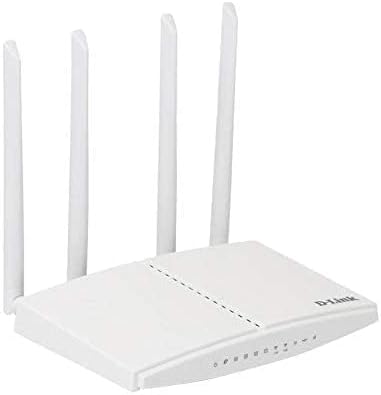
รูปที่ 4.1: Router Ports and SIM Slot. This image provides a side view of the DWR-M960, illustrating the location of the SIM card slot and the various Ethernet ports for wired connections.
4.2 การกำหนดค่าเริ่มต้น (Web อินเตอร์เฟซ)
ในการตั้งค่าเราเตอร์ คุณจะต้องเข้าถึงข้อมูลของเราเตอร์นั้น webอินเทอร์เฟซการจัดการตาม:
- Ensure your computer is connected to the router either via Ethernet or Wi-Fi.
- เปิด web เบราว์เซอร์ (เช่น Chrome, Firefox, Edge)
- ในแถบที่อยู่ ให้พิมพ์ที่อยู่ IP เริ่มต้นของเราเตอร์ ซึ่งโดยปกติจะเป็น
192.168.0.1or192.168.1.1, and press Enter. This information is typically found on the router's bottom label. - When prompted, enter the default username and password. For D-Link routers, the default username is often
adminand the password field may be left blank or alsoadmin. Refer to the label on your router for exact credentials. - Follow the on-screen setup wizard to configure your internet connection settings (APN, PIN for SIM if required) and customize your Wi-Fi network name (SSID) and password. It is highly recommended to change the default Wi-Fi password and the router's login password for security.
5. คู่มือการใช้งาน
5.1 ไฟแสดงสถานะ LED
The LEDs on the front panel of the DWR-M960 provide information about the router's status:
- กำลังไฟ LED:
- Solid Green: Router is powered on.
- ปิด: เราเตอร์ปิดอยู่
- ไฟ LED อินเทอร์เน็ต:
- Solid Green: Connected to the internet.
- Blinking Green: Data activity.
- Red: No internet connection or SIM card error.
- LED Wi-Fi:
- Solid Green: Wi-Fi is enabled.
- Blinking Green: Wi-Fi data activity.
- ปิด: Wi-Fi ถูกปิดใช้งาน
- Signal Strength LEDs (3-4 bars):
- Indicates the strength of the 3G/4G mobile signal. More bars mean a stronger signal.
5.2 การเชื่อมต่ออุปกรณ์
- อุปกรณ์ไร้สาย: On your smartphone, tablet, or laptop, search for available Wi-Fi networks. Select the SSID you configured (or the default one) and enter the Wi-Fi password.
- อุปกรณ์แบบมีสาย: Connect an Ethernet cable from the LAN port of your device (e.g., PC, game console) to any of the available LAN ports on the router.
6. การบำรุงรักษา
- อัพเดตเฟิร์มแวร์: Periodically check the D-Link support website for firmware updates for your DWR-M960. Firmware updates can improve performance, add new features, and fix security vulnerabilities. Follow the instructions provided by D-Link for safe firmware upgrades.
- รีบูตปกติ: Rebooting your router every few weeks can help clear its memory and resolve minor network issues, improving overall performance and stability. Simply unplug the power adapter, wait 10-15 seconds, and plug it back in.
- การทำความสะอาด: Keep the router in a clean, dust-free environment. Use a soft, dry cloth to gently wipe the exterior of the device. Do not use liquid cleaners or aerosols.
- การจัดวาง: Place the router in a central location, away from obstructions and other electronic devices that may cause interference, to ensure optimal Wi-Fi coverage.
7 การแก้ไขปัญหา
7.1 ไม่มีการเชื่อมต่ออินเทอร์เน็ต
- ตรวจสอบซิมการ์ด: Ensure the SIM card is correctly inserted and active with your mobile carrier.
- ตรวจสอบไฟ LED แสดงสถานะการเชื่อมต่ออินเทอร์เน็ต: If the Internet LED is red, there might be an issue with the SIM card or mobile network. Verify your APN settings in the router's web อินเทอร์เฟซ
- รีบูตเราเตอร์: รีสตาร์ทเราเตอร์โดยถอดปลั๊กทิ้งไว้ 10 วินาที แล้วเสียบกลับเข้าไปใหม่
- ตรวจสอบความแรงของสัญญาณ: Ensure you have adequate 3G/4G signal strength (check Signal Strength LEDs). If the signal is weak, try relocating the router.
- ติดต่อผู้ให้บริการขนส่ง: Verify with your mobile carrier if there are any network outages or issues with your SIM plan.
7.2 ความเร็วอินเทอร์เน็ตช้า
- ความแรงของสัญญาณ: A weak 3G/4G signal will result in slower speeds. Try to improve router placement.
- ความแออัดของเครือข่าย: Mobile networks can experience congestion during peak hours.
- สัญญาณรบกวน Wi-Fi: Other wireless devices or networks can interfere with your Wi-Fi signal. Try changing your Wi-Fi channel in the router settings.
- มีอุปกรณ์มากเกินไป: Too many devices connected simultaneously can reduce speeds for all users.
7.3 ไม่สามารถเข้าถึงเราเตอร์ได้ Web อินเทอร์เฟซ
- ที่อยู่ IP: โปรดตรวจสอบให้แน่ใจว่าคุณใช้ที่อยู่ IP ที่ถูกต้อง (เช่น
192.168.0.1). - การเชื่อมต่อแบบมีสาย: ลองเชื่อมต่อคอมพิวเตอร์ของคุณเข้ากับเราเตอร์โดยตรงผ่านสายอีเธอร์เน็ตดู
- ไฟร์วอลล์/โปรแกรมป้องกันไวรัส: ปิดใช้งานไฟร์วอลล์หรือซอฟต์แวร์ป้องกันไวรัสบนคอมพิวเตอร์ของคุณชั่วคราว ซึ่งอาจบล็อกการเข้าถึงอยู่
- รีเซ็ตเราเตอร์: As a last resort, perform a factory reset. Locate the reset button (usually a small pinhole) on the router. With the router powered on, use a paperclip to press and hold the reset button for 5-10 seconds until the LEDs flash. คำเตือน: การดำเนินการนี้จะลบการตั้งค่าที่คุณกำหนดเองทั้งหมด และคุณจะต้องกำหนดค่าเราเตอร์ใหม่ตั้งแต่เริ่มต้น
8. ข้อมูลจำเพาะ
| คุณสมบัติ | คำอธิบาย |
|---|---|
| ชื่อยี่ห้อ | ดีลิงค์ |
| ชื่อรุ่น | DWR-M960 |
| หมายเลขรุ่นสินค้า | DWR-M960 |
| มาตรฐานการสื่อสารไร้สาย | 802.11ac |
| ระดับย่านความถี่ | ดูอัลแบนด์ |
| เทคโนโลยีการเชื่อมต่อ | ไร้สาย |
| ประเภทเสาอากาศ | ภายใน |
| โปรโตคอลความปลอดภัย | WPA2 |
| อุปกรณ์ที่รองรับ | เครื่องคอมพิวเตอร์ส่วนบุคคล |
| ส่วนประกอบที่รวมอยู่ | เราเตอร์ |
| ผู้ผลิต | ดี-ลิงค์ ซิสเต็มส์ อิงค์ |
| ขนาดแพ็คเกจ | 33.6 x 22 x 5.8 ซม. |
| น้ำหนักสินค้า | 724 กรัม |
| วันที่พร้อมใช้งานครั้งแรก | 7 กรกฎาคม 2021 |
9. การรับประกันและการสนับสนุน
The D-Link DWR-M960 LTE Router is manufactured by D-Link Systems, Inc. For specific warranty information, please refer to the warranty card included with your product or visit the official D-Link support website for your region. Typically, D-Link products come with a limited warranty covering manufacturing defects from the date of purchase.
For technical support, driver downloads, firmware updates, and additional product information, please visit the D-Link support portal:
Visit D-Link Support Webเว็บไซต์
When contacting support, please have your product model number (DWR-M960) and serial number ready.
Ask a question about this manual
Ask about setup, troubleshooting, compatibility, parts, safety, or missing instructions. Manuals+ will review the question and use this page’s manual context to help answer it.