
การแนะนำ
The J-Tech Digital 4K HDMI Capture Card (JTECH-4KCP) is designed to capture HDMI video signals up to 4K@60Hz and output them to your computer at 1080p 60Hz. This device features an HDMI loop output for real-time monitoring of the source signal, external microphone and headphone support for integrated audio, and a USB Type-C interface for high-speed data transfer to your computer. It is compatible with popular streaming and capture software such as OBS, YouTube Live, and Twitch, making it an ideal solution for capturing presentations, training seminars, and gaming content.
เนื้อหาแพ็คเกจ
ตรวจสอบว่ามีรายการทั้งหมดอยู่ในแพ็คเกจ:
- 1 x J-Tech Digital 4K HDMI Capture Card (JTECH-4KCP)
- 1 x คู่มือผู้ใช้
- 1 x USB 3.0 Data Cable (USB Type-C to USB Type-A)

สินค้าเกินview
ขนาด
The JTECH-4KCP capture card has compact dimensions for portability and ease of integration into your setup.
- ความยาว: 4.25 นิ้ว (10.8 ซม.)
- ความกว้าง : 2 นิ้ว (5.1 ซม.)
- ความสูง: 0.6 นิ้ว (1.5 ซม.)
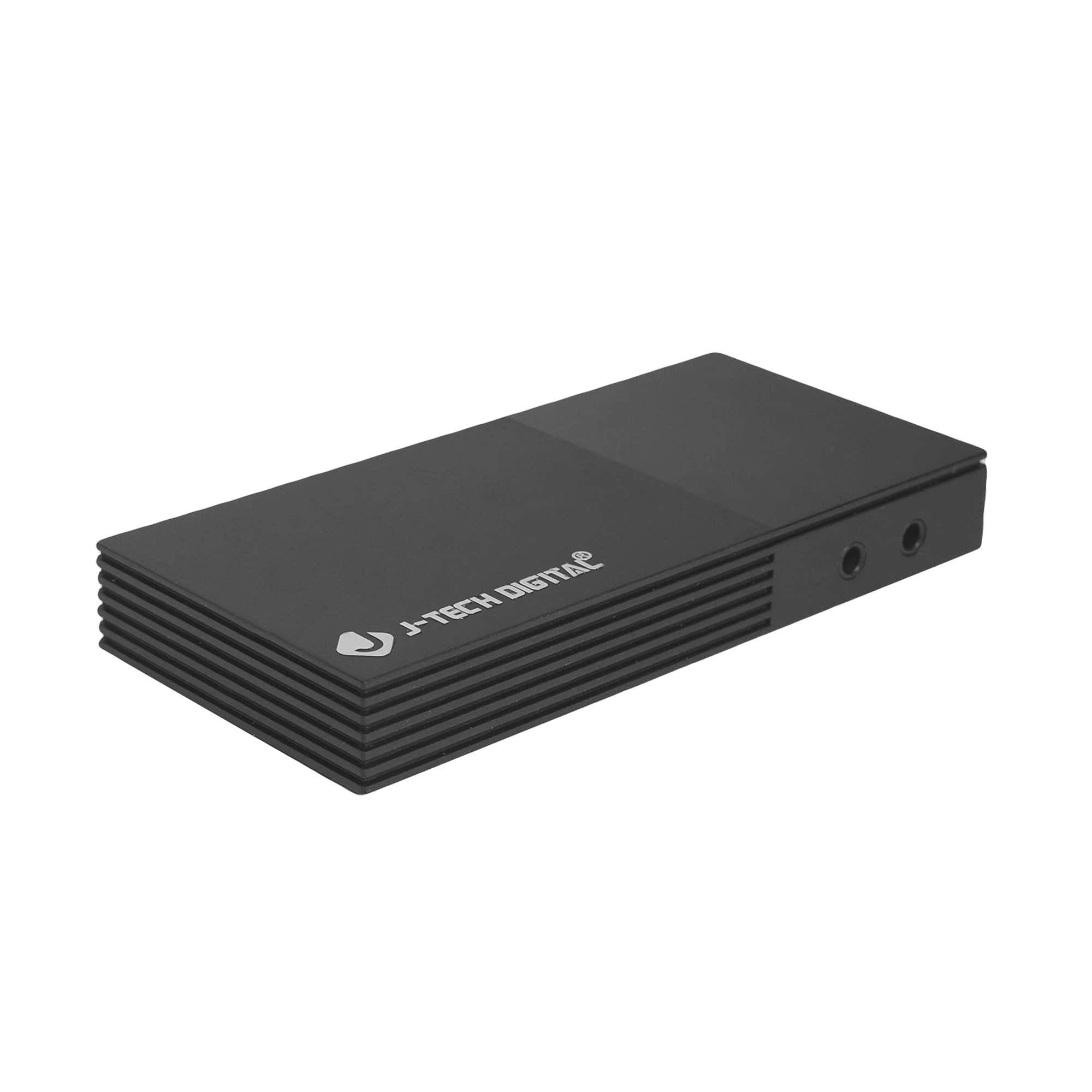
พอร์ตและอินเทอร์เฟซ
The device features several ports for connectivity:
- Microphone In Port: สำหรับเชื่อมต่อไมโครโฟนภายนอก
- Headphones Out Port: For connecting headphones to monitor audio.
- USB-C (PC Port): For connecting the capture card to your computer. This port is USB 3.0 compliant.
- HDMI ใน: For connecting your HDMI source device (e.g., game console, camera).
- HDMI ออก: For connecting to a display monitor for real-time video passthrough.

คำแนะนำการตั้งค่า
- เชื่อมต่อแหล่งสัญญาณ HDMI: Connect an HDMI cable from your source device (e.g., game console, Blu-ray player, camera) to the HDMI เข้า port on the JTECH-4KCP capture card.
- เชื่อมต่อจอแสดงผล (ไม่บังคับ): If you wish to monitor your source signal in real-time without latency, connect a second HDMI cable from the เอาท์พุต HDMI port on the capture card to your display monitor.
- เชื่อมต่อกับคอมพิวเตอร์: Use the provided USB 3.0 Type-C cable to connect the USB-C (PC Port) on the capture card to an available USB 3.0 port on your computer. The device is plug-and-play and typically does not require driver installation.
- เชื่อมต่ออุปกรณ์เสียง (ไม่จำเป็น): For external audio input, connect a microphone to the Microphone In Port. For audio monitoring, connect headphones to the Headphones Out Port.
- เปิดตัวซอฟต์แวร์: Open your preferred video capture or streaming software (e.g., OBS Studio, YouTube Live, Twitch Studio) on your computer.
- กำหนดค่าซอฟต์แวร์: In your software, add the capture card as a video source. It should appear as a 'USB Video Device' or 'HDMI Capture'. Configure video resolution (1080p 60Hz recommended for capture) and audio settings as needed.

คำแนะนำการใช้งาน
Once the capture card is set up and recognized by your computer and software, you can begin capturing or streaming.
- การจับภาพวิดีโอ: The JTECH-4KCP captures HDMI input signals up to 4K@60Hz and processes them for recording or streaming at 1080p 60Hz on your computer. Ensure your software settings match these capture capabilities for optimal performance.
- เอาต์พุตลูป HDMI: The HDMI Out port provides a near-zero latency passthrough of your source signal to a connected display. This is particularly useful for gaming, allowing you to play on your main monitor without experiencing input lag while simultaneously capturing the footagบนคอมพิวเตอร์ของคุณ
- การรวมเสียงภายนอก: Utilize the Microphone In and Headphones Out ports to integrate external audio. This allows you to add commentary or external audio sources directly into your captured or streamed content, and monitor all audio in real-time. Adjust audio levels within your capture software.
- ความเข้ากันได้ของซอฟต์แวร์: The capture card is compatible with a wide range of software, including OBS Studio, YouTube Live, Twitch Studio, and Facebook Live. Refer to your software's documentation for specific configuration details.

การซ่อมบำรุง
To ensure the longevity and optimal performance of your JTECH-4KCP capture card, follow these maintenance guidelines:
- การทำความสะอาด: ใช้ผ้าแห้งเนื้อนุ่มเช็ดทำความสะอาดภายนอกอุปกรณ์ หลีกเลี่ยงการใช้น้ำยาทำความสะอาดหรือสารละลาย เพราะอาจทำให้พื้นผิวหรือชิ้นส่วนภายในเสียหายได้
- พื้นที่จัดเก็บ: เก็บการ์ดจับภาพไว้ในที่แห้งและเย็น หลีกเลี่ยงแสงแดดโดยตรงและอุณหภูมิที่สูงหรือต่ำเกินไป
- การจัดการ: ใช้งานอุปกรณ์ด้วยความระมัดระวัง หลีกเลี่ยงการทำตกหรือกระแทกแรงๆ
- การระบายอากาศ : Ensure the device has adequate ventilation to prevent overheating, especially during extended use. Do not block the ventilation slots.
การแก้ไขปัญหา
If you encounter issues with your JTECH-4KCP capture card, refer to the following common troubleshooting steps:
| ปัญหา | สาเหตุที่เป็นไปได้ | สารละลาย |
|---|---|---|
| No video signal on computer/software | Incorrect cable connection, incompatible resolution/refresh rate, software not configured. |
|
| No audio captured or monitored | Incorrect audio connections, software audio settings. |
|
| High latency or stuttering during capture/streaming | Computer performance issues, USB port issues, software settings. |
|
| Cannot capture certain content (e.g., movies) | HDCP (High-bandwidth Digital Content Protection) enabled. | The capture card respects HDCP. Content protected by HDCP cannot be captured or recorded. This is a standard digital rights management feature. |
ข้อมูลจำเพาะ
| คุณสมบัติ | รายละเอียด |
|---|---|
| ยี่ห้อ | เจ-เทค ดิจิตอล |
| ชื่อรุ่น | เจเทค-4KCP |
| ฮาร์ดแวร์อินเตอร์เฟซ | USB Type-C (USB 3.0 compliant) |
| ความละเอียดในการจับภาพวิดีโอ | 1080p@60Hz |
| ความละเอียดอินพุต HDMI | สูงสุด 4K @ 60Hz |
| ความเข้ากันได้ของระบบปฏิบัติการ | Windows 10 (64-bit), macOS 10.14+ (64-bit) |
| การใช้ที่แนะนำ | Video Recording, Image Capture, Live Streaming |
| คุณสมบัติพิเศษ | 4K Near-Zero Latency HDMI Loop Output, External Audio Support (Mic In, Headphone Out), Popular Streaming Platform Compatibility |
| อุปกรณ์ที่รองรับ | Gaming Consoles (Xbox, PS4, PS5, Nintendo Switch), Cameras, Personal Computers, Blu-ray Players |
| ข้อกำหนดขั้นต่ำของระบบ | Processor: Intel Core i5 or AMD equivalent (or better), RAM: 4GB, Disk Space: 2GB available |
| AV Output Format | MPEG-4 (software dependent) |
| ผู้ผลิต | J-Tech Digital Inc. |
| ยูพีซี | 810058920409 |
การรับประกันและการสนับสนุน
All J-Tech Digital products are backed by a commitment to quality and customer satisfaction.
- การรับประกันจากผู้ผลิต: The JTECH-4KCP includes a One-Year Manufacturer Replacement Warranty. This warranty covers defects in materials and workmanship under normal use.
- การสนับสนุนด้านเทคนิค: J-Tech Digital provides free lifetime technical support from our customer support team. Support is available from 9 AM – 6 PM CST, Monday through Friday.
- ข้อมูลติดต่อ: For warranty claims or technical assistance, please refer to the contact information available on the J-Tech Digital seller page on Amazon or visit the official J-Tech Digital webเว็บไซต์.