
การแนะนำ
This manual provides essential information for setting up, operating, maintaining, and troubleshooting your HP 2022 14-inch HD Laptop. Please read this guide thoroughly to ensure proper use and to maximize the performance and longevity of your device.
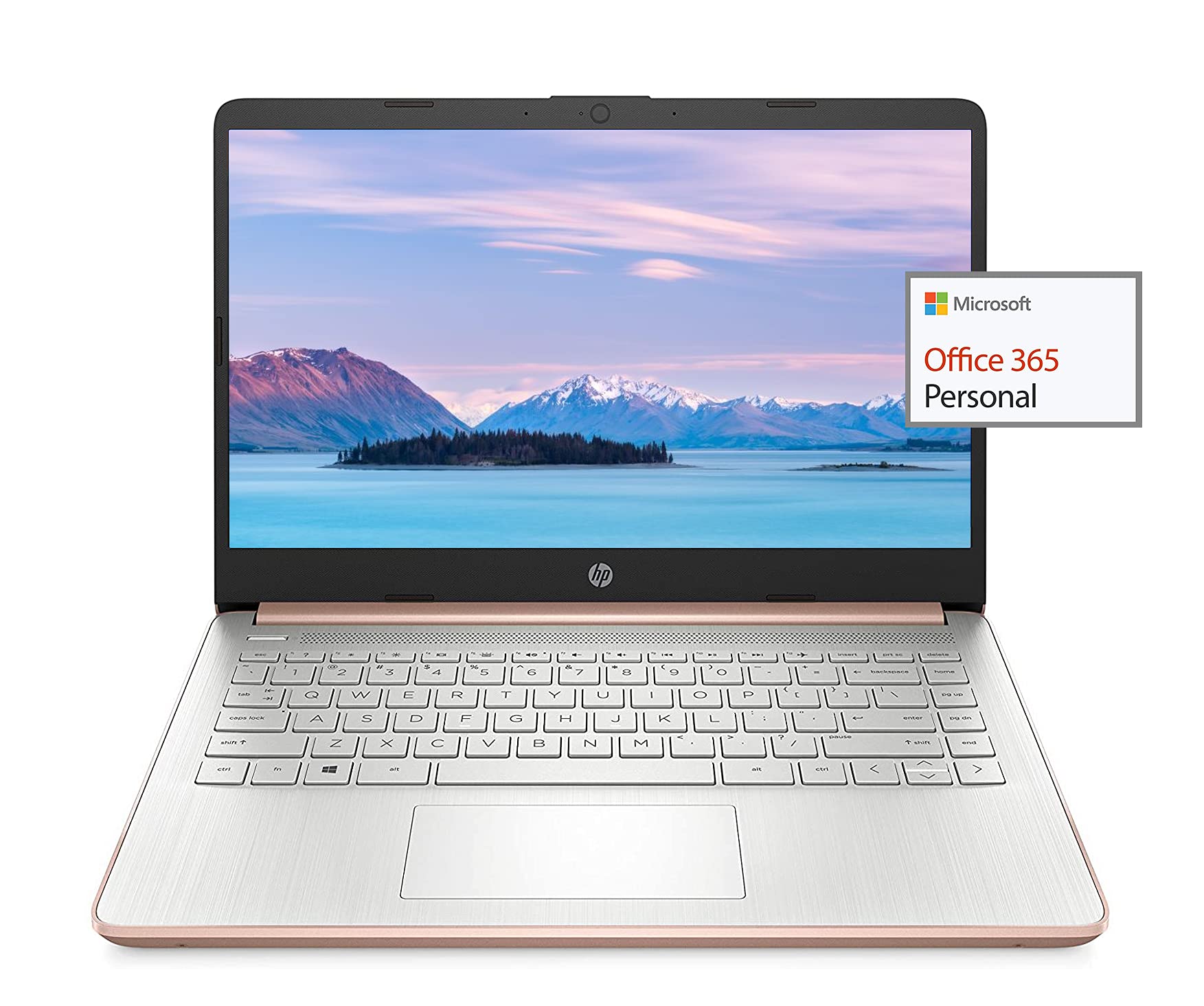
Image: The HP 14-inch HD Laptop, showcasing การออกแบบที่เพรียวบาง
การตั้งค่า
1. การเปิดเครื่องครั้งแรก
Connect the power adapter to the laptop and a power outlet. Open the laptop lid. The laptop should power on automatically or by pressing the power button, typically located on the keyboard deck.
2. การตั้งค่าระบบปฏิบัติการ
Follow the on-screen prompts to complete the Windows 10 setup. This includes selecting your region, connecting to a Wi-Fi network, and creating a user account.
3. Activating Microsoft Office 365
Your laptop includes a 1-year subscription to Microsoft Office 365. To activate:
- Launch any Office application (e.g., Word, Excel).
- Sign in with your Microsoft account. If you do not have one, create a new account.
- Click "Activate Office" and follow the subsequent prompts.
- Complete steps 1, 2, and 3 as instructed.
- Click "Refresh" once Office is ready.
- Open a document and accept the license agreement to finalize activation.

Image: The HP laptop displaying Microsoft Office 365 applications.
4. Switching Out of Windows 10 S Mode
Windows 10 in S mode is designed for security and performance, exclusively running apps from the Microsoft Store. If you need to install apps from outside the Microsoft Store, you can switch out of S mode. This is a one-way switch and cannot be undone.
- ไปที่ การตั้งค่า > การอัปเดตและการรักษาความปลอดภัย > การเปิดใช้งาน.
- ในส่วน "เปลี่ยนไปใช้ Windows 10 Home" หรือ "เปลี่ยนไปใช้ Windows 10 Pro" ให้เลือก ไปที่ร้านค้า.
- บน Switch out of S mode (or similar) page that appears in the Microsoft Store, click the รับ ปุ่ม.
- After confirming, you will be able to install apps from outside the Microsoft Store.
5. การเชื่อมต่ออุปกรณ์ต่อพ่วง
แล็ปท็อปของคุณมีพอร์ตต่างๆ สำหรับเชื่อมต่ออุปกรณ์ภายนอก:
- USB Type-A & Type-C: For connecting USB devices like external drives, mice, and keyboards.
- ช่องต่อ HDMI: สำหรับเชื่อมต่อกับจอแสดงผลภายนอกหรือโปรเจ็กเตอร์
- แจ็คคอมโบหูฟัง/ไมโครโฟน: สำหรับอินพุต/เอาต์พุตเสียง
- เครื่องอ่านการ์ดหน่วยความจำ: สำหรับการเสียบการ์ด SD

ภาพ: ด้านข้าง view of the HP laptop, highlighting the SuperSpeed USB Type-A, USB Type-C, HDMI 1.4b, and headphone/microphone combo ports.

ภาพ: ด้านตรงข้าม view of the HP laptop, showing the media card reader slot.
คำแนะนำการใช้งาน
1. การจัดการพลังงาน
- เปิดเครื่อง: กดปุ่มเปิด/ปิด
- โหมดสลีป: ปิดฝาหรือกดปุ่มเปิด/ปิดสั้นๆ
- ปิดระบบ: ไปที่ เริ่ม > เปิด/ปิด > ปิดเครื่อง
- เริ่มต้นใหม่อีกครั้ง: ไปที่ เริ่ม > เปิดเครื่อง > รีสตาร์ท
2. การใช้งานจอแสดงผล
The laptop features a 14-inch HD (1366 x 768) display with a micro-edge bezel design and WLED-backlit BrightView technology. Adjust brightness using the function keys (F2/F3) or through Windows display settings.

Image: The HP laptop display showcasing its micro-edge bezel and HD resolution.
3. คีย์บอร์ดและทัชแพด
The standard keyboard provides comfortable typing. The integrated touchpad supports multi-touch gestures for navigation. Refer to Windows settings for customizing touchpad sensitivity and gestures.
4. Webกล้องและระบบเสียง
The HP True Vision 720p HD camera with integrated dual array digital microphones is suitable for video calls. The laptop features HP custom-tuned dual speakers for clear audio output.

Image: The HP laptop showing the webcam in use and highlighting the dual speaker setup.
5. การเชื่อมต่อไร้สาย
- Wi-Fi 5 (1x1): Connect to wireless networks for internet access. Manage Wi-Fi connections via the network icon in the taskbar.
- Bluetooth 5.0: Pair with Bluetooth-enabled devices such as headphones, speakers, or mice. Access Bluetooth settings via Windows Settings > Devices > Bluetooth & other devices.
การซ่อมบำรุง
1. การดูแลแบตเตอรี่
The laptop's battery provides up to 10.5 hours of video playback and up to 9 hours of wireless streaming. To prolong battery life:
- หลีกเลี่ยงอุณหภูมิที่สูงหรือต่ำเกินไป
- อย่าปล่อยแบตเตอรี่จนหมดบ่อยๆ
- Utilize HP Fast Charge for quick recharging.
- ปรับการตั้งค่าพลังงานใน Windows เพื่อเพิ่มประสิทธิภาพการใช้งานแบตเตอรี่
2. การจัดการการจัดเก็บข้อมูล
Your laptop is equipped with 256GB SSD and 64GB eMMC storage. Regularly manage your files to ensure sufficient free space. Use Disk Cleanup and Storage Sense features in Windows to remove unnecessary files.
3. การทำความสะอาดแล็ปท็อป
- ใช้ผ้านุ่มไม่เป็นขุยเช็ดเล็กน้อยampชุบน้ำหรือน้ำยาทำความสะอาดหน้าจอเพื่อทำความสะอาดหน้าจอ
- สำหรับคีย์บอร์ดและตัวเครื่อง ให้ใช้ผ้านุ่มๆ หลีกเลี่ยงสารเคมีรุนแรง
- ตรวจสอบให้แน่ใจว่าแล็ปท็อปปิดอยู่และถอดปลั๊กออกก่อนทำความสะอาด
4. การอัปเดตซอฟต์แวร์
Keep your operating system and drivers updated. Windows Update automatically handles system updates. Check the HP support webเว็บไซต์สำหรับอัปเดตไดรเวอร์เฉพาะรุ่นรถของคุณ
การแก้ไขปัญหา
ปัญหาทั่วไปและวิธีแก้ไข:
- แล็ปท็อปไม่เปิดเครื่อง: ตรวจสอบให้แน่ใจว่าอะแดปเตอร์แปลงไฟเสียบแน่นดีแล้ว และแบตเตอรี่มีประจุเพียงพอ ลองเสียบกับปลั๊กไฟอื่นดู
- ปัญหาการแสดงผล: Check display cable connections if using an external monitor. Adjust brightness settings.
- ไม่มีเสียง: Verify volume levels, check audio output device settings in Windows, and ensure headphones are properly connected.
- ปัญหาการเชื่อมต่อ Wi-Fi: รีสตาร์ทเราเตอร์และแล็ปท็อปของคุณ ตรวจสอบการตั้งค่า Wi-Fi และตรวจสอบว่าปิดโหมดเครื่องบินแล้ว
- ประสิทธิภาพช้า: ปิดแอปพลิเคชันที่ไม่จำเป็น ตรวจสอบกระบวนการเบื้องหลัง และตรวจสอบให้แน่ใจว่ามีพื้นที่เก็บข้อมูลว่างเพียงพอ
For more detailed troubleshooting or persistent issues, refer to the HP support webเข้าชมเว็บไซต์หรือติดต่อฝ่ายบริการลูกค้าของ HP
ข้อมูลจำเพาะ
| คุณสมบัติ | ข้อมูลจำเพาะ |
|---|---|
| ยี่ห้อ | HP |
| ชื่อรุ่น | เอชพี 2022 |
| ขนาดหน้าจอ | 14 นิ้ว |
| โปรเซสเซอร์ | AMD 3020e (2 Cores, 4 Threads, 1.2GHz Base, 2.6GHz Max Boost) |
| แรม | แรม 8GB DDR4 |
| พื้นที่จัดเก็บ | 256GB SSD + 64GB eMMC (Total 320 GB) |
| กราฟฟิก | กราฟิก AMD Radeon แบบบูรณาการ |
| ระบบปฏิบัติการ | Windows 10 Home in S mode (upgradeable) |
| การเชื่อมต่อ | Wi-Fi 5 (1x1), Bluetooth 5.0 |
| พอร์ต | USB Type-A, USB Type-C, HDMI 1.4b, Headphone/Microphone Combo, Media Card Reader |
| Webลูกเบี้ยว | HP True Vision 720p HD Camera |
| อายุการใช้งานแบตเตอรี่ (สแตนด์บาย) | สูงสุด 10.5 ชั่วโมง (เล่นวิดีโอ) |
| น้ำหนัก | 3.24 ปอนด์ |
| ขนาด (ยาว x กว้าง x หนา) | ยาว 8.86 นิ้ว x กว้าง 12.76 นิ้ว x หนา 0.71 นิ้ว |

ภาพ: เหนือview of the HP 14 laptop's key features including AMD 3020e processor, battery life, Windows 10 S mode, HP Fast Charge, and Wi-Fi 5 & Bluetooth 5.0.
การรับประกันและการสนับสนุน
Your HP laptop comes with a standard manufacturer's warranty. Please refer to the warranty documentation included with your purchase for specific terms and conditions. For technical support, driver downloads, and service information, visit the official HP support webเข้าชมเว็บไซต์หรือติดต่อฝ่ายบริการลูกค้าของ HP โดยตรง
เพื่อการปกป้องเพิ่มเติม โปรดพิจารณาซื้อasing extended protection plans from your retailer.