
การแนะนำ
Thank you for choosing the VizGiz Micro SD Card Reader. This compact and portable device allows you to easily transfer data between your Micro SD (TF) cards and various devices such as computers, laptops, and other compatible electronics. Designed for convenience and efficiency, it supports USB 2.0 for fast data transfer.
This manual provides essential information on setting up, operating, and maintaining your card reader to ensure optimal performance and longevity.
เนื้อหาแพ็คเกจ
- 6 x VizGiz Micro SD Card Readers (Random Colors)

Image: A pack of six VizGiz Micro SD Card Readers, each in a different vibrant color, showcasinก. การออกแบบที่กะทัดรัด
คุณสมบัติผลิตภัณฑ์
- ดีไซน์ขนาดเล็กและพกพาสะดวก: Compact size (approximately 4.8cm x 2cm x 0.6cm) for easy carrying.
- อินเทอร์เฟซ USB 2.0: Ensures fast data transfer rates and supports hot-plugging.
- ความเข้ากันได้กว้าง: Compatible with Windows ME, 2000, XP, Vista, WIN 7, and Mac OS.
- การทำงานโดยไม่ต้องมีคนขับ: ไม่จำเป็นต้องติดตั้งไดรเวอร์เพิ่มเติมสำหรับระบบปฏิบัติการส่วนใหญ่
- รองรับการ์ด TF: Specifically designed for Micro SD (TF) cards.

ภาพ: โปรด้านข้างfile view of the six card readers, illustrating their compact dimensions, with a ruler indicating a length of 4.8 cm.
คู่มือการติดตั้ง
- ใส่การ์ด Micro SD: Gently insert your Micro SD (TF) card into the designated slot on the card reader. Ensure the card is inserted correctly with the gold contacts facing down, as shown in the diagram.
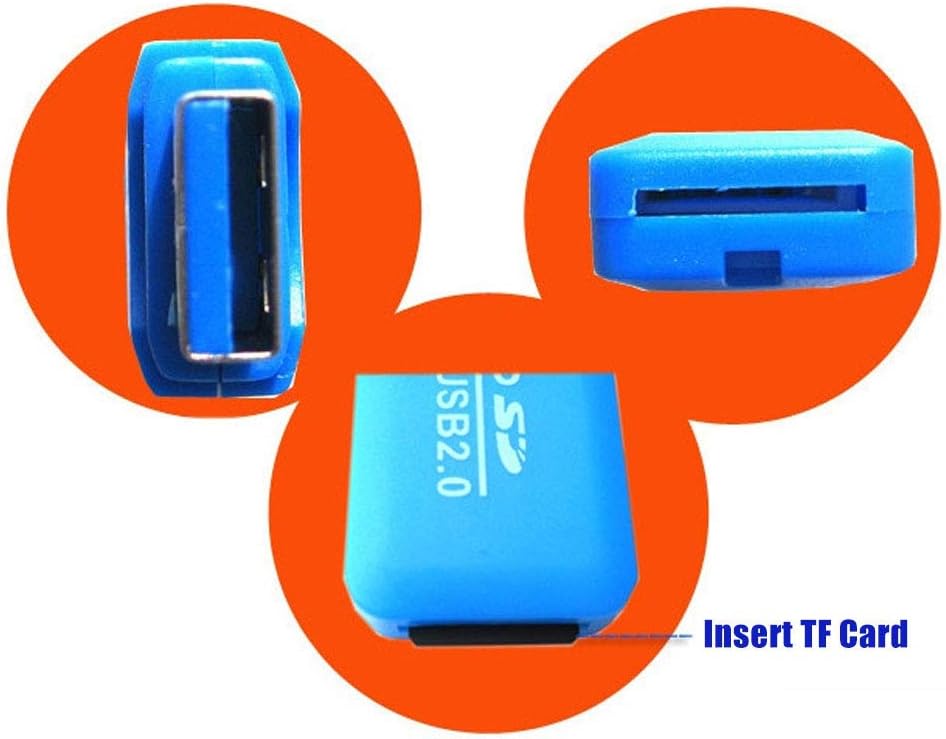
ภาพ: รายละเอียด view of the blue card reader, highlighting the slot where the TF (Micro SD) card is to be inserted.
- เชื่อมต่อกับอุปกรณ์: Plug the USB end of the card reader into an available USB 2.0 port on your computer, laptop, or other compatible device.
- การจดจำอัตโนมัติ: Your operating system (Windows, Mac OS) should automatically detect the card reader and the inserted Micro SD card. A new drive letter will typically appear in "My Computer" or "Finder."
คำแนะนำการใช้งาน
Once the card reader is connected and recognized by your device, you can begin transferring files.
- การเข้าถึง Files: Open "My Computer" (Windows) or "Finder" (Mac OS) and locate the new removable disk drive corresponding to your Micro SD card.
- การโอนย้าย Files:
- การคัดลอก files จาก the Micro SD card to your device: Drag and drop files from the card reader's drive to a folder on your computer.
- การคัดลอก files ถึง the Micro SD card from your device: Drag and drop files from your computer's folders to the card reader's drive.
- การกำจัดอย่างปลอดภัย: Before disconnecting the card reader, always safely eject the device from your operating system to prevent data corruption.
- หน้าต่าง: Click the "Safely Remove Hardware and Eject Media" icon in the system tray, then select the card reader.
- ระบบปฏิบัติการ Mac: Drag the drive icon of the Micro SD card to the Trash or right-click (Control-click) the drive icon and select "Eject."
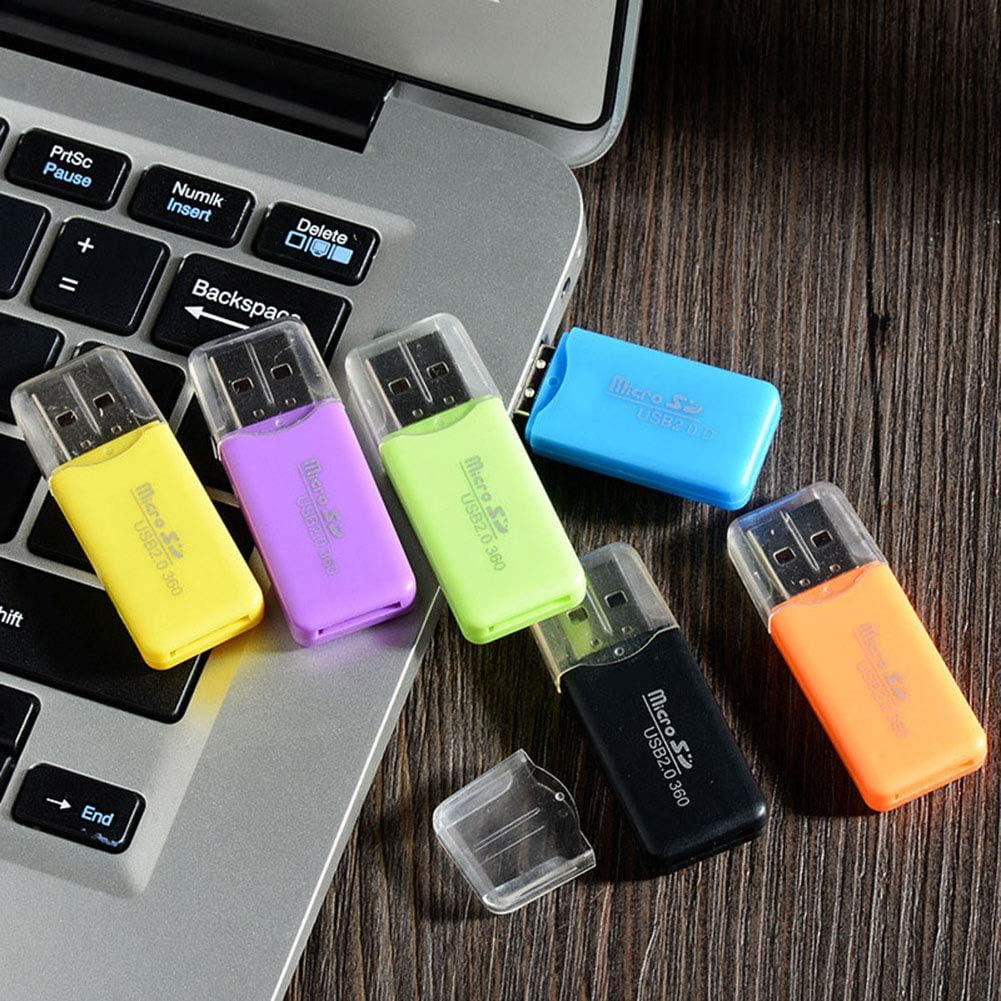
Image: Several card readers connected to a laptop, illustrating how they can be used simultaneously for data transfer.
การบำรุงรักษาและการดูแล
- รักษาความสะอาด: ใช้ผ้าแห้งเนื้อนุ่มเช็ดทำความสะอาดภายนอกของเครื่องอ่านบัตร หลีกเลี่ยงการใช้น้ำยาทำความสะอาดหรือสารละลาย
- ป้องกันขั้วต่อ: Keep the USB connector and the Micro SD card slot free from dust and debris. Use the included cap to protect the USB connector when not in use.
- หลีกเลี่ยงเงื่อนไขที่รุนแรง: Do not expose the card reader to extreme temperatures, humidity, or direct sunlight.
- ประคอง: Avoid dropping or subjecting the card reader to strong impacts.
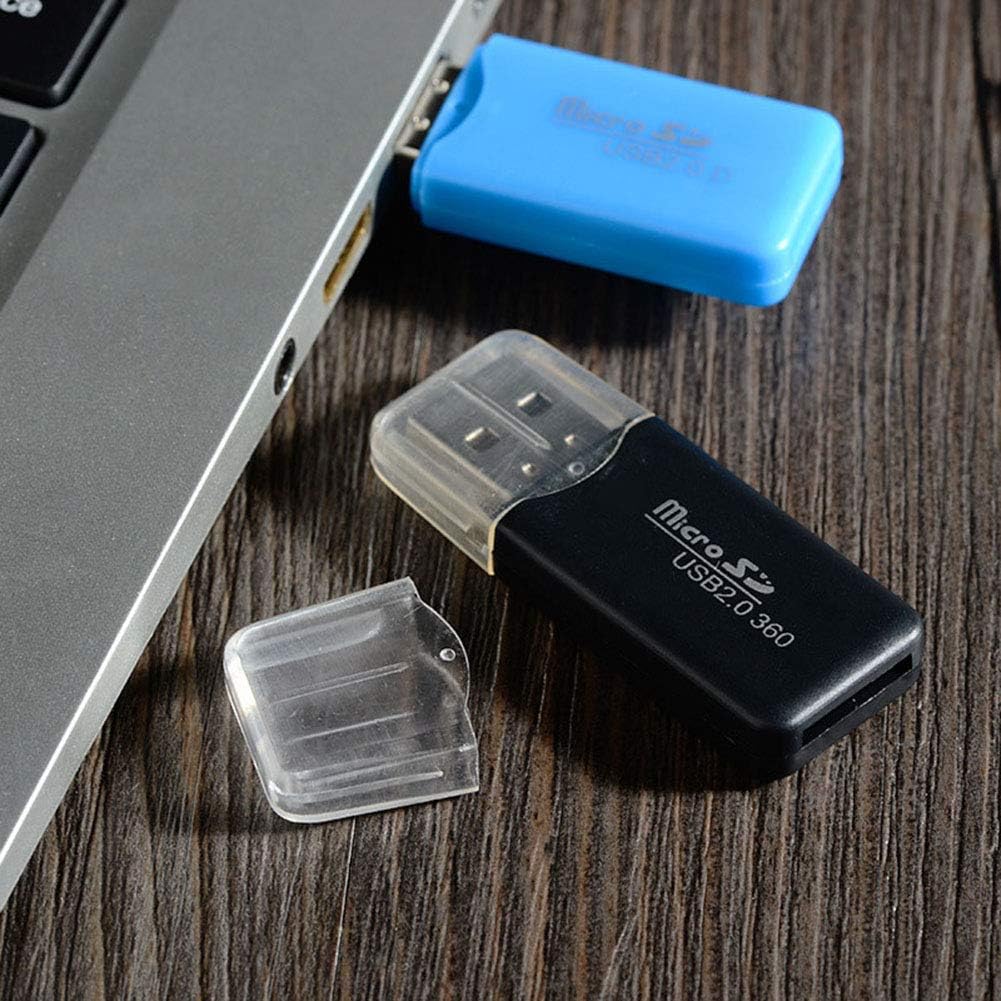
Image: A black card reader with its protective cap, demonstrating the removable cap feature for maintenance and protection.
การแก้ไขปัญหา
- Problem: Card reader not recognized by computer.
- สารละลาย:
- Ensure the card reader is fully inserted into the USB port.
- ลองใช้พอร์ต USB อื่นบนคอมพิวเตอร์ของคุณ
- Test the card reader on another computer to rule out a computer-specific issue.
- ตรวจสอบให้แน่ใจว่าระบบปฏิบัติการของคุณเป็นเวอร์ชันล่าสุด
- Problem: Micro SD card not detected.
- สารละลาย:
- Ensure the Micro SD card is correctly and fully inserted into the card reader slot.
- Try a different Micro SD card to check if the issue is with the card itself.
- Check if the Micro SD card is damaged or corrupted.
- ปัญหา: ความเร็วในการถ่ายโอนข้อมูลช้า
- สารละลาย:
- Ensure you are using a USB 2.0 port on your computer. While backward compatible, USB 1.1 ports will result in slower speeds.
- The speed of the Micro SD card itself can affect transfer rates. Use a high-speed card for faster transfers.
- หลีกเลี่ยงการรันแอปพลิเคชันที่มีความต้องการสูงหลายรายการในช่วงเวลาที่มีการใช้งานมาก file การโอนย้าย
ข้อมูลจำเพาะ
| ชื่อสินค้า | VizGiz Micro SD Card Reader |
| แบบอย่าง | USB 2.0 TF Card Reader |
| เทคโนโลยีการเชื่อมต่อ | ยูเอสบี 2.0 |
| ประเภทสื่อที่รองรับ | การ์ด Micro SD (TF) |
| ขนาด (กว้าง x ยาว x สูง) | 4.8 cm x 2 cm x 0.6 cm (Approx.) |
| น้ำหนัก | 18 g (for the pack of 6, individual weight not specified) |
| วัสดุ | พลาสติก |
| สี | Multicolor (Random Colors in pack) |
| ความเข้ากันได้ของระบบปฏิบัติการ | Windows ME/2000/XP/Vista/WIN 7, Mac OS |
ข้อมูลการรับประกัน
VizGiz products are designed for reliability and performance. While specific warranty details for this product are not provided in the general product description, standard consumer rights and return policies apply. For detailed warranty information, please refer to the purchase platform or contact the seller directly.
บันทึก: The product description mentions an optional "2-Year Extended Warranty by Salama Care" available for purchase. This is a third-party service and not directly provided by VizGiz.
การสนับสนุนลูกค้า
For any questions, technical assistance, or support regarding your VizGiz Micro SD Card Reader, please contact the seller or the customer service department of the platform where you purchased the product. Please have your order number and product details ready when contacting support.
For general inquiries about VizGiz products, you may visit the official VizGiz brand page on the respective e-commerce platform.