
1. บทนำ
This manual provides comprehensive instructions for the installation, operation, and maintenance of your PCCOOLER GI-CL240VC 240mm RGB All-in-One (AIO) CPU Liquid Cooler. Please read this manual thoroughly before installation to ensure correct setup and optimal performance. Retain this manual for future reference.
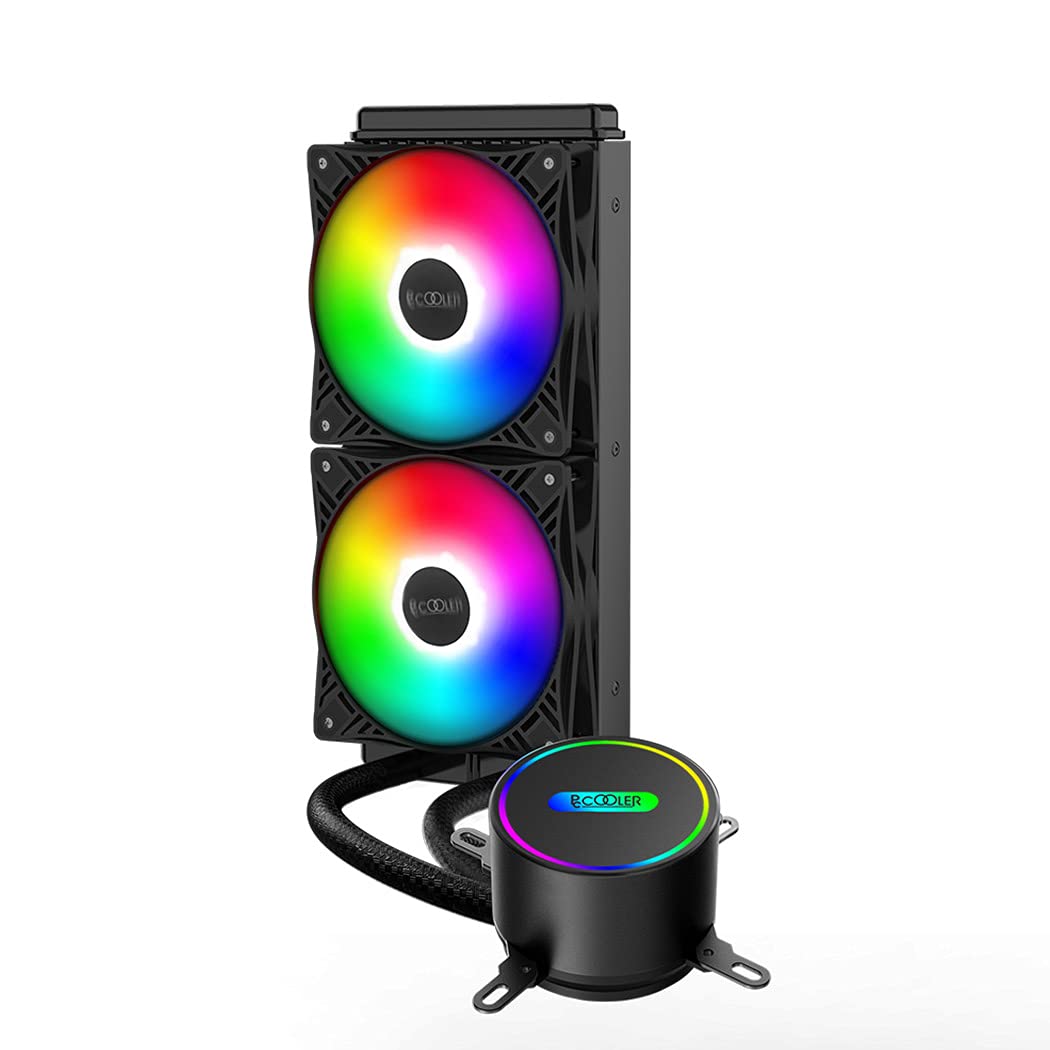
Figure 1.1: PCCOOLER GI-CL240VC 240mm RGB AIO CPU Liquid Cooler with dual fans and pump.
2. เนื้อหาบรรจุภัณฑ์
Verify that all components are present in the package before beginning installation. If any items are missing or damaged, contact your retailer or PCCOOLER support.
- 240mm Radiator with Integrated Pump and Cold Plate
- Two 120mm RGB PWM Fans
- Intel Mounting Bracket Kit (for LGA 1700/1200/115X/2011/2066)
- AMD Mounting Bracket Kit (for AM5/AM4/AM3+/AM3/AM2+/AM2/FM2+/FM2/FM1)
- สกรูพัดลมและสกรูยึดหม้อน้ำ
- น้ำยาระบายความร้อน (แบบทาไว้แล้วหรือแบบหลอด)
- สายแยกพัดลม
- RGB Controller Cable (if applicable)
- คู่มือการใช้งาน

Figure 2.1: Illustration of the PCCOOLER GI-CL240VC cooler components, including radiator, fans, and pump.
3. ข้อมูลด้านความปลอดภัย
โปรดปฏิบัติตามข้อกำหนดด้านความปลอดภัยต่อไปนี้ในระหว่างการติดตั้งและการใช้งาน:
- ตรวจสอบให้แน่ใจว่าระบบคอมพิวเตอร์ของคุณปิดอยู่และถอดปลั๊กออกจากเต้าเสียบที่ผนังก่อนการติดตั้ง
- จัดการส่วนประกอบต่างๆ ด้วยความระมัดระวังเพื่อหลีกเลี่ยงความเสียหาย
- ห้ามสัมผัสใบพัดลมขณะที่กำลังหมุน
- Do not attempt to open the pump or radiator, as this may void the warranty and cause leaks.
- เก็บผลิตภัณฑ์ให้ห่างจากของเหลวและอุณหภูมิที่สูงหรือต่ำเกินไป
4. การตั้งค่าและการติดตั้ง
Follow these steps carefully for proper installation. The process involves mounting the radiator, fans, and CPU block to your motherboard and case.
4.1. เตรียมหม้อน้ำและพัดลมให้พร้อม
- Attach the two 120mm RGB PWM fans to the radiator using the long fan screws. Ensure the fan airflow direction is appropriate for your case (typically blowing air through the radiator and out of the case, or into the case).
- Connect the fan power cables to the included fan splitter cable, then connect the splitter to a CPU_FAN or SYS_FAN header on your motherboard.
- If your fans have RGB cables, connect them to the RGB controller cable or directly to a compatible motherboard RGB header.

Figure 4.1: Enhanced nine-blade dual fans with RGB lighting.
4.2. Install the Radiator in Your PC Case
Mount the assembled radiator and fans to an available 240mm mounting location in your PC case (e.g., top, front, or side panel) using the shorter radiator mounting screws.
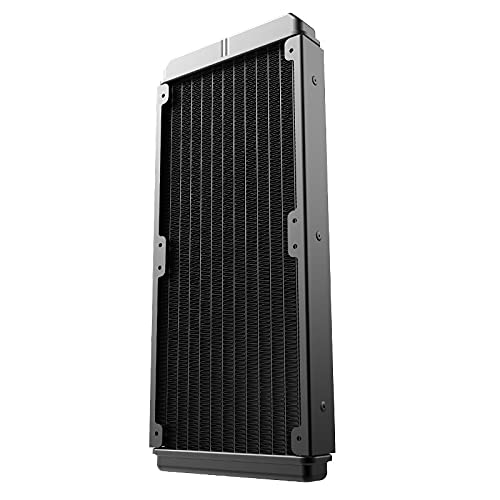
Figure 4.2: The 240mm radiator component of the liquid cooler.
4.3. Prepare the CPU Block for Your CPU Socket
Select the appropriate mounting bracket for your CPU socket (Intel or AMD) and attach it to the pump/cold plate unit. Refer to the specific instructions below for your CPU type.

Figure 4.3: Universal metal mounting kits and detailed view of the S-shaped radiator fins.
4.3.1. Intel Socket Installation (LGA 1700/1200/115X/2011/2066)
- Install the Intel backplate onto the rear of your motherboard, aligning the holes with the CPU socket.
- Secure the standoffs through the motherboard holes into the backplate.
- Ensure the thermal paste is applied to the CPU IHS (Integrated Heat Spreader). If pre-applied, remove the protective film from the cold plate.
- Place the CPU block onto the CPU, aligning the mounting holes with the standoffs.
- Secure the CPU block with the provided thumb screws, tightening them in a diagonal pattern until snug. Do not overtighten.
4.3.2. AMD Socket Installation (AM5/AM4/AM3+/AM3/AM2+/AM2/FM2+/FM2/FM1)
- Remove the plastic retention clips from the stock AMD backplate (if present). The stock AMD backplate is typically used.
- Install the AMD standoffs onto the stock backplate.
- Ensure the thermal paste is applied to the CPU IHS. If pre-applied, remove the protective film from the cold plate.
- Place the CPU block onto the CPU, aligning the mounting holes with the standoffs.
- Secure the CPU block with the provided thumb screws, tightening them in a diagonal pattern until snug. Do not overtighten.

รูปที่ 4.4: ระยะใกล้ view of the CPU block with mounting hardware.

Figure 4.5: Minimalist style CPU block featuring RGB lighting.
4.4. Connect Pump Power
Connect the pump's 3-pin or 4-pin power cable to the CPU_OPT or AIO_PUMP header on your motherboard. Ensure the pump is receiving full power for optimal performance.
5. คู่มือการใช้งาน
Once installed, the PCCOOLER GI-CL240VC operates automatically. The pump and fans will adjust their speed based on CPU temperature, controlled by your motherboard's BIOS settings or dedicated software.
- เปิดเครื่องครั้งแรก: After completing installation, power on your system. Check for any unusual noises or leaks.
- การตั้งค่า BIOS/UEFI: Access your motherboard's BIOS/UEFI to ensure the CPU_FAN or AIO_PUMP header is set to PWM mode and configured for optimal cooling performance.
- การควบคุม RGB: If connected to a compatible motherboard RGB header, use your motherboard's RGB software to customize lighting effects. If an external controller is used, refer to its specific instructions.
6. การบำรุงรักษา
Regular maintenance ensures the longevity and efficiency of your liquid cooler.
- การทำความสะอาดฝุ่น: ควรทำความสะอาดฝุ่นจากครีบหม้อน้ำและใบพัดลมเป็นระยะ โดยใช้ลมเป่าหรือแปรงขนนุ่ม ตรวจสอบให้แน่ใจว่าพัดลมไม่หมุนขณะทำความสะอาด
- การจัดการสายเคเบิล: ตรวจสอบให้แน่ใจว่าสายเคเบิลทั้งหมดถูกจัดวางอย่างเรียบร้อยและไม่กีดขวางการไหลเวียนของอากาศหรือการทำงานของพัดลม
- การตรวจสอบการรั่วไหล: While AIO coolers are sealed, occasionally inspect the tubing and connections for any signs of leakage.
- น้ำยาระบายความร้อน: For long-term use (typically every 3-5 years), consider reapplying thermal paste to the CPU for optimal heat transfer.
7 การแก้ไขปัญหา
หากคุณพบปัญหา โปรดดูปัญหาทั่วไปและวิธีแก้ไขต่อไปนี้:
- อุณหภูมิ CPU สูง:
- Ensure the CPU block is securely mounted and making full contact with the CPU.
- Verify that the pump is running (check BIOS/UEFI or listen for a faint hum).
- Confirm fans are spinning and correctly oriented for airflow.
- ตรวจสอบว่าได้ทาซิลิโคนระบายความร้อนอย่างถูกต้องหรือไม่
- Fans Not Spinning/RGB Not Working:
- ตรวจสอบการเชื่อมต่อพัดลมและสาย RGB ทั้งหมดกับเมนบอร์ดหรือตัวควบคุม
- Ensure fan headers in BIOS/UEFI are configured correctly.
- Verify RGB software settings.
- เสียงผิดปกติ:
- Identify if the noise is from fans (check for obstructions or loose screws) or the pump.
- A slight gurgling sound initially is normal as air bubbles settle. If persistent, ensure the radiator is mounted higher than the pump.
8. ข้อมูลจำเพาะ
| คุณสมบัติ | ข้อมูลจำเพาะ |
|---|---|
| แบบอย่าง | GI-CL240VC |
| ยี่ห้อ | PCCOOLER |
| ขนาดหม้อน้ำ | 240มม. |
| ขนาดพัดลม | 120 มม. (x2) |
| ความเร็วในการหมุนสูงสุด | 1600 รอบต่อนาที |
| ระดับเสียง | 30 เดซิเบล |
| วิธีการทำความเย็น | น้ำ |
| ประเภทวัสดุ | ทองแดง (แผ่นเย็น) |
| ประเภทตัวเชื่อมต่อกระแสไฟ | 4-Pin (Fans), 3/4-Pin (Pump) |
| อุปกรณ์ที่รองรับ | เดสก์ท็อป |
| ซ็อกเก็ตที่เข้ากันได้ | Intel LGA 1700/1200/115X/2011/2066, AMD AM5/AM4/AM3+/AM3/AM2+/AM2/FM2+/FM2/FM1 |
9. การรับประกันและการสนับสนุน
PCCOOLER products come with a limited warranty. For detailed warranty information, please refer to the warranty card included with your product or visit the official PCCOOLER website. If you require technical assistance or have questions regarding your GI-CL240VC cooler, please contact PCCOOLER customer support through their official channels.