
1. บทนำ
The Avision AV332U is a high-performance duplex sheetfed scanner designed for efficient document processing in business environments. It offers fast scanning speeds of 32 pages per minute (ppm) and 64 images per minute (ipm), making it suitable for various scanning needs.
This scanner is capable of handling a wide range of media, including standard documents, plastic ID cards, business cards, and other heavy card stock up to 1.25 mm thick. Its straight paper path design ensures smooth feeding for paper weights from 27 to 413 g/m² (7 to 110 lb) and sizes up to 8.5” x 14” (legal).
Equipped with ultrasonic multi-feed detection, the AV332U prevents missing pages by accurately identifying and alerting users to instances where multiple sheets are fed simultaneously. With an optical resolution of 600 dpi and advanced image processing technology, the scanner ensures high-quality digital conversions of your documents. The built-in CIS (Contact Image Sensor) module eliminates warm-up time, allowing for immediate operation.
The AV332U features a compact and stylish design with foldable input and output paper trays, which not only save desk space when not in use but also protect the unit from dust. It comes bundled with powerful software applications, including Avision Button Manager, AVScan, and PaperPort, to enhance scanning and document management workflows.
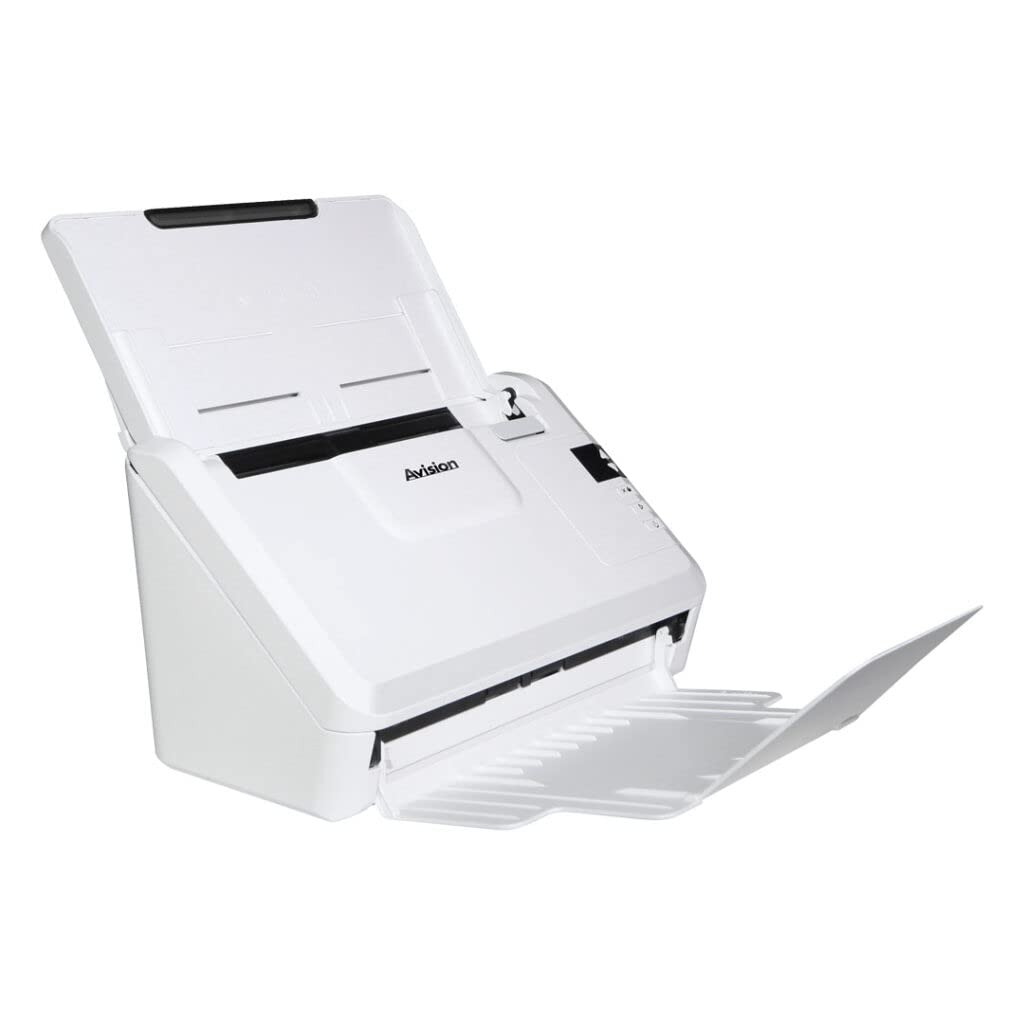
Figure 1.1: Avision AV332U Document Scanner (Trays Closed)
2. คำแนะนำในการตั้งค่า
2.1 การแกะกล่องเครื่องสแกนเนอร์
- ถอดเครื่องสแกนเนอร์และอุปกรณ์เสริมทั้งหมดออกจากบรรจุภัณฑ์อย่างระมัดระวัง
- Verify that all components are present: scanner unit, power adapter, USB cable, and software installation disc (if included).
- Remove any protective films or packing materials from the scanner.
2.2 การเชื่อมต่อเครื่องสแกนเนอร์
- Place the scanner on a stable, flat surface. Ensure adequate space for the input and output trays to extend.
- Connect the power adapter to the scanner's power input port and then plug it into an electrical outlet.
- เสียบปลายด้านหนึ่งของสาย USB เข้ากับพอร์ต USB ของเครื่องสแกน และเสียบปลายอีกด้านหนึ่งเข้ากับพอร์ต USB ที่ว่างอยู่บนคอมพิวเตอร์ของคุณ
2.3 การติดตั้งซอฟต์แวร์
The Avision AV332U requires driver and software installation for full functionality. The scanner supports TWAIN and ISIS drivers.
- Insert the provided software installation disc into your computer's optical drive, or download the latest drivers and software from the official Avision support webเว็บไซต์.
- Follow the on-screen instructions to install the scanner drivers and bundled applications (Avision Button Manager, AVScan, PaperPort).
- Restart your computer after the installation is complete, if prompted.

Figure 2.1: Avision AV332U Document Scanner with Trays Extended
3. คู่มือการใช้งาน
3.1 การโหลดเอกสาร
- Extend the input and output paper trays.
- ปรับตัวกั้นกระดาษให้ตรงกับความกว้างของเอกสารของคุณ
- Place the documents face down in the input tray, ensuring they are aligned properly. For plastic ID cards or business cards, insert them into the designated slot or follow specific instructions in the software.
- Ensure the stack of documents does not exceed the maximum capacity indicated by the scanner.
3.2 การใช้แผงควบคุม
The scanner features a control panel with buttons for quick access to common scanning functions.
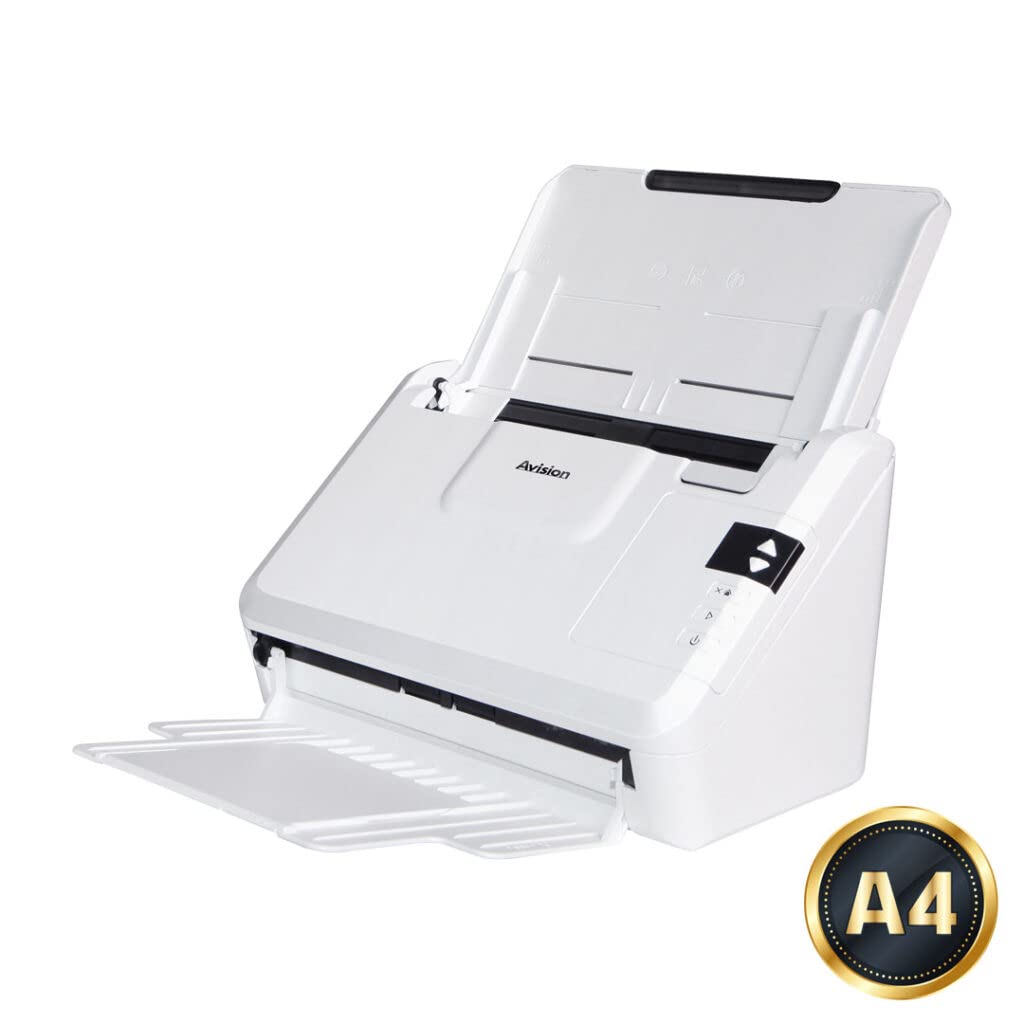
Figure 3.1: Avision AV332U Control Panel
- ปุ่มเปิด/ปิด: เปิดหรือปิดเครื่องสแกน
- ปุ่มสแกน: Initiates a scan using the default or pre-configured settings.
- Function Buttons (e.g., Up/Down arrows, Mode): Used to select different scanning profiles or destinations configured in the Button Manager software.
3.3 Scanning with Button Manager
Avision Button Manager allows you to create custom scanning profiles and assign them to the scanner's function buttons. This enables one-touch scanning to various destinations.
- Open the Avision Button Manager software on your computer.
- Configure a new scan profile or select an existing one. You can set parameters such as scan mode (color, grayscale, black & white), resolution, file format (PDF, JPEG, TIFF), and destination (email, printer, local folder, cloud services like Google Drive or Evernote).
- มอบหมายให้มืออาชีพfile to a specific function button on the scanner's control panel.
- Load your documents into the scanner.
- Press the assigned function button on the scanner to initiate the scan. The documents will be processed according to the selected profile.
3.4 Using AVScan and PaperPort
AVScan and PaperPort are powerful applications for image processing and document management:
- AVScan: Provides advanced image enhancement features, such as de-skew, auto-crop, blank page removal, and color detection, to optimize scanned images.
- PaperPort: A document management system that helps organize, view, edit, and share scanned documents and other digital files. It includes features for creating searchable PDFs and integrating with various applications.
Refer to the respective software's help documentation for detailed instructions on using these applications.
4. การบำรุงรักษา
Regular maintenance ensures optimal performance and extends the lifespan of your Avision AV332U scanner.
4.1 การทำความสะอาดสแกนเนอร์
Dust and paper residue can accumulate inside the scanner, affecting scan quality. Clean the scanner regularly.
- หมดแรง: Always turn off the scanner and unplug the power adapter before cleaning.
- การทำความสะอาดภายนอก: Wipe the exterior of the scanner with a soft, lint-free cloth dampened with a mild, non-abrasive cleaner. Avoid using harsh chemicals or solvents.
- Interior Cleaning (CIS and Rollers):
- Open the scanner cover to access the interior.
- Gently wipe the glass surface of the CIS (Contact Image Sensor) module with a clean, soft cloth or a specialized lens cleaning wipe.
- Clean the paper feed rollers with a cloth lightly dampened with isopropyl alcohol. Rotate the rollers manually to clean the entire surface.
- Allow all cleaned parts to dry completely before closing the scanner cover and powering it on.
- การป้องกันฝุ่น: When not in use, fold the input and output paper trays to protect the scanner's internal components from dust accumulation.
4.2 การเปลี่ยนวัสดุสิ้นเปลือง
Over time, certain parts like feed rollers may wear out. Refer to the scanner's detailed service manual or contact Avision support for information on replacing consumables.
5 การแก้ไขปัญหา
This section provides solutions to common issues you might encounter with your Avision AV332U scanner.
| ปัญหา | สาเหตุที่เป็นไปได้ | สารละลาย |
|---|---|---|
| เครื่องสแกนเนอร์ไม่สามารถเปิดเครื่องได้ | สายไฟไม่ได้เชื่อมต่ออย่างถูกต้อง ปัญหาอยู่ที่ปลั๊กไฟ | Ensure the power adapter is securely connected to the scanner and a working electrical outlet. Try a different outlet. |
| คอมพิวเตอร์ตรวจไม่พบเครื่องสแกน | USB cable loose or faulty; drivers not installed or corrupted. | Check USB cable connections. Try a different USB port or cable. Reinstall scanner drivers from the Avision webเว็บไซต์. |
| Paper jam occurs frequently. | Documents not loaded correctly; worn-out rollers; foreign objects in paper path. | Ensure documents are aligned and within specifications. Clean the paper feed rollers. Remove any debris from the paper path. |
| Poor scan quality (streaks, blurry images). | Dirty CIS glass or rollers; incorrect scan settings. | Clean the CIS glass and paper feed rollers as described in the Maintenance section. Adjust scan resolution and image settings in the software. |
| Multi-feed detection errors. | Dust on ultrasonic sensor; documents stuck together. | Clean the ultrasonic sensor (refer to service manual). Ensure documents are separated before loading. |
If you encounter an issue not listed here or if the suggested solutions do not resolve the problem, please contact Avision customer support for further assistance.
6. ข้อมูลจำเพาะ
Below are the technical specifications for the Avision AV332U Document Scanner:
| คุณสมบัติ | ข้อมูลจำเพาะ |
|---|---|
| ประเภทสแกนเนอร์ | ป้อนกระดาษ |
| ยี่ห้อ | การแจ้งเตือน |
| ชื่อรุ่น | เอวี332ยู |
| เทคโนโลยีการเชื่อมต่อ | ยูเอสบี |
| ความละเอียดออฟติคัล | 600 จุดต่อนิ้ว |
| เทคโนโลยีเซ็นเซอร์ออปติคัล | CIS (เซ็นเซอร์รับภาพสัมผัส) |
| ประเภทแหล่งกำเนิดแสง | นำ |
| การรองรับขนาดกระดาษ | Legal (up to 8.5" x 14") |
| ความจุแผ่นมาตรฐาน | 413 g/m² (max paper weight) |
| น้ำหนักสินค้า | 2.2 กิโลกรัม |
| ข้อกำหนดขั้นต่ำของระบบ | วินโดวส์ 7 |
| ประเทศต้นกำเนิด | จีน |
| ผู้ผลิต | การแจ้งเตือน |
7. การรับประกันและการสนับสนุน
7.1 ข้อมูลการรับประกัน
For specific warranty terms and conditions applicable to your Avision AV332U scanner, please refer to the warranty card included with your product or the purchase documentation provided by your retailer. Warranty periods and coverage may vary by region and point of purchase.
7.2 การสนับสนุนด้านเทคนิค
If you require technical assistance, have questions about your scanner's operation, or need to report a defect, please contact Avision customer support. You can typically find contact information (phone numbers, email addresses, or support portals) on the official Avision webไซต์หรือในบรรจุภัณฑ์ผลิตภัณฑ์ของคุณ
When contacting support, please have your scanner's model number (AV332U) and serial number readily available to expedite the service process.