
1. บทนำ
The NETVIP WiFi Repeater Model WN531 is designed to extend the coverage of your existing wireless network. It eliminates Wi-Fi dead zones by boosting your current Wi-Fi signal, providing a strong and reliable connection in areas where your router's signal is weak or non-existent. This device supports wireless speeds of up to 300Mbps on the 2.4GHz band and is compatible with IEEE 802.11 b/g/n standards, working with most standard wireless routers.

Image 1.1: The NETVIP WiFi Repeater extending wireless coverage in a home environment.
2. เนื้อหาบรรจุภัณฑ์
กรุณาตรวจสอบสิ่งของภายในบรรจุภัณฑ์เมื่อเปิดออกเพื่อให้แน่ใจว่ามีสินค้าครบทั้งหมด:
- 1 x NETVIP WiFi Repeater (Model WN531)
- 1 x Ethernet Cable
- 1 x คู่มือผู้ใช้

Image 2.1: Contents of the NETVIP WiFi Repeater package, including the device, Ethernet cable, and user manual.
3. คุณสมบัติของผลิตภัณฑ์
- Enhanced Wi-Fi Coverage: Extends wireless signal to previously unreachable areas, providing a strong and reliable Wi-Fi connection with up to 300Mbps wireless speed.
- เข้ากันได้สากล: Complies with IEEE 802.11 b/g/n standards, ensuring compatibility with virtually any wireless router.
- Dual Functionality (2-in-1): Supports both Repeater Mode and Access Point (AP) Mode, allowing flexible deployment based on your network needs. Works with various wireless devices including smart home devices, computers, mobile phones, and IP cameras.
- การออกแบบที่กะทัดรัด: Plugs directly into a standard wall outlet, featuring a discreet and space-saving design.
- ตั้งค่าได้ง่าย: Installation can be completed quickly and easily via your smartphone, tablet, or laptop.

Image 3.1: Illustration of the 2.4G wireless signal support and enhanced wall penetration for wider coverage.
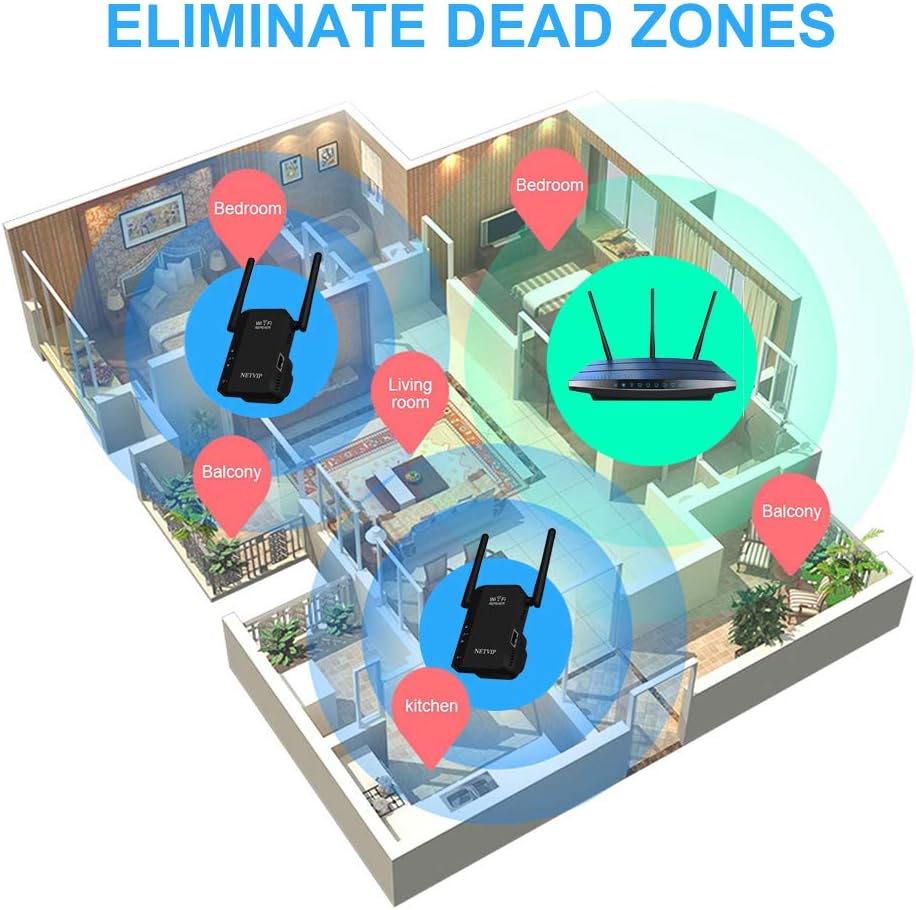
Image 3.2: Diagram showing how the WiFi Repeater helps eliminate dead zones in a multi-room environment.
4. สินค้าหมดview (Physical Components)
Familiarize yourself with the physical components of your NETVIP WiFi Repeater:
- ไฟ LED: Indicate power, Wi-Fi signal status, and Ethernet connection.
- ปุ่มรีเซ็ต: ใช้สำหรับคืนค่าอุปกรณ์กลับสู่การตั้งค่าเริ่มต้นจากโรงงาน
- พอร์ต LAN: An Ethernet port for wired connections in AP Mode or for connecting a wired device in Repeater Mode.

ภาพที่ 4.1: รายละเอียด view of the NETVIP WiFi Repeater highlighting the LED lights, Reset Button, and LAN Port.
5. คู่มือการติดตั้ง
Follow these steps to set up your NETVIP WiFi Repeater:
- เปิดเครื่อง: Plug the repeater into a standard wall outlet near your main router. Wait for the power LED to light up.
- เชื่อมต่อกับ Wi-Fi ของตัวขยายสัญญาณ: On your smartphone, tablet, or laptop, search for available Wi-Fi networks. Connect to the network named 'Wireless-N' or similar (check the label on the device for the exact default SSID). No password is required for the initial connection.
- เข้าถึง Web อินเทอร์เฟซ: เปิด web เปิดเบราว์เซอร์ (เช่น Chrome, Firefox) แล้วป้อนที่อยู่ IP เริ่มต้น (โดยปกติ) 192.168.10.1 or 192.168.1.254) into the address bar. You may be prompted to enter a default username and password (often 'admin' for both).
- เลือกโหมดการทำงาน: Once logged in, you will see the setup wizard. Choose your desired operating mode:
- โหมดทวน: To extend an existing Wi-Fi network.
- โหมด AP: To create a new Wi-Fi network from a wired Ethernet connection.
- กำหนดค่าการตั้งค่าเครือข่าย:
- สำหรับโหมดรีพีเตอร์: Select your main Wi-Fi network from the list, enter its password, and choose a new SSID (network name) for your extended network or keep the original.
- สำหรับโหมด AP: Set a new SSID and password for the new Wi-Fi network that the repeater will create. Connect an Ethernet cable from your main router to the repeater's LAN port.
- Apply Settings and Relocate: Apply the settings. The repeater will restart. Once restarted, you can unplug it and move it to a suitable location between your router and the Wi-Fi dead zone. Ensure the signal LED indicates a good connection to your main router.
6. โหมดการทำงาน
The NETVIP WiFi Repeater supports two primary operating modes:
6.1. โหมดทวนสัญญาณ
In Repeater Mode, the device wirelessly connects to your existing router's Wi-Fi network and re-transmits the signal, effectively extending its range. This is ideal for eliminating Wi-Fi dead zones in your home or office.

Image 6.1: Diagram illustrating the Repeater Mode, where the device extends the signal from a wireless router to WLAN clients.
6.2. โหมดจุดเชื่อมต่อ (AP)
In AP Mode, the device connects to your wired router via an Ethernet cable and transforms the wired internet connection into a new wireless network. This is useful for adding Wi-Fi capability to a wired-only network or creating a separate Wi-Fi network.
Image 6.2: Diagram illustrating the AP Mode, where the device creates a wireless network from a wired router connection for WLAN clients.
7. การบำรุงรักษา
To ensure optimal performance and longevity of your NETVIP WiFi Repeater, consider the following maintenance tips:
- การจัดวาง: Place the repeater in an open area, away from obstructions like large metal objects, concrete walls, and other electronic devices that may cause interference.
- การทำความสะอาด: Keep the device clean and free from dust. Use a soft, dry cloth to wipe the exterior. Do not use liquid cleaners.
- อัพเดตเฟิร์มแวร์: ตรวจสอบเว็บไซต์ทางการของ NETVIP เป็นระยะ website for any available firmware updates. Updating the firmware can improve performance, add new features, and fix bugs.
- การระบายอากาศ : Ensure the device has adequate ventilation to prevent overheating. Do not cover the ventilation holes.
8 การแก้ไขปัญหา
If you encounter issues with your NETVIP WiFi Repeater, refer to the following common problems and solutions:
- Cannot connect to the repeater's default Wi-Fi (Wireless-N):
- Ensure the repeater is powered on and the power LED is lit.
- Try resetting the repeater to factory defaults by pressing and holding the Reset button for 5-10 seconds.
- Ensure your device's Wi-Fi is enabled and scanning for networks.
- ไม่สามารถเข้าถึง web หน้าการจัดการ (192.168.10.1):
- Verify that your device is connected to the repeater's Wi-Fi network (e.g., 'Wireless-N').
- Ensure you are typing the correct IP address into the browser's address bar.
- ลองแบบอื่น web หรือล้างแคชของเบราว์เซอร์ของคุณ
- Temporarily disable any VPN or firewall software on your device.
- Repeater is not extending the Wi-Fi signal or signal is weak:
- Relocate the repeater to a position halfway between your router and the desired coverage area. The signal LED should indicate a good connection to your main router.
- Ensure the password for your main Wi-Fi network was entered correctly during setup.
- ตรวจสอบการรบกวนจากอุปกรณ์อิเล็กทรอนิกส์อื่นๆ
- Update the repeater's firmware if available.
- Slow internet speed through the repeater:
- Ensure the repeater is placed in an optimal location with a strong signal from the main router.
- Reduce the number of devices connected to the repeater.
- Check your main internet connection speed.
9. ข้อมูลจำเพาะ
| คุณสมบัติ | ข้อมูลจำเพาะ |
|---|---|
| แบบอย่าง | WN531 |
| ยี่ห้อ | เน็ตวีพี |
| มาตรฐานการสื่อสารไร้สาย | 802.11b, 802.11n |
| อัตราการถ่ายโอนข้อมูล | 300 เมกะบิตต่อวินาที |
| สี | สีดำ |
| อุปกรณ์ที่รองรับ | เราเตอร์ |
| ขนาดแพ็คเกจ | 10.4 x 10.2 x 10 ซม. |
| น้ำหนักสินค้า | 180 กรัม |
10. การรับประกันและการสนับสนุน
The NETVIP WiFi Repeater Model WN531 comes with a สินค้ารับประกัน 1 ปี นับจากวันที่ซื้อ การรับประกันนี้ครอบคลุมถึงข้อบกพร่องจากการผลิตและการทำงานผิดปกติภายใต้การใช้งานปกติ
For technical support, warranty claims, or any questions regarding your device, please contact NETVIP customer service through the retailer's platform or the official NETVIP website. Please have your purchase receipt and product model number (WN531) ready when contacting support.