
1. บทนำ
Thank you for choosing the IROAD X5 Dash Cam. This device is designed to record your driving journey in Full HD, providing crucial evidence in case of an incident. It features front and rear cameras, Wi-Fi connectivity for smartphone access, a G-Sensor for impact detection, and advanced driver assistance systems (ADAS). Please read this manual carefully before installation and operation to ensure proper use and optimal performance.

Figure 1: IROAD X5 Dash Cam (Front and Rear Units)
2. สินค้าหมดview
2.1 เนื้อหาบรรจุภัณฑ์
- หน่วยหลัก (กล้องหน้า)
- กล้องหลัง
- Wi-Fi Dongle
- IROAD Genuine 16GB MicroSD Card
- ตัวยึด
- Constant Power Cable (3m)
- Rear Camera Connection Cable (6m)
- คู่มือการใช้งาน (เอกสารนี้)
- Spare Double-sided Tape
2.2 คุณสมบัติหลัก
- การบันทึกแบบ Full HD สองจอพร้อมกัน: Front and rear cameras record in 1920x1080P at 30fps.
- กว้าง Viewอิงมุม: สนาม 140° ของ view สำหรับทั้งกล้องหน้าและกล้องหลัง
- จีเซ็นเซอร์: 3-axis acceleration sensor for automatic impact detection and event recording.
- การเชื่อมต่อ Wi-Fi: Connect to your smartphone via Wi-Fi for live view, playback, and settings adjustment.
- ADAS (Advanced Driver Assistance System): Includes Lane Departure Warning, Front Vehicle Departure Warning, and Forward Collision Warning.
- โหมดการบันทึกต่างๆ: Continuous, Impact, Parking, and Motion Detection recording.
- การมองเห็นตอนกลางคืน: ปรับปรุงคุณภาพการบันทึกในสภาพแสงน้อย
- การบันทึกเสียง: On/Off selectable.
3. การตั้งค่า
3.1 การใส่การ์ด MicroSD
- ตรวจสอบให้แน่ใจว่ากล้องติดรถยนต์ปิดอยู่
- Locate the MicroSD card slot on the main unit.
- Insert the provided 16GB MicroSD card into the slot until it clicks into place. Ensure the correct orientation.
3.2 การติดตั้งกล้องหน้า
- ทำความสะอาดบริเวณกระจกหน้ารถที่คุณต้องการติดตั้งกล้อง
- Attach the mounting bracket to the front camera.
- Peel off the protective film from the double-sided tape on the bracket.
- Mount the front camera on the windshield, ideally behind the rearview กระจกเพื่อให้มองเห็นได้ชัดเจน view of the road. Press firmly for secure adhesion.

Figure 2: IROAD X5 Front Camera
3.3 การติดตั้งกล้องหลัง
- ทำความสะอาดบริเวณกระจกหลัง
- Attach the rear camera to the rear window using the double-sided tape, ensuring a clear view.
- Connect the rear camera to the main unit using the provided 6m rear camera connection cable. Route the cable neatly along the vehicle's interior trim.
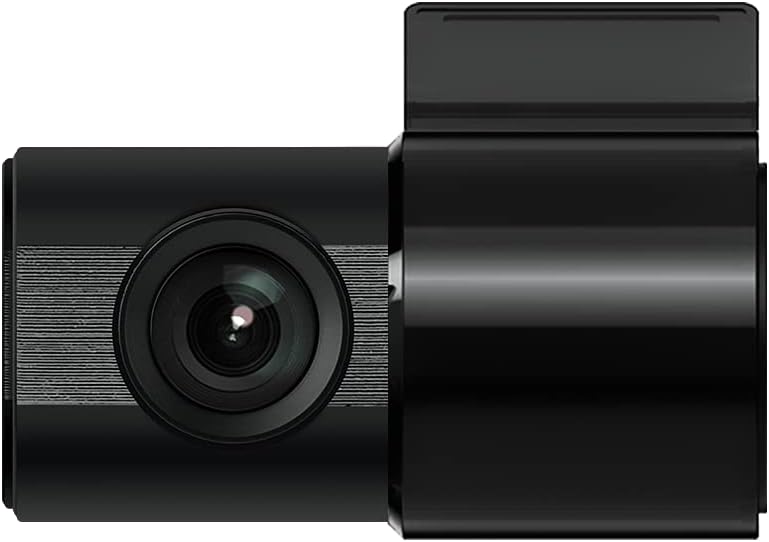
Figure 3: IROAD X5 Rear Camera
3.4 การเชื่อมต่อสายไฟ
- Connect the constant power cable to the main unit's power input port.
- Connect the other end of the power cable to your vehicle's power source (e.g., OBDII port for general and hybrid vehicles, if using the optional OBDII power cable, or fuse box for constant power). Consult a professional for hardwiring if unsure.
3.5 Wi-Fi Dongle Connection (Optional)
If your model requires an external Wi-Fi dongle, insert it into the designated USB port on the main unit. This enables Wi-Fi connectivity for smartphone app control.
4. คู่มือการใช้งาน
4.1 ระบบเปิด/ปิดอัตโนมัติ
The IROAD X5 Dash Cam will automatically power on and begin recording when your vehicle's ignition is turned on. It will power off automatically when the ignition is turned off.
4.2 โหมดการบันทึก
- การบันทึกต่อเนื่อง: The dash cam continuously records while driving. Older files are overwritten by new ones when the MicroSD card is full.
- การบันทึกแรงกระแทก: When the G-Sensor detects a sudden impact or collision, the dash cam automatically saves the current recording segment as an event fileเพื่อป้องกันไม่ให้ถูกเขียนทับ
- การบันทึกที่จอดรถ: When the vehicle is parked and the ignition is off, the dash cam enters parking mode. It records events triggered by motion detection or impacts.
- การบันทึกการตรวจจับความเคลื่อนไหว: In parking mode, the camera records when motion is detected in its field of view.
4.3 ADAS Functions
The IROAD X5 includes Advanced Driver Assistance Systems to enhance driving safety:
- Lane Departure Warning (LDWS): แจ้งเตือนคุณหากรถของคุณเบี่ยงออกนอกเลน
- ระบบเตือนการออกตัวของรถคันหน้า (FVDW): Notifies you when the vehicle in front starts moving from a stop.
- Forward Collision Warning (FCWS): แจ้งเตือนคุณถึงความเป็นไปได้ที่จะเกิดการชนกับรถคันหน้า
These features can be configured via the IROAD smartphone application.
4.4 การบันทึกเสียง
Audio recording is enabled by default. You can toggle this feature on or off through the IROAD smartphone application settings.
4.5 Using the IROAD App (Wi-Fi)
- Download the "IROAD" app from your smartphone's app store.
- เปิดกล้องหน้ารถ
- On your smartphone, go to Wi-Fi settings and connect to the IROAD dash cam's Wi-Fi network (SSID and password can be found in the app or on the device label).
- Open the IROAD app to access live view, recorded videos, and adjust settings.
5. การบำรุงรักษา
5.1 การจัดการการ์ด MicroSD
It is recommended to format the MicroSD card regularly (e.g., once a month) to maintain optimal recording performance and prevent data corruption. This can be done through the IROAD smartphone app or by removing the card and formatting it on a computer.
5.2 การทำความสะอาดเลนส์
Periodically clean the front and rear camera lenses with a soft, dry cloth to ensure clear video quality. Avoid using abrasive cleaners.
การอัปเดตเฟิร์มแวร์ 5.3 รายการ
Check the official IROAD website or the IROAD app for available firmware updates. Keeping your dash cam's firmware up-to-date ensures the latest features and bug fixes.
6 การแก้ไขปัญหา
| ปัญหา | สาเหตุที่เป็นไปได้ / วิธีแก้ไข |
|---|---|
| กล้องติดรถยนต์ไม่สามารถเปิดได้ | Check power cable connection. Ensure vehicle ignition is on. Verify fuse in power cable or vehicle's fuse box. |
| No recording or recording stops. | MicroSD card may be full or corrupted. Format the MicroSD card. Ensure the card is inserted correctly. |
| ปัญหาการเชื่อมต่อ Wi-Fi | Ensure Wi-Fi dongle is properly connected (if applicable). Restart the dash cam and your smartphone. Check Wi-Fi settings on your phone. |
| คุณภาพวิดีโอไม่ดี | Clean camera lenses. Ensure protective film is removed from lenses. Check recording resolution settings in the app. |
| ADAS warnings are inaccurate. | Ensure the camera is properly calibrated and mounted centrally. Environmental factors (heavy rain, fog) can affect performance. |
7. ข้อมูลจำเพาะ
| คุณสมบัติ | ข้อมูลจำเพาะ |
|---|---|
| ทุ่งแห่ง View (หน้า/หลัง) | 140° |
| Resolution (Front/Rear) | Full HD 1920x1080P |
| Frame Rate (Front/Rear) | 30 เฟรมต่อวินาที |
| โหมดการบันทึก | Continuous, Impact, Parking, Motion Detection |
| คุณสมบัติ ADAS | Lane Departure Warning, Front Vehicle Departure Warning, Forward Collision Warning |
| จีเซนเซอร์ | เซ็นเซอร์การเร่งความเร็วแบบ 3 แกน |
| การบันทึกเสียง | On/Off selectable |
| การใช้พลังงาน | 2.6วัตต์ |
| อุณหภูมิในการทำงาน | -30°C ถึง 75°C |
| สื่อบันทึกข้อมูล | การ์ด MicroSD (มีให้มาด้วย 16GB) |
| ขนาดหน่วยหลัก | 90 x 40 x 30มม. |
| น้ำหนักต่อหน่วยหลัก | 60กรัม |
| การเชื่อมต่อ | ไวไฟ |
| ประเภทจอภาพ | LCD (4 inch, if applicable, though product description implies no screen on main unit) |
| วิธีการติดตั้ง | กาว |
8. การรับประกันและการสนับสนุน
For warranty information, technical support, or service inquiries, please refer to the warranty card included with your product or visit the official IROAD webไซต์ โปรดเก็บใบเสร็จรับเงินไว้เป็นหลักฐานการซื้อสำหรับการเรียกร้องการรับประกัน