
การแนะนำ
Thank you for choosing the Newskill Manticore Gaming PC Case. This manual provides essential information for the proper installation, operation, and maintenance of your new PC chassis. Please read these instructions carefully before beginning the assembly process to ensure optimal performance and longevity of your components.
สินค้าเกินview
The Newskill Manticore is an ATX mid-tower gaming PC case designed for high-performance builds. It features a mesh front panel for superior airflow, a tempered glass side panel to showcase your components, and four pre-installed 120mm ARGB fans for effective cooling and customizable aesthetics.
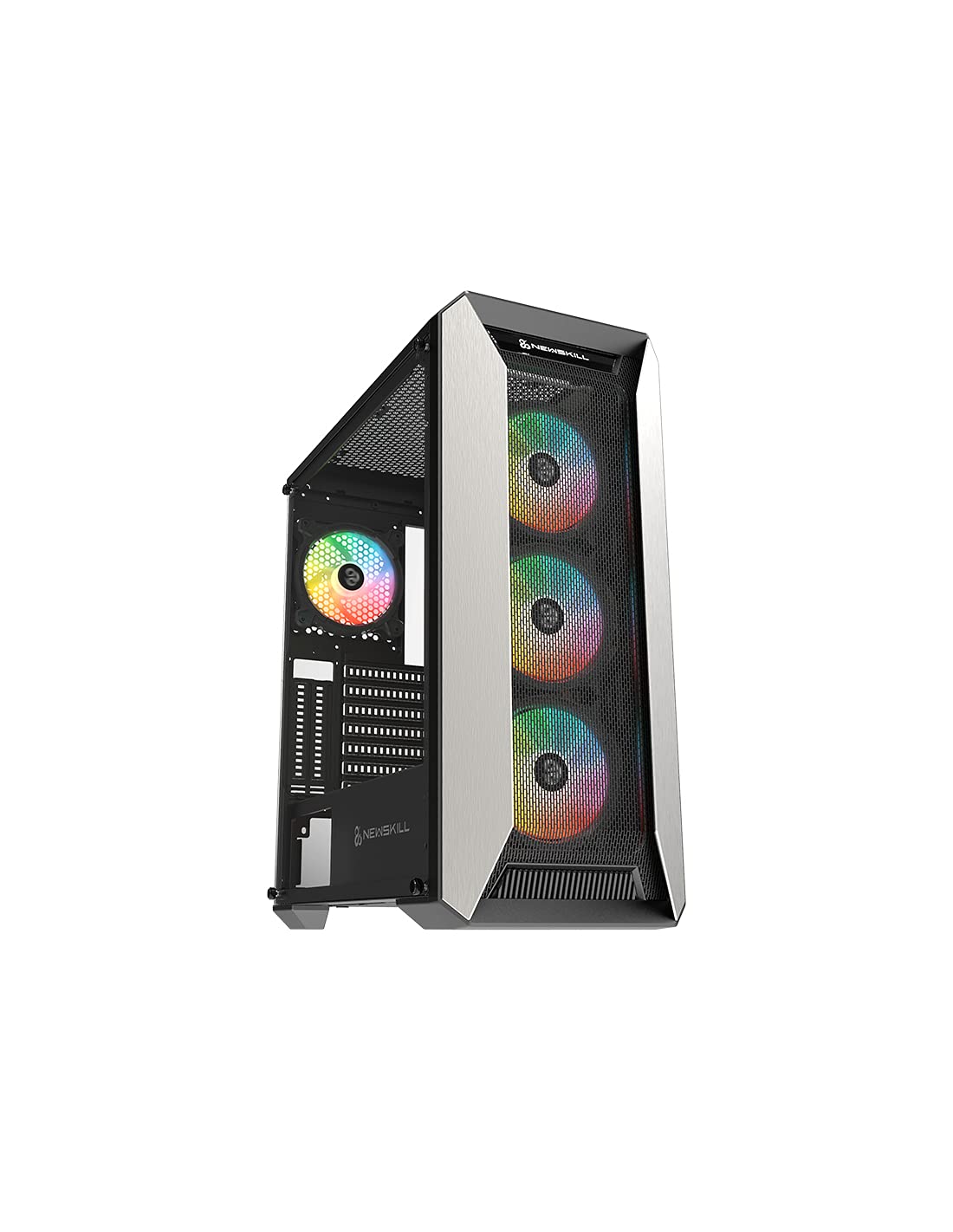
รูปที่ 1 : ด้านหน้า view of the Newskill Manticore Gaming PC Case, highlighting the mesh front and tempered glass side panel.
คุณสมบัติหลัก:
- ATX Mid-Tower compatibility
- Mesh front panel for optimized airflow
- แผงข้างกระจกนิรภัย
- Four pre-installed 120mm ARGB fans
- Two removable dust filters
- USB 3.0 connectivity on the front panel
การติดตั้งและการตั้งค่า
1. การแกะกล่อง
Carefully remove the PC case from its packaging. Inspect for any damage that may have occurred during shipping. Retain the packaging for future transport or warranty claims.
2. การระบุส่วนประกอบ
ก่อนการติดตั้ง โปรดทำความคุ้นเคยกับส่วนประกอบของเคสและอุปกรณ์เสริมที่ให้มาด้วย:
- Newskill Manticore PC Case
- กล่องอุปกรณ์เสริม (สกรู, เคเบิลไทร์, ตัวยึด)
- คู่มือการใช้งาน (เอกสารนี้)
3. การติดตั้งเมนบอร์ด
- ถอดแผงกระจกนิรภัยด้านข้างออกโดยการคลายสกรูหัวแม่มือ
- Install the necessary motherboard standoffs into the motherboard tray.
- Carefully place your ATX motherboard onto the standoffs, aligning the screw holes.
- ยึดเมนบอร์ดด้วยสกรูที่ให้มา
4. การติดตั้งชุดจ่ายไฟ (PSU)
- ค้นหาพื้นที่ติดตั้ง PSU ที่ด้านหลังล่างของเคส
- Slide your PSU into position from the rear of the case.
- ยึดพาวเวอร์ซัพพลายด้วยสกรูจากด้านหลังตัวเคส
5. การติดตั้งไดรฟ์จัดเก็บข้อมูล
The case supports various storage configurations. Refer to your specific drive type for mounting instructions (e.g., 2.5" SSDs, 3.5" HDDs).
6. การติดตั้งการ์ดจอและการ์ดขยาย
Remove the necessary PCIe slot covers and install your graphics card or other expansion cards, securing them with screws.
7. การเชื่อมต่อแผงด้านหน้า
Connect the front panel cables (USB 3.0, HD Audio, Power Switch, Reset Switch, Power LED, HDD LED) to the corresponding headers on your motherboard. Consult your motherboard manual for exact pin layouts.
8. การจัดการสายเคเบิล
ใช้ช่องเจาะและจุดยึดสายเคเบิลด้านหลังถาดเมนบอร์ดเพื่อจัดระเบียบสายเคเบิล ซึ่งจะช่วยเพิ่มการไหลเวียนของอากาศและทำให้ดูสวยงามยิ่งขึ้น
คำแนะนำการใช้งาน
การเปิด/ปิดเครื่อง
Press the power button located on the top panel of the case to turn on your system. To shut down, use the operating system's power-off function or press and hold the power button for several seconds for a forced shutdown (not recommended for regular use).
การควบคุมแสง ARGB
The pre-installed ARGB fans can be controlled via your motherboard's ARGB software (if compatible) or a dedicated ARGB controller (if included or purchased separately). Refer to your motherboard or controller manual for specific instructions on changing lighting effects and colors.
การซ่อมบำรุง
การทำความสะอาดตัวกรองฝุ่น
The Newskill Manticore includes two removable dust filters (typically located on the top and bottom/front). Regularly clean these filters to maintain optimal airflow and prevent dust buildup inside your PC. Gently slide them out, clean with water and mild soap, or use a vacuum cleaner, and ensure they are completely dry before re-inserting.
การทำความสะอาดภายนอก
เช็ดพื้นผิวภายนอกด้วยผ้านุ่ม damp ใช้ผ้าเช็ดทำความสะอาด หลีกเลี่ยงน้ำยาทำความสะอาดที่มีฤทธิ์กัดกร่อนหรือตัวทำละลายที่อาจทำให้พื้นผิวหรือกระจกนิรภัยเสียหายได้
การแก้ไขปัญหา
ไม่มีไฟฟ้า
- ตรวจสอบให้แน่ใจว่า PSU เชื่อมต่อกับเต้ารับที่ผนังอย่างถูกต้องและเปิดเครื่องอยู่
- ตรวจสอบให้แน่ใจว่าสายไฟทั้งหมดจากพาวเวอร์ซัพพลายเชื่อมต่อกับเมนบอร์ดและส่วนประกอบต่างๆ อย่างถูกต้อง
- ตรวจสอบการเชื่อมต่อของสวิตช์เปิดปิดแผงด้านหน้ากับเมนบอร์ด
พัดลมไม่หมุน / ไฟ ARGB ไม่ติด
- Confirm fan power cables are securely connected to the motherboard or fan controller.
- Check ARGB connections to the motherboard's ARGB header or dedicated controller.
- Ensure ARGB software or controller settings are correctly configured.
Poor Airflow / Overheating
- Clean dust filters regularly.
- Ensure no obstructions are blocking air intake or exhaust vents.
- Verify all fans are spinning correctly and oriented for optimal airflow.
For further assistance, please contact Newskill support.
ข้อมูลจำเพาะ
| คุณสมบัติ | รายละเอียด |
|---|---|
| ชื่อรุ่น | แมนติคอร์ |
| หมายเลขรุ่น | 1102 |
| ประเภทเคส | มิดทาวเวอร์ |
| ความเข้ากันได้ของเมนบอร์ด | เอทีเอ็กซ์ |
| ขนาด (กว้าง x ยาว x สูง) | 60 x 60 x 85 ซม. |
| น้ำหนัก | 1 กก. |
| วัสดุ | กระจกนิรภัย, โลหะ |
| วิธีการทำความเย็น | Air (4x 120mm ARGB fans included) |
| พอร์ต I / O ด้านหน้า | USB 3.0, Audio Jacks, Power, Reset |
| แผ่นกรองฝุ่น | 2 (ถอดออกได้) |
| ข้อแนะนำการใช้ | การเล่นเกม |
ข้อมูลการรับประกัน
The Newskill Manticore PC Case comes with a การรับประกันจากผู้ผลิต 2 ปี. This warranty covers defects in materials and workmanship under normal use. It does not cover damage caused by misuse, accident, modification, or unauthorized repair. Please retain your proof of purchase for warranty claims.
การสนับสนุนและการติดต่อ
For technical support, troubleshooting assistance, or warranty inquiries, please visit the official Newskill website or contact their customer service department. You can find contact information on the Newskill webเว็บไซต์: www.newskillgaming.com