
1. บทนำ
Welcome to the user manual for your Bmax Y13Pro 13.3-inch Convertible 2-in-1 FHD Touchscreen Laptop. This document provides essential information to help you set up, operate, maintain, and troubleshoot your device. Please read this manual thoroughly to ensure optimal performance and longevity of your laptop.
2. เนื้อหาบรรจุภัณฑ์
Upon unpacking your Bmax Y13Pro laptop, please verify that all the following items are included:
- BMAX MaxBook Y13Pro (2-in-1 laptop) x 1
- 24W DC Power Adapter x 1 with Replaceable Plug x 3 (US Standard Plug x 1, UK Standard Plug x 1, EU Standard Plug x 1)
- บัตรรับประกัน x 1
- คู่มือผู้ใช้ x 1 (เอกสารฉบับนี้)
- Safety Document x 1

Image: The Bmax Y13Pro laptop in its closed state, showcasing the sleek metal body from a top perspective.
3. การตั้งค่าและการใช้งานครั้งแรก
3.1. Charging the Laptop
Before initial use, connect the provided 24W DC Power Adapter to the laptop's charging port and a power outlet. Allow the laptop to charge for at least 30 minutes or until the battery indicator shows sufficient charge. The laptop can be used while charging.
3.2. การเปิด/ปิดเครื่อง
- การเปิดเครื่อง: Press and hold the power button located on the side of the laptop until the screen illuminates.
- วิธีปิดเครื่อง: Click the Windows Start button, then select 'Power' and choose 'Shut down'. Alternatively, press and hold the power button for several seconds to force a shutdown (use only when necessary).
3.3. การตั้งค่า Windows 10 ครั้งแรก
The first time you power on the laptop, you will be guided through the Windows 10 setup process. Follow the on-screen instructions to configure language, region, network connection, user account, and privacy settings. An active internet connection is recommended for this process to ensure all necessary updates are downloaded.
3.4. การเชื่อมต่อกับ Wi-Fi
During the Windows setup or at any time:
- Click the Wi-Fi icon in the taskbar (usually in the bottom-right corner).
- เลือกเครือข่าย Wi-Fi ที่คุณต้องการจากรายการ
- ป้อนรหัสความปลอดภัยเครือข่าย (รหัสผ่าน) หากได้รับแจ้ง
- คลิก 'เชื่อมต่อ'
4. การใช้งานแล็ปท็อปของคุณ
4.1. โหมดปรับเปลี่ยนได้
The Bmax Y13Pro features a 360-degree hinge, allowing it to transform into various modes:
- โหมดแล็ปท็อป: การกำหนดค่าแล็ปท็อปแบบดั้งเดิมสำหรับการพิมพ์และการทำงาน
- โหมดเต็นท์: พับหน้าจอกลับให้เป็นรูปตัว "V" กลับหัว เหมาะสำหรับการชมวิดีโอหรือการนำเสนอในพื้นที่จำกัด
- โหมดสแตนด์บาย: Fold the screen back so the keyboard acts as a stand, bringing the display closer for touch interaction.
- โหมดแท็บเล็ต: Fold the screen completely back against the base, converting the device into a tablet for touch-first applications.

Image: The Bmax Y13Pro laptop configured in tent mode, with the screen angled for viewการไอเอ็นจี

Image: The Bmax Y13Pro laptop fully converted into tablet mode, with the display facing upwards.
4.2. ฟังก์ชันการใช้งานหน้าจอสัมผัส
The 13.3-inch FHD IPS display supports 10-point multi-touch. You can interact with the operating system and applications using touch gestures similar to a tablet or smartphone. Common gestures include tapping, swiping, pinching to zoom, and two-finger scrolling.
4.3. Backlit Keyboard
The Bmax Y13Pro features a backlit keyboard with two adjustable brightness levels. To control the backlight:
- กดปุ่ม F2 key to cycle through backlight settings: Off, Low, High.
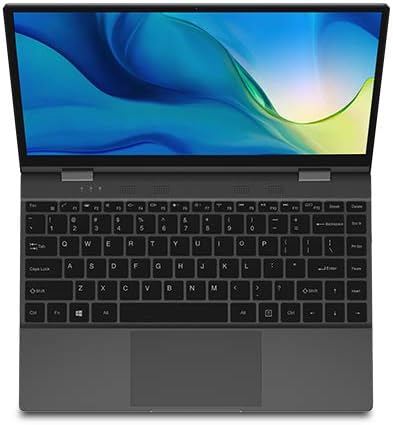
ภาพ: จากบนลงล่าง view of the Bmax Y13Pro laptop, open to reveal the keyboard and display.
4.4. พอร์ตและการเชื่อมต่อ
The laptop is equipped with various ports for connectivity:
| ประเภทพอร์ต | คำอธิบาย |
|---|---|
| USB-C (Full Function) | Supports Power Delivery, HDMI output, and USB 3.0 data transfer. |
| พอร์ต USB-C (USB 3.0) | Supports USB 3.0 data transfer. |
| เครื่องอ่านการ์ด SD | สำหรับอ่านและเขียนข้อมูลลงในการ์ดหน่วยความจำ SD |
| เสียงแจ็ค Combo | เชื่อมต่อหูฟังหรือชุดหูฟังที่มีไมโครโฟน |
| พอร์ตไฟ DC | Dedicated port for connecting the power adapter. |
The laptop also supports 802.11a/b/g/n/ac Wi-Fi and Bluetooth 4.2 for wireless connectivity.
5. การบำรุงรักษาและการดูแล
5.1. การทำความสะอาดแล็ปท็อปของคุณ
- หน้าจอ: ใช้ผ้านุ่มไม่เป็นขุยค่อยๆ งampล้างออกด้วยน้ำหรือน้ำยาทำความสะอาดหน้าจอ หลีกเลี่ยงสารเคมีรุนแรง
- Body and Keyboard: ใช้ผ้านุ่มและแห้ง สำหรับคราบฝังแน่น ให้เช็ดเบาๆamp cloth can be used. Ensure no liquid enters ports or openings.
- พอร์ต: ใช้ลมอัดเพื่อเป่าฝุ่นออกจากพอร์ตอย่างอ่อนโยน
5.2. การจัดการแบตเตอรี่
เพื่อยืดอายุการใช้งานและประสิทธิภาพของแบตเตอรี่ให้สูงสุด:
- หลีกเลี่ยงการปล่อยแบตเตอรี่จนหมดบ่อยครั้ง
- อย่าวางแล็ปท็อปไว้ในที่ที่มีอุณหภูมิสูงหรือต่ำเกินไป
- Unplug the charger once the battery is fully charged if you plan to use it on battery power soon.
- หากเก็บแล็ปท็อปไว้เป็นเวลานาน ควรชาร์จแบตเตอรี่ให้ได้ประมาณ 50-70% ก่อนที่จะปิดเครื่อง
5.3. การอัปเดตซอฟต์แวร์
ตรวจสอบและติดตั้งการอัปเดต Windows เป็นประจำ เพื่อให้แน่ใจว่าระบบของคุณมีแพทช์ความปลอดภัยล่าสุดและการปรับปรุงประสิทธิภาพ ไปที่ การตั้งค่า > การอัปเดตและความปลอดภัย > Windows Update.
6 การแก้ไขปัญหา
This section addresses common issues you might encounter with your Bmax Y13Pro laptop.
6.1. อุปกรณ์ไม่เปิดเครื่อง
- ตรวจสอบให้แน่ใจว่าอะแดปเตอร์ไฟฟ้าเชื่อมต่อกับแล็ปท็อปและเต้ารับไฟฟ้าที่ใช้งานได้แน่นหนา
- ตรวจสอบว่าเต้ารับไฟฟ้าใช้งานได้โดยเสียบอุปกรณ์อื่น
- Allow the laptop to charge for at least 15-30 minutes before attempting to power it on again.
- ลองรีเซ็ตเครื่องโดยการกดปุ่มเปิด/ปิดค้างไว้ 10-15 วินาที
6.2. ประสิทธิภาพช้า
- Close unnecessary applications and browser tabs.
- รีสตาร์ทแล็ปท็อป
- ตรวจสอบและติดตั้งการอัปเดต Windows ที่รอดำเนินการอยู่
- รันการล้างข้อมูลบนดิสก์และดีแฟร็กเมนต์ (สำหรับ HDD ไม่จำเป็นสำหรับ SSD)
- ตรวจสอบให้แน่ใจว่าพื้นที่จัดเก็บข้อมูล (SSD) ของคุณยังไม่ใกล้เต็ม
6.3. Battery Draining Quickly / Overheating
- ลดความสว่างหน้าจอ
- Close power-intensive applications running in the background.
- ตรวจสอบให้แน่ใจว่ามีการระบายอากาศที่เหมาะสม อย่าปิดกั้นช่องระบายอากาศ
- Avoid using the laptop on soft surfaces like beds or couches that can obstruct airflow.
- ถอดอุปกรณ์ต่อพ่วงภายนอกออกเมื่อไม่ได้ใช้งาน
- Update drivers, especially graphics drivers.
6.4 ปัญหาการเชื่อมต่อ Wi-Fi หรือ Bluetooth
- Toggle Wi-Fi/Bluetooth off and on in Windows settings.
- รีสตาร์ทเราเตอร์/โมเด็มของคุณ
- ตรวจสอบให้แน่ใจว่าคุณอยู่ในระยะสัญญาณของเครือข่าย Wi-Fi หรืออุปกรณ์บลูทูธ
- Update network adapter drivers via Device Manager.
6.5. ไฟแบ็คไลท์ของคีย์บอร์ดไม่ทำงาน
- กดปุ่ม F2 key to ensure the backlight is not turned off or set to the lowest brightness.
- รีสตาร์ทแล็ปท็อป
7. ข้อมูลจำเพาะ
Below are the technical specifications for the Bmax Y13Pro laptop:
| คุณสมบัติ | ข้อมูลจำเพาะ |
|---|---|
| ชื่อรุ่น | Y13Pro |
| โปรเซสเซอร์ | Intel Core m5-6Y54 (up to 2.70GHz) |
| ระบบปฏิบัติการ | Windows 10 Home 64 บิต |
| กราฟฟิก | กราฟิก Intel HD 515 แบบบูรณาการ |
| แรม | 8 GB LPDDR3 2133 MHz (Onboard) |
| พื้นที่จัดเก็บ | 256 GB M.2 2280 SATA SSD |
| แสดง | 13.3-inch FHD (1920 x 1080) IPS Glossy Multi-touch |
| กล้อง | กล้อง HD 720p |
| เสียง | Built-in Two-channel Speaker |
| อายุการใช้งานแบตเตอรี่ | Up to 6 hours (FHD) |
| ขนาด (กว้าง x ลึก x สูง) | 12.1 x 8.2 x 0.6 นิ้ว (307.5 x 208 x 14.7 มม.) |
| น้ำหนัก | 2.8 ปอนด์ (1.25 กก.) |
| การเชื่อมต่อ | 802.11a/b/g/n/ac Wi-Fi, บลูทูธ 4.2 |
| พอร์ต | 1x USB-C (PowerDelivery, HDMI, USB 3.0 Full Function), 1x USB-C (USB 3.0), 1x SD Card Reader, Audio Combo Jack |
| วัสดุตัวเครื่อง | ตัวถังทำจากโลหะทั้งหมด |
8. การรับประกันและการสนับสนุน
8.1. ข้อมูลการรับประกัน
Your Bmax Y13Pro laptop comes with a Guarantee Card. Please refer to this card for detailed information regarding the warranty period, terms, and conditions. Keep your proof of purchase in a safe place as it may be required for warranty claims.
8.2. การสนับสนุนลูกค้า
If you encounter issues that cannot be resolved using the troubleshooting steps in this manual, or if you require further assistance, please contact Bmax customer support. Refer to the contact information provided on your Guarantee Card or visit the official Bmax webเว็บไซต์สำหรับทรัพยากรสนับสนุน