1. บทนำ
This instruction manual provides detailed information on the setup, operation, and maintenance of your DIHOOM Wireless Security Camera NVR. This NVR (Network Video Recorder) unit is designed to work with DIHOOM wireless surveillance cameras, supporting up to 8 cameras with 5-megapixel resolution. It features H.265+ compression for efficient storage and supports both local and remote monitoring via smartphone or PC.

ภาพ: ด้านหน้า view of the DIHOOM Wireless Security Camera NVR unit, showing its compact design and two antennas.
2. สินค้าหมดview และส่วนประกอบ
Familiarize yourself with the various ports and indicators on your NVR unit.

Image: Diagram illustrating the components and ports of the DIHOOM NVR. Key components include: (1) Power Lamp, (2) HDD Lamp, (3) RUN Lamp, (4) Antennas, (5) USB Port, (6) VGA Port, (7) Switch Button, (8) Power Port, (9) LAN Port, (10) HDMI Port.
- พลังงาน Lamp: ระบุสถานะพลังงานของเครื่อง
- HDD Lamp: Indicates the status of the hard disk drive.
- วิ่งหนีamp: แสดงสถานะการทำงานของ NVR
- เสาอากาศ: สำหรับการสื่อสารไร้สายกับกล้องถ่ายรูป
- พอร์ต USB: สำหรับเชื่อมต่อเมาส์หรืออุปกรณ์จัดเก็บข้อมูลภายนอก
- พอร์ต VGA: For connecting to a monitor via VGA cable.
- ปุ่มสวิตช์: สวิตช์เปิด/ปิด.
- พอร์ตไฟ: สำหรับการเชื่อมต่ออะแดปเตอร์ไฟฟ้า
- พอร์ต LAN: สำหรับการเชื่อมต่อเครือข่ายแบบใช้สายเข้ากับเราเตอร์
- พอร์ต HDMI: For connecting to a monitor via HDMI cable.
3. คู่มือการติดตั้ง
The DIHOOM NVR is designed for easy setup with minimal configuration required for wireless cameras.

Image: Visual guide for NVR setup. Steps include: 1. Powering on the camera and connecting the NVR to a router. 2. Downloading the mobile application. 3. Viewกำลังบันทึก
3.1 Initial Wireless Connection
- เปิดกล้อง: Ensure all DIHOOM wireless cameras are powered on and within range of the NVR.
- เปิดเครื่อง NVR: Connect the power adapter to the NVR's power port and plug it into an electrical outlet. The NVR will power on automatically.
- เชื่อมต่อกับจอแสดงผล: เชื่อมต่อ NVR เข้ากับจอภาพหรือทีวีโดยใช้พอร์ต HDMI หรือ VGA
- การจับคู่อัตโนมัติ: The NVR will automatically detect and pair with powered-on DIHOOM wireless cameras. Live feeds should appear on the connected display.
3.2 การเชื่อมต่อแบบใช้สาย (ไม่บังคับ)
For improved signal strength or specific network configurations, individual cameras can be connected to the NVR via an Ethernet cable.
- ต่อปลายด้านหนึ่งของสายอีเธอร์เน็ตเข้ากับพอร์ต LAN ของกล้อง
- Connect the other end of the Ethernet cable to an available LAN port on the NVR.
- The NVR will automatically switch the camera's connection to wired mode.
3.3 การตั้งค่าการตรวจสอบระยะไกล
เพื่อเปิดใช้งานระยะไกล viewing via smartphone or PC, the NVR must be connected to your home network.
- เชื่อมต่อ NVR กับเราเตอร์: Use an Ethernet cable to connect the NVR's LAN port to an available port on your internet router.
- ดาวน์โหลดแอพ: Download the official DIHOOM monitoring application from your smartphone's app store (App Store for iOS, Google Play for Android).
- ลงทะเบียน/เข้าสู่ระบบ: Follow the in-app instructions to register an account and add your NVR device using its unique ID or QR code.
- ไคลเอนต์พีซี: For PC monitoring, download the dedicated client software from the official DIHOOM webเว็บไซต์.
4. การใช้งาน NVR
4.1 สด View and Playback (Local Operation)
When connected to a display, you can perform real-time viewing, playback, and system settings directly on the NVR using a USB mouse.
- แบบเรียลไทม์ Viewการลง: Displays live feeds from all connected cameras.
- การเล่นซ้ำ: การเข้าถึงที่บันทึกไว้ footage stored on the installed HDD.
- การตั้งค่า: Configure various NVR parameters, including recording modes, network settings, and user management.
4.2 โหมดการบันทึก
The NVR supports three primary recording modes to suit different surveillance needs.
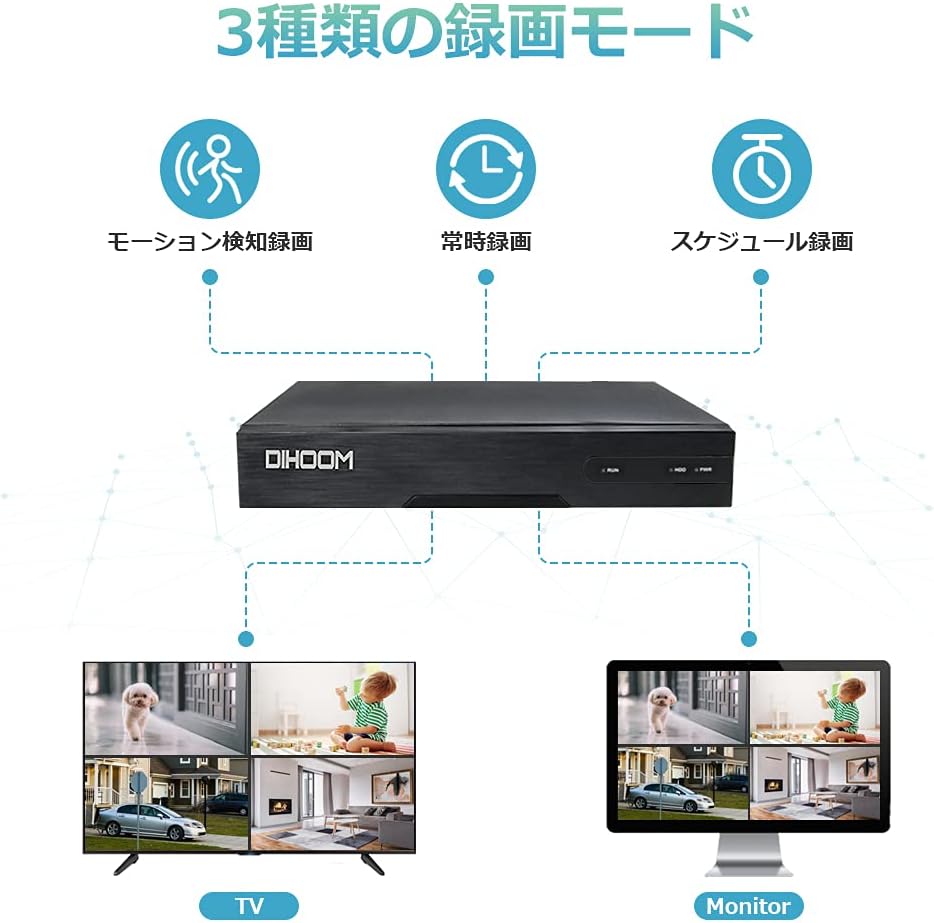
Image: Diagram illustrating the three recording modes: Motion Detection Recording, Continuous Recording, and Schedule Recording. Below are examples of multi-camera views on a TV and a monitor.
- การบันทึกต่อเนื่อง: Records 24/7 without interruption.
- กำหนดการบันทึก: Allows you to set specific times for recording.
- การบันทึกการตรวจจับความเคลื่อนไหว: Records only when motion is detected, saving storage space. When abnormal movement is detected, the NVR will trigger a buzzer alarm and send notifications to your smartphone.

Image: Illustration of the motion detection feature, showing a camera detecting human movement and the NVR unit emitting an alarm sound.
5. คุณสมบัติหลัก
- 5 Megapixel Resolution Support: The NVR's default resolution is 5MP (2560x1920), providing clear and detailed images. It supports five different resolution settings for monitoring systems.
- H.265+ High Compression Technology: Adopting H.265+ compression technology, this NVR saves approximately half the HDD capacity compared to conventional H.264. This also reduces bandwidth usage, resulting in smoother video playback.

Image: Comparison of H.264, H.265, and H.265+ compression, showing H.265+ offers significantly longer recording times for the same storage capacity (e.g., 27 days vs. 9 days for 1TB HDD).
- Supports up to 8 Cameras: This NVR can be expanded to support up to 8 wireless security cameras, allowing for comprehensive surveillance coverage.
- Local and Remote Operation: The NVR supports local operation (real-time viewing, playback, settings) without an internet connection when connected to a display. For remote monitoring via smartphone or PC, a wired LAN connection to a router is required.
6. การบำรุงรักษา
Proper maintenance ensures the longevity and optimal performance of your DIHOOM NVR.
- การทำความสะอาด: Regularly wipe the NVR unit with a soft, dry cloth. Do not use liquid cleaners or aerosols.
- การระบายอากาศ : ควรวางเครื่องบันทึกวิดีโอเครือข่าย (NVR) ในบริเวณที่มีการระบายอากาศดี เพื่อป้องกันความร้อนสูงเกินไป ห้ามปิดกั้นช่องระบายอากาศ
- อัพเดตเฟิร์มแวร์: Periodically check the DIHOOM official website for firmware updates to ensure your system has the latest features and security patches.
- สุขภาพของฮาร์ดดิสก์: หากมีการติดตั้ง HDD ให้ตรวจสอบสุขภาพของ HDD ผ่านการตั้งค่าระบบของ NVR เพื่อป้องกันการสูญเสียข้อมูล
7 การแก้ไขปัญหา
This section addresses common issues you might encounter with your DIHOOM NVR.
| ปัญหา | สาเหตุที่เป็นไปได้ | สารละลาย |
|---|---|---|
| ไม่มีภาพแสดง | สายเคเบิลเชื่อมต่อหลวม, แหล่งสัญญาณเข้าบนจอภาพไม่ถูกต้อง, เครื่องบันทึกวิดีโอเครือข่าย (NVR) ไม่ได้เปิดใช้งาน | Check HDMI/VGA cable connection. Ensure monitor input is set correctly. Verify NVR power lamp อยู่บนแล้ว |
| Cameras not showing up. | Cameras not powered on, out of range, interference, or not paired. | Ensure cameras are powered. Reduce distance between NVR and cameras. Try wired connection for problematic cameras. Re-pair cameras if necessary (refer to NVR settings). |
| ระยะไกล viewing not working. | NVR not connected to router, network issues, incorrect app settings. | Verify NVR is connected to router via LAN cable. Check router's internet connection. Ensure correct device ID/QR code is entered in the app. |
| Recording not happening. | No HDD installed, HDD full, incorrect recording schedule, motion detection not triggered. | Install a compatible HDD (up to 6TB). Check HDD status and free space. Verify recording schedule or motion detection settings. |
8. ข้อมูลจำเพาะ
| คุณสมบัติ | รายละเอียด |
|---|---|
| ยี่ห้อ | ไดฮูม |
| ประเภทโมเดล | Wireless Security Camera NVR (Recorder Unit) |
| ASIN | B09362BY11 |
| ยูพีซี | 631851245137 |
| เทคโนโลยีการเชื่อมต่อ | Wi-Fi (ไร้สาย), อีเธอร์เน็ต (แบบมีสาย) |
| จำนวนช่อง | 8 (รองรับกล้องได้สูงสุด 8 ตัว) |
| ความละเอียดสูงสุด | 5 ล้านพิกเซล (2560x1920) |
| การบีบอัดวิดีโอ | H.265 + |
| รองรับ HDD | ความจุสูงสุด 6TB (ไม่รวมฮาร์ดดิสก์) |
| ขนาดแพ็คเกจ | 50 x 46 x 39 ซม. |
| น้ำหนักแพ็คเกจ | 13.6 กก. |
9. การรับประกันและการสนับสนุน
DIHOOM is committed to providing high-quality products and excellent customer support.


Image: Left: DIHOOM customer support representatives ready to assist. Right: DIHOOM's quality control process, ensuring each product is inspected before shipment.
- การรับรองคุณภาพ: Products undergo rigorous inspection before shipment.
- การสนับสนุนด้านเทคนิค: Professional technical support is available for assistance with product setup, operation, and troubleshooting.
- ข้อมูลติดต่อ: For support inquiries, please refer to the contact details provided on the DIHOOM official webเว็บไซต์หรือเอกสารการซื้อของคุณ