
1. บทนำ
This manual provides instructions for the ELECROW 8-inch Portable Monitor, Model DIS00008R. This compact monitor features a 1280x800 resolution, a 16:10 aspect ratio, and built-in dual speakers. It is designed for compatibility with various HDMI-enabled devices, including Raspberry Pi, PCs, and game consoles. The monitor supports VESA mounting for flexible installation options.

Image 1.1: The ELECROW 8-inch Portable Monitor displaying a colorful image.
2. อะไรอยู่ในกล่อง
ตรวจสอบว่าแพ็คเกจของคุณมีส่วนประกอบทั้งหมดต่อไปนี้:
- 1 x ELECROW 8-inch Portable Monitor
- สายเคเบิล HD เป็น Mini HD จำนวน 1 เส้น
- 1 x USB Power Cord (USB A to Micro USB)
- 1 x ขาตั้งโลหะ
- 1 x คู่มือผู้ใช้ (เอกสารนี้)

ภาพที่ 2.1: รายการสิ่งของทั้งหมดที่บรรจุอยู่ในแพ็คเกจสินค้า
3. คำแนะนำในการตั้งค่า
3.1 การเชื่อมต่อจอภาพ
To set up the monitor, connect the mini HD port for video signal transmission and the USB port for power. Only two cables are required for operation.
- Connect one end of the provided HD to Mini HD cable to your source device (e.g., PC, Raspberry Pi, game console) and the other end to the mini HD port on the monitor.
- Connect the USB power cord to the monitor's USB port and the other end to a USB power source (e.g., PC USB port, USB wall adapter, power bank).

Image 3.1: The monitor is powered via a USB cable, compatible with various USB power sources.
3.2 การติดตั้ง VESA
The monitor supports VESA mounting for alternative installation options. Refer to the VESA mounting standard for compatible brackets and installation procedures.

Image 3.2: The monitor offers wide compatibility with devices outputting HD signals.
4. คู่มือการใช้งาน
4.1 การทำงานพื้นฐาน
Once connected to a power source and a video input, the monitor will automatically display the input signal. Use the buttons on the monitor (typically labeled Menu, +, -, Auto) to navigate the on-screen display (OSD) menu and adjust settings such as brightness, contrast, and color.
4.2 Resolution Adjustment
The optimal resolution for this monitor is 1280 x 800. If you experience display issues such as white lines or flickering, adjust the output resolution of your connected device to 1280 x 800.

Image 4.1: The monitor's native resolution is 1280x800.
4.3 Horizontal and Vertical Modes
The monitor can be used in both horizontal (landscape) and vertical (portrait) orientations, depending on your application needs. Adjust the display settings on your connected device to match the desired orientation.

Image 4.2: The monitor supports both horizontal and vertical display modes.
4.4 กว้าง Viewอิงแองเกิล
The IPS screen technology provides a wide 178-degree viewการปรับมุมมองเพื่อให้มั่นใจได้ว่าคุณภาพของภาพสม่ำเสมอจากมุมมองต่างๆ

Image 4.3: The monitor offers a wide 178-degree viewมุมอิง
4.5 ลำโพงในตัว
The monitor includes built-in dual speakers for audio output. Ensure your source device is configured to send audio through the HDMI connection.
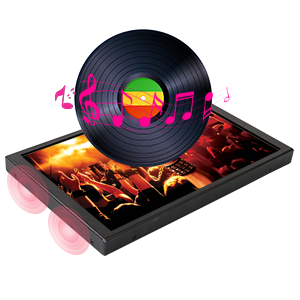
Image 4.4: The monitor features built-in speakers.
5. การบำรุงรักษา
To ensure the longevity and optimal performance of your ELECROW 8-inch Portable Monitor, follow these maintenance guidelines:
- การทำความสะอาดหน้าจอ: ใช้ผ้านุ่มไม่เป็นขุยที่ออกแบบมาสำหรับอุปกรณ์อิเล็กทรอนิกส์โดยเฉพาะ สำหรับรอยเปื้อนฝังแน่น ให้เช็ดเบาๆampen the cloth with water or a screen-cleaning solution. Avoid harsh chemicals, abrasive materials, or direct spraying onto the screen.
- การทำความสะอาด Casing: Wipe the monitor's metal casinก. ด้วยผ้าแห้งนุ่มๆ
- พื้นที่จัดเก็บ: เมื่อไม่ใช้งาน ควรเก็บจอภาพไว้ในที่แห้งและเย็น หลีกเลี่ยงแสงแดดโดยตรงและอุณหภูมิที่สูงหรือต่ำเกินไป
- การจัดการ: Handle the monitor carefully to prevent drops or impacts, which can damage internal components or the screen.
6 การแก้ไขปัญหา
หัวข้อนี้จะกล่าวถึงปัญหาทั่วไปที่คุณอาจพบกับจอภาพของคุณ
6.1 Display Flickering or White Lines
If the display flickers or shows white lines, the output resolution from your source device may not be optimal for the monitor.
- สารละลาย: Adjust the output resolution of your connected device (PC, Raspberry Pi, etc.) to the monitor's native resolution of 1280 x 800.
6.2 Washed-Out Colors
If the colors appear washed out, check the monitor's OSD settings for color adjustments (brightness, contrast, saturation). If the issue persists after adjusting settings, the unit may be faulty. Contact customer support if necessary.
6.3 ไม่มีสัญญาณ
If the monitor displays "No Signal", ensure the HD cable is securely connected to both the monitor and the source device. Verify that the source device is powered on and configured to output video.
6.4 Raspberry Pi Specific Display Issues (e.g., Black Border, Flickering)
For Raspberry Pi users experiencing issues like a black border around the screen or intermittent flickering, specific configuration adjustments may be required in the Raspberry Pi's `config.txt` file.
- สารละลาย: Access the Raspberry Pi's terminal and run the command: sudo leafpad /boot/config.txt
- Locate the following entries. If present, remove the '#' character at the beginning of the line to uncomment them, and set their values as shown:
- hdmi_force_hotplug=1
- hdmi_drive=1
- โหมด HDMI=16
- disable_overscan=1
- Save the changes to the `config.txt` file and reboot your Raspberry Pi.
7. ข้อมูลจำเพาะ
Detailed technical specifications for the ELECROW 8-inch Portable Monitor:
| คุณสมบัติ | ข้อมูลจำเพาะ |
|---|---|
| ยี่ห้อ | อิเล็คโทรโครว์ |
| ชื่อรุ่น | DIS00008R |
| ขนาดหน้าจอ | 8 นิ้ว |
| ปณิธาน | ขนาด 1280x800 |
| อัตราส่วนภาพ | 16:10 น. |
| ประเภทจอภาพ | จอ LCD (IPS) |
| อัตราการรีเฟรช | 60 เฮิรตซ์ |
| อัตราส่วนคอนทราสต์ | 800:1 น. |
| ความสว่าง | 300 ลูเมน |
| Viewอิงแองเกิล | 170 องศา |
| เวลาตอบสนอง | 16 มิลลิวินาที |
| การเชื่อมต่อ | Mini HDMI, USB Type C (for power) |
| เสียง | Built-In Dual Speakers |
| ประเภทการติดตั้ง | Desk Mount, Wall Mount (VESA compatible) |
| ขนาดสินค้า (ลึก x กว้าง x สูง) | ลึก 0.6 นิ้ว x กว้าง 7.7 นิ้ว x สูง 4.8 นิ้ว |
| น้ำหนักสินค้า | 0.71 กิโลกรัม |
| เล่มที่tage | 5 โวลต์ |

Image 7.1: Physical dimensions of the monitor.
8. การรับประกันและการสนับสนุน
8.1 ข้อมูลการรับประกัน
This ELECROW monitor comes with a การรับประกันจากผู้ผลิต 1 ปีโปรดเก็บหลักฐานการซื้อไว้เพื่อใช้เรียกร้องการรับประกัน
8.2 การสนับสนุนลูกค้า
For technical assistance, troubleshooting, or warranty inquiries, please contact ELECROW customer support. Refer to the contact information provided on the official ELECROW webเว็บไซต์หรือเอกสารการซื้อของคุณ