
Dell Inspiron 14 5000 2 in 1 5406
Dell Inspiron 14 5000 2-in-1 Business Laptop User Manual
Model: Inspiron 14 5000 2 in 1 5406
การแนะนำ
This manual provides essential information for setting up, operating, maintaining, and troubleshooting your Dell Inspiron 14 5000 2-in-1 Business Laptop. Designed for versatility, this device combines the power of a laptop with the flexibility of a tablet, featuring an 11th Gen Intel Core i7-1165G7 processor, 16GB DDR4 RAM, and a 512GB NVMe SSD.
โปรดอ่านคู่มือนี้อย่างละเอียดเพื่อให้มั่นใจว่าใช้ได้อย่างถูกต้องและยืดอายุการใช้งานอุปกรณ์ของคุณให้นานที่สุด

Figure 1: Dell Inspiron 14 5000 2-in-1 Laptop in tent mode, showcasing its flexible display.
การตั้งค่า
1. การแกะกล่องและการตรวจสอบเบื้องต้น
นำส่วนประกอบทั้งหมดออกจากบรรจุภัณฑ์อย่างระมัดระวัง ตรวจสอบว่ามีอุปกรณ์ครบตามรายการที่ระบุในส่วน "สิ่งที่อยู่ในกล่อง" ตรวจสอบแล็ปท็อปว่าไม่มีความเสียหายทางกายภาพใดๆ
- แล็ปท็อป
- อะแดปเตอร์ AC
- เอกสารประกอบ
2. การเชื่อมต่ออะแดปเตอร์ไฟฟ้า
Connect the AC adapter to the power jack on the side of your laptop and then plug the power cable into a wall outlet. The battery will begin charging automatically.

รูปที่ 2: ด้านขวา view of the laptop, highlighting the power jack, HDMI port, USB 3.2 Gen 1 Type-A port, and USB 3.2 Gen 1 Type-C port.
3. การเปิดเครื่องครั้งแรกและการตั้งค่า Windows
Press the power button to turn on your laptop. Follow the on-screen instructions to complete the Windows 10 Pro setup process. This includes selecting your region, language, connecting to a Wi-Fi network, and creating a user account.
การใช้งานแล็ปท็อปของคุณ
1. Laptop Modes
Your Inspiron 14 5000 is a 2-in-1 device, offering multiple modes for various uses:
- โหมดแล็ปท็อป: การใช้งานแล็ปท็อปแบบดั้งเดิม โดยมีแป้นพิมพ์และทัชแพด
- โหมดเต็นท์: เหมาะอย่างยิ่งสำหรับการรับชมวิดีโอหรือการนำเสนอในพื้นที่จำกัด
- โหมดสแตนด์บาย: Perfect for touch-based applications and media consumption.
- โหมดแท็บเล็ต: Fully folded back for a tablet experience, utilizing the touchscreen.

Figure 3: The laptop in its standard laptop configuration.

Figure 4: The laptop fully folded back into tablet mode, emphasizing its touchscreen functionality.
2. คีย์บอร์ดและทัชแพด
The laptop features a backlit keyboard for comfortable typing in various lighting conditions and a precision touchpad for navigation. The fingerprint reader is integrated for secure login.

รูปที่ 5: ระยะใกล้ view of the backlit keyboard and large touchpad.
3. พอร์ตการเชื่อมต่อ
แล็ปท็อปของคุณมีพอร์ตต่างๆ สำหรับเชื่อมต่ออุปกรณ์ภายนอก:
- เครื่องอ่านการ์ด SD
- USB 3.2 Gen 1 Type-A (x2)
- แจ็คคอมโบหูฟัง/ไมโครโฟน
- ช่องล็อครูปลิ่ม
- แจ็คเพาเวอร์
- HDMI1.4b-ช่องต่อ
- USB 3.2 Gen 1 Type-C (DP/Data Transfer/PowerDelivery)
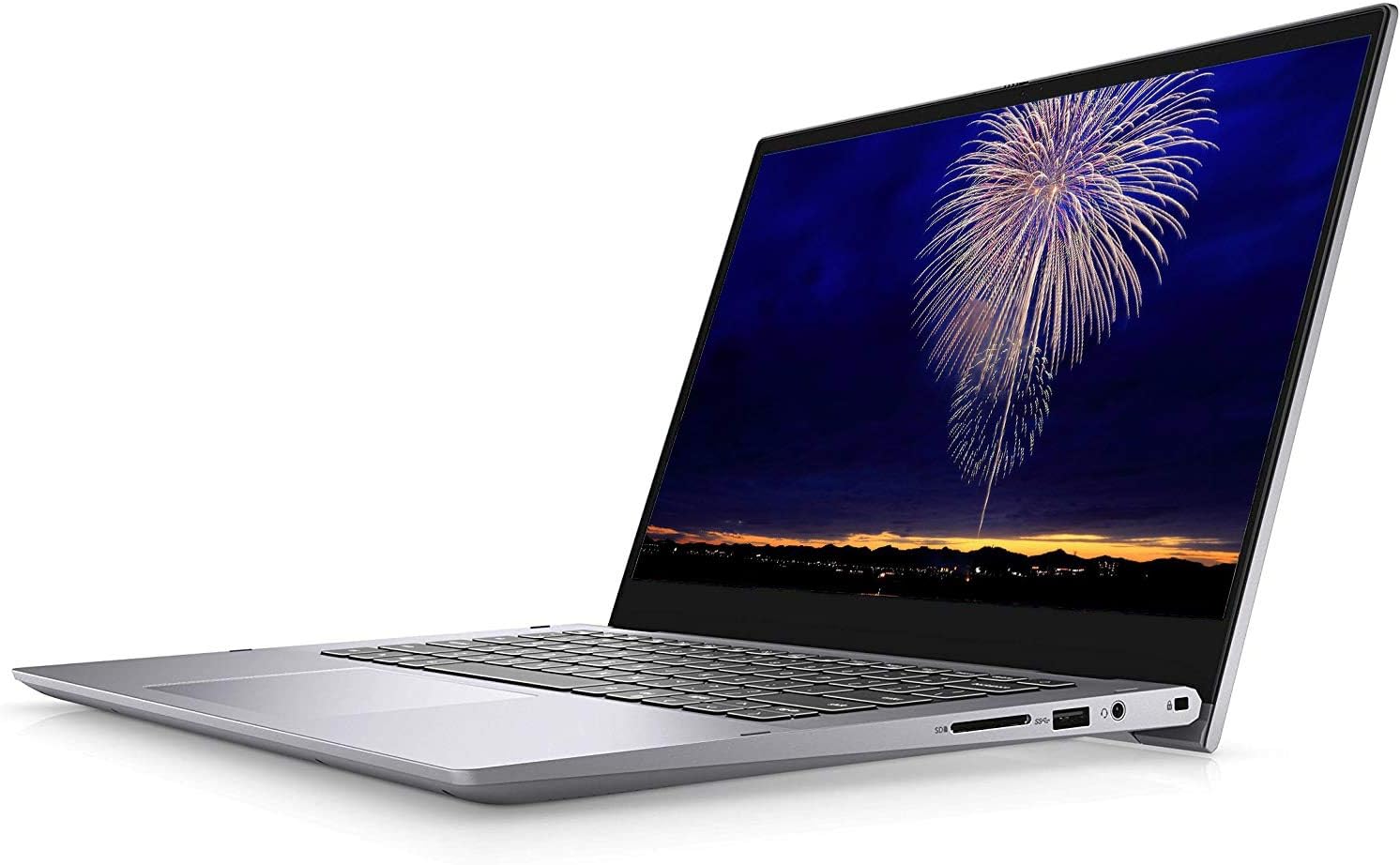
รูปที่ 6 : ด้านซ้าย view of the laptop, showing the SD card reader, USB 3.2 Gen 1 Type-A port, headphone/microphone combo jack, and wedge-shaped lock slot.

รูปที่ 7: ด้านขวา view of the laptop, showing the power jack, HDMI 1.4b port, USB 3.2 Gen 1 Type-A port, and USB 3.2 Gen 1 Type-C port.
การซ่อมบำรุง
1. การทำความสะอาดแล็ปท็อปของคุณ
Regular cleaning helps maintain your laptop's performance and appearance. Use a soft, lint-free cloth for the screen and exterior. For stubborn smudges, dampชุบผ้าด้วยน้ำหรือน้ำยาทำความสะอาดหน้าจอ หลีกเลี่ยงสารเคมีรุนแรง
2. การอัปเดตซอฟต์แวร์
Keep your Windows operating system and Dell drivers updated to ensure optimal performance, security, and compatibility. Check for updates regularly through Windows Update and Dell SupportAssist.
3. การดูแลแบตเตอรี่
เพื่อยืดอายุการใช้งานแบตเตอรี่ ควรหลีกเลี่ยงอุณหภูมิที่สูงหรือต่ำเกินไป และการปล่อยประจุแบตเตอรี่จนหมดบ่อยๆ สำหรับการเก็บรักษาในระยะยาว ควรชาร์จแบตเตอรี่ประมาณ 50% และเก็บแล็ปท็อปไว้ในที่แห้งและเย็น
การแก้ไขปัญหา
ปัญหาทั่วไปและแนวทางแก้ไข
| ปัญหา | สาเหตุที่เป็นไปได้ | สารละลาย |
|---|---|---|
| Laptop not powering on | ไม่มีไฟเข้า แบตเตอรี่หมด ปัญหาด้านฮาร์ดแวร์ | Ensure AC adapter is connected and outlet is working. Charge battery for at least 30 minutes. |
| หน้าจอว่างเปล่า | Sleep mode, display settings, hardware issue | Press any key or move mouse. Check display cable if external monitor. Restart laptop. |
| เชื่อมต่อ Wi-Fi ไม่ได้ | Incorrect password, router issue, driver issue | ตรวจสอบรหัสผ่าน Wi-Fi รีสตาร์ทเราเตอร์ อัปเดตไดรเวอร์ Wi-Fi |
| ความร้อนสูงเกินไป | Blocked vents, heavy workload | Ensure vents are clear. Use on a hard, flat surface. Close unnecessary applications. |
For more complex issues, refer to the Dell support webเข้าชมเว็บไซต์หรือติดต่อฝ่ายสนับสนุนด้านเทคนิคของ Dell
ข้อมูลจำเพาะ
| คุณสมบัติ | รายละเอียด |
|---|---|
| แบบอย่าง | Inspiron 14 5000 2 in 1 5406 |
| โปรเซสเซอร์ | โปรเซสเซอร์ Intel Core i7-1165G7 เจเนอเรชั่นที่ 11 (ความเร็วสูงสุด 4.7 GHz) |
| กราฟฟิก | Intel Iris Xe Graphics with shared memory |
| ระบบปฏิบัติการ | Windows 10 Pro 64-bit, English |
| แสดง | 14.0-inch FHD (1920 x 1080) WVA LED-Backlit Touch Display |
| แรม | แรม 16GB DDR4 |
| พื้นที่จัดเก็บ | 512GB M.2 PCIe NVMe Solid State Drive |
| การเชื่อมต่อแบบไร้สาย | Intel Wi-Fi 6 2x2 (Gig+) and Bluetooth 5.1 |
| Webลูกเบี้ยว | Yes (720 Pixels Rear Webcam Resolution) |
| แป้นพิมพ์ | แป้นพิมพ์มีไฟแบ็คไลท์ |
| เครื่องอ่านลายนิ้วมือ | ใช่ |
| สี | ไททันเกรย์ |
| ขนาด (สูง x กว้าง x ลึก) | 0.71" (17.94 mm) x 12.70" (322.50 mm) x 8.74"(221.90 mm) |
| น้ำหนัก | 3.42 ปอนด์ (1.55 กก.) |
การรับประกันและการสนับสนุน
Your Dell Inspiron 14 5000 2-in-1 Business Laptop comes with a standard manufacturer's warranty. For detailed warranty terms and conditions, please refer to the documentation included with your product or visit the official Dell support webเว็บไซต์.
For technical assistance, driver downloads, and service requests, please visit ฝ่ายสนับสนุนของ Dell or contact Dell customer service directly.
นอกจากนี้ยังมีแผนคุ้มครองเพิ่มเติมให้เลือกอีกด้วย:
- แผนคุ้มครอง 4 ปี
- แผนคุ้มครอง 2 ปี
- Complete Protect (สมัครสมาชิกรายเดือน)
Ask a question about this manual
Ask about setup, troubleshooting, compatibility, parts, safety, or missing instructions. Manuals+ will review the question and use this page’s manual context to help answer it.